
The bg command in Linux is a powerful built-in shell command that allows you to resume suspended jobs in the background. This essential tool for job control enables you to manage multiple processes efficiently within your terminal session, making it indispensable for system administrators and developers working with long-running tasks.
What is the bg Command?
The bg command stands for “background” and is used to move suspended jobs to the background, allowing them to continue execution while freeing up your terminal for other tasks. It’s part of the shell’s job control mechanism, working alongside commands like fg, jobs, and kill.
Key Features:
- Resume suspended jobs in the background
- Manage multiple processes simultaneously
- Maintain terminal availability for new commands
- Built-in shell command (no installation required)
- Works with job numbers or process IDs
Understanding Job Control Basics
Before diving into the bg command, it’s crucial to understand how job control works in Linux:
Job States:
- Running: Process is actively executing
- Stopped: Process is suspended (paused)
- Background: Process runs without terminal interaction
- Foreground: Process has terminal control
Common Job Control Signals:
Ctrl+Z– Suspend current foreground jobCtrl+C– Terminate current foreground jobCtrl+D– Send EOF signal
Basic bg Command Syntax
bg [job_spec]Where job_spec can be:
%n– Job number n%string– Job whose command begins with string%?string– Job whose command contains string%%or%+– Current job%-– Previous job
Practical Examples
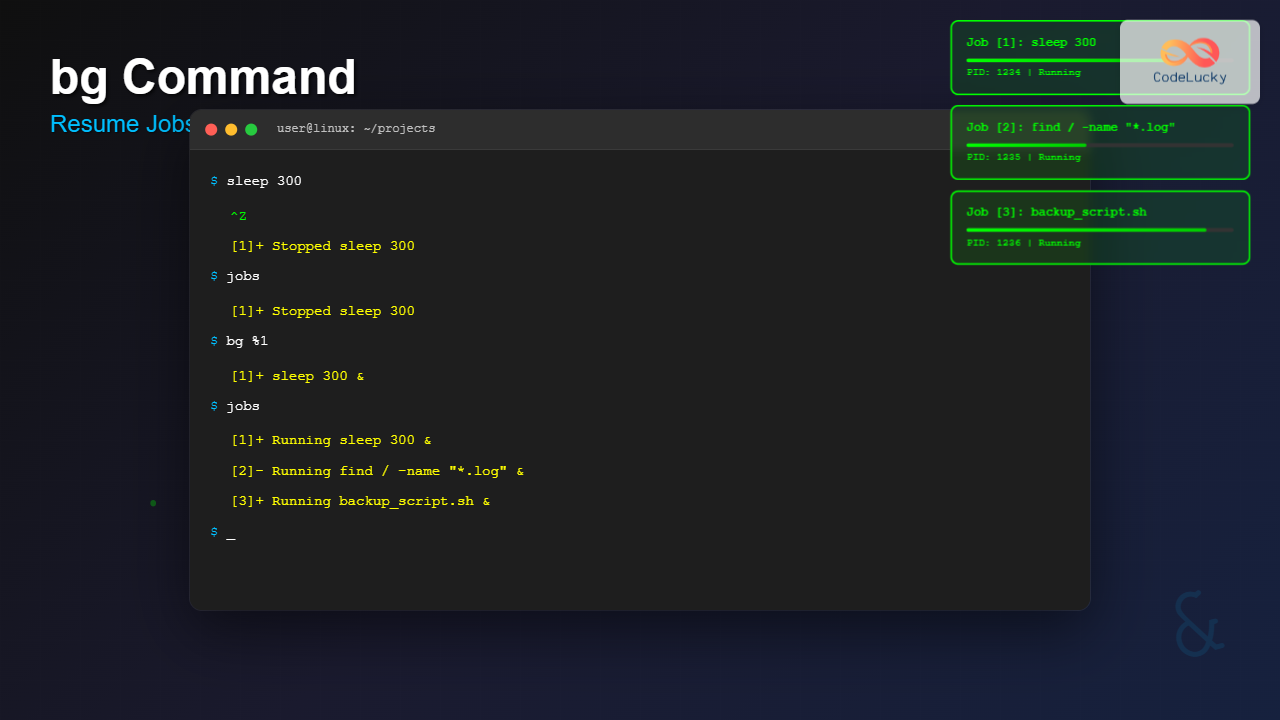
Example 1: Basic Background Job Resume
Let’s start a long-running process and manage it:
# Start a long-running command
$ sleep 300
^Z
[1]+  Stopped                 sleep 300

# Check current jobs
$ jobs
[1]+  Stopped                 sleep 300

# Resume the job in background
$ bg %1
[1]+ sleep 300 &

# Verify it's running in background
$ jobs
[1]+  Running                 sleep 300 &
Output Explanation:
[1]+indicates job number 1 is the current jobStoppedshows the job is suspended&symbol indicates background executionRunningconfirms the job is actively executing
Example 2: Multiple Job Management
# Start multiple processes
$ sleep 200 &
[1] 1234

$ sleep 400
^Z
[2]+  Stopped                 sleep 400

$ sleep 600
^Z
[3]+  Stopped                 sleep 600

# List all jobs
$ jobs
[1]   Running                 sleep 200 &
[2]-  Stopped                 sleep 400
[3]+  Stopped                 sleep 600

# Resume specific job in background
$ bg %2
[2]- sleep 400 &

# Resume most recent job
$ bg
[3]+ sleep 600 &

# Final status check
$ jobs
[1]   Running                 sleep 200 &
[2]   Running                 sleep 400 &
[3]+  Running                 sleep 600 &
Example 3: Working with Text Editors
A common scenario involves suspending and resuming text editors:
# Open file in vim
$ vim document.txt
# Press Ctrl+Z to suspend
[1]+  Stopped                 vim document.txt

# Work on other tasks
$ ls -la
$ cat another_file.txt

# Resume vim in background (not recommended for interactive apps)
$ bg %1
[1]+ vim document.txt &

# Better approach: bring back to foreground
$ fg %1
Note: Interactive applications like text editors should typically be brought to foreground using fg rather than bg.
Example 4: Script Execution Management
# Create a sample script
$ cat > long_task.sh << 'EOF'
#!/bin/bash
for i in {1..100}; do
    echo "Processing item $i"
    sleep 2
done
echo "Task completed!"
EOF

$ chmod +x long_task.sh

# Start script and suspend
$ ./long_task.sh
Processing item 1
Processing item 2
^Z
[1]+  Stopped                 ./long_task.sh

# Resume in background
$ bg %1
[1]+ ./long_task.sh &

# Continue working while script runs
$ ps aux | grep long_task
user    5678  0.0  0.1   4500   800 pts/0    S    10:30   0:00 /bin/bash ./long_task.sh
Advanced Usage Scenarios
Job Specification Methods
# Start various commands
$ find / -name "*.log" 2>/dev/null > search_results.txt
^Z
[1]+  Stopped                 find / -name *.log 2> /dev/null > search_results.txt

$ grep -r "error" /var/log/
^Z
[2]+  Stopped                 grep -r error /var/log/

# Resume using different job specifications
$ bg %find    # Resume job starting with "find"
[1]- find / -name *.log 2> /dev/null > search_results.txt &

$ bg %?error  # Resume job containing "error"
[2]+ grep -r error /var/log/ &

$ bg %%       # Resume current job (most recent)
$ bg %-       # Resume previous job
Combining with Other Job Control Commands
# Complex job management workflow
$ jobs -l
[1]  1234 Running                 sleep 300 &
[2]- 1235 Stopped                 vim file1.txt
[3]+ 1236 Stopped                 tail -f /var/log/syslog

# Resume multiple jobs selectively
$ bg %2 %3
[2]- vim file1.txt &
[3]+ tail -f /var/log/syslog &

# Kill specific background job
$ kill %1
[1]+  Terminated               sleep 300

# Verify final state
$ jobs
[2]-  Running                 vim file1.txt &
[3]+  Running                 tail -f /var/log/syslog &
Common Use Cases
1. File Operations
# Large file copying
$ cp large_file.iso /backup/
^Z
[1]+  Stopped                 cp large_file.iso /backup/

$ bg %1
[1]+ cp large_file.iso /backup/ &
2. System Monitoring
# Start system monitoring
$ top
^Z
[1]+  Stopped                 top

$ bg %1
[1]+ top &

# Note: top in background won't display properly
3. Development Tasks
# Compile large project
$ make -j4
^Z
[1]+  Stopped                 make -j4

$ bg %1
[1]+ make -j4 &
Error Handling and Troubleshooting
Common Errors:
# Trying to resume non-existent job
$ bg %5
bash: bg: %5: no such job

# Job already running
$ bg %1
bash: bg: job already in background

# No current job
$ bg
bash: bg: current job has terminated
Best Practices:
- Check job status: Always use
jobsbeforebg - Redirect output: Background jobs should redirect output to files
- Monitor resources: Keep track of background processes with
ps - Clean up: Terminate unnecessary background jobs
Integration with Shell Features
Using with Pipes and Redirection
# Start piped command
$ find /usr -type f | xargs grep -l "config" > config_files.txt
^Z
[1]+  Stopped                 find /usr -type f | xargs grep -l config > config_files.txt

$ bg %1
[1]+ find /usr -type f | xargs grep -l config > config_files.txt &
Shell-Specific Behavior
The bg command behavior may vary between shells:
- Bash: Full job control support
- Zsh: Enhanced job control with additional features
- Fish: Different syntax and job numbering
- Dash/sh: Limited or no job control
Performance Considerations
Resource Management
# Monitor background job resource usage
$ jobs -p | xargs ps -o pid,ppid,pcpu,pmem,cmd

# Limit resources for background jobs
$ ulimit -t 3600  # CPU time limit
$ bg %1
System Impact
- Background jobs continue consuming CPU and memory
- Too many background jobs can slow system performance
- Always clean up completed or unnecessary jobs
- Use
nohupfor jobs that should survive terminal closure
Alternative Approaches
Starting Jobs in Background Initially
# Start directly in background
$ long_running_command &
[1] 1234

# This is often better than suspend-then-bg
Using Screen or Tmux
# For persistent sessions
$ screen -S mysession
$ long_running_command
# Detach with Ctrl+A, D

$ tmux new-session -d -s background_task 'long_running_command'
Security and Safety Tips
- Output redirection: Always redirect stdout/stderr for background jobs
- Job monitoring: Regularly check background job status
- Resource limits: Set appropriate limits for background processes
- Clean termination: Use proper signals to terminate jobs
- Log management: Ensure background jobs don’t fill up disk space
Conclusion
The bg command is an essential tool for effective terminal session management in Linux. By mastering job control techniques, you can significantly improve your productivity when working with multiple processes. Remember to combine bg with other job control commands like jobs, fg, and proper output redirection for optimal results.
Whether you’re managing long-running scripts, system monitoring tasks, or development processes, the bg command provides the flexibility to maintain an efficient workflow while keeping your terminal responsive for interactive tasks.
Related Posts
fg Command Linux: Complete Guide to Managing Background and Foreground Jobs
The fg command in Linux is a powerful job control tool that allows you to bring background processes to the...
jobs Command Linux: Complete Guide to Managing Background Jobs in Terminal
The jobs command is an essential tool for Linux users who need to manage multiple processes running in the background....
nohup Command Linux: Run Commands After Logout and Keep Processes Running
The nohup command is one of the most essential tools for Linux system administrators and developers who need to run...
sleep Command Linux: Complete Guide to Delay Execution in Scripts and Terminal
The sleep command is one of the most fundamental utilities in Linux and Unix-like systems, designed to pause execution for...

bash Command Linux: Start New Shell Sessions and Execute Scripts Efficiently
The bash command is one of the most fundamental tools in Linux systems, serving as both a command-line interpreter and...
at Command Linux: Complete Guide to Schedule One-time Tasks with Examples
The at command in Linux is a powerful utility for scheduling one-time tasks to run at specific times in the...

kill Command in Linux: Complete Guide to Terminate Processes by PID
The kill command is one of the most essential tools in Linux system administration, allowing users to terminate processes by...
htop Command Linux: Complete Guide to Advanced Process Monitoring and Management
The htop command is an enhanced, interactive version of the traditional top command that provides real-time monitoring of system processes...
parallel Command Linux: Run Commands Concurrently for Maximum Efficiency
The parallel command in Linux is a powerful tool that allows you to execute multiple commands simultaneously, dramatically improving efficiency...
killall Command Linux: Complete Guide to Kill Processes by Name
The killall command is a powerful Linux utility that allows system administrators and users to terminate processes by their name...
timeout Command Linux: Complete Guide to Running Commands with Time Limits
The timeout command in Linux is an essential utility that allows you to run commands with a specified time limit....

ps Command in Linux: Complete Guide to Process Monitoring and Management
The ps command is one of the most fundamental and powerful tools in Linux for displaying information about running processes....





