
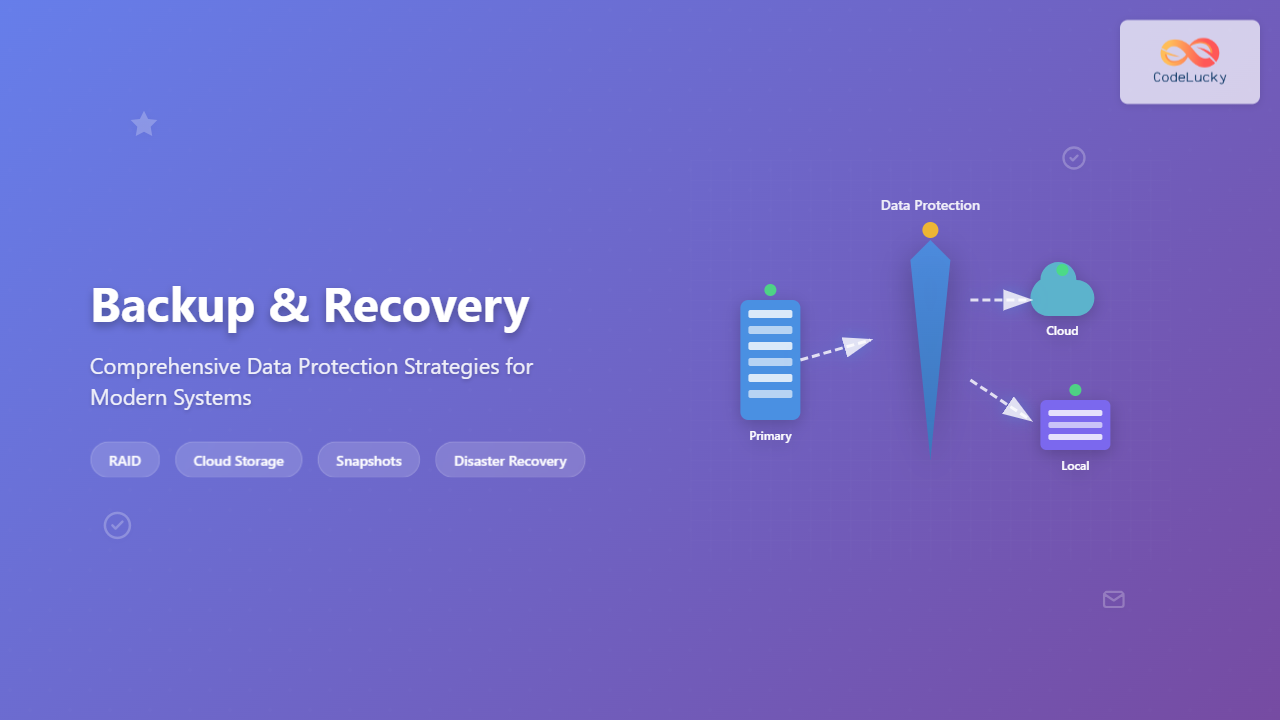
Data loss can be catastrophic for individuals and organizations alike. Modern operating systems provide robust backup and recovery mechanisms to protect against hardware failures, software corruption, human error, and malicious attacks. Understanding these data protection strategies is crucial for maintaining system integrity and business continuity.
Understanding Backup Fundamentals
Backup and recovery form the cornerstone of data protection in operating systems. A backup is a copy of data stored separately from the original, while recovery is the process of restoring data from these backup copies. The primary goal is to minimize data loss and reduce downtime during system failures.

Types of Data Loss
Operating systems face various data loss scenarios:
- Hardware Failure: Disk crashes, memory corruption, power supply failures
- Software Corruption: File system errors, application bugs, driver issues
- Human Error: Accidental deletion, incorrect configurations, user mistakes
- Malicious Attacks: Ransomware, viruses, unauthorized access
- Natural Disasters: Floods, fires, earthquakes affecting physical infrastructure
Backup Strategies and Methods
Full Backup
A full backup creates a complete copy of all specified data at a particular point in time. This method provides the most comprehensive protection but requires significant storage space and time.
Linux Example using tar:
# Create full backup of home directory
sudo tar -czf /backup/full_backup_$(date +%Y%m%d).tar.gz /home/

# Verify backup contents
tar -tzf /backup/full_backup_20240828.tar.gz | head -10

# Output:
home/
home/user1/
home/user1/.bashrc
home/user1/.profile
home/user1/Documents/
home/user1/Documents/report.pdf
home/user1/Downloads/
home/user1/Pictures/
home/user1/Videos/
home/user1/Desktop/
Windows Example using robocopy:
# Create full backup to external drive
robocopy C:\Users D:\Backup\Full_Backup /E /R:3 /W:10 /LOG:backup.log

# Output:
-------------------------------------------------------------------------------
   ROBOCOPY     ::     Robust File Copy for Windows
-------------------------------------------------------------------------------
  Started : Tuesday, August 28, 2024 2:30:15 PM
   Source : C:\Users\
     Dest : D:\Backup\Full_Backup\

    Files : *.*
  Options : *.* /S /E /DCOPY:DA /COPY:DAT /R:3 /W:10

       New Dir          1    C:\Users\Public\
       New File      2.1 k   Documents\report.docx
       New File      1.5 k   Pictures\photo.jpg
Incremental Backup
Incremental backups only copy data that has changed since the last backup (whether full or incremental). This approach minimizes backup time and storage requirements but requires all incremental backups for complete restoration.
# Linux incremental backup using rsync
# First, create a full backup
rsync -av --delete /home/ /backup/full/

# Subsequent incremental backups
rsync -av --delete --backup --backup-dir=/backup/incremental/$(date +%Y%m%d) /home/ /backup/current/

# List incremental changes
ls -la /backup/incremental/20240828/
# Output shows only changed files:
-rw-r--r-- 1 user user 1024 Aug 28 14:30 modified_file.txt
-rw-r--r-- 1 user user 2048 Aug 28 15:45 new_document.pdf
Differential Backup
Differential backups copy all data changed since the last full backup. Recovery requires only the full backup and the latest differential backup, but backup size grows over time.
# Windows differential backup using PowerShell
# Create baseline (full backup)
$source = "C:\ImportantData"
$destination = "D:\Backup\Full"
$timestamp = Get-Date -Format "yyyyMMdd_HHmmss"

# Full backup
robocopy $source "$destination\Full_$timestamp" /E /R:3

# Differential backup (files modified since full backup)
$lastFull = "2024-08-28 00:00:00"
robocopy $source "$destination\Diff_$timestamp" /E /MAXAGE:$lastFull /R:3

# Output shows differential changes:
New File      3.2 k   updated_config.xml
New File      5.1 k   new_report.xlsx
Modified      2.8 k   settings.ini

Storage Technologies and Media
Local Storage Options
Local storage provides fast backup and recovery capabilities with complete control over the backup environment.
Hard Disk Drives (HDDs):
- Cost-effective for large capacity requirements
- Suitable for automated backup systems
- Average seek time: 8-15ms
- Typical capacity: 1TB-18TB
Solid State Drives (SSDs):
- Faster backup and recovery operations
- More reliable with no moving parts
- Higher cost per GB
- Typical capacity: 256GB-8TB
Network Attached Storage (NAS)
NAS systems provide centralized backup storage accessible over the network, ideal for multiple systems and automated backup schedules.
# Linux NAS backup using rsync
# Mount NAS share
sudo mount -t nfs nas.example.com:/backup /mnt/nas-backup

# Automated backup script
#!/bin/bash
BACKUP_DIR="/mnt/nas-backup/$(hostname)"
SOURCE_DIR="/home"
DATE=$(date +%Y%m%d_%H%M%S)

# Create timestamped backup
rsync -av --delete "$SOURCE_DIR/" "$BACKUP_DIR/current/"
rsync -av --link-dest="$BACKUP_DIR/current" "$SOURCE_DIR/" "$BACKUP_DIR/$DATE/"

echo "Backup completed: $BACKUP_DIR/$DATE/"

# Output:
Backup completed: /mnt/nas-backup/server01/20240828_143022/
Files transferred: 2,847
Total size: 15.2 GB
Transfer rate: 45.6 MB/s
Cloud Storage Solutions
Cloud storage offers offsite backup capabilities with scalable capacity and geographic redundancy.
# AWS S3 backup using CLI
# Install AWS CLI and configure credentials
aws configure

# Sync local directory to S3 bucket
aws s3 sync /home/user/documents/ s3://my-backup-bucket/documents/ --delete

# Output:
upload: documents/report.pdf to s3://my-backup-bucket/documents/report.pdf
upload: documents/spreadsheet.xlsx to s3://my-backup-bucket/documents/spreadsheet.xlsx
delete: s3://my-backup-bucket/documents/old_file.txt

# Verify backup
aws s3 ls s3://my-backup-bucket/documents/ --recursive --human-readable

# Output:
2024-08-28 14:32:45  2.1 MiB documents/report.pdf
2024-08-28 14:32:46  1.5 MiB documents/spreadsheet.xlsx
2024-08-28 14:32:47  856.0 KiB documents/presentation.pptx
RAID and Hardware-Level Protection
RAID (Redundant Array of Independent Disks) provides hardware-level data protection by distributing data across multiple drives.
Common RAID Levels

Linux Software RAID Configuration:
# Create RAID 1 array with two drives
sudo mdadm --create /dev/md0 --level=1 --raid-devices=2 /dev/sdb1 /dev/sdc1

# Output:
mdadm: Note: this array has metadata at the start of each device.
mdadm: largest drive (/dev/sdb1) exceeds maximum size.
mdadm: array /dev/md0 started.

# Check RAID status
cat /proc/mdstat

# Output:
Personalities : [raid1]
md0 : active raid1 sdc1[1] sdb1[0]
      976562176 blocks super 1.2 [2/2] [UU]
      [>....................]  resync =  2.1% (20971520/976562176)
      finish=74.2min speed=214748K/sec

# Create filesystem and mount
sudo mkfs.ext4 /dev/md0
sudo mkdir /mnt/raid-backup
sudo mount /dev/md0 /mnt/raid-backup

# Automated backup to RAID array
rsync -av --delete /home/ /mnt/raid-backup/
Backup Scheduling and Automation
Linux Cron-based Scheduling
Automated backup scheduling ensures regular data protection without manual intervention.
# Edit crontab for automated backups
crontab -e

# Add backup schedules
# Daily incremental backup at 2 AM
0 2 * * * /usr/local/bin/backup-incremental.sh >> /var/log/backup.log 2>&1

# Weekly full backup on Sunday at 1 AM
0 1 * * 0 /usr/local/bin/backup-full.sh >> /var/log/backup.log 2>&1

# Monthly archive cleanup
0 3 1 * * /usr/local/bin/cleanup-old-backups.sh >> /var/log/backup.log 2>&1

# Backup script example: /usr/local/bin/backup-incremental.sh
#!/bin/bash
BACKUP_ROOT="/backup"
SOURCE="/home"
DATE=$(date +%Y%m%d_%H%M%S)
LOGFILE="/var/log/backup.log"

echo "$(date): Starting incremental backup" >> $LOGFILE

# Use rsync with hard links for space efficiency
rsync -av --delete --link-dest="$BACKUP_ROOT/current" \
      "$SOURCE/" "$BACKUP_ROOT/$DATE/" >> $LOGFILE 2>&1

if [ $? -eq 0 ]; then
    rm -f "$BACKUP_ROOT/current"
    ln -s "$DATE" "$BACKUP_ROOT/current"
    echo "$(date): Backup completed successfully" >> $LOGFILE
else
    echo "$(date): Backup failed" >> $LOGFILE
    exit 1
fi

# Check backup log
tail -f /var/log/backup.log

# Output:
Tue Aug 28 02:00:01 2024: Starting incremental backup
Tue Aug 28 02:03:47 2024: Backup completed successfully
Files: 15,234 transferred
Size: 8.7 GB
Duration: 3m 46s
Windows Task Scheduler
# PowerShell backup script: backup-script.ps1
param(
    [string]$Source = "C:\Users",
    [string]$Destination = "D:\Backup",
    [string]$LogPath = "C:\Logs\backup.log"
)

$timestamp = Get-Date -Format "yyyyMMdd_HHmmss"
$backupPath = "$Destination\Backup_$timestamp"

try {
    # Create backup directory
    New-Item -ItemType Directory -Path $backupPath -Force

    # Perform backup using robocopy
    $result = robocopy $Source $backupPath /E /R:3 /W:10 /LOG+:$LogPath

    # Log completion
    $logEntry = "$(Get-Date): Backup completed - Exit code: $LASTEXITCODE"
    Add-Content -Path $LogPath -Value $logEntry

    if ($LASTEXITCODE -le 3) {
        Write-Host "Backup successful: $backupPath"
    } else {
        Write-Error "Backup failed with exit code: $LASTEXITCODE"
    }
}
catch {
    $errorEntry = "$(Get-Date): Backup error - $($_.Exception.Message)"
    Add-Content -Path $LogPath -Value $errorEntry
    Write-Error $_.Exception.Message
}

# Create scheduled task via command line
schtasks /create /tn "Daily Backup" /tr "powershell.exe -File C:\Scripts\backup-script.ps1" /sc daily /st 02:00

# Output:
SUCCESS: The scheduled task "Daily Backup" has successfully been created.

# Verify scheduled task
schtasks /query /tn "Daily Backup" /fo LIST

# Output:
TaskName: Daily Backup
Next Run Time: 8/29/2024 2:00:00 AM
Status: Ready
Last Run Time: 8/28/2024 2:00:00 AM
Last Result: 0
Recovery Strategies and Procedures
File-Level Recovery
File-level recovery allows restoration of specific files or directories without restoring entire systems.
# Linux file recovery from tar backup
# List backup contents to find specific files
tar -tzf /backup/full_backup_20240828.tar.gz | grep "important_document"

# Output:
home/user/Documents/important_document.pdf
home/user/Documents/important_document_backup.pdf

# Extract specific file
tar -xzf /backup/full_backup_20240828.tar.gz \
    --strip-components=3 \
    home/user/Documents/important_document.pdf

# Verify recovery
ls -la important_document.pdf

# Output:
-rw-r--r-- 1 user user 2048576 Aug 28 10:15 important_document.pdf

# Recovery from rsync backup with timestamped directories
# Find file in backup history
find /backup -name "important_document.pdf" -type f

# Output:
/backup/20240825_140000/Documents/important_document.pdf
/backup/20240826_140000/Documents/important_document.pdf
/backup/20240827_140000/Documents/important_document.pdf

# Restore latest version
cp /backup/20240827_140000/Documents/important_document.pdf ~/Documents/
System-Level Recovery
System-level recovery involves restoring entire operating system environments, including system files, configurations, and applications.

# Linux system recovery using dd and backup images
# Create system image backup (preventive)
sudo dd if=/dev/sda of=/backup/system_image_$(date +%Y%m%d).img bs=4M status=progress

# Output during backup:
15728640000 bytes (16 GB, 15 GiB) copied, 267 s, 58.9 MB/s

# Boot from live USB/CD for recovery
# Identify target disk
lsblk

# Output:
NAME   MAJ:MIN RM   SIZE RO TYPE MOUNTPOINT
sda      8:0    0  120G  0 disk
├─sda1   8:1    0  100M  0 part
├─sda2   8:2    0   20G  0 part
└─sda3   8:3    0  100G  0 part
sdb      8:16   1   32G  0 disk /media/recovery

# Restore system image
sudo dd if=/media/recovery/system_image_20240827.img of=/dev/sda bs=4M status=progress

# Output during recovery:
15728640000 bytes (16 GB, 15 GiB) copied, 312 s, 50.4 MB/s
15360+0 records in
15360+0 records out

# Verify recovery
sudo fsck /dev/sda1
sudo fsck /dev/sda2

# Mount and check system files
sudo mount /dev/sda2 /mnt
ls -la /mnt/

# Output:
drwxr-xr-x  22 root root  4096 Aug 27 15:30 .
drwxr-xr-x   3 root root  4096 Aug 28 16:45 ..
drwxr-xr-x   2 root root  4096 Aug 27 14:22 bin
drwxr-xr-x   3 root root  4096 Aug 27 14:25 boot
drwxr-xr-x   2 root root  4096 Aug 27 14:20 dev
drwxr-xr-x  93 root root  4096 Aug 27 15:30 etc
drwxr-xr-x   3 root root  4096 Aug 27 14:24 home
Database Recovery
Database systems require specialized recovery procedures to maintain data consistency and integrity.
# MySQL database backup and recovery
# Create logical backup with mysqldump
mysqldump -u root -p --single-transaction --routines --triggers \
          --all-databases > /backup/mysql_backup_$(date +%Y%m%d).sql

# Output:
-- MySQL dump 10.13  Distrib 8.0.34, for Linux (x86_64)
-- Host: localhost    Database:
-- Server version	8.0.34-0ubuntu0.22.04.1

# Verify backup size and contents
ls -lh /backup/mysql_backup_20240828.sql
head -20 /backup/mysql_backup_20240828.sql

# Output:
-rw-r--r-- 1 root root 245M Aug 28 15:30 mysql_backup_20240828.sql

# Database recovery procedure
# Stop MySQL service
sudo systemctl stop mysql

# Restore from backup
mysql -u root -p < /backup/mysql_backup_20240828.sql

# Start MySQL service
sudo systemctl start mysql

# Verify database restoration
mysql -u root -p -e "SHOW DATABASES;"

# Output:
+--------------------+
| Database           |
+--------------------+
| information_schema |
| mysql             |
| performance_schema |
| sys               |
| production_db     |
| test_db           |
+--------------------+

# Check table integrity
mysql -u root -p production_db -e "CHECK TABLE users, orders, products;"

# Output:
+-----------------+-------+----------+----------+
| Table           | Op    | Msg_type | Msg_text |
+-----------------+-------+----------+----------+
| production_db.users    | check | status   | OK       |
| production_db.orders   | check | status   | OK       |
| production_db.products | check | status   | OK       |
+-----------------+-------+----------+----------+
Disaster Recovery Planning
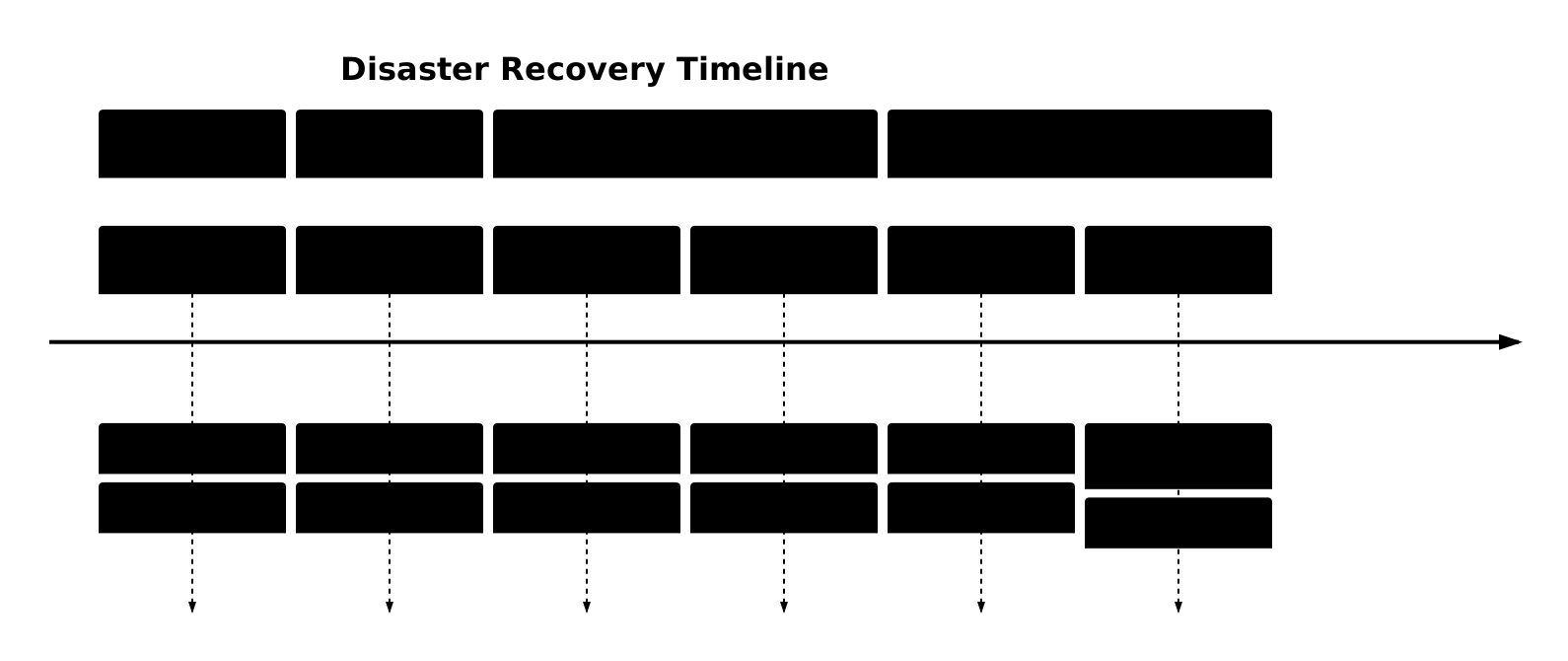
Comprehensive disaster recovery planning ensures business continuity during major system failures or catastrophic events.
Recovery Time Objective (RTO) and Recovery Point Objective (RPO)
- RTO: Maximum acceptable downtime after a disaster
- RPO: Maximum acceptable data loss measured in time
Testing Recovery Procedures
Regular testing validates backup integrity and recovery procedures before actual disasters occur.
# Automated backup verification script
#!/bin/bash
BACKUP_DIR="/backup"
TEST_RESTORE="/tmp/restore_test"
LOGFILE="/var/log/backup_verification.log"

echo "$(date): Starting backup verification" >> $LOGFILE

# Find latest backup
LATEST_BACKUP=$(ls -t $BACKUP_DIR/*.tar.gz | head -n1)

if [ -z "$LATEST_BACKUP" ]; then
    echo "$(date): No backup files found" >> $LOGFILE
    exit 1
fi

# Create test restoration directory
mkdir -p $TEST_RESTORE

# Extract backup for testing
tar -xzf $LATEST_BACKUP -C $TEST_RESTORE

# Verify critical files exist
CRITICAL_FILES=(
    "etc/passwd"
    "home/user/.bashrc"
    "var/www/html/index.html"
)

for file in "${CRITICAL_FILES[@]}"; do
    if [ -f "$TEST_RESTORE/$file" ]; then
        echo "$(date): Verified: $file" >> $LOGFILE
    else
        echo "$(date): Missing: $file" >> $LOGFILE
    fi
done

# Calculate backup size and file count
BACKUP_SIZE=$(du -sh $TEST_RESTORE | cut -f1)
FILE_COUNT=$(find $TEST_RESTORE -type f | wc -l)

echo "$(date): Backup verification complete" >> $LOGFILE
echo "$(date): Backup size: $BACKUP_SIZE, Files: $FILE_COUNT" >> $LOGFILE

# Cleanup test directory
rm -rf $TEST_RESTORE

# Example output from log:
tail -10 /var/log/backup_verification.log

# Output:
Tue Aug 28 16:00:01 2024: Starting backup verification
Tue Aug 28 16:00:15 2024: Verified: etc/passwd
Tue Aug 28 16:00:15 2024: Verified: home/user/.bashrc
Tue Aug 28 16:00:16 2024: Verified: var/www/html/index.html
Tue Aug 28 16:00:45 2024: Backup verification complete
Tue Aug 28 16:00:45 2024: Backup size: 8.2G, Files: 124,567
Modern Backup Technologies
Snapshot-based Backups
Modern file systems support snapshot technology that creates point-in-time copies of data without significant storage overhead.
# ZFS snapshot management
# Create ZFS pool and filesystem
sudo zpool create backuppool /dev/sdb
sudo zfs create backuppool/data

# Enable automatic snapshots
sudo zfs set com.sun:auto-snapshot=true backuppool/data

# Manual snapshot creation
sudo zfs snapshot backuppool/data@manual-$(date +%Y%m%d-%H%M%S)

# List snapshots
sudo zfs list -t snapshot backuppool/data

# Output:
NAME                                    USED  AVAIL  REFER  MOUNTPOINT
backuppool/data@manual-20240828-160045    0      -   156K  -
backuppool/data@auto-2024-08-28-15h00     0      -   156K  -
backuppool/data@auto-2024-08-28-14h00   12K      -   144K  -

# Clone snapshot for recovery testing
sudo zfs clone backuppool/data@manual-20240828-160045 backuppool/recovery-test

# Roll back to snapshot
sudo zfs rollback backuppool/data@manual-20240828-160045

# LVM snapshot on Linux
# Create logical volume
sudo lvcreate -L 10G -n data-lv vg01

# Create snapshot
sudo lvcreate -L 2G -s -n data-snapshot /dev/vg01/data-lv

# Mount snapshot for backup
sudo mkdir /mnt/snapshot
sudo mount /dev/vg01/data-snapshot /mnt/snapshot

# Backup from consistent snapshot
tar -czf /backup/snapshot-backup-$(date +%Y%m%d).tar.gz -C /mnt/snapshot .

# Remove snapshot after backup
sudo umount /mnt/snapshot
sudo lvremove /dev/vg01/data-snapshot
Deduplication and Compression
Modern backup systems use deduplication and compression to optimize storage efficiency.
# Backup with deduplication using borg
# Initialize repository
borg init --encryption=repokey /backup/borg-repo

# Create compressed, deduplicated backup
borg create --compression lz4 /backup/borg-repo::backup-{now:%Y-%m-%d-%H%M%S} \
    /home /etc /var/log

# Output:
Archive name: backup-2024-08-28-160512
Archive fingerprint: 5a4d2c8f7e9b1a3c6d8e2f4a7b9c1d5e8f2a4b7c
Time (start): Tue, 2024-08-28 16:05:12
Time (end):   Tue, 2024-08-28 16:07:23
Duration: 2 minutes 11.45 seconds
Number of files: 87,432
Utilization of max. archive size: 0%
                       Original size      Compressed size    Deduplicated size
This archive:                8.24 GB              3.16 GB            1.87 GB
All archives:               24.72 GB              9.48 GB            3.94 GB

                       Unique chunks         Total chunks
Chunk index:                   45,231          124,567

# List backup contents
borg list /backup/borg-repo

# Output:
backup-2024-08-28-160512         Tue, 2024-08-28 16:05:12 [5a4d2c8f7e9b1a3c6d8e2f4a7b9c1d5e8f2a4b7c]
backup-2024-08-27-160000         Mon, 2024-08-27 16:00:00 [3b2a1c9d8e7f6a5b4c3d2e1f9a8b7c6d5e4f3a2b1c]

# Mount backup as filesystem
borg mount /backup/borg-repo::backup-2024-08-28-160512 /mnt/borg-mount

# Browse backup contents
ls -la /mnt/borg-mount/home/user/

# Unmount when done
borg umount /mnt/borg-mount
Best Practices and Recommendations
3-2-1 Backup Rule
The industry-standard 3-2-1 rule recommends:
- 3 copies of important data (1 original + 2 backups)
- 2 different media types (e.g., disk and cloud)
- 1 offsite backup (geographical separation)
Security Considerations
# Encrypted backup with GPG
# Generate encryption key
gpg --gen-key

# Create encrypted backup
tar -czf - /home/user/documents/ | gpg --cipher-algo AES256 --compress-algo 1 \
    --symmetric --output /backup/encrypted-backup-$(date +%Y%m%d).tar.gz.gpg

# Verify encrypted backup
gpg --list-packets /backup/encrypted-backup-20240828.tar.gz.gpg

# Output:
:symkey enc packet: version 4, cipher 9, s2k 3, hash 2
:encrypted data packet:
        length: unknown
        mdc_method: 2

# Decrypt and restore
gpg --decrypt /backup/encrypted-backup-20240828.tar.gz.gpg | tar -xzf -

# AWS S3 server-side encryption
aws s3 cp /backup/sensitive-data.tar.gz \
    s3://secure-backup-bucket/encrypted/ \
    --server-side-encryption AES256 \
    --metadata "backup-date=$(date +%Y%m%d)"

# Verify encryption
aws s3api head-object --bucket secure-backup-bucket \
    --key encrypted/sensitive-data.tar.gz

# Output:
{
    "ServerSideEncryption": "AES256",
    "Metadata": {
        "backup-date": "20240828"
    }
}
Monitoring and Alerting
# Backup monitoring script with email alerts
#!/bin/bash
BACKUP_LOG="/var/log/backup.log"
ALERT_EMAIL="[email protected]"
BACKUP_AGE_LIMIT=86400  # 24 hours in seconds

# Check if backup completed within time limit
LATEST_BACKUP=$(find /backup -name "*.tar.gz" -mtime -1 | head -1)

if [ -z "$LATEST_BACKUP" ]; then
    # Send alert email
    echo "BACKUP ALERT: No recent backup found on $(hostname)" | \
    mail -s "Backup Failure Alert - $(hostname)" $ALERT_EMAIL

    # Log alert
    echo "$(date): ALERT - No recent backup found" >> $BACKUP_LOG
    exit 1
fi

# Check backup integrity
if tar -tzf "$LATEST_BACKUP" >/dev/null 2>&1; then
    echo "$(date): Backup integrity check passed: $LATEST_BACKUP" >> $BACKUP_LOG
else
    echo "BACKUP ALERT: Corrupted backup detected: $LATEST_BACKUP" | \
    mail -s "Backup Corruption Alert - $(hostname)" $ALERT_EMAIL

    echo "$(date): ALERT - Backup corruption detected" >> $BACKUP_LOG
    exit 1
fi

# Check available backup storage space
BACKUP_USAGE=$(df /backup | awk 'NR==2 {print $5}' | sed 's/%//')
if [ $BACKUP_USAGE -gt 85 ]; then
    echo "BACKUP ALERT: Backup storage usage at ${BACKUP_USAGE}% on $(hostname)" | \
    mail -s "Backup Storage Alert - $(hostname)" $ALERT_EMAIL

    echo "$(date): ALERT - High backup storage usage: ${BACKUP_USAGE}%" >> $BACKUP_LOG
fi

echo "$(date): Backup monitoring completed successfully" >> $BACKUP_LOG
Effective backup and recovery strategies require careful planning, regular testing, and continuous monitoring. By implementing comprehensive data protection measures including automated backups, secure storage, and validated recovery procedures, organizations can minimize data loss risks and ensure business continuity during system failures.
The key to successful backup and recovery lies in understanding your specific requirements, implementing appropriate technologies, and maintaining disciplined operational procedures. Regular testing and monitoring ensure that backup systems function correctly when needed most.
Related Posts

MySQL Backup Methods: Protect Your Data
Data is the lifeblood of any application, and protecting it with regular backups is absolutely critical. In MySQL, robust backup...
SQL Backup and Restore: Protecting Your Database
In the world of database management, safeguarding your data is paramount. SQL backup and restore operations are critical tools in...
Encryption in Operating System: Complete Guide to Data Protection Methods
Operating system encryption serves as the cornerstone of modern data protection, safeguarding sensitive information from unauthorized access, data breaches, and...
File System Journaling: Complete Guide to Crash Recovery and Data Integrity
Understanding File System Journaling File system journaling is a critical mechanism that ensures data integrity and enables rapid crash recovery...

MySQL Dump: Backup and Restore Made Easy
Data is the lifeblood of any application, and having reliable backups is paramount. MySQL Dump is a command-line utility that...
Memory Protection: Hardware and Software Mechanisms for Secure Computing
Understanding Memory Protection in Modern Computing Memory protection is a fundamental security mechanism that prevents programs from accessing memory regions...
File Locking Mechanisms: Complete Guide to Advisory and Mandatory Locking in Operating Systems
File locking mechanisms are essential components of modern operating systems that prevent data corruption and ensure data integrity when multiple...

Snapshot in Virtualization: Complete Guide to VM State Preservation and Management
Virtual machine snapshots are one of the most powerful features in virtualization technology, allowing administrators to capture and preserve the...
Copy-on-Write File System: Complete Guide to ZFS and Btrfs Implementation
Copy-on-Write (COW) file systems represent a revolutionary approach to data storage and management, fundamentally changing how operating systems handle file...

File System Types: FAT32, NTFS, ext4 and Modern Linux Filesystems Explained
Understanding File Systems: The Foundation of Data Storage A file system is the method and data structure that an operating...
File System in Operating System: Complete Guide to Structure and Organization
Introduction to File Systems A file system is a fundamental component of any operating system that provides a structured way...
shred Command Linux: Complete Guide to Securely Delete Files and Protect Data
When you delete files in Linux using the standard rm command, the data isn't actually removed from your storage device....





