
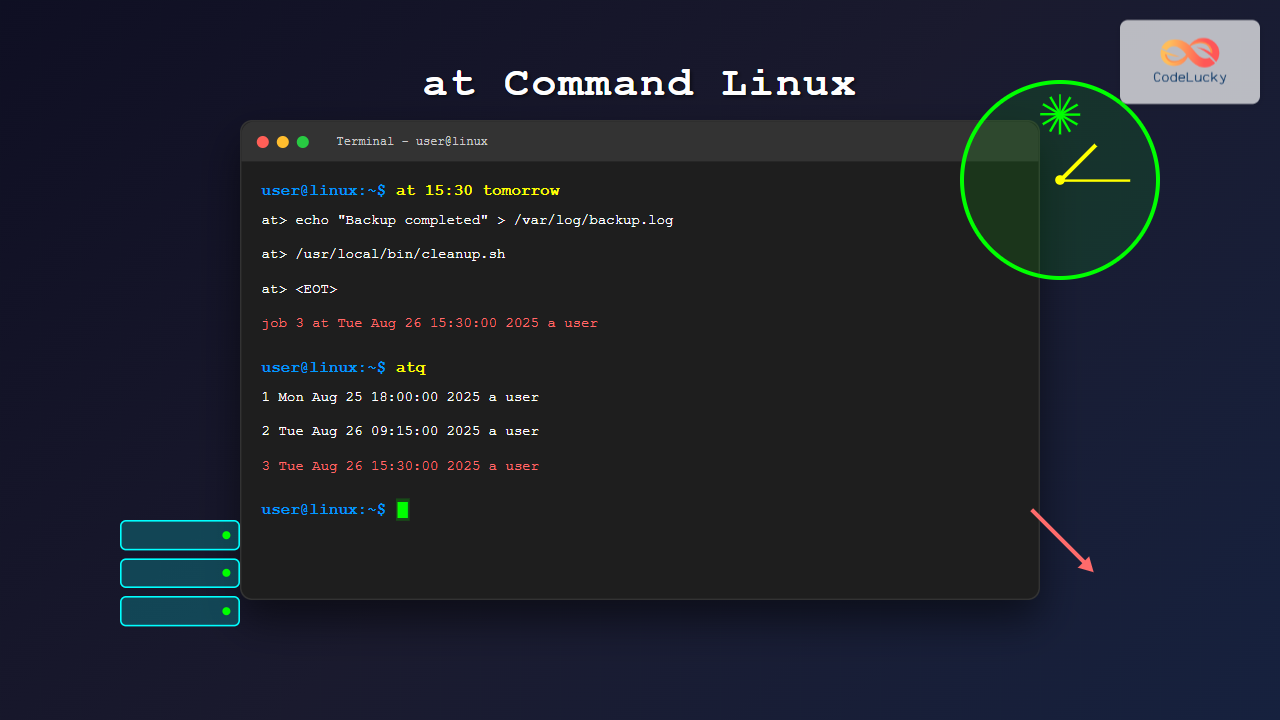
The at command in Linux is a powerful utility for scheduling one-time tasks to run at specific times in the future. Unlike cron which handles recurring tasks, at is perfect for executing commands or scripts once at a predetermined time. This comprehensive guide will teach you everything you need to know about using the at command effectively.
What is the at Command?
The at command is a Linux utility that allows you to schedule commands or scripts to execute at a specific time. It’s part of the at package and works with the atd daemon (at daemon) running in the background. When you schedule a task with at, it creates a job file that the daemon executes at the specified time.
Key Features of the at Command
- One-time execution: Perfect for tasks that need to run only once
- Flexible time formats: Supports various time and date formats
- Email notifications: Automatically sends output via email
- Job management: View, modify, and delete scheduled jobs
- User permissions: Configurable access control
Installing the at Command
Most Linux distributions include the at command by default. If it’s not installed, you can install it using your package manager:
Ubuntu/Debian:
sudo apt update
sudo apt install at
CentOS/RHEL/Fedora:
sudo yum install at    # CentOS/RHEL
sudo dnf install at    # Fedora
Arch Linux:
sudo pacman -S atAfter installation, ensure the atd service is running:
sudo systemctl start atd
sudo systemctl enable atd
Basic Syntax and Usage
The basic syntax of the at command is:
at [options] TIMEWhen you run the at command, it opens an interactive prompt where you can enter the commands to be executed. Press Ctrl+D to save and exit.
Simple Example:
$ at 15:30
at> echo "Hello, World!" > /tmp/hello.txt
at> <EOT>
job 1 at Mon Aug 25 15:30:00 2025
This schedules the command echo "Hello, World!" > /tmp/hello.txt to run at 3:30 PM today.
Time Format Options
The at command accepts various time formats, making it extremely flexible:
Absolute Time Formats:
| Format | Example | Description |
|---|---|---|
| HH:MM | 14:30 | 24-hour format |
| HH:MM AM/PM | 2:30 PM | 12-hour format |
| midnight | midnight | 12:00 AM |
| noon | noon | 12:00 PM |
| teatime | teatime | 4:00 PM |
Date Specifications:
# Specific date and time
at 10:00 AM December 25, 2025
at 14:30 2025-12-25
at 2:30 PM Dec 25

# Day of the week
at 9:00 AM Monday
at 15:00 next Friday
Relative Time Formats:
# Minutes from now
at now + 30 minutes
at now + 1 hour
at now + 2 hours

# Days from now
at now + 1 day
at now + 1 week
at now + 1 month

# Combined formats
at 10:00 AM + 3 days
at noon tomorrow
Practical Examples
Example 1: System Backup
Schedule a backup script to run at 2:00 AM:
$ at 2:00 AM
at> /usr/local/bin/backup.sh
at> <EOT>
job 2 at Tue Aug 26 02:00:00 2025
Example 2: Reminder Notification
Send yourself a reminder in 30 minutes:
$ at now + 30 minutes
at> echo "Meeting in conference room B!" | wall
at> <EOT>
job 3 at Mon Aug 25 15:18:00 2025
Example 3: System Shutdown
Schedule system shutdown at a specific time:
$ at 11:30 PM
at> sudo shutdown -h now
at> <EOT>
job 4 at Mon Aug 25 23:30:00 2025
Example 4: Log Rotation
Clean old log files every Sunday at midnight:
$ at midnight Sunday
at> find /var/log -name "*.log" -mtime +7 -delete
at> <EOT>
job 5 at Sun Aug 31 00:00:00 2025
Using at with Scripts
You can also execute entire scripts using the at command:
Method 1: Interactive Input
$ at 6:00 PM tomorrow
at> /path/to/your/script.sh
at> <EOT>
Method 2: Piping Commands
echo "/path/to/your/script.sh" | at 6:00 PM tomorrowMethod 3: Using Here Document
at 8:00 AM tomorrow << EOF
#!/bin/bash
cd /var/www/html
git pull origin main
systemctl restart apache2
EOF
Managing Scheduled Jobs
Viewing Scheduled Jobs
Use atq (at queue) to list all scheduled jobs:
$ atq
2    Tue Aug 26 02:00:00 2025 a username
3    Mon Aug 25 15:18:00 2025 a username
4    Mon Aug 25 23:30:00 2025 a username
The output shows:
- Job number
- Scheduled execution time
- Queue name (usually ‘a’)
- Username
Viewing Job Details
Use at -c [job_number] to view the complete job details:
$ at -c 2
#!/bin/sh
# atrun uid=1000 gid=1000
# mail username 0
umask 22
cd /home/username || {
    echo 'Execution directory inaccessible' >&2
    exit 1
}
/usr/local/bin/backup.sh
Removing Scheduled Jobs
Use atrm (at remove) followed by the job number:
$ atrm 3
$ atq
2    Tue Aug 26 02:00:00 2025 a username
4    Mon Aug 25 23:30:00 2025 a username
You can remove multiple jobs at once:
atrm 2 4Command-Line Options
The at command provides several useful options:
| Option | Description |
|---|---|
| -f file | Read commands from a file instead of stdin |
| -l | List pending jobs (same as atq) |
| -d | Delete jobs (same as atrm) |
| -v | Show version information |
| -q queue | Use specified queue |
| -m | Send mail even if there’s no output |
| -M | Don’t send mail |
Using Files with -f Option
Create a script file and schedule it:
# Create the script
echo "#!/bin/bash
echo 'Scheduled task completed'
date >> /tmp/scheduled_log.txt" > /tmp/myscript.sh

# Make it executable
chmod +x /tmp/myscript.sh

# Schedule it
at -f /tmp/myscript.sh 10:00 AM tomorrow
Understanding Queues
The at command uses queues to organize jobs. By default, jobs are placed in queue ‘a’, but you can specify different queues:
# Schedule in queue 'b'
at -q b 5:00 PM
at> echo "High priority task"
at> <EOT>

# Schedule in queue 'c'
echo "Low priority task" | at -q c 6:00 PM
Queues run with different priorities:
- Queue ‘a’ = Nice level 2
- Queue ‘b’ = Nice level 4
- Queue ‘c’ = Nice level 6
- And so on…
Access Control
System administrators can control who can use the at command through two files:
/etc/at.allow
If this file exists, only users listed in it can use at:
sudo echo "username1" >> /etc/at.allow
sudo echo "username2" >> /etc/at.allow
/etc/at.deny
If at.allow doesn’t exist, users listed in at.deny cannot use at:
sudo echo "baduser" >> /etc/at.denyIf neither file exists, only the root user can use at.
Email Notifications
By default, at sends the output of scheduled commands via email to the user who scheduled the job. This requires a working mail system on your Linux machine.
Controlling Email Behavior:
# Force email even with no output
at -m 3:00 PM tomorrow

# Suppress email notifications
at -M 3:00 PM tomorrow

# Redirect output to a file instead
at 3:00 PM tomorrow << EOF
your-command > /tmp/output.log 2>&1
EOF
Troubleshooting Common Issues
at Command Not Found
Install the at package as shown in the installation section.
atd Service Not Running
# Check service status
systemctl status atd

# Start the service
sudo systemctl start atd

# Enable auto-start
sudo systemctl enable atd
Permission Denied
Check /etc/at.allow and /etc/at.deny files for access restrictions.
Jobs Not Executing
- Verify the atd service is running
- Check system logs:
journalctl -u atd - Ensure correct file permissions for scripts
- Use absolute paths in commands
Advanced Use Cases
Conditional Execution
at midnight tomorrow << 'EOF'
if [ -f /tmp/trigger_file ]; then
    /usr/local/bin/cleanup.sh
    rm /tmp/trigger_file
fi
EOF
Chain Multiple Commands
at 2:00 AM << 'EOF'
/usr/local/bin/backup_database.sh && \
/usr/local/bin/backup_files.sh && \
/usr/local/bin/upload_backups.sh || \
echo "Backup failed" | mail -s "Backup Alert" [email protected]
EOF
Environment Variables
Set environment variables for scheduled jobs:
at 6:00 PM << 'EOF'
export PATH=/usr/local/bin:$PATH
export DATABASE_URL="postgres://user:pass@localhost/db"
/usr/local/bin/data_export.sh
EOF
Best Practices
- Use absolute paths: Always use full paths for commands and scripts to avoid PATH issues.
- Test first: Test your commands manually before scheduling them.
- Log output: Redirect output to log files for debugging and monitoring.
- Handle errors: Include error handling in your scheduled scripts.
- Set appropriate permissions: Ensure scripts have proper execute permissions.
- Use meaningful job scheduling: Choose appropriate times that don’t conflict with system maintenance.
- Monitor job execution: Regularly check that jobs are completing successfully.
- Clean up: Remove completed job outputs and temporary files.
at vs. cron: When to Use Which
| Feature | at Command | cron |
|---|---|---|
| Execution | One-time only | Recurring |
| Setup | Quick and simple | Requires crontab syntax |
| Flexibility | Natural language time | Precise time control |
| Use case | One-off tasks | Regular maintenance |
Use at when you need to:
- Run a task once at a specific time
- Schedule tasks interactively
- Set reminders or notifications
- Perform one-time system maintenance
Use cron when you need to:
- Run tasks on a recurring schedule
- Perform regular system maintenance
- Execute tasks at complex intervals
- Run multiple different scheduled tasks
Conclusion
The at command is an essential tool for Linux system administrators and users who need to schedule one-time tasks. Its flexibility in time specification, ease of use, and integration with the system make it perfect for various automation scenarios. By mastering the concepts and examples covered in this guide, you’ll be able to effectively use at to streamline your workflow and automate routine tasks.
Remember to always test your scheduled commands before deploying them in production environments, and consider using logging and error handling to ensure reliable execution. Whether you’re scheduling system backups, sending reminders, or performing maintenance tasks, the at command provides a simple yet powerful solution for time-based task execution in Linux.
Related Posts
crontab Command Linux: Schedule Automated Tasks with Examples and Best Practices
The crontab command is one of the most powerful tools in Linux for scheduling automated tasks. Whether you need to...

PHP CRON Jobs: Scheduling Automated Tasks
In the world of web development, automation is key to efficiency and productivity. One powerful tool in a PHP developer's...
jobs Command Linux: Complete Guide to Managing Background Jobs in Terminal
The jobs command is an essential tool for Linux users who need to manage multiple processes running in the background....
watch Command Linux: Monitor and Execute Commands Repeatedly in Real-Time
The watch command is one of the most powerful utilities in Linux for executing commands repeatedly at regular intervals and...
sleep Command Linux: Complete Guide to Delay Execution in Scripts and Terminal
The sleep command is one of the most fundamental utilities in Linux and Unix-like systems, designed to pause execution for...
service Command Linux: Complete Guide to Managing System Services
The service command is a fundamental tool in Linux system administration that allows you to manage system services and daemons...
uptime Command Linux: Complete Guide to System Uptime and Load Average Monitoring
The uptime command is one of the most fundamental system monitoring tools in Linux, providing essential information about how long...
timeout Command Linux: Complete Guide to Running Commands with Time Limits
The timeout command in Linux is an essential utility that allows you to run commands with a specified time limit....
bg Command in Linux: Resume Jobs in Background with Examples
The bg command in Linux is a powerful built-in shell command that allows you to resume suspended jobs in the...

bash Command Linux: Start New Shell Sessions and Execute Scripts Efficiently
The bash command is one of the most fundamental tools in Linux systems, serving as both a command-line interpreter and...
Completely Fair Scheduler: Linux CFS Algorithm Deep Dive
The Linux Completely Fair Scheduler (CFS) revolutionized process scheduling in the Linux kernel when it was introduced in version 2.6.23....
runit Linux: Complete Guide to Unix Init Scheme with Service Supervision
runit is a lightweight, cross-platform Unix init scheme with service supervision that provides a reliable alternative to traditional init systems....
- What is the at Command?
- Installing the at Command
- Basic Syntax and Usage
- Time Format Options
- Practical Examples
- Using at with Scripts
- Managing Scheduled Jobs
- Command-Line Options
- Understanding Queues
- Access Control
- Email Notifications
- Troubleshooting Common Issues
- Advanced Use Cases
- Best Practices
- at vs. cron: When to Use Which
- Conclusion





