
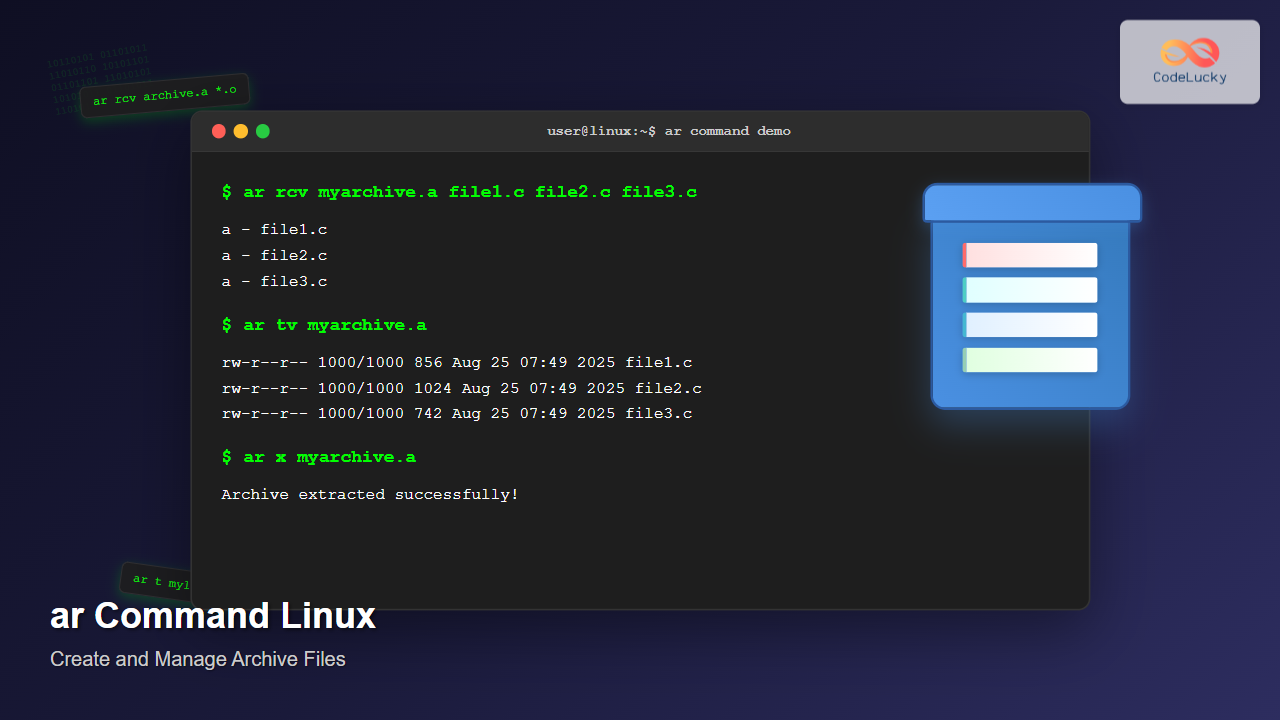
The ar command in Linux is a powerful archiving utility primarily used for creating and managing archive files, especially static libraries. While tools like tar and zip are more commonly used for general archiving purposes, ar plays a crucial role in software development and system administration tasks.
What is the ar Command?
The ar command stands for “archiver” and is used to create, modify, and extract files from archives. It’s particularly important in C/C++ development for creating static libraries (.a files) that contain compiled object files. Unlike compressed archives, ar archives are primarily designed for organizing and managing collections of files rather than compression.
Basic Syntax and Structure
The basic syntax of the ar command follows this pattern:
ar [operation][modifiers] archive_name file1 file2 ...
Where:
- operation: Specifies what action to perform (r, d, t, x, etc.)
- modifiers: Optional flags that modify the behavior
- archive_name: Name of the archive file
- file1, file2, …: Files to operate on
Common Operations and Modifiers
Primary Operations
| Operation | Description |
|---|---|
r |
Replace or add files to archive |
d |
Delete files from archive |
t |
List contents of archive |
x |
Extract files from archive |
p |
Print files to standard output |
Common Modifiers
| Modifier | Description |
|---|---|
c |
Create archive if it doesn’t exist |
v |
Verbose output |
s |
Write symbol table |
u |
Update only newer files |
Creating Archives
Creating a New Archive
To create a new archive with files, use the r operation with the c modifier:
# Create sample files first
echo "Hello World" > file1.txt
echo "Linux Commands" > file2.txt
echo "Archive Demo" > file3.txt

# Create archive
ar rc myarchive.a file1.txt file2.txt file3.txt
Expected Output:
# No output for successful creation
ls -la myarchive.a
-rw-r--r-- 1 user user 2086 Aug 25 07:49 myarchive.a
Creating Archive with Verbose Output
ar rcv myarchive.a file1.txt file2.txt file3.txt
Expected Output:
a - file1.txt
a - file2.txt
a - file3.txt
Listing Archive Contents
Basic Listing
ar t myarchive.a
Expected Output:
file1.txt
file2.txt
file3.txt
Detailed Listing
ar tv myarchive.a
Expected Output:
rw-r--r-- 1000/1000     12 Aug 25 07:49 2024 file1.txt
rw-r--r-- 1000/1000     15 Aug 25 07:49 2024 file2.txt
rw-r--r-- 1000/1000     13 Aug 25 07:49 2024 file3.txt
Extracting Files from Archives
Extract All Files
# Remove original files first to test extraction
rm file1.txt file2.txt file3.txt

# Extract all files
ar x myarchive.a

# Verify extraction
ls -la file*.txt
Expected Output:
-rw-r--r-- 1 user user 12 Aug 25 07:49 file1.txt
-rw-r--r-- 1 user user 15 Aug 25 07:49 file2.txt
-rw-r--r-- 1 user user 13 Aug 25 07:49 file3.txt
Extract Specific Files
ar x myarchive.a file1.txt file3.txt
Extract with Verbose Output
ar xv myarchive.a
Expected Output:
x - file1.txt
x - file2.txt
x - file3.txt
Adding and Updating Files
Adding New Files
# Create a new file
echo "Additional content" > file4.txt

# Add to existing archive
ar r myarchive.a file4.txt

# Verify addition
ar t myarchive.a
Expected Output:
file1.txt
file2.txt
file3.txt
file4.txt
Updating Existing Files
# Modify an existing file
echo "Updated content" > file1.txt

# Update in archive (only if newer)
ar ru myarchive.a file1.txt

# Update with verbose output
ar ruv myarchive.a file1.txt
Expected Output:
r - file1.txt
Deleting Files from Archives
# Delete specific files
ar d myarchive.a file4.txt

# Delete with verbose output
ar dv myarchive.a file2.txt
Expected Output:
d - file2.txt
Working with Static Libraries
Creating a Static Library
One of the most common uses of ar is creating static libraries for C/C++ programs:
# Create sample C files
cat > math_ops.c << EOF
int add(int a, int b) {
    return a + b;
}

int multiply(int a, int b) {
    return a * b;
}
EOF

cat > string_ops.c << EOF
int string_length(const char* str) {
    int len = 0;
    while (str[len] != '\0') len++;
    return len;
}
EOF

# Compile to object files
gcc -c math_ops.c string_ops.c

# Create static library
ar rcs libmylib.a math_ops.o string_ops.o
Using the Static Library
# Create main program
cat > main.c << EOF
#include <stdio.h>

extern int add(int a, int b);
extern int multiply(int a, int b);
extern int string_length(const char* str);

int main() {
    printf("5 + 3 = %d\n", add(5, 3));
    printf("5 * 3 = %d\n", multiply(5, 3));
    printf("Length of 'Hello': %d\n", string_length("Hello"));
    return 0;
}
EOF

# Compile with static library
gcc main.c -L. -lmylib -o myprogram

# Run the program
./myprogram
Expected Output:
5 + 3 = 8
5 * 3 = 15
Length of 'Hello': 5
Advanced ar Command Features
Creating Symbol Table
The s modifier creates a symbol table, which is essential for static libraries:
ar rcs libmylib.a math_ops.o string_ops.o

# View symbols
nm libmylib.a
Inserting Files at Specific Positions
# Insert before a specific file
ar rb file2.txt myarchive.a newfile.txt

# Insert after a specific file
ar ra file1.txt myarchive.a anotherfile.txt
Practical Examples and Use Cases
Backup Script Using ar
#!/bin/bash

# Backup script using ar command
DATE=$(date +%Y%m%d)
BACKUP_DIR="/home/user/documents"
BACKUP_NAME="backup_${DATE}.a"

# Create archive of important files
find $BACKUP_DIR -name "*.txt" -o -name "*.doc" | xargs ar rcv $BACKUP_NAME

echo "Backup created: $BACKUP_NAME"
ar tv $BACKUP_NAME
Library Management Script
#!/bin/bash

# Function to create library from object files
create_library() {
    local lib_name=$1
    shift
    local obj_files="$@"

    echo "Creating library: $lib_name"
    ar rcs $lib_name $obj_files
    echo "Library created successfully"

    echo "Contents:"
    ar tv $lib_name
}

# Usage example
create_library libmath.a add.o subtract.o multiply.o divide.o
Comparing ar with Other Archive Tools
| Feature | ar | tar | zip |
|---|---|---|---|
| Compression | No | Optional | Yes |
| Cross-platform | Limited | Yes | Yes |
| Library creation | Excellent | No | No |
| Symbol table | Yes | No | No |
| File metadata | Basic | Full | Full |
Troubleshooting Common Issues
Permission Denied Errors
# Ensure you have write permissions
ls -la myarchive.a
chmod 644 myarchive.a
Archive Format Errors
# Check if file is a valid archive
file myarchive.a

# Expected output for valid archive:
# myarchive.a: current ar archive
Missing Symbol Table
# Add symbol table to existing archive
ar s libmylib.a

# Or recreate with symbol table
ar rcs libmylib.a *.o
Best Practices
- Always use ‘c’ modifier when creating new archives to avoid errors
- Include ‘s’ modifier when creating static libraries for proper symbol table generation
- Use verbose mode during development to track operations
- Organize object files logically before creating libraries
- Test extraction in a separate directory to verify archive integrity
Performance Considerations
The ar command is optimized for managing collections of files rather than compression. For large-scale archiving needs, consider:
- Using
tarwith compression for general archiving - Organizing libraries by functionality
- Regular cleanup of unused object files
- Monitoring archive sizes in automated scripts
Conclusion
The ar command is an essential tool for Linux system administrators and developers, particularly those working with C/C++ projects. While it may not be as versatile as modern archiving tools, its specialized functionality for creating and managing static libraries makes it indispensable in software development workflows.
Understanding the ar command helps you better manage code libraries, create efficient build systems, and maintain organized development environments. Whether you’re building complex software projects or simply need to organize collections of files, mastering the ar command will enhance your Linux command-line expertise.
Related Posts

zip Command Linux: Complete Guide to Creating ZIP Archives with Examples
The zip command in Linux is a powerful utility for creating compressed archives and managing files efficiently. Whether you're backing...

tar Command in Linux: Complete Archive and Extract Files Tutorial with Examples
The tar command is one of the most essential utilities in Linux for creating archives and extracting files. Originally designed...

unzip Command Linux: Complete Guide to Extract ZIP Archives Efficiently
The unzip command is one of the most essential tools in Linux for extracting ZIP archive files. Whether you're dealing...
ranlib Command Linux: Complete Guide to Generate Archive Index Files
The ranlib command is a crucial utility in Linux systems for managing static library archives. It generates an index for...

C Command Line Arguments: argc and argv
In the world of C programming, command line arguments provide a powerful way to make your programs more flexible and...
gunzip Command Linux: Complete Guide to Decompress Gzip Files
The gunzip command is an essential Linux utility for decompressing files that have been compressed with the gzip compression algorithm....
cp Command Linux: Copy Files and Directories with Examples and Best Practices
The cp command is one of the most fundamental and frequently used commands in Linux systems. It allows you to...

file Command Advanced Linux: Master Detailed File Type Analysis and Detection
The file command is one of the most powerful and underutilized utilities in Linux for determining file types and analyzing...
nm Command Linux: Complete Guide to Display Symbol Tables from Object Files
The nm command is a powerful utility in Linux that displays the symbol table of object files, executables, shared libraries,...
gzip Command Linux: Complete Guide to Compress and Decompress Files
The gzip command is one of the most essential file compression utilities in Linux systems. It provides efficient compression using...
7z Command Linux: Complete Guide to 7zip Archives Management
The 7z command is a powerful command-line utility for working with 7zip archives in Linux systems. As one of the...

size Command Linux: Display Section Sizes of Object Files and Executables
The size command is a powerful utility in Linux systems that displays the section sizes of object files, executables, and...





