
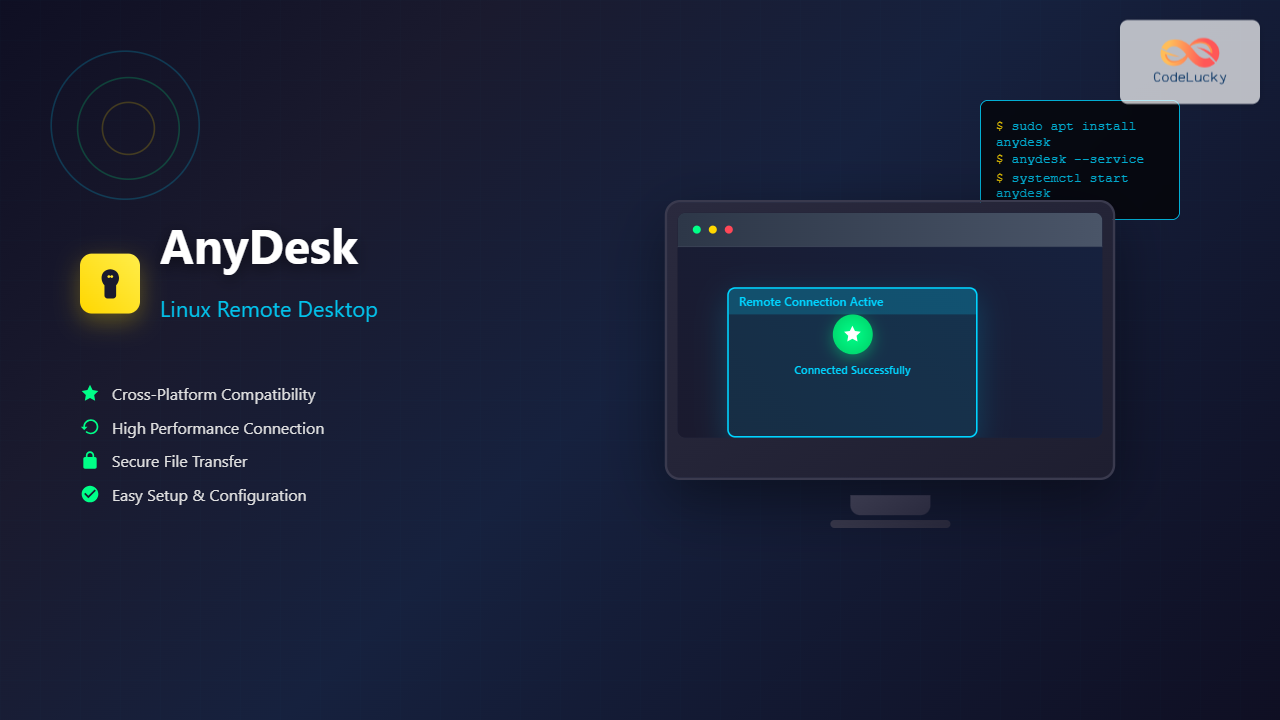
AnyDesk is a powerful cross-platform remote desktop application that enables users to access computers remotely over the internet. For Linux users, AnyDesk provides a reliable solution for remote work, technical support, and system administration tasks. This comprehensive guide covers everything you need to know about installing, configuring, and using AnyDesk on Linux systems.
What is AnyDesk?
AnyDesk is a proprietary remote desktop software developed by AnyDesk Software GmbH. It uses a custom video codec called DeskRT, which provides high-quality video transmission with low latency. Unlike many remote desktop solutions, AnyDesk works seamlessly across different operating systems and doesn’t require complex network configuration in most cases.
Key Features of AnyDesk for Linux
- Cross-platform compatibility – Connect between Linux, Windows, macOS, Android, and iOS
- High performance – Optimized for low bandwidth and high-quality video
- Easy setup – No complex router or firewall configuration required
- File transfer – Seamless file sharing between connected devices
- Session recording – Record remote sessions for documentation
- Multiple monitor support – Handle multi-screen setups effectively
- Clipboard synchronization – Copy and paste between local and remote systems
System Requirements
Before installing AnyDesk on your Linux system, ensure your system meets the following requirements:
Minimum Requirements
- Operating System: Linux kernel 2.6.18 or higher
- Architecture: x86_64 (64-bit) or i386 (32-bit)
- RAM: 512 MB minimum, 1 GB recommended
- Disk Space: 50 MB free space
- Network: Internet connection (broadband recommended)
- Display: X11 display server
Supported Linux Distributions
- Ubuntu 16.04 LTS and newer
- Debian 9 and newer
- CentOS 7 and newer
- RHEL 7 and newer
- Fedora 28 and newer
- openSUSE Leap 15.0 and newer
- Arch Linux
- Manjaro
Installation Methods
AnyDesk can be installed on Linux systems using several methods. Choose the one that best suits your distribution and preferences.
Method 1: Using Official Repository (Recommended)
For Debian/Ubuntu Systems
First, add the AnyDesk repository to your system:
# Add the repository key
wget -qO - https://keys.anydesk.com/repos/DEB-GPG-KEY | apt-key add -

# Add the repository
echo "deb http://deb.anydesk.com/ all main" > /etc/apt/sources.list.d/anydesk-stable.list

# Update package list
sudo apt update

# Install AnyDesk
sudo apt install anydesk
For CentOS/RHEL/Fedora Systems
Create a repository file and install AnyDesk:
# Create repository file
sudo tee /etc/yum.repos.d/AnyDesk-CentOS.repo <
Method 2: Manual Package Installation
If you prefer to download and install packages manually:
For Debian/Ubuntu (.deb package)
# Download the package
wget https://download.anydesk.com/linux/anydesk_6.3.0-1_amd64.deb

# Install the package
sudo dpkg -i anydesk_6.3.0-1_amd64.deb

# Fix any dependency issues
sudo apt-get install -f
For CentOS/RHEL/Fedora (.rpm package)
# Download the package
wget https://download.anydesk.com/linux/anydesk-6.3.0-1.x86_64.rpm

# Install the package
sudo rpm -ivh anydesk-6.3.0-1.x86_64.rpm
Method 3: Using Snap Package
For systems with Snap support:
# Install AnyDesk via Snap
sudo snap install anydesk
First-Time Setup and Configuration
After installation, you’ll need to configure AnyDesk for your specific needs.
Initial Launch
Launch AnyDesk from the applications menu or command line:
# Launch from terminal
anydesk
Upon first launch, AnyDesk will display your unique AnyDesk ID, which looks like a 9-digit number (e.g., 123 456 789). This ID is used to connect to your computer remotely.
Setting Up Unattended Access
For permanent remote access without user intervention:
- Open AnyDesk and click on the settings gear icon
- Navigate to the “Security” tab
- Enable “Enable unattended access”
- Set a strong password for unattended access
- Optionally, set a custom alias instead of the numeric ID
Configuring Permissions
Set appropriate permissions for remote connections:
- Allow control of keyboard and mouse – Enable remote control
- Allow file transfer – Enable file sharing capabilities
- Allow audio transmission – Enable sound forwarding
- Allow clipboard synchronization – Enable copy/paste functionality
Using AnyDesk for Remote Connections
Connecting to Another Computer
To connect to a remote computer:
- Launch AnyDesk on your local machine
- Enter the remote computer’s AnyDesk ID in the “Remote Desk” field
- Click “Connect”
- Wait for the remote user to accept the connection or enter the unattended access password
Accepting Incoming Connections
When someone tries to connect to your computer:
- AnyDesk will display a connection request dialog
- Review the incoming connection details
- Choose the appropriate permission level
- Click “Accept” to allow the connection
File Transfer Operations
AnyDesk provides built-in file transfer capabilities:
During an Active Session
- Click the file transfer icon in the AnyDesk toolbar
- Navigate to the files you want to transfer
- Drag and drop files between local and remote file browsers
- Monitor transfer progress in the transfer window
Using Command Line File Transfer
# Transfer a file to remote computer
anydesk --file-transfer /path/to/local/file.txt 123456789:/remote/path/

# Transfer from remote to local
anydesk --file-transfer 123456789:/remote/file.txt /local/path/
Advanced Configuration Options
Network and Performance Settings
Optimize AnyDesk for your network conditions:
Quality Settings
- Speed: Prioritizes responsiveness over image quality
- Balanced: Good compromise between speed and quality
- Quality: Maximum image quality, higher bandwidth usage
- Reaction time: Optimized for real-time applications
Bandwidth Optimization
# Set custom quality via command line
anydesk --quality speed

# Limit bandwidth usage
anydesk --max-bandwidth 1000  # Limit to 1000 kbps
Security Configuration
Setting Up Whitelist
Restrict connections to specific AnyDesk IDs:
- Open Settings → Security
- Enable “Only allow connections from users on the whitelist”
- Add trusted AnyDesk IDs to the whitelist
Two-Factor Authentication
Enable additional security for your AnyDesk account:
- Create an AnyDesk account at my.anydesk.com
- Link your AnyDesk client to your account
- Enable two-factor authentication in account settings
- Use authenticator app for additional security
Command Line Usage
AnyDesk provides extensive command-line functionality for automation and scripting:
Basic Commands
# Connect to a remote computer
anydesk 123456789

# Start AnyDesk in service mode
anydesk --service

# Get current AnyDesk ID
anydesk --get-id

# Set custom alias
anydesk --set-alias "MyLinuxServer"

# Start with specific settings
anydesk --plain --quality speed --view-only
Service Management
# Start AnyDesk service
sudo systemctl start anydesk

# Enable automatic startup
sudo systemctl enable anydesk

# Check service status
sudo systemctl status anydesk

# Restart service
sudo systemctl restart anydesk
Configuration File Management
AnyDesk stores configuration in specific locations:
# System-wide configuration
/etc/anydesk/

# User-specific configuration
~/.anydesk/

# View current configuration
anydesk --config
Troubleshooting Common Issues
Connection Problems
Cannot Connect to Remote Computer
Symptoms: Connection timeout or “Desk is not available” error
Solutions:
- Verify the remote AnyDesk ID is correct
- Check internet connectivity on both ends
- Ensure AnyDesk is running on the remote computer
- Check firewall settings
# Test network connectivity
ping anydesk.com

# Check if AnyDesk is running
ps aux | grep anydesk

# Restart AnyDesk service
sudo systemctl restart anydesk
Poor Performance or Lag
Solutions:
- Adjust quality settings to prioritize speed
- Close unnecessary applications
- Check network bandwidth
- Update AnyDesk to the latest version
# Monitor network usage
iftop

# Check system resources
htop

# Update AnyDesk
sudo apt update && sudo apt upgrade anydesk
Audio and Display Issues
No Audio Transmission
Solutions:
- Enable audio transmission in settings
- Check audio system compatibility
- Verify ALSA/PulseAudio configuration
# Check audio systems
pulseaudio --check -v
aplay -l

# Restart audio services
pulseaudio --kill
pulseaudio --start
Display Problems
Common issues and solutions:
- Black screen: Check X11 permissions and display settings
- Multiple monitors: Configure display settings in AnyDesk
- Resolution problems: Adjust remote display settings
# Check X11 display
echo $DISPLAY
xrandr --listmonitors

# Fix X11 permissions
xhost +local:
Installation and Dependency Issues
Missing Dependencies
Install required libraries:
# For Debian/Ubuntu
sudo apt install libgtkglext1 libxss1 libxrandr2 libasound2

# For CentOS/RHEL
sudo yum install gtk2 libXss libXrandr alsa-lib

# For Fedora
sudo dnf install gtk2-devel libXScrnSaver libXrandr alsa-lib
Security Best Practices
Network Security
- Use strong passwords: Set complex passwords for unattended access
- Enable whitelist: Restrict connections to known AnyDesk IDs
- Regular updates: Keep AnyDesk updated to the latest version
- Monitor connections: Review connection logs regularly
System Security
# Set proper file permissions
sudo chmod 644 /etc/anydesk/*
sudo chown root:root /etc/anydesk/*

# Enable logging
anydesk --log-level debug

# Monitor AnyDesk logs
tail -f ~/.anydesk/ad.trace
Firewall Configuration
Configure firewall rules for AnyDesk:
# UFW (Ubuntu/Debian)
sudo ufw allow out 80,443,6568/tcp

# iptables
sudo iptables -A OUTPUT -p tcp --dport 80,443,6568 -j ACCEPT

# firewalld (CentOS/RHEL/Fedora)
sudo firewall-cmd --permanent --add-port=6568/tcp
sudo firewall-cmd --reload
Performance Optimization
System-Level Optimizations
Optimize your Linux system for better AnyDesk performance:
# Increase network buffer sizes
echo 'net.core.rmem_max = 16777216' >> /etc/sysctl.conf
echo 'net.core.wmem_max = 16777216' >> /etc/sysctl.conf

# Apply changes
sudo sysctl -p

# Optimize X11 for remote access
echo 'Section "Extensions"
    Option "Composite" "Disable"
EndSection' >> /etc/X11/xorg.conf.d/99-anydesk.conf
AnyDesk-Specific Optimizations
# Create performance configuration
mkdir -p ~/.anydesk
cat > ~/.anydesk/system.conf << EOF
[General]
Quality=Speed
ColorReduction=true
RemoteAudio=false
FrameSkipping=true
EOF
Integration with System Administration
Automated Deployment
Deploy AnyDesk across multiple Linux systems:
#!/bin/bash
# anydesk-deploy.sh

# Add repository and install
curl -fsSL https://keys.anydesk.com/repos/DEB-GPG-KEY | sudo apt-key add -
echo "deb http://deb.anydesk.com/ all main" | sudo tee /etc/apt/sources.list.d/anydesk-stable.list
sudo apt update
sudo apt install -y anydesk

# Configure unattended access
echo "ad.security.unattended_password_set=true" >> /etc/anydesk/system.conf
echo "ad.security.unattended_password=YourSecurePassword" >> /etc/anydesk/system.conf

# Start and enable service
sudo systemctl enable anydesk
sudo systemctl start anydesk
Monitoring and Logging
Set up comprehensive logging for AnyDesk:
# Create logging configuration
sudo tee /etc/anydesk/logging.conf << EOF
[Logging]
LogLevel=info
LogFile=/var/log/anydesk.log
MaxLogSize=10485760
MaxLogFiles=5
EOF

# Set up log rotation
sudo tee /etc/logrotate.d/anydesk << EOF
/var/log/anydesk.log {
    daily
    rotate 7
    compress
    delaycompress
    missingok
    notifempty
    postrotate
        systemctl reload anydesk
    endscript
}
EOF
Comparison with Alternatives
AnyDesk vs. TeamViewer
| Feature | AnyDesk | TeamViewer |
|---|---|---|
| License | Free for personal use | Free for personal use |
| Performance | Lower latency | More features |
| File Transfer | Built-in | Built-in |
| Mobile Support | Yes | Yes |
| Command Line | Extensive | Limited |
AnyDesk vs. VNC
| Feature | AnyDesk | VNC |
|---|---|---|
| Setup Complexity | Simple | Complex |
| Internet Access | Direct | Requires port forwarding |
| Performance | Optimized codec | Basic compression |
| Security | Built-in encryption | Requires SSH tunnel |
Conclusion
AnyDesk provides a robust and user-friendly remote desktop solution for Linux users. Its ease of installation, cross-platform compatibility, and excellent performance make it an ideal choice for both personal and professional use. By following this comprehensive guide, you can successfully install, configure, and optimize AnyDesk for your specific needs.
Whether you’re providing technical support, accessing your home computer from work, or managing remote servers, AnyDesk’s feature-rich platform ensures reliable and secure remote desktop access. Regular updates, proper security configuration, and performance optimization will help you get the most out of this powerful remote desktop solution.
Remember to always follow security best practices, keep your software updated, and monitor your remote connections to maintain a secure and efficient remote desktop environment. With proper setup and configuration, AnyDesk can significantly enhance your remote work capabilities and system administration tasks on Linux platforms.
Related Posts
NoMachine Linux: Complete Guide to Remote Desktop Access and Configuration
NoMachine is a powerful remote desktop solution that enables secure access to Linux systems from anywhere in the world. Unlike...
tightvncserver Linux: Complete Guide to TightVNC Server Setup and Configuration
TightVNC Server is a powerful remote desktop solution that allows you to access and control Linux systems remotely over a...
xfreerdp Command Linux: Complete Guide to FreeRDP Remote Desktop Client
The xfreerdp command is a powerful Linux utility that serves as the primary client for the FreeRDP project, enabling users...
RealVNC Linux: Complete Guide to Remote Desktop Access and Control
RealVNC is a powerful remote desktop software that enables users to control Linux systems remotely over a network connection. As...
TeamViewer Linux: Complete Guide to Remote Desktop Access and Support
TeamViewer is one of the most popular remote desktop solutions available today, offering cross-platform compatibility and robust features for remote...
x11vnc Command Linux: Complete Guide to Remote Desktop Access via VNC Server
The x11vnc command is a powerful Linux utility that allows you to share your existing X11 desktop session via VNC...
xrdp Command Linux: Complete Guide to Remote Desktop Server Setup
The xrdp command is a powerful Linux utility that implements Microsoft's Remote Desktop Protocol (RDP) server functionality on Unix-like systems....
rdesktop Command Linux: Complete Guide to Remote Desktop Protocol Client
The rdesktop command is a powerful Remote Desktop Protocol (RDP) client for Linux systems that enables seamless connections to Windows...
vncserver Command Linux: Complete Guide to VNC Server Setup and Management
The vncserver command is a powerful tool in Linux that enables remote desktop access by starting a Virtual Network Computing...
vinagre Command Linux: Complete Guide to VNC Viewer and Remote Desktop Access
The vinagre command is a powerful VNC (Virtual Network Computing) viewer for Linux systems that enables users to connect to...

Paessler Linux: Complete Guide to Network Monitoring with PRTG on Linux Systems
Network monitoring is crucial for maintaining optimal performance and security in Linux environments. Paessler PRTG Network Monitor offers comprehensive monitoring...
thruk Linux: Comprehensive Monitoring Web Interface for Network Infrastructure
Thruk is a powerful web-based monitoring interface designed primarily for Nagios and compatible monitoring systems. As a comprehensive frontend solution,...





