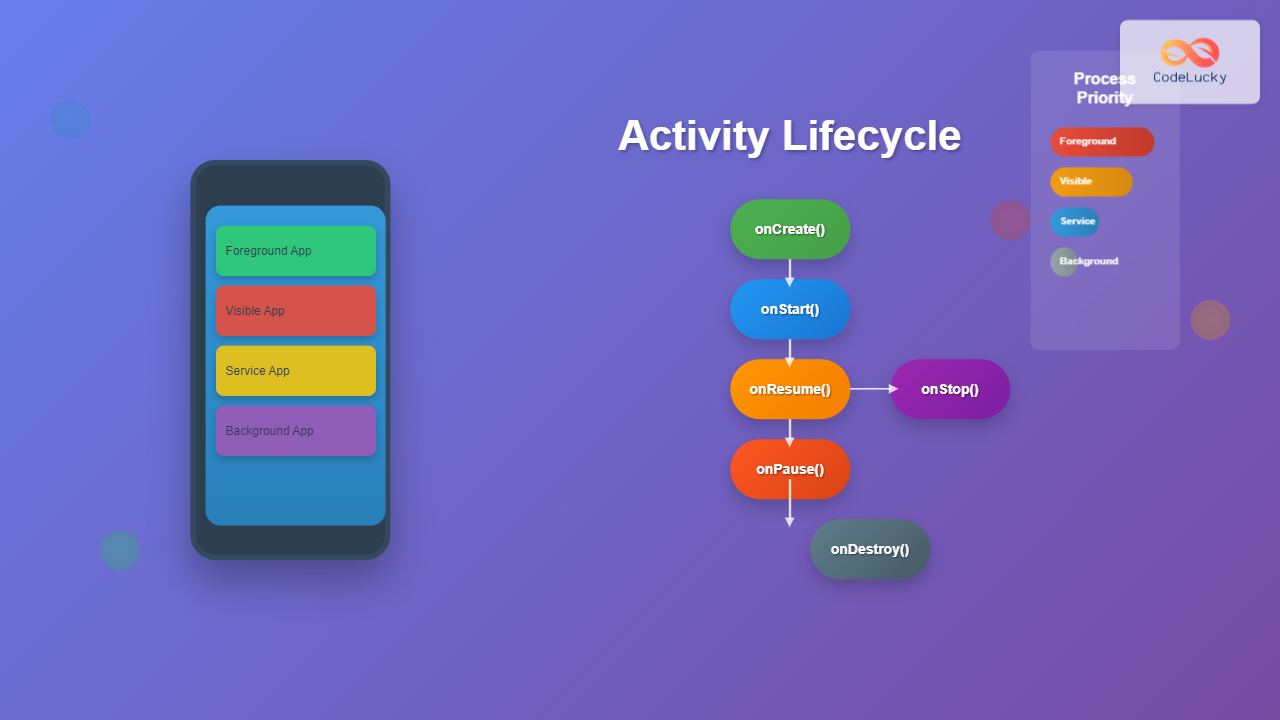
Android process management is a critical aspect of mobile application development that directly impacts user experience, performance, and system stability. At the heart of this system lies the Activity Lifecycle, a well-defined set of states that govern how Android manages activities as users navigate through applications.
Understanding Android Process Management
Android’s process management system is designed to optimize memory usage while ensuring smooth user interactions. The Android Runtime (ART) manages processes through a sophisticated lifecycle system that automatically handles memory allocation, garbage collection, and process termination based on system resources and user behavior.
The operating system uses a priority-based approach to determine which processes to keep in memory and which to terminate when resources become scarce. This intelligent management ensures that foreground applications receive priority while background processes are managed efficiently.
The Activity Lifecycle Framework
The Activity Lifecycle consists of seven primary callback methods that define how an activity behaves during different states. These methods provide developers with precise control over resource management, data persistence, and user interface updates.
onCreate() Method
The onCreate() method serves as the entry point for activity initialization. This method is called once during the activity’s lifetime and is responsible for setting up the user interface, initializing variables, and performing one-time setup operations.
@Override
protected void onCreate(Bundle savedInstanceState) {
    super.onCreate(savedInstanceState);
    setContentView(R.layout.activity_main);

    // Initialize UI components
    TextView textView = findViewById(R.id.textView);
    Button button = findViewById(R.id.button);

    // Set click listeners
    button.setOnClickListener(new View.OnClickListener() {
        @Override
        public void onClick(View v) {
            textView.setText("Button clicked!");
        }
    });

    Log.d("Lifecycle", "onCreate() called");
}
onStart() Method
The onStart() method is invoked when the activity becomes visible to the user but is not yet in the foreground. This is the ideal place to register broadcast receivers or start services that should run while the activity is visible.
@Override
protected void onStart() {
    super.onStart();

    // Register broadcast receivers
    IntentFilter filter = new IntentFilter(Intent.ACTION_BATTERY_CHANGED);
    registerReceiver(batteryReceiver, filter);

    // Start location services if needed
    startLocationUpdates();

    Log.d("Lifecycle", "onStart() called - Activity visible");
}
onResume() Method
The onResume() method indicates that the activity is now in the foreground and ready to interact with the user. This is where you should start animations, resume video playback, or begin intensive operations that require user attention.
@Override
protected void onResume() {
    super.onResume();

    // Resume animations
    if (animationDrawable != null) {
        animationDrawable.start();
    }

    // Resume camera preview
    if (cameraPreview != null) {
        cameraPreview.resume();
    }

    // Start sensor monitoring
    sensorManager.registerListener(this, accelerometer, SensorManager.SENSOR_DELAY_NORMAL);

    Log.d("Lifecycle", "onResume() called - Activity interactive");
}
Activity State Transitions
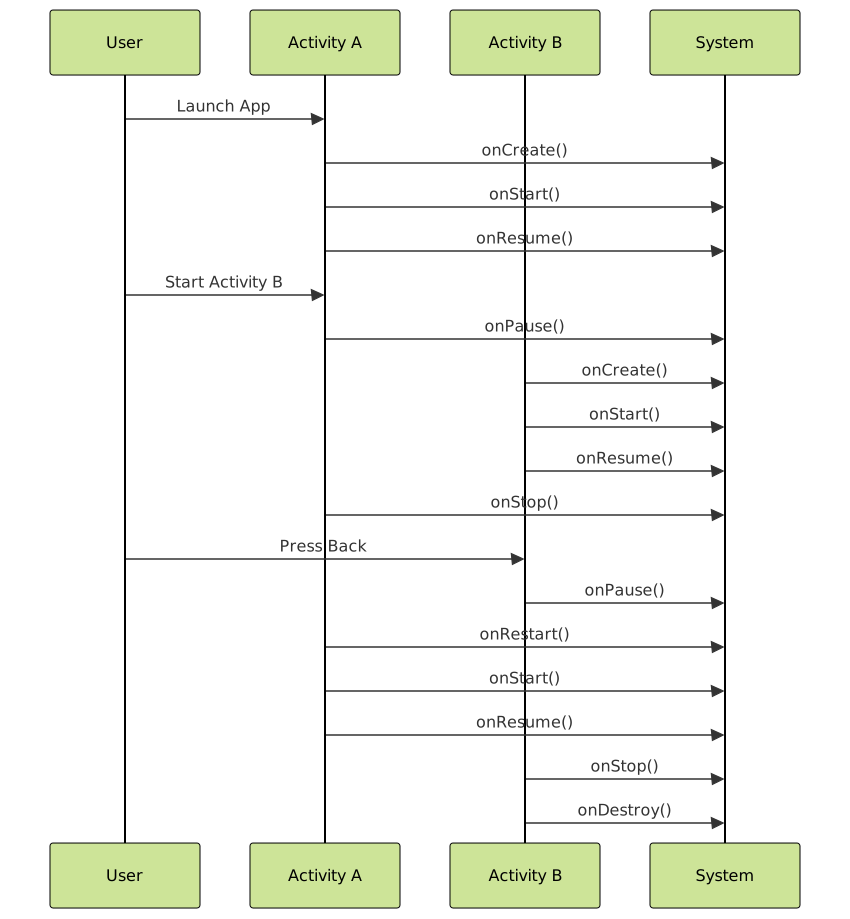
Understanding how activities transition between states is crucial for proper resource management and user experience optimization. The Android system manages these transitions automatically, but developers must respond appropriately to each callback.

onPause() Method
The onPause() method is called when the system is about to resume another activity. This method should be used to pause ongoing operations, save critical data, and release resources that may affect battery life.
@Override
protected void onPause() {
    super.onPause();

    // Pause video playback
    if (videoView != null && videoView.isPlaying()) {
        videoView.pause();
        videoCurrentPosition = videoView.getCurrentPosition();
    }

    // Save critical data
    SharedPreferences.Editor editor = getSharedPreferences("app_data", MODE_PRIVATE).edit();
    editor.putString("current_text", editText.getText().toString());
    editor.apply();

    // Unregister sensor listeners
    sensorManager.unregisterListener(this);

    Log.d("Lifecycle", "onPause() called - Activity losing focus");
}
onStop() Method
The onStop() method is invoked when the activity is no longer visible to the user. This is the appropriate place to release heavyweight resources, stop network operations, and perform cleanup tasks that don’t need to run while the activity is invisible.
@Override
protected void onStop() {
    super.onStop();

    // Stop location updates
    if (locationManager != null) {
        locationManager.removeUpdates(locationListener);
    }

    // Unregister broadcast receivers
    try {
        unregisterReceiver(batteryReceiver);
    } catch (IllegalArgumentException e) {
        // Receiver not registered
    }

    // Cancel network requests
    if (networkCall != null && !networkCall.isCanceled()) {
        networkCall.cancel();
    }

    Log.d("Lifecycle", "onStop() called - Activity not visible");
}
onDestroy() Method
The onDestroy() method represents the final cleanup phase before the activity is removed from memory. This method should release all remaining resources and perform final cleanup operations.
@Override
protected void onDestroy() {
    super.onDestroy();

    // Release database connections
    if (database != null && database.isOpen()) {
        database.close();
    }

    // Cancel all pending tasks
    if (asyncTask != null && !asyncTask.isCancelled()) {
        asyncTask.cancel(true);
    }

    // Release media resources
    if (mediaPlayer != null) {
        mediaPlayer.release();
        mediaPlayer = null;
    }

    Log.d("Lifecycle", "onDestroy() called - Activity destroyed");
}
Process Priority and Memory Management
Android categorizes processes into different priority levels to determine which processes to keep in memory when system resources become limited. Understanding these priorities helps developers optimize their applications for better performance and user experience.

Foreground Processes
Foreground processes contain activities that are currently interacting with the user. These processes have the highest priority and are rarely killed by the system unless memory is critically low.
Visible Processes
Visible processes contain activities that are visible but not in the foreground, such as activities with transparent dialogs or activities in multi-window mode. These processes are considered important and are kept in memory whenever possible.
Service Processes
Service processes run background services that perform operations not directly visible to the user, such as music playback or data synchronization. These processes have moderate priority and may be killed when memory is needed for higher-priority processes.
Handling Configuration Changes
Configuration changes, such as screen rotation or language switching, can trigger activity recreation. Proper handling of these changes is essential for maintaining application state and providing seamless user experience.
public class MainActivity extends AppCompatActivity {
    private static final String KEY_COUNTER = "counter_value";
    private int counter = 0;
    private TextView counterText;

    @Override
    protected void onCreate(Bundle savedInstanceState) {
        super.onCreate(savedInstanceState);
        setContentView(R.layout.activity_main);

        counterText = findViewById(R.id.counter_text);
        Button incrementButton = findViewById(R.id.increment_button);

        // Restore saved state
        if (savedInstanceState != null) {
            counter = savedInstanceState.getInt(KEY_COUNTER, 0);
        }

        updateCounterDisplay();

        incrementButton.setOnClickListener(v -> {
            counter++;
            updateCounterDisplay();
        });
    }

    @Override
    protected void onSaveInstanceState(Bundle outState) {
        super.onSaveInstanceState(outState);
        outState.putInt(KEY_COUNTER, counter);
    }

    private void updateCounterDisplay() {
        counterText.setText("Count: " + counter);
    }
}
Best Practices for Activity Lifecycle Management
Resource Management
Proper resource management is crucial for preventing memory leaks and ensuring optimal performance. Always release resources in the appropriate lifecycle methods and avoid holding references to activities in long-lived objects.
public class NetworkManager {
    private WeakReference<Activity> activityRef;
    private Call currentCall;

    public void setActivity(Activity activity) {
        this.activityRef = new WeakReference<>(activity);
    }

    public void makeNetworkRequest() {
        Activity activity = activityRef.get();
        if (activity == null || activity.isFinishing()) {
            return; // Activity is no longer available
        }

        // Proceed with network request
        currentCall = apiService.getData();
        currentCall.enqueue(new Callback<Data>() {
            @Override
            public void onResponse(Call<Data> call, Response<Data> response) {
                Activity activity = activityRef.get();
                if (activity != null && !activity.isFinishing()) {
                    // Update UI safely
                    activity.runOnUiThread(() -> updateUI(response.body()));
                }
            }

            @Override
            public void onFailure(Call<Data> call, Throwable t) {
                // Handle error
            }
        });
    }

    public void cleanup() {
        if (currentCall != null && !currentCall.isCanceled()) {
            currentCall.cancel();
        }
        activityRef.clear();
    }
}
State Preservation
Implement robust state preservation mechanisms to ensure that user data and application state survive configuration changes and process recreation.
public class FormActivity extends AppCompatActivity {
    private EditText nameEdit, emailEdit;
    private CheckBox subscribeCheckbox;

    @Override
    protected void onSaveInstanceState(Bundle outState) {
        super.onSaveInstanceState(outState);

        // Save form data
        outState.putString("name", nameEdit.getText().toString());
        outState.putString("email", emailEdit.getText().toString());
        outState.putBoolean("subscribe", subscribeCheckbox.isChecked());
    }

    @Override
    protected void onRestoreInstanceState(Bundle savedInstanceState) {
        super.onRestoreInstanceState(savedInstanceState);

        // Restore form data
        nameEdit.setText(savedInstanceState.getString("name", ""));
        emailEdit.setText(savedInstanceState.getString("email", ""));
        subscribeCheckbox.setChecked(savedInstanceState.getBoolean("subscribe", false));
    }
}
Advanced Lifecycle Scenarios
Multi-Window Support
With the introduction of multi-window support in Android 7.0, activities can be visible simultaneously. This requires careful consideration of the lifecycle methods and resource management.
@Override
public void onMultiWindowModeChanged(boolean isInMultiWindowMode, Configuration newConfig) {
    super.onMultiWindowModeChanged(isInMultiWindowMode, newConfig);

    if (isInMultiWindowMode) {
        // Entering multi-window mode
        // Adjust UI for smaller screen space
        adjustLayoutForMultiWindow();
    } else {
        // Exiting multi-window mode
        // Restore full-screen layout
        restoreFullScreenLayout();
    }
}
Picture-in-Picture Mode
Picture-in-Picture (PiP) mode allows activities to continue running in a small window while users interact with other apps. This requires specific lifecycle handling to maintain functionality in the reduced interface.
@Override
protected void onUserLeaveHint() {
    super.onUserLeaveHint();

    if (Build.VERSION.SDK_INT >= Build.VERSION_CODES.O) {
        if (isVideoPlaying() && canEnterPictureInPictureMode()) {
            PictureInPictureParams params = new PictureInPictureParams.Builder()
                .setAspectRatio(new Rational(16, 9))
                .build();
            enterPictureInPictureMode(params);
        }
    }
}

@Override
public void onPictureInPictureModeChanged(boolean isInPictureInPictureMode, Configuration newConfig) {
    super.onPictureInPictureModeChanged(isInPictureInPictureMode, newConfig);

    if (isInPictureInPictureMode) {
        // Hide UI controls
        hideControlsForPiP();
    } else {
        // Restore full UI
        showFullControls();
    }
}
Performance Optimization Strategies
Lazy Initialization
Implement lazy initialization patterns to defer expensive operations until they are actually needed, improving startup performance and reducing memory usage.
public class MainActivity extends AppCompatActivity {
    private DatabaseHelper database;
    private ImageLoader imageLoader;

    private DatabaseHelper getDatabase() {
        if (database == null) {
            database = new DatabaseHelper(this);
        }
        return database;
    }

    private ImageLoader getImageLoader() {
        if (imageLoader == null) {
            imageLoader = new ImageLoader(this);
        }
        return imageLoader;
    }

    @Override
    protected void onDestroy() {
        super.onDestroy();

        if (database != null) {
            database.close();
        }

        if (imageLoader != null) {
            imageLoader.cleanup();
        }
    }
}
Memory Leak Prevention
Prevent memory leaks by properly managing object references and using appropriate cleanup patterns throughout the activity lifecycle.
public class LeakSafeActivity extends AppCompatActivity {
    private Handler handler = new Handler();
    private Runnable periodicTask;

    @Override
    protected void onCreate(Bundle savedInstanceState) {
        super.onCreate(savedInstanceState);
        setContentView(R.layout.activity_main);

        // Use weak reference for periodic tasks
        periodicTask = new Runnable() {
            @Override
            public void run() {
                if (!isFinishing() && !isDestroyed()) {
                    // Perform periodic update
                    updateUI();
                    handler.postDelayed(this, 5000);
                }
            }
        };
    }

    @Override
    protected void onResume() {
        super.onResume();
        handler.post(periodicTask);
    }

    @Override
    protected void onPause() {
        super.onPause();
        handler.removeCallbacks(periodicTask);
    }
}
Mastering Android process management and the activity lifecycle is essential for creating robust, efficient mobile applications. By understanding the intricate details of state transitions, implementing proper resource management, and following best practices, developers can ensure their applications provide excellent user experiences while efficiently utilizing system resources. The lifecycle framework provides a powerful foundation for building responsive and reliable Android applications that adapt gracefully to the dynamic mobile environment.