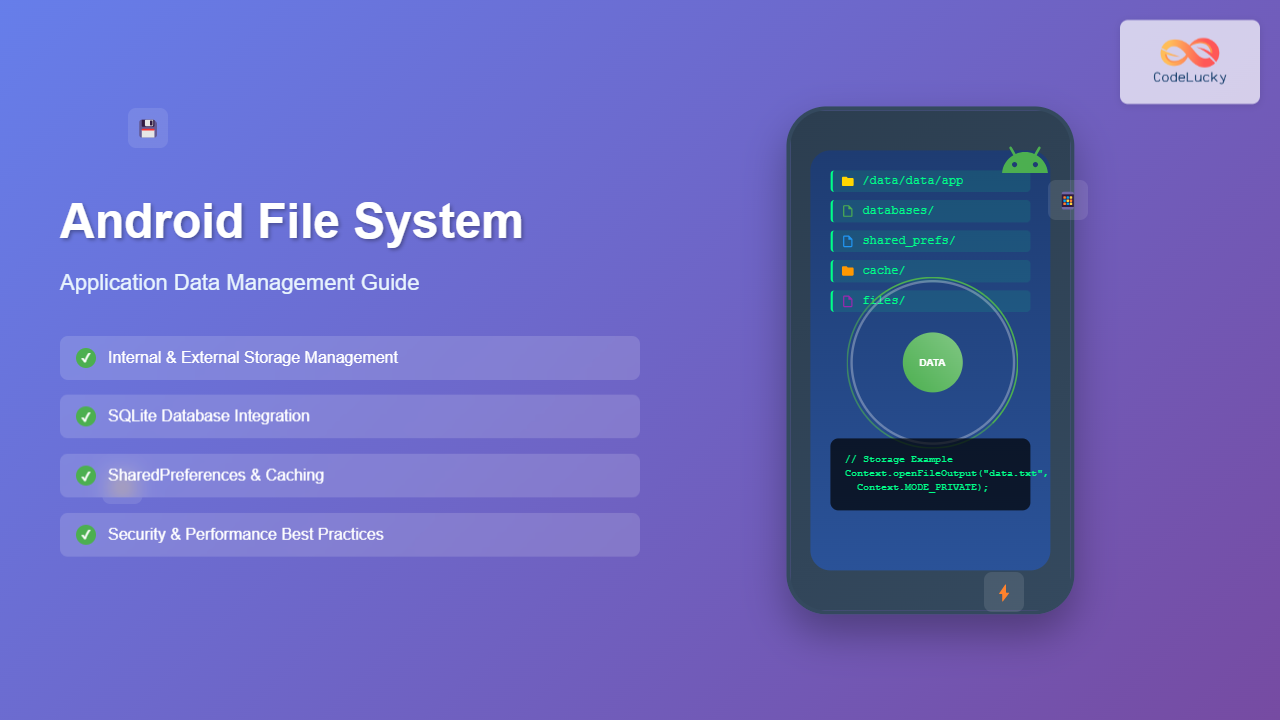
Android’s file system architecture plays a crucial role in how applications store, access, and manage data. Understanding this system is essential for developers who want to create efficient, secure, and user-friendly mobile applications. This comprehensive guide explores Android’s file system structure, application data management strategies, and best practices for optimal performance.
Android File System Architecture Overview
Android uses a Linux-based file system with several key partitions and directories that serve specific purposes. The system is designed with security, efficiency, and multi-user support in mind.
Key File System Components
- /system – Contains the Android operating system, system applications, and libraries
- /data – Stores user data, installed applications, and application-specific data
- /cache – Temporary storage for system and application cache files
- /sdcard – External storage accessible to users and applications (with permissions)
- /vendor – Hardware-specific drivers and configurations
Application Data Storage Types
Android provides multiple storage options for applications, each designed for specific use cases and data types. Understanding these options helps developers choose the most appropriate storage method for their needs.
Internal Storage
Internal storage is private to each application and provides the highest level of security. Data stored here is automatically removed when the application is uninstalled.
// Writing to internal storage
String filename = "user_preferences.txt";
String content = "theme=dark,language=en";

try (FileOutputStream fos = openFileOutput(filename, Context.MODE_PRIVATE)) {
    fos.write(content.getBytes());
} catch (IOException e) {
    Log.e("Storage", "Error writing to internal storage", e);
}

// Reading from internal storage
try (FileInputStream fis = openFileInput(filename)) {
    StringBuilder sb = new StringBuilder();
    int content;
    while ((content = fis.read()) != -1) {
        sb.append((char) content);
    }
    String data = sb.toString();
    Log.d("Storage", "Read data: " + data);
} catch (IOException e) {
    Log.e("Storage", "Error reading from internal storage", e);
}
External Storage
External storage is accessible to users and other applications (with proper permissions). It’s suitable for files that should be accessible outside the application context.
// Check if external storage is available
public boolean isExternalStorageWritable() {
    String state = Environment.getExternalStorageState();
    return Environment.MEDIA_MOUNTED.equals(state);
}

// Writing to external storage (requires WRITE_EXTERNAL_STORAGE permission)
if (isExternalStorageWritable()) {
    File externalDir = Environment.getExternalStoragePublicDirectory(
        Environment.DIRECTORY_DOCUMENTS);
    File file = new File(externalDir, "app_data.txt");

    try (FileWriter writer = new FileWriter(file)) {
        writer.write("Sample external storage data");
        Log.d("Storage", "Data written to: " + file.getAbsolutePath());
    } catch (IOException e) {
        Log.e("Storage", "Error writing to external storage", e);
    }
}
SharedPreferences
SharedPreferences is ideal for storing small amounts of key-value data, such as user settings, preferences, and simple configuration data.
// Writing to SharedPreferences
SharedPreferences prefs = getSharedPreferences("app_settings", Context.MODE_PRIVATE);
SharedPreferences.Editor editor = prefs.edit();
editor.putString("username", "john_doe");
editor.putInt("theme_id", 2);
editor.putBoolean("notifications_enabled", true);
editor.apply(); // Use commit() for immediate synchronous write

// Reading from SharedPreferences
String username = prefs.getString("username", "default_user");
int themeId = prefs.getInt("theme_id", 1);
boolean notificationsEnabled = prefs.getBoolean("notifications_enabled", true);

Log.d("Preferences", String.format(
    "User: %s, Theme: %d, Notifications: %b",
    username, themeId, notificationsEnabled));
Database Storage with SQLite
For complex data relationships and structured storage, Android applications commonly use SQLite databases. SQLite provides ACID compliance and supports complex queries while maintaining excellent performance.

Creating a Database Helper
public class DatabaseHelper extends SQLiteOpenHelper {
    private static final String DATABASE_NAME = "app_database.db";
    private static final int DATABASE_VERSION = 1;

    // Table creation SQL
    private static final String CREATE_USERS_TABLE =
        "CREATE TABLE users (" +
        "id INTEGER PRIMARY KEY AUTOINCREMENT, " +
        "name TEXT NOT NULL, " +
        "email TEXT UNIQUE NOT NULL, " +
        "created_at TIMESTAMP DEFAULT CURRENT_TIMESTAMP)";

    public DatabaseHelper(Context context) {
        super(context, DATABASE_NAME, null, DATABASE_VERSION);
    }

    @Override
    public void onCreate(SQLiteDatabase db) {
        db.execSQL(CREATE_USERS_TABLE);
    }

    @Override
    public void onUpgrade(SQLiteDatabase db, int oldVersion, int newVersion) {
        db.execSQL("DROP TABLE IF EXISTS users");
        onCreate(db);
    }

    // Insert user method
    public long insertUser(String name, String email) {
        SQLiteDatabase db = this.getWritableDatabase();
        ContentValues values = new ContentValues();
        values.put("name", name);
        values.put("email", email);

        long result = db.insert("users", null, values);
        db.close();
        return result;
    }

    // Query users method
    public List<User> getAllUsers() {
        List<User> users = new ArrayList<>();
        SQLiteDatabase db = this.getReadableDatabase();

        Cursor cursor = db.query("users",
            new String[]{"id", "name", "email"},
            null, null, null, null, "name ASC");

        if (cursor.moveToFirst()) {
            do {
                User user = new User();
                user.setId(cursor.getInt(0));
                user.setName(cursor.getString(1));
                user.setEmail(cursor.getString(2));
                users.add(user);
            } while (cursor.moveToNext());
        }

        cursor.close();
        db.close();
        return users;
    }
}
Storage Scoped Access and Permissions
Android has evolved its storage access model to enhance user privacy and security. Understanding scoped storage and permissions is crucial for modern Android development.

Scoped Storage Implementation
// Accessing app-specific external directory (no permissions required)
public File getAppSpecificExternalDir(String type) {
    File[] externalDirs = getExternalFilesDirs(type);
    if (externalDirs.length > 0 && externalDirs[0] != null) {
        return externalDirs[0];
    }
    return null;
}

// Using MediaStore for media files
public void saveImageToMediaStore(Bitmap bitmap, String displayName) {
    ContentResolver resolver = getContentResolver();
    ContentValues contentValues = new ContentValues();
    contentValues.put(MediaStore.MediaColumns.DISPLAY_NAME, displayName);
    contentValues.put(MediaStore.MediaColumns.MIME_TYPE, "image/jpeg");
    contentValues.put(MediaStore.MediaColumns.RELATIVE_PATH,
        Environment.DIRECTORY_PICTURES + "/MyApp");

    Uri imageUri = resolver.insert(MediaStore.Images.Media.EXTERNAL_CONTENT_URI,
        contentValues);

    if (imageUri != null) {
        try (OutputStream outputStream = resolver.openOutputStream(imageUri)) {
            bitmap.compress(Bitmap.CompressFormat.JPEG, 90, outputStream);
            Log.d("MediaStore", "Image saved successfully");
        } catch (IOException e) {
            Log.e("MediaStore", "Error saving image", e);
        }
    }
}
Application Data Management Best Practices
Data Lifecycle Management
Proper data lifecycle management ensures optimal app performance and user experience. This includes managing cache files, temporary data, and user-generated content appropriately.
public class DataManager {
    private static final long CACHE_EXPIRY_TIME = 24 * 60 * 60 * 1000; // 24 hours

    // Clean old cache files
    public void cleanOldCacheFiles(Context context) {
        File cacheDir = context.getCacheDir();
        if (cacheDir != null && cacheDir.isDirectory()) {
            File[] files = cacheDir.listFiles();
            long currentTime = System.currentTimeMillis();

            for (File file : files) {
                if (currentTime - file.lastModified() > CACHE_EXPIRY_TIME) {
                    boolean deleted = file.delete();
                    Log.d("Cache", "Deleted old cache file: " +
                        file.getName() + " - " + deleted);
                }
            }
        }
    }

    // Monitor storage space
    public boolean hasEnoughStorageSpace(long requiredBytes) {
        StatFs stat = new StatFs(Environment.getDataDirectory().getPath());
        long availableBytes = stat.getAvailableBytes();
        return availableBytes > requiredBytes;
    }

    // Backup critical data
    public void backupCriticalData(Context context) {
        // Implementation depends on your backup strategy
        // Could use Android's Auto Backup, Google Drive API, or custom solution
    }
}
Security Considerations
Security should be a primary concern when managing application data. Here are key practices for secure data storage:
- Encrypt sensitive data – Use Android Keystore for encryption keys
- Validate input data – Prevent injection attacks and data corruption
- Use appropriate storage locations – Internal storage for private data, external for shareable content
- Implement proper access controls – Use file permissions and content providers appropriately
// Example of encrypting sensitive data
public class EncryptionHelper {
    private static final String TRANSFORMATION = "AES/GCM/NoPadding";
    private static final String ANDROID_KEYSTORE = "AndroidKeyStore";
    private static final String KEY_ALIAS = "MyAppSecretKey";

    public void generateSecretKey() throws Exception {
        KeyGenerator keyGenerator = KeyGenerator.getInstance(KeyProperties.KEY_ALGORITHM_AES,
            ANDROID_KEYSTORE);

        KeyGenParameterSpec keyGenParameterSpec = new KeyGenParameterSpec.Builder(KEY_ALIAS,
                KeyProperties.PURPOSE_ENCRYPT | KeyProperties.PURPOSE_DECRYPT)
                .setBlockModes(KeyProperties.BLOCK_MODE_GCM)
                .setEncryptionPaddings(KeyProperties.ENCRYPTION_PADDING_NONE)
                .build();

        keyGenerator.init(keyGenParameterSpec);
        keyGenerator.generateKey();
    }

    public byte[] encryptData(String data) throws Exception {
        KeyStore keyStore = KeyStore.getInstance(ANDROID_KEYSTORE);
        keyStore.load(null);

        SecretKey secretKey = (SecretKey) keyStore.getKey(KEY_ALIAS, null);
        Cipher cipher = Cipher.getInstance(TRANSFORMATION);
        cipher.init(Cipher.ENCRYPT_MODE, secretKey);

        return cipher.doFinal(data.getBytes(StandardCharsets.UTF_8));
    }
}
Performance Optimization Strategies

Implementing Efficient Caching
public class ImageCacheManager {
    private LruCache<String, Bitmap> memoryCache;
    private DiskLruCache diskCache;

    public ImageCacheManager(Context context) {
        // Initialize memory cache
        final int maxMemory = (int) (Runtime.getRuntime().maxMemory() / 1024);
        final int cacheSize = maxMemory / 8; // Use 1/8th of available memory

        memoryCache = new LruCache<String, Bitmap>(cacheSize) {
            @Override
            protected int sizeOf(String key, Bitmap bitmap) {
                return bitmap.getByteCount() / 1024;
            }
        };

        // Initialize disk cache
        try {
            File cacheDir = new File(context.getCacheDir(), "images");
            diskCache = DiskLruCache.open(cacheDir, 1, 1, 10 * 1024 * 1024); // 10MB
        } catch (IOException e) {
            Log.e("Cache", "Error initializing disk cache", e);
        }
    }

    public Bitmap getBitmap(String key) {
        // Check memory cache first
        Bitmap bitmap = memoryCache.get(key);
        if (bitmap != null) {
            return bitmap;
        }

        // Check disk cache
        try {
            DiskLruCache.Snapshot snapshot = diskCache.get(key);
            if (snapshot != null) {
                InputStream inputStream = snapshot.getInputStream(0);
                bitmap = BitmapFactory.decodeStream(inputStream);
                memoryCache.put(key, bitmap);
                return bitmap;
            }
        } catch (IOException e) {
            Log.e("Cache", "Error reading from disk cache", e);
        }

        return null;
    }

    public void putBitmap(String key, Bitmap bitmap) {
        // Add to memory cache
        memoryCache.put(key, bitmap);

        // Add to disk cache
        try {
            DiskLruCache.Editor editor = diskCache.edit(key);
            if (editor != null) {
                OutputStream outputStream = editor.newOutputStream(0);
                bitmap.compress(Bitmap.CompressFormat.JPEG, 90, outputStream);
                editor.commit();
            }
        } catch (IOException e) {
            Log.e("Cache", "Error writing to disk cache", e);
        }
    }
}
File System Monitoring and Debugging
Monitoring file system usage and debugging storage-related issues is essential for maintaining app performance and user satisfaction.
public class StorageMonitor {
    public void logStorageInfo(Context context) {
        // Internal storage info
        File internalDir = context.getFilesDir();
        long internalFree = internalDir.getFreeSpace();
        long internalTotal = internalDir.getTotalSpace();

        Log.d("Storage", String.format("Internal Storage - Free: %d MB, Total: %d MB",
            internalFree / (1024 * 1024), internalTotal / (1024 * 1024)));

        // External storage info
        if (Environment.getExternalStorageState().equals(Environment.MEDIA_MOUNTED)) {
            File externalDir = Environment.getExternalStorageDirectory();
            long externalFree = externalDir.getFreeSpace();
            long externalTotal = externalDir.getTotalSpace();

            Log.d("Storage", String.format("External Storage - Free: %d MB, Total: %d MB",
                externalFree / (1024 * 1024), externalTotal / (1024 * 1024)));
        }

        // Cache directory size
        long cacheSize = getDirSize(context.getCacheDir());
        Log.d("Storage", String.format("Cache Size: %d MB", cacheSize / (1024 * 1024)));
    }

    private long getDirSize(File dir) {
        long size = 0;
        if (dir != null && dir.isDirectory()) {
            for (File file : dir.listFiles()) {
                if (file.isFile()) {
                    size += file.length();
                } else if (file.isDirectory()) {
                    size += getDirSize(file);
                }
            }
        }
        return size;
    }
}
Migration and Data Versioning
As applications evolve, data structures and storage requirements change. Implementing proper migration strategies ensures smooth updates without data loss.

public class DataMigrationHelper {
    private static final String PREFS_NAME = "app_version";
    private static final String KEY_VERSION = "data_version";
    private static final int CURRENT_DATA_VERSION = 3;

    public void checkAndMigrateData(Context context) {
        SharedPreferences prefs = context.getSharedPreferences(PREFS_NAME, Context.MODE_PRIVATE);
        int currentVersion = prefs.getInt(KEY_VERSION, 1);

        if (currentVersion < CURRENT_DATA_VERSION) {
            Log.d("Migration", "Starting data migration from version " +
                currentVersion + " to " + CURRENT_DATA_VERSION);

            try {
                performMigration(context, currentVersion, CURRENT_DATA_VERSION);

                // Update version after successful migration
                prefs.edit().putInt(KEY_VERSION, CURRENT_DATA_VERSION).apply();
                Log.d("Migration", "Data migration completed successfully");

            } catch (Exception e) {
                Log.e("Migration", "Data migration failed", e);
                // Handle migration failure - possibly restore backup
            }
        }
    }

    private void performMigration(Context context, int fromVersion, int toVersion)
            throws Exception {
        DatabaseHelper dbHelper = new DatabaseHelper(context);
        SQLiteDatabase db = dbHelper.getWritableDatabase();

        // Example migration steps
        if (fromVersion <= 1 && toVersion >= 2) {
            // Add new column to existing table
            db.execSQL("ALTER TABLE users ADD COLUMN phone TEXT");
        }

        if (fromVersion <= 2 && toVersion >= 3) {
            // Create new table
            db.execSQL("CREATE TABLE user_preferences (" +
                "id INTEGER PRIMARY KEY AUTOINCREMENT, " +
                "user_id INTEGER, " +
                "preference_key TEXT, " +
                "preference_value TEXT)");
        }

        db.close();
    }
}
Conclusion
Mastering Android’s file system and application data management is crucial for developing robust, efficient, and secure mobile applications. By understanding the various storage options, implementing proper data lifecycle management, and following security best practices, developers can create applications that provide excellent user experiences while maintaining data integrity and performance.
Key takeaways include choosing appropriate storage types for different data needs, implementing efficient caching strategies, securing sensitive information, and planning for data migration as applications evolve. Regular monitoring and optimization of storage usage ensure that applications remain performant and responsive throughout their lifecycle.
As Android continues to evolve, staying updated with the latest storage APIs, security practices, and performance optimization techniques will help developers build applications that meet both current and future requirements in the mobile ecosystem.