
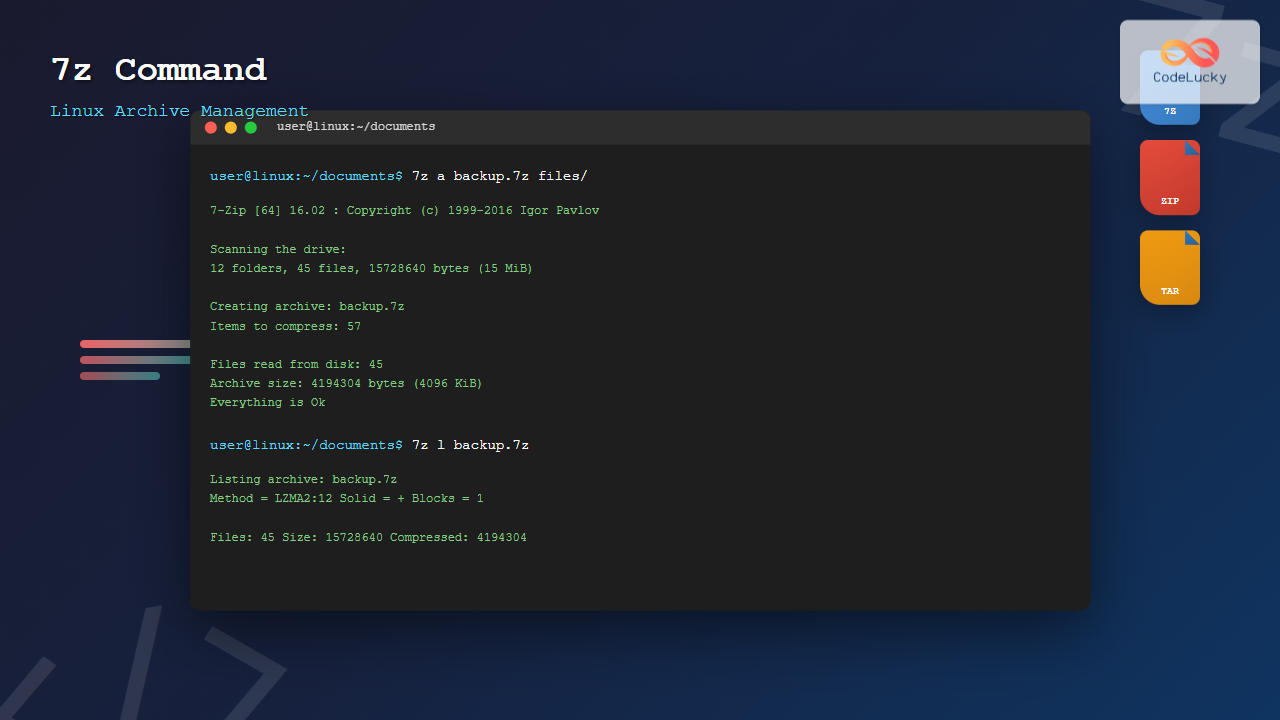
The 7z command is a powerful command-line utility for working with 7zip archives in Linux systems. As one of the most efficient compression formats available, 7zip offers superior compression ratios and supports multiple archive formats. This comprehensive guide will walk you through everything you need to know about using the 7z command effectively.
What is 7z Command?
The 7z command is the command-line interface for 7-Zip, a file archiver with high compression ratios. It supports various archive formats including 7z, ZIP, GZIP, BZIP2, TAR, RAR, and many others. The 7z format itself uses LZMA and LZMA2 compression algorithms, providing excellent compression efficiency.
Installing 7z on Linux
Before using the 7z command, you need to install the p7zip package on your Linux system:
Ubuntu/Debian:
sudo apt update
sudo apt install p7zip-full
CentOS/RHEL/Fedora:
sudo yum install p7zip
# or for newer versions
sudo dnf install p7zip
Arch Linux:
sudo pacman -S p7zipBasic 7z Command Syntax
The basic syntax of the 7z command follows this pattern:
7z [command] [options] [archive] [files/directories]The most common commands include:
- a – Add files to archive
- e – Extract files from archive
- x – Extract with full paths
- l – List contents of archive
- t – Test archive integrity
- d – Delete files from archive
Creating 7zip Archives
Creating a Basic Archive
To create a 7zip archive from files or directories:
7z a backup.7z file1.txt file2.txt directory1/Expected output:
7-Zip [64] 16.02 : Copyright (c) 1999-2016 Igor Pavlov : 2016-05-21

Scanning the drive:
3 folders, 5 files, 2048 bytes (2 KiB)

Creating archive: backup.7z

Items to compress: 8

Files read from disk: 5
Archive size: 1024 bytes (1 KiB)
Everything is Ok
Creating Archive with Compression Level
You can specify compression levels from 0 (no compression) to 9 (maximum compression):
7z a -mx=9 highly_compressed.7z large_file.txtCreating Password-Protected Archive
To create a password-protected archive:
7z a -p secure_backup.7z sensitive_files/The system will prompt you to enter a password twice for confirmation.
Creating Archive with Specific Format
While 7z creates .7z archives by default, you can specify other formats:
7z a -tzip backup.zip files/
7z a -ttar backup.tar documents/
Extracting 7zip Archives
Basic Extraction
To extract all files from an archive to the current directory:
7z e backup.7zNote: This extracts files without preserving directory structure.
Extracting with Full Paths
To preserve the original directory structure:
7z x backup.7zExpected output:
7-Zip [64] 16.02 : Copyright (c) 1999-2016 Igor Pavlov : 2016-05-21

Scanning the drive for archives:
1 file, 1024 bytes (1 KiB)

Extracting archive: backup.7z
--
Path = backup.7z
Type = 7z
Physical Size = 1024
Headers Size = 138
Method = LZMA2:12
Solid = +
Blocks = 1

Everything is Ok

Files: 5
Size: 2048
Compressed: 1024
Extracting to Specific Directory
To extract files to a specific output directory:
7z x backup.7z -o/path/to/destination/Important: There should be no space between -o and the path.
Extracting Password-Protected Archives
For password-protected archives:
7z x secure_backup.7z -pOr specify the password directly (not recommended for security reasons):
7z x secure_backup.7z -pmypasswordListing Archive Contents
To view the contents of an archive without extracting:
7z l backup.7zSample output:
7-Zip [64] 16.02 : Copyright (c) 1999-2016 Igor Pavlov : 2016-05-21

Scanning the drive for archives:
1 file, 1024 bytes (1 KiB)

Listing archive: backup.7z

--
Path = backup.7z
Type = 7z
Physical Size = 1024
Headers Size = 138
Method = LZMA2:12
Solid = +
Blocks = 1

   Date      Time    Attr         Size   Compressed  Name
------------------- ----- ------------ ------------  ------------------------
2024-01-15 10:30:42 ....A          512          512  file1.txt
2024-01-15 10:31:15 ....A          256          256  file2.txt
2024-01-15 10:32:00 D....            0            0  directory1
------------------- ----- ------------ ------------  ------------------------
2024-01-15 10:32:00                768          768  3 files, 1 folders
Testing Archive Integrity
To verify that an archive is not corrupted:
7z t backup.7zOutput for a valid archive:
Testing archive: backup.7z

Path = backup.7z
Type = 7z
Physical Size = 1024
Headers Size = 138
Method = LZMA2:12
Solid = +
Blocks = 1

Everything is Ok

Files: 5
Size: 2048
Compressed: 1024
Advanced 7z Operations
Adding Files to Existing Archive
To add new files to an existing archive:
7z a existing_backup.7z new_file.txt another_directory/Updating Archives
To update only newer files in an archive:
7z u backup.7z updated_files/Deleting Files from Archive
To remove specific files from an archive:
7z d backup.7z file_to_remove.txtCreating Split Archives
For large files, you can create split archives:
7z a -v100m large_backup.7z huge_directory/This creates volumes of 100MB each (large_backup.7z.001, large_backup.7z.002, etc.).
Useful 7z Command Options
| Option | Description | Example |
|---|---|---|
| -mx[0-9] | Compression level | 7z a -mx=9 archive.7z files/ |
| -p[password] | Set password | 7z a -pmypass secure.7z files/ |
| -o[path] | Output directory | 7z x archive.7z -o/tmp/ |
| -r | Recurse subdirectories | 7z a -r backup.7z directory/ |
| -t[type] | Archive type | 7z a -tzip backup.zip files/ |
| -v[size] | Split into volumes | 7z a -v100m split.7z large_files/ |
| -y | Assume Yes on all queries | 7z x -y archive.7z |
Working with Different Archive Formats
The 7z command can handle multiple archive formats:
ZIP Archives
# Create ZIP
7z a -tzip backup.zip files/

# Extract ZIP
7z x backup.zip
TAR Archives
# Create TAR
7z a -ttar backup.tar documents/

# Extract TAR
7z x backup.tar
RAR Archives (Extract only)
# Extract RAR
7z x archive.rar
Practical Examples and Use Cases
Backup Script Example
Here’s a practical bash script for automated backups:
#!/bin/bash

# Backup script using 7z
DATE=$(date +%Y%m%d_%H%M%S)
BACKUP_NAME="backup_${DATE}.7z"
SOURCE_DIR="/home/user/documents"
BACKUP_DIR="/backup"

# Create compressed backup with maximum compression
7z a -mx=9 -p "${BACKUP_DIR}/${BACKUP_NAME}" "${SOURCE_DIR}"

# Verify the backup
if 7z t "${BACKUP_DIR}/${BACKUP_NAME}" > /dev/null 2>&1; then
    echo "Backup created successfully: ${BACKUP_NAME}"
else
    echo "Backup verification failed!"
    exit 1
fi
Batch Processing Multiple Archives
To extract multiple archives at once:
# Extract all .7z files in current directory
for archive in *.7z; do
    7z x "$archive" -o"${archive%.7z}/"
done
Performance and Compression Comparison
Different compression levels offer varying trade-offs between speed and compression ratio:
- -mx=0: No compression (fastest)
- -mx=1: Fastest compression
- -mx=5: Normal compression (default)
- -mx=7: Maximum compression
- -mx=9: Ultra compression (slowest)
Troubleshooting Common Issues
Permission Denied Errors
If you encounter permission issues, ensure you have read/write permissions:
chmod 755 /path/to/directory
7z a backup.7z /path/to/directory
Memory Issues with Large Archives
For very large archives, use lower compression levels:
7z a -mx=1 large_backup.7z huge_directory/Corrupted Archive Recovery
Test archive integrity and attempt partial recovery:
7z t archive.7z
7z x archive.7z -o/recovery/ -y
Security Considerations
When working with 7z archives, keep these security points in mind:
- Always use strong passwords for sensitive data
- Avoid specifying passwords in command line history
- Verify archive integrity before extracting
- Be cautious when extracting archives from untrusted sources
Conclusion
The 7z command is an invaluable tool for Linux users who need efficient file compression and archiving capabilities. Its superior compression ratios, support for multiple formats, and extensive feature set make it ideal for everything from simple file backups to complex archival systems. By mastering the commands and options covered in this guide, you’ll be able to handle virtually any compression task efficiently.
Whether you’re creating automated backup scripts, managing large file transfers, or simply organizing your files, the 7z command provides the flexibility and power needed for professional-grade archive management in Linux environments.
Related Posts
gzip Command Linux: Complete Guide to Compress and Decompress Files
The gzip command is one of the most essential file compression utilities in Linux systems. It provides efficient compression using...

unzip Command Linux: Complete Guide to Extract ZIP Archives Efficiently
The unzip command is one of the most essential tools in Linux for extracting ZIP archive files. Whether you're dealing...

zip Command Linux: Complete Guide to Creating ZIP Archives with Examples
The zip command in Linux is a powerful utility for creating compressed archives and managing files efficiently. Whether you're backing...
gunzip Command Linux: Complete Guide to Decompress Gzip Files
The gunzip command is an essential Linux utility for decompressing files that have been compressed with the gzip compression algorithm....

tar Command in Linux: Complete Archive and Extract Files Tutorial with Examples
The tar command is one of the most essential utilities in Linux for creating archives and extracting files. Originally designed...

ar Command Linux: Complete Guide to Archive File Management
The ar command in Linux is a powerful archiving utility primarily used for creating and managing archive files, especially static...

zfs Command Linux: Complete Guide to ZFS Filesystem Administration
The ZFS (Zettabyte File System) is a revolutionary filesystem that combines traditional filesystem capabilities with logical volume management, RAID functionality,...
hexdump Command Linux: Complete Guide to Display File Contents in Hexadecimal Format
The hexdump command is a powerful Linux utility that displays the contents of files in hexadecimal format, making it an...
logrotate Command Linux: Complete Guide to Rotate and Archive Log Files
Log files are essential for monitoring system health, debugging applications, and maintaining security. However, without proper management, these files can...

ranlib Command Linux: Complete Guide to Generate Archive Index Files
The ranlib command is a crucial utility in Linux systems for managing static library archives. It generates an index for...

CSS Compression: Complete Guide to Minification and Gzip Optimization for Faster Websites
Website performance is crucial for user experience and SEO rankings. One of the most effective ways to improve loading times...
nm Command Linux: Complete Guide to Display Symbol Tables from Object Files
The nm command is a powerful utility in Linux that displays the symbol table of object files, executables, shared libraries,...





