
WordPress migration can be a daunting task, but with proper planning and execution, you can move your site safely without losing data or experiencing significant downtime. This comprehensive guide will walk you through every step of the migration process, from preparation to post-migration optimization.
Why WordPress Migration Matters
WordPress migration involves moving your website from one location to another – whether it’s changing hosting providers, moving from a subdomain to the main domain, or transferring from a development environment to production. Common reasons for migration include:
- Better hosting performance – Upgrading to faster servers or better infrastructure
- Cost optimization – Finding more affordable hosting solutions
- Enhanced security – Moving to providers with better security measures
- Domain changes – Rebranding or switching to a new domain name
- Development to production – Launching a staging site to live environment
Pre-Migration Planning
Site Assessment and Inventory
Before starting the migration process, conduct a thorough assessment of your current WordPress site:

Choosing Migration Method
There are several approaches to WordPress migration, each with its own advantages:
| Method | Best For | Difficulty Level | Downtime |
|---|---|---|---|
| Manual Migration | Full control, custom setups | Advanced | Medium |
| Plugin-Based Migration | Beginners, standard sites | Easy | Low |
| Hosting Provider Tools | Same provider transfers | Easy | Very Low |
| Professional Services | Complex sites, zero-downtime | Easy (outsourced) | Minimal |
Method 1: Manual WordPress Migration
Step 1: Create a Complete Backup
Always start with a comprehensive backup of your existing site. This includes:
# Create database backup using mysqldump
mysqldump -u username -p database_name > backup_filename.sql

# Create file system backup using tar
tar -czf website_backup.tar.gz /path/to/wordpress/
Step 2: Set Up the New Environment
Prepare your destination server with the necessary requirements:
- PHP version – Match or upgrade from source server
- MySQL/MariaDB – Compatible version
- Web server – Apache or Nginx configuration
- SSL certificate – If using HTTPS
Step 3: Transfer Files
Upload your WordPress files to the new server using FTP, SFTP, or rsync:
# Using rsync for efficient file transfer
rsync -avz --progress /local/wordpress/ user@newserver:/path/to/wordpress/

# Using SCP for secure copy
scp -r /local/wordpress/ user@newserver:/path/to/wordpress/
Step 4: Import Database
Create a new database on the destination server and import your data:
-- Create new database
CREATE DATABASE new_wordpress_db CHARACTER SET utf8mb4 COLLATE utf8mb4_unicode_ci;

-- Import backup
mysql -u username -p new_wordpress_db < backup_filename.sql
Step 5: Update Configuration
Modify the wp-config.php file with new database credentials:
Step 6: Search and Replace URLs
Use WP-CLI or a reliable search-replace tool to update URLs throughout the database:
# Using WP-CLI
wp search-replace 'https://olddomain.com' 'https://newdomain.com' --dry-run

# Execute the replacement
wp search-replace 'https://olddomain.com' 'https://newdomain.com'
Method 2: Plugin-Based Migration
Popular Migration Plugins
Several reliable plugins can simplify the migration process:

Using Duplicator Plugin
Duplicator is one of the most popular free migration plugins:
- Install Duplicator on your source site
- Create a package containing all files and database
- Download the package and installer script
- Upload to new server and run the installer
- Follow the setup wizard to complete migration
Configuration Example
# Duplicator installer configuration
$GLOBALS['DUPX_AC'] = array(
    'action_step' => 1,
    'archive_name' => 'your-site-package.zip',
    'dbhost' => 'new_host',
    'dbname' => 'new_database',
    'dbuser' => 'new_user',
    'dbpass' => 'new_password'
);
DNS and Domain Configuration
DNS Migration Strategy
Plan your DNS changes carefully to minimize downtime:
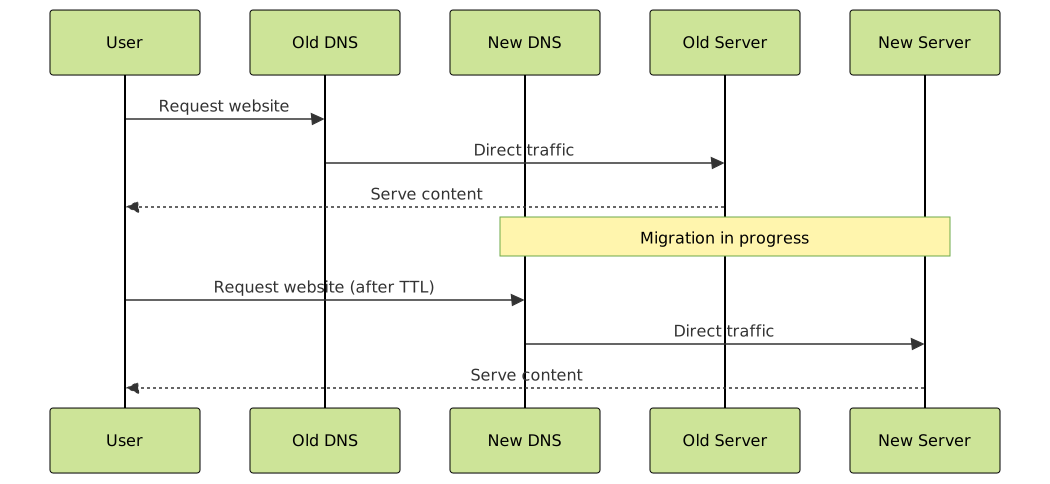
TTL Optimization
Lower your DNS TTL (Time To Live) before migration to reduce propagation delays:
| Record Type | Pre-Migration TTL | Post-Migration TTL |
|---|---|---|
| A Record | 300 seconds | 3600 seconds |
| CNAME Record | 300 seconds | 3600 seconds |
| MX Record | 300 seconds | 3600 seconds |
SSL Certificate Configuration
SSL Migration Process
Ensure secure connections continue working after migration:
- Generate new SSL certificate for the new server
- Configure HTTPS redirects in your web server
- Update WordPress URLs to use HTTPS
- Test certificate validity and chain completeness
Apache HTTPS Configuration
# Enable SSL module
LoadModule ssl_module modules/mod_ssl.so

# SSL Virtual Host
<VirtualHost *:443>
    ServerName yourdomain.com
    DocumentRoot /var/www/wordpress

    SSLEngine on
    SSLCertificateFile /path/to/certificate.crt
    SSLCertificateKeyFile /path/to/private.key
    SSLCertificateChainFile /path/to/chain.crt

    # Security headers
    Header always set Strict-Transport-Security "max-age=63072000; includeSubDomains"
</VirtualHost>
Testing and Validation
Pre-Launch Testing Checklist
Before switching DNS, thoroughly test your migrated site:
- Functionality testing – All features work correctly
- Content verification – No missing posts, pages, or media
- Plugin compatibility – All plugins function properly
- Theme consistency – Visual appearance matches original
- Form submissions – Contact forms and other forms work
- Database integrity – No corrupted data or missing records
Testing Environment Setup
Create a staging environment to test your migration:

Performance Optimization Post-Migration
Caching Configuration
Implement proper caching to ensure optimal performance:
 '127.0.0.1',
    'port' => 6379,
    'database' => 0
);
?>
Database Optimization
Optimize your database after migration:
-- Optimize all tables
OPTIMIZE TABLE wp_posts, wp_postmeta, wp_options, wp_comments;

-- Clean up spam and trash
DELETE FROM wp_comments WHERE comment_approved = 'spam';
DELETE FROM wp_posts WHERE post_status = 'trash';

-- Update table statistics
ANALYZE TABLE wp_posts, wp_postmeta, wp_options;
Common Migration Issues and Solutions
Troubleshooting Guide
| Issue | Symptoms | Solution |
|---|---|---|
| Mixed Content Warnings | HTTPS site loading HTTP resources | Update all URLs to HTTPS, use SSL plugins |
| Database Connection Error | Cannot establish database connection | Verify credentials in wp-config.php |
| File Permission Issues | Cannot upload files or install plugins | Set correct file permissions (755/644) |
| Plugin Incompatibility | Site crashes or features broken | Deactivate plugins, test one by one |
Debug Configuration
Enable WordPress debugging during migration troubleshooting:
Security Considerations
Post-Migration Security Hardening
Implement security measures immediately after migration:
- Change all passwords – Admin, database, and FTP credentials
- Update security keys – Generate new salt keys in wp-config.php
- Install security plugins – Wordfence, Sucuri, or similar
- Enable two-factor authentication – For admin accounts
- Regular security scans – Monitor for vulnerabilities
Security Configuration Example
Migration Timeline and Checklist
Recommended Timeline
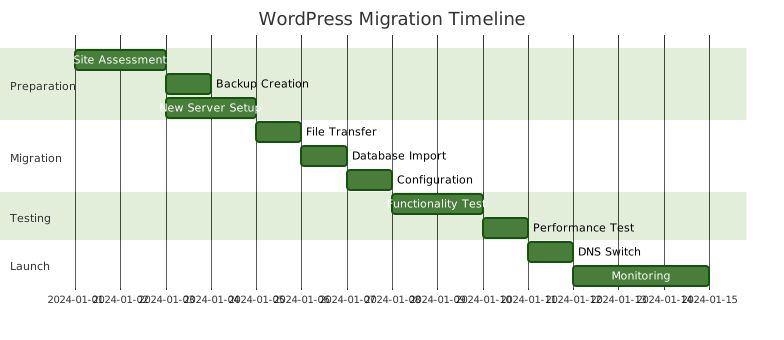
Final Migration Checklist
Use this comprehensive checklist to ensure nothing is missed:
- Pre-Migration
- Complete site backup created
- New hosting environment prepared
- DNS TTL reduced
- Maintenance page ready
- During Migration
- Files transferred successfully
- Database imported without errors
- wp-config.php updated
- URLs replaced throughout database
- Post-Migration
- All functionality tested
- SSL certificate configured
- Performance optimized
- Security measures implemented
- DNS updated and propagated
- Old server data secured
Conclusion
WordPress migration doesn’t have to be a nerve-wracking experience. With proper planning, the right tools, and careful execution, you can move your site safely while minimizing downtime and preserving all your valuable content and functionality.
Remember that every migration is unique, and complex sites may require additional considerations. When in doubt, consider working with experienced professionals or take advantage of managed migration services offered by many hosting providers.
The key to successful WordPress migration lies in thorough preparation, comprehensive testing, and having a solid rollback plan. Take your time, follow the steps methodically, and don’t rush the process. Your website’s integrity and your visitors’ experience depend on getting it right.





