

Windows Management Instrumentation (WMI) and Common Information Model (CIM) are powerful frameworks that enable administrators to query, monitor, and manage Windows systems programmatically. PowerShell provides comprehensive cmdlets for interacting with both technologies, making system administration tasks more efficient and scriptable.
Understanding WMI and CIM
WMI has been the cornerstone of Windows system management since Windows 2000, providing access to system information and management capabilities. CIM, introduced with PowerShell 3.0, is the modern successor built on industry standards and offers improved performance, better error handling, and enhanced remoting capabilities.

Key Differences Between WMI and CIM
| Feature | WMI (Get-WmiObject) | CIM (Get-CimInstance) |
|---|---|---|
| Protocol | DCOM/RPC | WS-Management (WSMan) |
| Performance | Slower | Faster |
| Firewall Friendly | No (Multiple ports) | Yes (Single port 5985/5986) |
| PowerShell Version | All versions | 3.0 and later |
| Error Handling | Basic | Enhanced with structured errors |
| Status | Deprecated | Recommended |
Getting Started with CIM Cmdlets
Discovering Available Classes
Before querying system information, you need to know which CIM classes are available. Use Get-CimClass to explore:
# List all CIM classes
Get-CimClass

# Find classes related to disk
Get-CimClass -ClassName *Disk*

# Find classes in specific namespace
Get-CimClass -Namespace root/SecurityCenter2
Output example:
NameSpace: ROOT/cimv2

CimClassName                   CimClassMethods      CimClassProperties
------------                   ---------------      ------------------
Win32_DiskDrive               {SetPowerState...}   {Availability, BytesPerSector...}
Win32_LogicalDisk             {Chkdsk, ...}        {Access, Availability, Caption...}
Win32_DiskPartition           {}                   {Access, Availability, BlockSize...}
Querying System Information
The primary cmdlet for retrieving information is Get-CimInstance:
# Get operating system information
Get-CimInstance -ClassName Win32_OperatingSystem

# Get computer system details
Get-CimInstance -ClassName Win32_ComputerSystem

# Get processor information
Get-CimInstance -ClassName Win32_Processor
Formatted output:
Get-CimInstance -ClassName Win32_OperatingSystem |
    Select-Object Caption, Version, OSArchitecture, InstallDate, LastBootUpTime |
    Format-List
Caption         : Microsoft Windows 11 Pro
Version         : 10.0.22621
OSArchitecture  : 64-bit
InstallDate     : 1/15/2024 10:30:00 AM
LastBootUpTime  : 10/22/2025 8:45:23 AM
Advanced Querying Techniques
Using WQL Queries
WMI Query Language (WQL) provides SQL-like syntax for filtering results:
# Get processes using more than 100MB of memory
Get-CimInstance -Query "SELECT * FROM Win32_Process WHERE WorkingSetSize > 104857600"

# Get services that are running
Get-CimInstance -Query "SELECT * FROM Win32_Service WHERE State = 'Running'"

# Get logical disks with less than 10% free space
Get-CimInstance -ClassName Win32_LogicalDisk -Filter "DriveType=3 AND FreeSpace < Size * 0.1"
Property Filtering and Selection
# Get specific properties only
Get-CimInstance -ClassName Win32_LogicalDisk -Property DeviceID, Size, FreeSpace

# Calculate and display disk usage
Get-CimInstance -ClassName Win32_LogicalDisk -Filter "DriveType=3" |
    Select-Object DeviceID,
        @{Name='SizeGB';Expression={[math]::Round($_.Size/1GB,2)}},
        @{Name='FreeGB';Expression={[math]::Round($_.FreeSpace/1GB,2)}},
        @{Name='UsedPercent';Expression={[math]::Round((($_.Size-$_.FreeSpace)/$_.Size)*100,2)}}
Output:
DeviceID SizeGB FreeGB UsedPercent
-------- ------ ------ -----------
C:       475.90 128.45       73.01
D:       931.51 456.78       50.97
Working with CIM Sessions
CIM sessions provide persistent connections for better performance when making multiple queries:
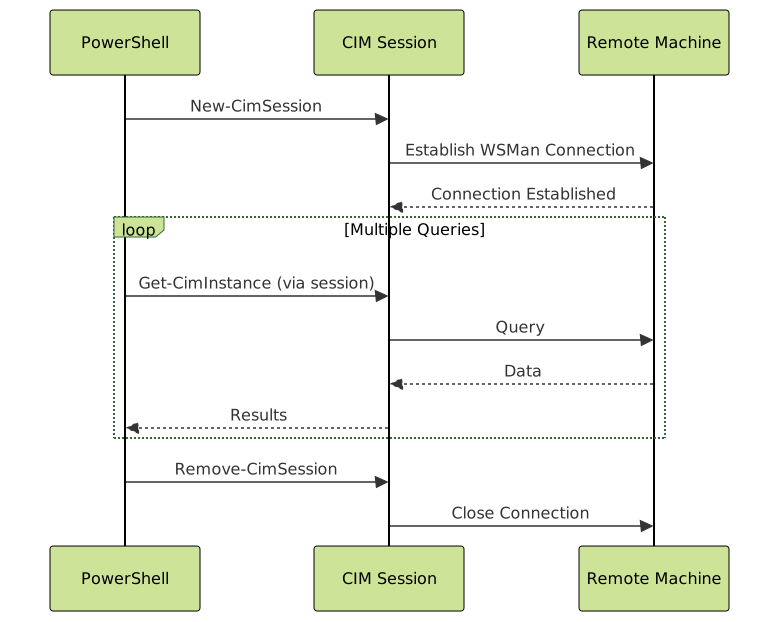
Creating and Using Sessions
# Create a session to local computer
$session = New-CimSession

# Create a session to remote computer
$remoteSession = New-CimSession -ComputerName SERVER01

# Create session with credentials
$credential = Get-Credential
$secureSession = New-CimSession -ComputerName SERVER01 -Credential $credential

# Use the session for queries
Get-CimInstance -ClassName Win32_Service -CimSession $session

# Close the session
Remove-CimSession -CimSession $session
Working with Multiple Remote Systems
# Create sessions to multiple computers
$computers = "SERVER01", "SERVER02", "SERVER03"
$sessions = New-CimSession -ComputerName $computers

# Query all computers simultaneously
$services = Get-CimInstance -ClassName Win32_Service -CimSession $sessions -Filter "State='Running'"

# Group by computer
$services | Group-Object PSComputerName |
    Select-Object Name, Count |
    Format-Table -AutoSize

# Clean up
Remove-CimSession -CimSession $sessions
Output:
Name      Count
----      -----
SERVER01     87
SERVER02     92
SERVER03     85
Invoking CIM Methods
CIM classes provide methods for performing actions on managed resources:
Service Management
# Get a specific service
$service = Get-CimInstance -ClassName Win32_Service -Filter "Name='Spooler'"

# Invoke methods on the service
Invoke-CimMethod -InputObject $service -MethodName StopService
Invoke-CimMethod -InputObject $service -MethodName StartService

# Alternative syntax
Invoke-CimMethod -ClassName Win32_Service -MethodName Create -Arguments @{
    Name = "MyService"
    DisplayName = "My Custom Service"
    PathName = "C:\Services\MyService.exe"
    ServiceType = [byte]16
    StartMode = "Automatic"
}
Process Management
# Start a new process
$result = Invoke-CimMethod -ClassName Win32_Process -MethodName Create -Arguments @{
    CommandLine = "notepad.exe"
}

if ($result.ReturnValue -eq 0) {
    Write-Host "Process started with ID: $($result.ProcessId)"
}

# Terminate a process
$process = Get-CimInstance -ClassName Win32_Process -Filter "Name='notepad.exe'"
Invoke-CimMethod -InputObject $process -MethodName Terminate
Monitoring System Resources
Real-Time Performance Monitoring
# Monitor CPU usage
while ($true) {
    $cpu = Get-CimInstance -ClassName Win32_Processor |
           Measure-Object -Property LoadPercentage -Average

    Write-Host "CPU Usage: $([math]::Round($cpu.Average, 2))%" -ForegroundColor Cyan
    Start-Sleep -Seconds 2
}
Disk Space Monitoring Script
function Get-DiskSpaceReport {
    param(
        [Parameter(ValueFromPipeline)]
        [string[]]$ComputerName = $env:COMPUTERNAME,
        [int]$WarningThreshold = 20
    )

    begin {
        $sessions = New-CimSession -ComputerName $ComputerName -ErrorAction SilentlyContinue
    }

    process {
        $disks = Get-CimInstance -ClassName Win32_LogicalDisk -Filter "DriveType=3" -CimSession $sessions

        foreach ($disk in $disks) {
            $freePercent = [math]::Round(($disk.FreeSpace / $disk.Size) * 100, 2)

            $status = if ($freePercent -lt $WarningThreshold) { "WARNING" } else { "OK" }

            [PSCustomObject]@{
                Computer    = $disk.PSComputerName
                Drive       = $disk.DeviceID
                TotalGB     = [math]::Round($disk.Size / 1GB, 2)
                FreeGB      = [math]::Round($disk.FreeSpace / 1GB, 2)
                FreePercent = $freePercent
                Status      = $status
            }
        }
    }

    end {
        Remove-CimSession -CimSession $sessions
    }
}

# Usage
Get-DiskSpaceReport -ComputerName "SERVER01", "SERVER02" -WarningThreshold 15
Output:
Computer  Drive TotalGB FreeGB FreePercent Status
--------  ----- ------- ------ ----------- ------
SERVER01  C:     475.90 128.45       26.99 OK
SERVER01  D:     931.51  65.32        7.01 WARNING
SERVER02  C:     238.47  89.12       37.38 OK
Hardware Inventory Collection

Comprehensive Hardware Report
function Get-HardwareInventory {
    param(
        [string]$ComputerName = $env:COMPUTERNAME
    )

    $session = New-CimSession -ComputerName $ComputerName

    # Computer System
    $cs = Get-CimInstance -ClassName Win32_ComputerSystem -CimSession $session

    # BIOS
    $bios = Get-CimInstance -ClassName Win32_BIOS -CimSession $session

    # Processor
    $cpu = Get-CimInstance -ClassName Win32_Processor -CimSession $session

    # Memory
    $memory = Get-CimInstance -ClassName Win32_PhysicalMemory -CimSession $session
    $totalRAM = ($memory | Measure-Object -Property Capacity -Sum).Sum / 1GB

    # Disks
    $disks = Get-CimInstance -ClassName Win32_DiskDrive -CimSession $session

    # Network Adapters
    $adapters = Get-CimInstance -ClassName Win32_NetworkAdapter -CimSession $session -Filter "NetEnabled='True'"

    Remove-CimSession -CimSession $session

    # Build report
    [PSCustomObject]@{
        ComputerName     = $ComputerName
        Manufacturer     = $cs.Manufacturer
        Model            = $cs.Model
        SerialNumber     = $bios.SerialNumber
        BIOSVersion      = $bios.SMBIOSBIOSVersion
        ProcessorName    = $cpu.Name
        ProcessorCores   = $cpu.NumberOfCores
        ProcessorThreads = $cpu.NumberOfLogicalProcessors
        TotalRAMGB       = [math]::Round($totalRAM, 2)
        MemoryModules    = $memory.Count
        DiskCount        = $disks.Count
        TotalDiskSizeGB  = [math]::Round(($disks | Measure-Object -Property Size -Sum).Sum / 1GB, 2)
        NetworkAdapters  = $adapters.Count
    }
}

# Usage
Get-HardwareInventory | Format-List
Sample output:
ComputerName     : DESKTOP-ABC123
Manufacturer     : Dell Inc.
Model            : OptiPlex 7090
SerialNumber     : 1A2B3C4D
BIOSVersion      : 2.18.0
ProcessorName    : Intel(R) Core(TM) i7-10700 CPU @ 2.90GHz
ProcessorCores   : 8
ProcessorThreads : 16
TotalRAMGB       : 32
MemoryModules    : 2
DiskCount        : 2
TotalDiskSizeGB  : 1397.27
NetworkAdapters  : 2
Event Log Management
Querying Event Logs
# Get recent errors from System log
Get-CimInstance -ClassName Win32_NTLogEvent -Filter "LogFile='System' AND Type='Error'" |
    Select-Object -First 10 TimeGenerated, SourceName, Message |
    Format-Table -AutoSize

# Get events from last 24 hours
$yesterday = (Get-Date).AddDays(-1).ToUniversalTime()
$yesterdayWMI = [Management.ManagementDateTimeConverter]::ToDmtfDateTime($yesterday)

Get-CimInstance -ClassName Win32_NTLogEvent -Filter "LogFile='Application' AND TimeGenerated >= '$yesterdayWMI'"
Creating Custom Event Filters
function Get-SecurityEvents {
    param(
        [int]$EventID,
        [int]$Hours = 24
    )

    $startTime = (Get-Date).AddHours(-$Hours).ToUniversalTime()
    $startTimeWMI = [Management.ManagementDateTimeConverter]::ToDmtfDateTime($startTime)

    Get-CimInstance -ClassName Win32_NTLogEvent -Filter @"
        LogFile='Security' AND
        EventCode=$EventID AND
        TimeGenerated >= '$startTimeWMI'
"@ | Select-Object TimeGenerated,
        @{Name='User';Expression={$_.InsertionStrings[1]}},
        @{Name='Computer';Expression={$_.ComputerName}},
        Message
}

# Find all logon events (Event ID 4624)
Get-SecurityEvents -EventID 4624 -Hours 12
Working with Associations
CIM associations link related objects, allowing you to navigate relationships between resources:
# Get all associations for a specific instance
$os = Get-CimInstance -ClassName Win32_OperatingSystem
Get-CimAssociatedInstance -InputObject $os

# Get associated logical disks for a computer system
$cs = Get-CimInstance -ClassName Win32_ComputerSystem
$cs | Get-CimAssociatedInstance -ResultClassName Win32_LogicalDisk

# Find which services depend on a specific service
$service = Get-CimInstance -ClassName Win32_Service -Filter "Name='LanmanServer'"
Get-CimAssociatedInstance -InputObject $service -Association Win32_DependentService
Navigating Service Dependencies
function Get-ServiceDependencyTree {
    param([string]$ServiceName)

    $service = Get-CimInstance -ClassName Win32_Service -Filter "Name='$ServiceName'"

    if (-not $service) {
        Write-Warning "Service '$ServiceName' not found"
        return
    }

    Write-Host "`nService: $($service.DisplayName)" -ForegroundColor Cyan
    Write-Host "Status: $($service.State)" -ForegroundColor $(if ($service.State -eq 'Running') {'Green'} else {'Yellow'})

    # Get services this service depends on
    $dependencies = Get-CimAssociatedInstance -InputObject $service `
        -Association Win32_DependentService `
        -ResultClassName Win32_Service `
        -KeyOnly:$false

    if ($dependencies) {
        Write-Host "`nDepends on:" -ForegroundColor Yellow
        $dependencies | ForEach-Object {
            Write-Host "  - $($_.DisplayName) [$($_.State)]"
        }
    }

    # Get services that depend on this service
    $dependents = Get-CimAssociatedInstance -InputObject $service `
        -Association Win32_DependentService `
        -ResultClassName Win32_Service `
        -KeyOnly:$false |
        Where-Object { $_.Name -ne $ServiceName }

    if ($dependents) {
        Write-Host "`nRequired by:" -ForegroundColor Yellow
        $dependents | ForEach-Object {
            Write-Host "  - $($_.DisplayName) [$($_.State)]"
        }
    }
}

# Usage
Get-ServiceDependencyTree -ServiceName "WinRM"
Error Handling and Troubleshooting
Proper Error Handling
function Get-SafeSystemInfo {
    param([string[]]$ComputerName)

    foreach ($computer in $ComputerName) {
        try {
            $session = New-CimSession -ComputerName $computer -ErrorAction Stop

            $os = Get-CimInstance -ClassName Win32_OperatingSystem -CimSession $session -ErrorAction Stop

            [PSCustomObject]@{
                Computer   = $computer
                Status     = "Success"
                OSName     = $os.Caption
                Version    = $os.Version
                LastBoot   = $os.LastBootUpTime
                Error      = $null
            }

            Remove-CimSession -CimSession $session
        }
        catch {
            [PSCustomObject]@{
                Computer   = $computer
                Status     = "Failed"
                OSName     = $null
                Version    = $null
                LastBoot   = $null
                Error      = $_.Exception.Message
            }
        }
    }
}

# Usage with error handling
$computers = "SERVER01", "OFFLINE-SERVER", "SERVER02"
$results = Get-SafeSystemInfo -ComputerName $computers
$results | Format-Table -AutoSize
Troubleshooting Common Issues
# Test WinRM connectivity
Test-WSMan -ComputerName SERVER01

# Get CIM session options
$sessionOption = New-CimSessionOption -Protocol Dcom
$session = New-CimSession -ComputerName SERVER01 -SessionOption $sessionOption

# Enable verbose output for debugging
Get-CimInstance -ClassName Win32_Service -Verbose

# Check namespace access
Get-CimInstance -Namespace root/SecurityCenter2 -ClassName AntiVirusProduct
Performance Optimization

Best Practices
# INEFFICIENT - Retrieves all properties then filters
Get-CimInstance -ClassName Win32_Process | Where-Object { $_.WorkingSetSize -gt 100MB }

# EFFICIENT - Filters at the source
Get-CimInstance -ClassName Win32_Process -Filter "WorkingSetSize > 104857600"

# INEFFICIENT - Gets all properties
Get-CimInstance -ClassName Win32_Service | Select-Object Name, State

# EFFICIENT - Retrieves only needed properties
Get-CimInstance -ClassName Win32_Service -Property Name, State

# EFFICIENT - Parallel processing for multiple computers
$computers = 1..50 | ForEach-Object { "SERVER$_" }
$computers | ForEach-Object -Parallel {
    $session = New-CimSession -ComputerName $_ -ErrorAction SilentlyContinue
    if ($session) {
        Get-CimInstance -ClassName Win32_OperatingSystem -CimSession $session
        Remove-CimSession -CimSession $session
    }
} -ThrottleLimit 10
Practical Use Cases
Automated Patch Status Report
function Get-PatchStatus {
    param([string[]]$ComputerName)

    $sessions = New-CimSession -ComputerName $ComputerName -ErrorAction SilentlyContinue

    foreach ($session in $sessions) {
        $hotfixes = Get-CimInstance -ClassName Win32_QuickFixEngineering -CimSession $session
        $os = Get-CimInstance -ClassName Win32_OperatingSystem -CimSession $session

        $lastPatch = $hotfixes |
            Sort-Object InstalledOn -Descending |
            Select-Object -First 1

        [PSCustomObject]@{
            Computer        = $session.ComputerName
            OSVersion       = $os.Caption
            BuildNumber     = $os.BuildNumber
            TotalPatches    = $hotfixes.Count
            LastPatchDate   = $lastPatch.InstalledOn
            LastPatchID     = $lastPatch.HotFixID
            DaysSinceUpdate = ((Get-Date) - $lastPatch.InstalledOn).Days
        }
    }

    Remove-CimSession -CimSession $sessions
}

# Generate report
$servers = "SERVER01", "SERVER02", "SERVER03"
Get-PatchStatus -ComputerName $servers |
    Where-Object { $_.DaysSinceUpdate -gt 30 } |
    Export-Csv -Path "PatchReport.csv" -NoTypeInformation
Scheduled Task Inventory
function Get-ScheduledTaskInventory {
    param([string]$ComputerName = $env:COMPUTERNAME)

    $session = New-CimSession -ComputerName $ComputerName

    $tasks = Get-CimInstance -Namespace root/Microsoft/Windows/TaskScheduler `
        -ClassName MSFT_ScheduledTask -CimSession $session

    $tasks | Select-Object TaskName, TaskPath, State,
        @{Name='Author';Expression={$_.Principal.UserId}},
        @{Name='LastRun';Expression={$_.LastRunTime}},
        @{Name='NextRun';Expression={$_.NextRunTime}} |
        Sort-Object TaskPath, TaskName

    Remove-CimSession -CimSession $session
}

# Export all scheduled tasks
Get-ScheduledTaskInventory | Export-Csv -Path "ScheduledTasks.csv" -NoTypeInformation
Security Considerations
Access Control and Permissions
# Check if current user has admin rights
$currentPrincipal = New-Object Security.Principal.WindowsPrincipal([Security.Principal.WindowsIdentity]::GetCurrent())
$isAdmin = $currentPrincipal.IsInRole([Security.Principal.WindowsBuiltInRole]::Administrator)

if (-not $isAdmin) {
    Write-Warning "This operation requires administrator privileges"
    return
}

# Use explicit credentials for remote access
$credential = Get-Credential -Message "Enter credentials for remote access"
$session = New-CimSession -ComputerName SERVER01 -Credential $credential

# Secure session with SSL
$sessionOption = New-CimSessionOption -UseSsl -SkipCACheck -SkipCNCheck
$secureSession = New-CimSession -ComputerName SERVER01 `
    -Credential $credential `
    -SessionOption $sessionOption `
    -Port 5986
Audit and Logging
function Invoke-AuditedCimMethod {
    param(
        [string]$ComputerName,
        [string]$ClassName,
        [string]$MethodName,
        [hashtable]$Arguments,
        [string]$LogPath = "C:\Logs\CimAudit.log"
    )

    $timestamp = Get-Date -Format "yyyy-MM-dd HH:mm:ss"
    $user = [Environment]::UserName

    try {
        $session = New-CimSession -ComputerName $ComputerName

        $result = Invoke-CimMethod -CimSession $session `
            -ClassName $ClassName `
            -MethodName $MethodName `
            -Arguments $Arguments

        $logEntry = "$timestamp | $user | $ComputerName | $ClassName.$MethodName | SUCCESS | Return: $($result.ReturnValue)"
        Add-Content -Path $LogPath -Value $logEntry

        Remove-CimSession -CimSession $session
        return $result
    }
    catch {
        $logEntry = "$timestamp | $user | $ComputerName | $ClassName.$MethodName | FAILED | Error: $($_.Exception.Message)"
        Add-Content -Path $LogPath -Value $logEntry
        throw
    }
}

# Usage with auditing
Invoke-AuditedCimMethod -ComputerName "SERVER01" `
    -ClassName "Win32_Service" `
    -MethodName "StopService" `
    -Arguments @{Name="Spooler"}
Advanced Scenarios
Custom WMI Namespace Exploration
# List all available namespaces
Get-CimInstance -Namespace root -ClassName __NAMESPACE |
    Select-Object -ExpandProperty Name

# Recursively explore namespaces
function Get-CimNamespace {
    param(
        [string]$Namespace = "root",
        [int]$Depth = 0
    )

    $indent = "  " * $Depth
    Write-Host "$indent$Namespace"

    $childNamespaces = Get-CimInstance -Namespace $Namespace -ClassName __NAMESPACE -ErrorAction SilentlyContinue

    foreach ($child in $childNamespaces) {
        Get-CimNamespace -Namespace "$Namespace/$($child.Name)" -Depth ($Depth + 1)
    }
}

Get-CimNamespace
Cross-Platform Considerations
# Check PowerShell edition and adjust accordingly
if ($PSVersionTable.PSEdition -eq 'Core') {
    # PowerShell 7+ on Windows
    $os = Get-CimInstance -ClassName CIM_OperatingSystem
} else {
    # Windows PowerShell
    $os = Get-CimInstance -ClassName Win32_OperatingSystem
}

# Handle platform-specific classes
$platform = [Environment]::OSVersion.Platform
if ($platform -eq 'Win32NT') {
    $drives = Get-CimInstance -ClassName Win32_LogicalDisk
} else {
    Write-Warning "This script requires Windows"
}
Migration from WMI to CIM
Cmdlet Mapping Guide
| WMI Cmdlet | CIM Cmdlet | Notes |
|---|---|---|
| Get-WmiObject | Get-CimInstance | Direct replacement |
| Invoke-WmiMethod | Invoke-CimMethod | Enhanced error handling |
| Remove-WmiObject | Remove-CimInstance | Session-aware |
| Set-WmiInstance | Set-CimInstance | Better property handling |
| Register-WmiEvent | Register-CimIndicationEvent | Event subscription |
Migration Example
# OLD: WMI approach
$oldServices = Get-WmiObject -Class Win32_Service -ComputerName SERVER01
$oldServices | Where-Object { $_.State -eq 'Running' }

# NEW: CIM approach
$session = New-CimSession -ComputerName SERVER01
$newServices = Get-CimInstance -ClassName Win32_Service -CimSession $session -Filter "State='Running'"
Remove-CimSession -CimSession $session

# Benefits of CIM:
# 1. Faster performance (WSMan vs DCOM)
# 2. Single port (5985) vs multiple for DCOM
# 3. Better error messages
# 4. Session reuse for multiple queries
# 5. Built-in authentication options
Conclusion
CIM and WMI provide powerful capabilities for Windows system management through PowerShell. While WMI remains available for backward compatibility, CIM cmdlets offer superior performance, better error handling, and modern remoting capabilities through WSMan. By mastering these technologies, administrators can automate complex system management tasks, build comprehensive monitoring solutions, and maintain detailed hardware and software inventories across enterprise environments.
The key to effective use is understanding when to use filters versus post-processing, leveraging CIM sessions for remote operations, and following security best practices when accessing system resources. Whether you’re managing a single workstation or thousands of servers, CIM cmdlets provide the foundation for scalable, maintainable automation scripts.





