User Account Control (UAC) is a fundamental security feature in Windows operating systems that helps prevent unauthorized changes to your computer. Introduced with Windows Vista and refined in subsequent versions, UAC creates a security barrier between standard user operations and administrative tasks that could potentially harm your system.
What is User Account Control (UAC)?
User Account Control is a Windows security mechanism that prompts users for permission or administrator credentials before allowing programs to make changes that could affect system operation or other users. It operates on the principle of least privilege, ensuring users run with standard privileges until elevation is explicitly required.

How UAC Works: The Technical Foundation
Token Virtualization and Split Tokens
When an administrator logs into Windows, the system creates two access tokens:
- Standard user token: Used for everyday operations with limited privileges
- Administrator token: Contains full administrative rights, used only when elevated
This dual-token approach ensures that even administrator accounts operate with standard privileges by default, requiring explicit elevation for administrative tasks.
UAC Virtualization Process
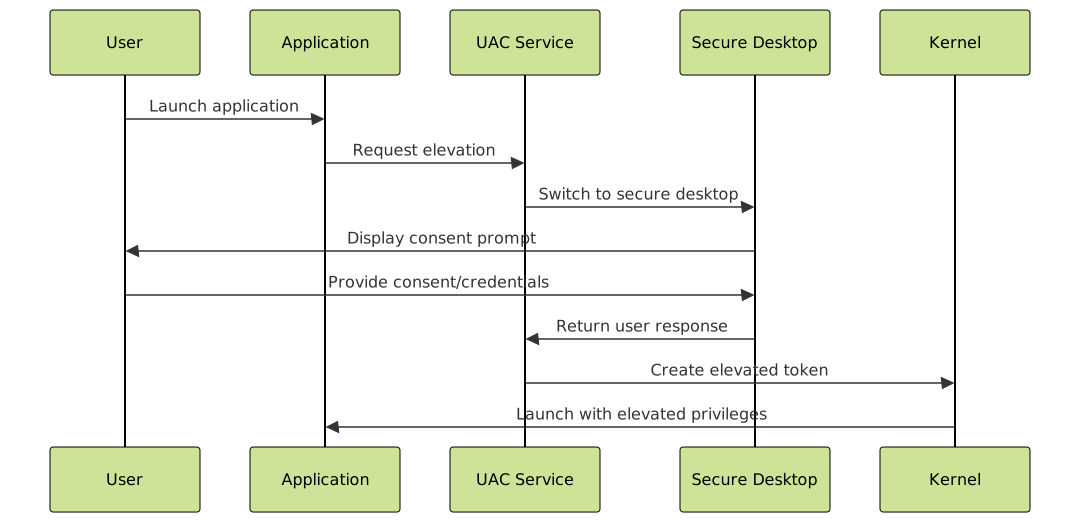
UAC Prompt Types and Scenarios
Consent Prompt (Administrator Account)
When logged in as an administrator, UAC displays a consent prompt asking for permission to continue. The prompt appears with:
- Yellow shield icon
- Application name and publisher
- “Do you want to allow this app to make changes to your device?”
- Yes/No buttons
┌─────────────────────────────────────────┐
│ User Account Control                    │
├─────────────────────────────────────────┤
│ Do you want to allow this app to make   │
│ changes to your device?                 │
│                                         │
│ Program name: Windows Command Processor │
│ Verified publisher: Microsoft Windows   │
│ File origin: Hard drive on this computer│
│                                         │
│ [Yes]                        [No]       │
└─────────────────────────────────────────┘
Credential Prompt (Standard User Account)
Standard users see a credential prompt requiring administrator username and password:
┌─────────────────────────────────────────┐
│ User Account Control                    │
├─────────────────────────────────────────┤
│ Do you want to allow this app to make   │
│ changes to your device?                 │
│                                         │
│ To continue, type an administrator      │
│ password, and then click Yes.           │
│                                         │
│ Administrator: [________________]       │
│ Password:      [________________]       │
│                                         │
│ [Yes]                        [No]       │
└─────────────────────────────────────────┘
UAC Security Levels and Configuration
Windows provides four UAC notification levels, configurable through the Control Panel:
UAC Notification Levels

- Always notify: Prompts for all changes, dims desktop
- Notify me only when apps try to make changes (default): No prompt for Windows settings changes
- Notify me only when apps try to make changes (no desktop dimming): Same as above but without secure desktop
- Never notify: UAC disabled (not recommended)
Practical Examples and Code Implementation
Detecting UAC Status in Applications
Applications can programmatically check UAC status and elevation requirements:
using System;
using System.Security.Principal;
using System.Runtime.InteropServices;

public class UACHelper
{
    [DllImport("advapi32.dll", SetLastError = true)]
    private static extern bool GetTokenInformation(
        IntPtr TokenHandle,
        TokenInformationClass TokenInformationClass,
        IntPtr TokenInformation,
        int TokenInformationLength,
        out int ReturnLength);

    public static bool IsRunningAsAdministrator()
    {
        WindowsIdentity identity = WindowsIdentity.GetCurrent();
        WindowsPrincipal principal = new WindowsPrincipal(identity);
        return principal.IsInRole(WindowsBuiltInRole.Administrator);
    }

    public static bool IsUACEnabled()
    {
        // Check registry for UAC status
        var key = Microsoft.Win32.Registry.LocalMachine
            .OpenSubKey(@"SOFTWARE\Microsoft\Windows\CurrentVersion\Policies\System");

        if (key != null)
        {
            object value = key.GetValue("EnableLUA");
            return value != null && (int)value == 1;
        }
        return false;
    }
}
Requesting Elevation in Applications
Applications can request elevation using the runas verb or manifest files:
<?xml version="1.0" encoding="UTF-8" standalone="yes"?>
<assembly xmlns="urn:schemas-microsoft-com:asm.v1" manifestVersion="1.0">
  <trustInfo xmlns="urn:schemas-microsoft-com:asm.v3">
    <security>
      <requestedPrivileges>
        <requestedExecutionLevel
          level="requireAdministrator"
          uiAccess="false" />
      </requestedPrivileges>
    </security>
  </trustInfo>
</assembly>
UAC Bypass Techniques and Security Considerations
Legitimate UAC Bypass Methods
Windows provides several legitimate ways to perform administrative tasks without UAC prompts:
- Windows Settings changes: Built-in Windows controls bypass UAC
- Scheduled Tasks: Tasks running with system privileges
- Windows Services: Services running in privileged contexts
- COM Elevation: Specific COM objects with auto-elevation
Security Implications
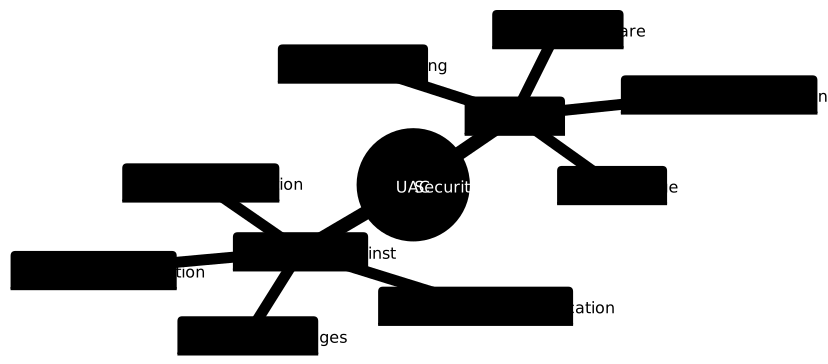
UAC in Enterprise Environments
Group Policy Management
Administrators can configure UAC behavior across domain-joined computers using Group Policy:
Computer Configuration
└── Windows Settings
    └── Security Settings
        └── Local Policies
            └── Security Options
                ├── User Account Control: Admin Approval Mode for Built-in Administrator
                ├── User Account Control: Behavior of elevation prompt for administrators
                ├── User Account Control: Behavior of elevation prompt for standard users
                ├── User Account Control: Detect application installations
                └── User Account Control: Run all administrators in Admin Approval Mode
PowerShell and UAC
PowerShell scripts can check and request elevation:
# Check if running as administrator
function Test-Administrator {
    $currentUser = [Security.Principal.WindowsIdentity]::GetCurrent()
    $principal = New-Object Security.Principal.WindowsPrincipal($currentUser)
    return $principal.IsInRole([Security.Principal.WindowsBuiltInRole]::Administrator)
}

# Request elevation if not administrator
if (-NOT (Test-Administrator)) {
    Write-Host "Requesting administrative privileges..."
    Start-Process PowerShell -Verb RunAs -ArgumentList "-File", $PSCommandPath
    exit
}

Write-Host "Running with administrative privileges"
Best Practices and Recommendations
For Developers
- Design for standard user: Build applications that work without elevation
- Minimize elevation requests: Only request admin rights when absolutely necessary
- Use proper manifests: Clearly specify execution level requirements
- Provide clear prompts: Explain why elevation is needed
For System Administrators
- Keep UAC enabled: Never disable UAC completely in production environments
- Use appropriate levels: Configure UAC based on security requirements
- Monitor UAC events: Track elevation requests in security logs
- Educate users: Train users to recognize legitimate UAC prompts
For End Users
- Read prompts carefully: Verify publisher and application details
- Be suspicious of unexpected prompts: Question elevation requests from unknown applications
- Use standard accounts: Avoid running as administrator for daily tasks
- Keep systems updated: Install security patches regularly
Troubleshooting Common UAC Issues
UAC Prompts Not Appearing
If UAC prompts fail to appear, check:
- UAC service (User Access Control) is running
- Windows registry UAC settings are correct
- No group policy overrides are blocking prompts
- Secure desktop functionality is working
Application Compatibility Problems
Legacy applications may experience issues with UAC. Solutions include:
- Compatibility mode: Run in Windows XP compatibility
- Application shimming: Use Application Compatibility Toolkit
- Virtualization: Enable file/registry virtualization
- Elevation shortcuts: Create elevated shortcuts for specific applications
Future of UAC and Windows Security
Microsoft continues to evolve UAC with enhanced security features:
- Smart App Control: AI-powered application reputation checking
- Enhanced phishing protection: Better detection of social engineering attempts
- Zero Trust integration: Alignment with Zero Trust security models
- Cloud-based policies: Centralized UAC management through Microsoft Intune
User Account Control remains a critical component of Windows security architecture, providing a balanced approach between security and usability. By understanding UAC’s mechanisms, configuration options, and best practices, developers and administrators can effectively leverage this technology to protect Windows systems while maintaining user productivity. Regular monitoring, proper configuration, and user education ensure UAC continues to serve as an effective first line of defense against unauthorized system changes and malware infections.