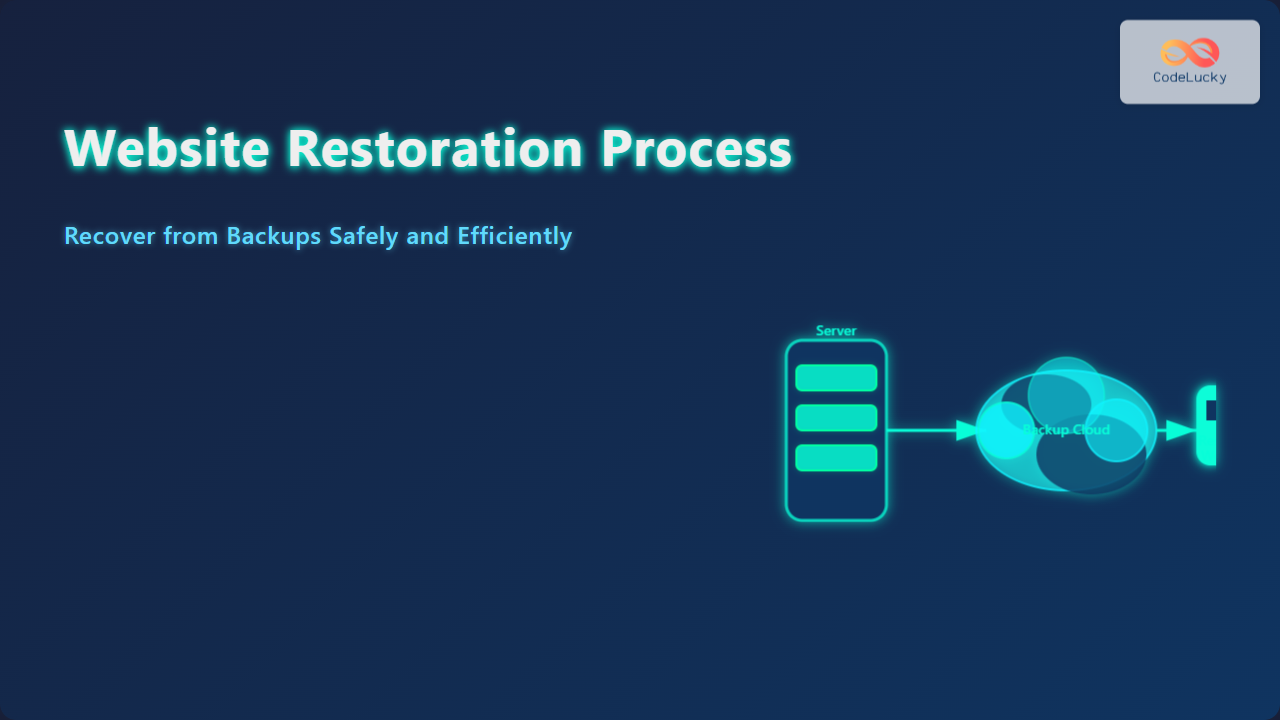
Restoring a website from a backup can be a lifesaver when your site experiences data loss, corruption, or security breaches. Understanding the website restoration process is vital for any webmaster or developer to quickly recover and minimize downtime. This article covers an exhaustive, step-by-step guide to recovering your website using backups, bolstered with practical examples and valuable visual diagrams for clarity.
Understanding Website Backups
Website backups are copies of your website’s data, including files, databases, and configurations, stored safely to enable restoration when needed. Regular backups ensure you can revert to a previous stable state if a mishap occurs.
- File Backups: Include themes, plugins, media uploads, and core files.
- Database Backups: Store content, user data, and settings for dynamic websites.
- Full Backups: Combine files and databases into one package for complete restoration.
The Need for Website Restoration
Websites face threats like hacking, accidental file deletion, plugin conflicts, or server crashes. Restoration from a trusted backup helps bring your site back to normal quickly without rebuilding from scratch.
Key Steps in the Website Restoration Process

1. Identify the Issue
First, diagnose the problem triggering the restoration — corrupted files, hacked site, or failed plugins. This helps decide the extent and type of backup needed.
2. Locate Backup Files
Backups might be stored on your hosting provider’s server, cloud storage (Google Drive, Dropbox), or local storage. Make sure you have access to the latest reliable backup before proceeding.
3. Choose Restoration Method
Common methods include:
- Manual Restoration: Download and upload files and databases using FTP and phpMyAdmin or command-line tools.
- Automated Restoration: Use backup plugins or your hosting control panel’s one-click restore feature.
4. Restore Website Files
Replace the current website files with those from the backup.
Example using FTP:
- Connect to your server with an FTP client (FileZilla).
- Navigate to your website root directory.
- Upload backup files, overwriting existing files.
5. Restore the Database
Database restoration is crucial for dynamic content sites (e.g., WordPress, Joomla).
Example using phpMyAdmin:
- Open phpMyAdmin from your hosting panel.
- Select your website database.
- Use the 'Import' tab to upload the SQL backup file.
- Wait for the successful import message.
6. Test the Restoration
Verify that all pages and functionalities are working fine. Check for broken links, missing images, or plugin errors.
7. Go Live
Once fully tested, remove any maintenance mode and inform your users or stakeholders that the website is restored.
Website Backup & Restore Example: WordPress
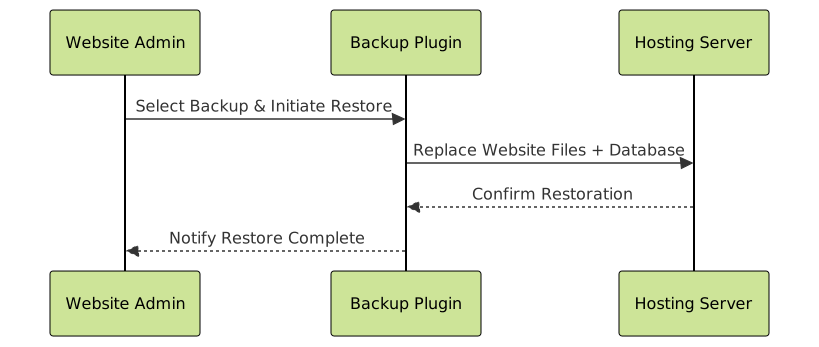
For WordPress sites, plugins like UpdraftPlus simplify backup and restoration. Here’s how a typical restoration looks using UpdraftPlus:
- Login to your WordPress dashboard.
- Navigate to Settings > UpdraftPlus Backups.
- Choose the backup set and click “Restore.”
- Select components to restore: plugins, themes, uploads, database.
- Follow the wizard until completion.
This automated process eliminates manual file handling and minimizes errors.
Best Practices for Backup and Restoration
- Frequent Backups: Schedule automatic backups daily or weekly depending on site activity.
- Offsite Storage: Keep backups off the main server to avoid simultaneous loss.
- Test Backup Integrity: Periodically test restoration on a staging server to ensure backups are valid.
- Document the Process: Keep a detailed restoration playbook accessible for emergencies.
Common Challenges and How to Overcome Them
- Backup Corruption: Use checksum tools or backup plugins that verify integrity before storage.
- Incomplete Backups: Ensure both files and database are backed up together.
- Permissions Errors: Reset file permissions after restoration to allow proper web server access.
- Plugin/Theme Conflicts: Restore to a previous version where conflict didn’t exist; consider staging environment tests.

Conclusion
Website restoration from backups is an essential skill for managing modern websites. This detailed process ensures minimal downtime and data loss in case of website emergencies. By adopting regular backup routines, choosing suitable restoration methods, and testing thoroughly, website owners and developers can confidently secure their online presence.
Implement these best practices today to safeguard your website against unforeseen events and ensure a smooth recovery whenever needed.