
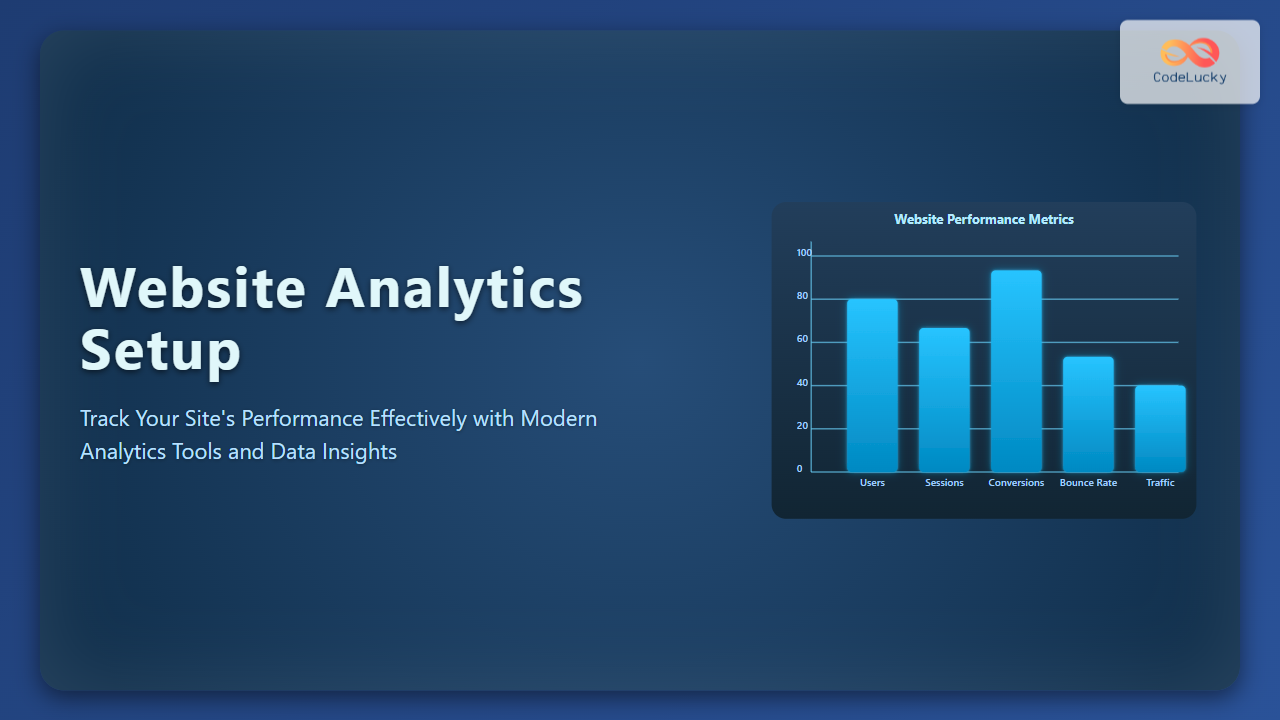
In the competitive landscape of online presence, understanding how users interact with your website is crucial to success. Website analytics setup provides deep insights into your visitors’ behavior, allowing you to optimize for conversions, engagement, and retention. This guide will walk you through everything you need to know about setting up analytics to track your site’s performance effectively.
Why Website Analytics Matter
Website Analytics help you answer critical questions such as: How many visitors are coming to your site? Where are they coming from? What pages do they visit the most? How long do they stay? Without analytics, you’re essentially flying blind, making decisions based on guesswork rather than data.
Popular Website Analytics Tools
- Google Analytics: The most widely used, free and feature-rich, perfect for most websites.
- Matomo: Open-source alternative emphasizing privacy and full data ownership.
- Mixpanel: Focuses on user behavior analytics with advanced funnels and retention features.
- Hotjar: Provides heatmaps and session recordings for visualizing user interaction.
Step-By-Step Guide to Setting Up Google Analytics
Google Analytics (GA) is the standard choice due to its integration capabilities and comprehensive reports.
1. Create a Google Analytics Account
Visit Google Analytics, sign in with your Google account, and create a new property for your website.
2. Add a Tracking Code to Your Website
GA provides a unique tracking ID (like G-XXXXXXXXXX). Embed the tracking snippet into your website’s <head> section.
<script async src="https://www.googletagmanager.com/gtag/js?id=G-XXXXXXXXXX"></script>
<script>
  window.dataLayer = window.dataLayer || [];
  function gtag(){dataLayer.push(arguments);}
  gtag('js', new Date());
  gtag('config', 'G-XXXXXXXXXX');
</script>
3. Verify Tracking Installation
Use Google Tag Assistant (a browser extension) or the “Realtime” reports in GA to confirm your site is tracking visits.

Understanding Key Metrics and Reports
Once setup is complete, familiarize yourself with these fundamental analytics metrics and their roles:
- Users: Number of unique visitors over a period.
- Sessions: Number of visits (multiple sessions per user possible).
- Bounce Rate: Percentage of visitors who leave after viewing only one page.
- Average Session Duration: How long visitors stay on your site per session.
- Acquisition Channels: How visitors find your site (search, social, direct, referrals).
Example: Analyzing Traffic Sources
Suppose you run an e-commerce store. Understanding which channels bring most valuable visitors can shape your marketing spend.
In GA, go to Acquisition > All Traffic > Channels. Here you’ll see a breakdown like:| Channel | Sessions | Bounce Rate | Conversion Rate |
|---|---|---|---|
| Organic Search | 5000 | 40% | 3.5% |
| Direct | 1500 | 55% | 1.2% |
| Social | 800 | 65% | 0.8% |
| Referral | 600 | 50% | 2.0% |
This tells you organic search is your strongest channel in both traffic and conversions, pointing to SEO as a vital growth driver.
Interactive Segment: Setting Up Custom Event Tracking
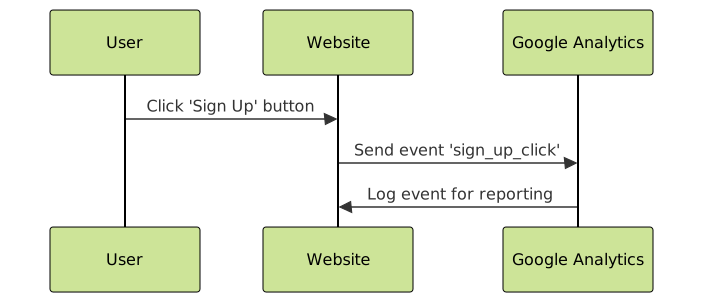
Beyond page visits, tracking user interactions (like button clicks, form submissions, video plays) provides more granular insights. Here’s a simple example to track clicks on a newsletter signup button:
// Assuming you have a button with id 'signup-btn'
document.getElementById('signup-btn').addEventListener('click', function() {
  gtag('event', 'sign_up_click', {
    'event_category': 'engagement',
    'event_label': 'Newsletter Signup Button'
  });
});
These event hits then appear in GA’s Behavior > Events report, helping you measure engagement success.
Boosting Your Analytics Setup With Goals and Funnels
Create Goals in Google Analytics to measure when visitors complete desired actions like purchases or newsletter subscriptions. Combine goals into funnels to track each step users take toward conversion.

This funnel reveals where users drop off in the purchase process, identifying bottlenecks for optimization.
Advanced Tip: Using Google Tag Manager (GTM)
Google Tag Manager simplifies managing multiple tracking scripts without editing your website code directly. With GTM, you add “Tags” for analytics, conversions, remarketing, and control when and how they fire.
Example GTM setup includes:
- Install GTM container snippet in your website.
- Create Tags for Google Analytics, Facebook Pixel, etc.
- Set Triggers to control tag firing (e.g., page views or button clicks).
- Publish changes without developer involvement.

Conclusion
Setting up website analytics is a foundational step to mastering digital performance measurement. Proper setup unlocks a wealth of data to optimize user experience, marketing strategies, and conversion funnels. Whether using Google Analytics, combining event tracking, or leveraging Google Tag Manager, a solid analytics framework will empower smarter decisions for your website’s success.
Follow this detailed guide to implement a robust analytics system and start tracking your site’s performance like a pro today.





