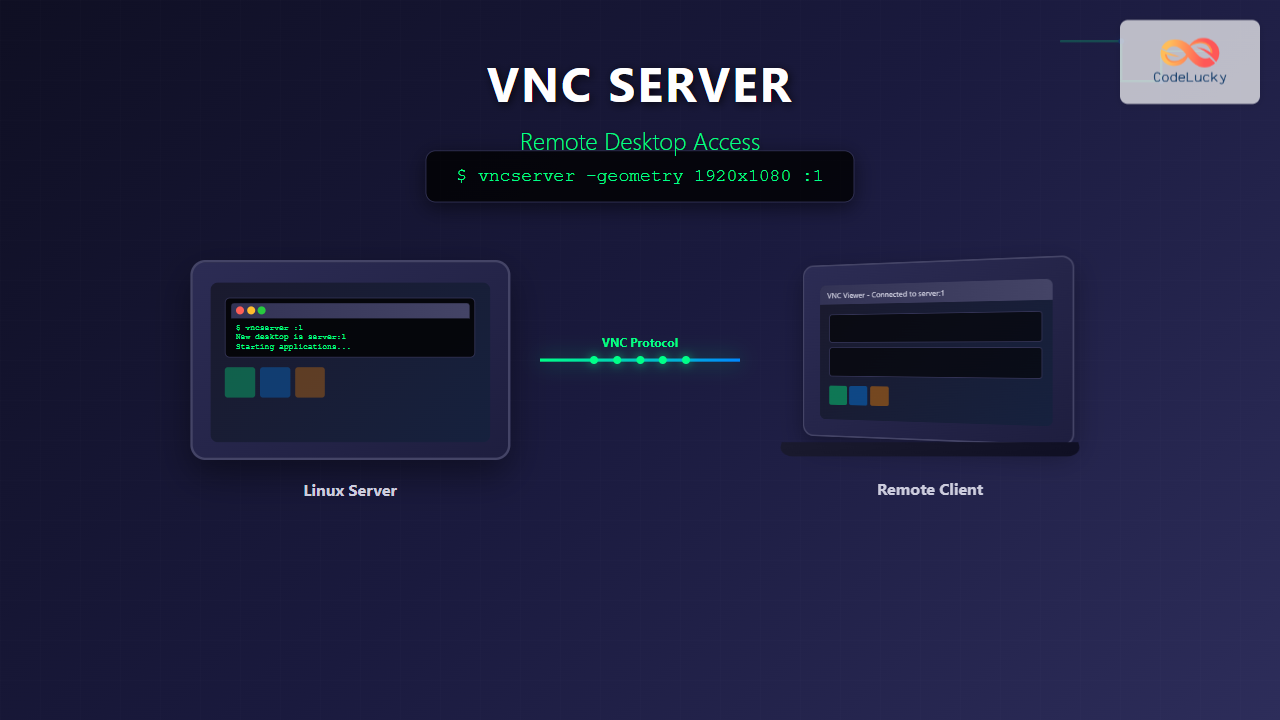
The vncserver command is a powerful tool in Linux that enables remote desktop access by starting a Virtual Network Computing (VNC) server. This comprehensive guide will walk you through everything you need to know about using vncserver effectively, from basic setup to advanced configuration and troubleshooting.
What is VNC Server?
VNC (Virtual Network Computing) is a graphical desktop sharing system that uses the Remote Frame Buffer protocol to remotely control another computer. The vncserver command starts a VNC server instance that allows remote clients to connect and interact with a Linux desktop environment over a network connection.
Key Benefits of VNC Server:
- Platform-independent remote access
- Multiple simultaneous connections
- Lightweight compared to other remote desktop solutions
- Customizable desktop environments
- Secure encrypted connections (with proper configuration)
Installing VNC Server
Before using the vncserver command, you need to install a VNC server package. The most common options are TigerVNC and TightVNC.
Ubuntu/Debian Installation:
# Install TigerVNC Server
sudo apt update
sudo apt install tigervnc-standalone-server tigervnc-xorg-extension

# Install desktop environment (if not already installed)
sudo apt install xfce4 xfce4-goodies
CentOS/RHEL Installation:
# Install TigerVNC Server
sudo yum install tigervnc-server

# For RHEL 8/CentOS 8
sudo dnf install tigervnc-server

# Install desktop environment
sudo yum groupinstall "Server with GUI"
Basic vncserver Command Syntax
The basic syntax for the vncserver command is:
vncserver [options] [display_number]
Where display_number is optional and represents the VNC display (e.g., :1, :2, :3).
Starting Your First VNC Server
Initial Setup and Password Configuration
When you run vncserver for the first time, it will prompt you to set a password:
$ vncserver

You will require a password to access your desktops.

Password: [enter password]
Verify: [verify password]
Would you like to enter a view-only password (y/n)? n

New 'hostname:1 (username)' desktop is hostname:1

Starting applications specified in /home/username/.vnc/xstartup
Log file is /home/username/.vnc/hostname:1.log
This creates a VNC server on display :1, accessible on port 5901 (5900 + display number).
Starting VNC Server with Specific Display
# Start VNC server on display :2
vncserver :2

# Start VNC server on display :5
vncserver :5
Common vncserver Command Options
Display and Resolution Options
# Set custom resolution
vncserver -geometry 1920x1080 :1

# Set color depth (8, 16, 24, or 32 bits)
vncserver -depth 24 :1

# Combine options
vncserver -geometry 1600x900 -depth 16 :2
Desktop Environment Options
# Specify desktop environment
vncserver -xstartup /path/to/custom/xstartup :1

# Start with specific session type
vncserver -session gnome :1
Security Options
# Use specific authentication method
vncserver -SecurityTypes VncAuth :1

# Localhost only (more secure)
vncserver -localhost :1

# Custom port binding
vncserver -rfbport 5905 :1
Viewing Active VNC Sessions
To see all running VNC servers:
$ vncserver -list

TigerVNC server sessions:

X DISPLAY #     PROCESS ID
:1              1234
:2              1567
:5              1890
Stopping VNC Server
Stop Specific Display
# Stop VNC server on display :1
vncserver -kill :1

# Stop VNC server on display :2
vncserver -kill :2
Stop All VNC Servers
# Kill all VNC servers for current user
vncserver -kill :*
Configuring VNC Server Startup Script
The ~/.vnc/xstartup file controls what applications start when a VNC session begins. Here’s a sample configuration for XFCE:
#!/bin/bash
# ~/.vnc/xstartup

unset SESSION_MANAGER
unset DBUS_SESSION_BUS_ADDRESS
exec startxfce4
Make the script executable:
chmod +x ~/.vnc/xstartup
GNOME Desktop Configuration
#!/bin/bash
# ~/.vnc/xstartup for GNOME

export XKL_XMODMAP_DISABLE=1
unset SESSION_MANAGER
unset DBUS_SESSION_BUS_ADDRESS

[ -x /etc/vnc/xstartup ] && exec /etc/vnc/xstartup
[ -r $HOME/.Xresources ] && xrdb $HOME/.Xresources
xsetroot -solid grey
vncconfig -iconic &

gnome-panel &
gnome-settings-daemon &
metacity &
nautilus &
gnome-terminal &
Advanced VNC Server Configuration
Creating VNC Server Configuration File
Create a configuration file at ~/.vnc/config:
# ~/.vnc/config
session=xfce
geometry=1920x1080
localhost
alwaysshared
dpi=96
System-wide VNC Server Setup
For system-wide VNC server configuration, create a systemd service:
# /etc/systemd/system/[email protected]
[Unit]
Description=Start TigerVNC server at startup
After=syslog.target network.target

[Service]
Type=forking
User=username
Group=username
WorkingDirectory=/home/username

PIDFile=/home/username/.vnc/%H:%i.pid
ExecStartPre=-/usr/bin/vncserver -kill :%i > /dev/null 2>&1
ExecStart=/usr/bin/vncserver -depth 24 -geometry 1920x1080 :%i
ExecStop=/usr/bin/vncserver -kill :%i

[Install]
WantedBy=multi-user.target
Security Considerations
SSH Tunneling for Secure Connections
For enhanced security, use SSH tunneling:
# On client machine, create SSH tunnel
ssh -L 5901:localhost:5901 username@server_ip

# Then connect VNC client to localhost:5901
Firewall Configuration
# Allow VNC through firewall (Ubuntu/Debian)
sudo ufw allow 5901/tcp

# CentOS/RHEL
sudo firewall-cmd --add-port=5901/tcp --permanent
sudo firewall-cmd --reload
Troubleshooting Common Issues
Permission Denied Errors
# Fix .vnc directory permissions
chmod 700 ~/.vnc
chmod 600 ~/.vnc/passwd
Display Issues
# Check if display is already in use
netstat -tlnp | grep :590

# Clean up stale lock files
rm ~/.vnc/*.pid
rm /tmp/.X*-lock
Desktop Environment Not Starting
# Check xstartup script
cat ~/.vnc/xstartup

# View VNC server logs
cat ~/.vnc/hostname:1.log
Performance Optimization
Optimizing for Low Bandwidth
# Start VNC with compression
vncserver -geometry 1024x768 -depth 16 :1

# Use tight encoding for better compression
vncserver -preferredencoding tight :1
Multi-user Environment Setup
# Create separate VNC instances for different users
# User 1
sudo -u user1 vncserver :1

# User 2
sudo -u user2 vncserver :2

# User 3
sudo -u user3 vncserver :3
Monitoring VNC Server Status
Process Monitoring
# Check VNC processes
ps aux | grep vnc

# Monitor VNC server resources
top -p $(pgrep Xvnc)

# Check listening ports
netstat -tlnp | grep Xvnc
Log Analysis
# View current session log
tail -f ~/.vnc/hostname:1.log

# Check for errors
grep -i error ~/.vnc/*.log
Best Practices
- Use Strong Passwords: Always set complex VNC passwords
- Limit Network Access: Use localhost binding and SSH tunnels
- Regular Updates: Keep VNC server software updated
- Monitor Sessions: Regularly check active VNC sessions
- Resource Management: Stop unused VNC sessions to free resources
- Backup Configuration: Save your xstartup and config files
Integration with Other Tools
Using with Screen or Tmux
# Start VNC server in screen session
screen -S vnc-session
vncserver :1

# Detach: Ctrl+A, D
# Reattach: screen -r vnc-session
Automation Scripts
#!/bin/bash
# vnc-manager.sh - Simple VNC management script

case $1 in
    start)
        vncserver -geometry 1920x1080 -depth 24 :1
        echo "VNC Server started on display :1"
        ;;
    stop)
        vncserver -kill :1
        echo "VNC Server stopped"
        ;;
    restart)
        vncserver -kill :1
        sleep 2
        vncserver -geometry 1920x1080 -depth 24 :1
        echo "VNC Server restarted"
        ;;
    status)
        vncserver -list
        ;;
    *)
        echo "Usage: $0 {start|stop|restart|status}"
        ;;
esac
Conclusion
The vncserver command is an essential tool for Linux administrators and users who need remote desktop access. By mastering its various options and configurations, you can set up secure, efficient remote desktop environments tailored to your specific needs. Remember to prioritize security by using SSH tunneling, strong passwords, and proper firewall configurations.
Whether you’re managing servers remotely, providing technical support, or accessing your desktop from different locations, vncserver provides a reliable solution for remote graphical access in Linux environments.
Related Posts
x11vnc Command Linux: Complete Guide to Remote Desktop Access via VNC Server
The x11vnc command is a powerful Linux utility that allows you to share your existing X11 desktop session via VNC...
tightvncserver Linux: Complete Guide to TightVNC Server Setup and Configuration
TightVNC Server is a powerful remote desktop solution that allows you to access and control Linux systems remotely over a...
RealVNC Linux: Complete Guide to Remote Desktop Access and Control
RealVNC is a powerful remote desktop software that enables users to control Linux systems remotely over a network connection. As...
xrdp Command Linux: Complete Guide to Remote Desktop Server Setup
The xrdp command is a powerful Linux utility that implements Microsoft's Remote Desktop Protocol (RDP) server functionality on Unix-like systems....
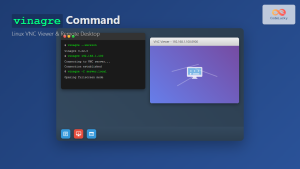
vinagre Command Linux: Complete Guide to VNC Viewer and Remote Desktop Access
The vinagre command is a powerful VNC (Virtual Network Computing) viewer for Linux systems that enables users to connect to...
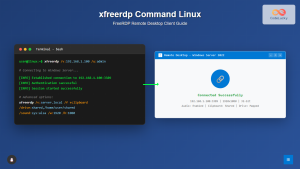
xfreerdp Command Linux: Complete Guide to FreeRDP Remote Desktop Client
The xfreerdp command is a powerful Linux utility that serves as the primary client for the FreeRDP project, enabling users...
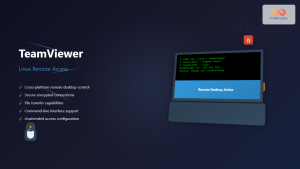
TeamViewer Linux: Complete Guide to Remote Desktop Access and Support
TeamViewer is one of the most popular remote desktop solutions available today, offering cross-platform compatibility and robust features for remote...
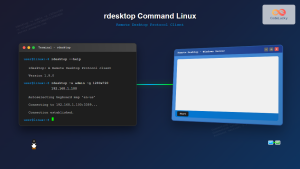
rdesktop Command Linux: Complete Guide to Remote Desktop Protocol Client
The rdesktop command is a powerful Remote Desktop Protocol (RDP) client for Linux systems that enables seamless connections to Windows...
NoMachine Linux: Complete Guide to Remote Desktop Access and Configuration
NoMachine is a powerful remote desktop solution that enables secure access to Linux systems from anywhere in the world. Unlike...
ssh Command Linux: Secure Shell Remote Access Tutorial with Examples
The ssh command in Linux, short for Secure Shell, is one of the most essential tools for system administrators, developers,...
AnyDesk Linux: Complete Remote Desktop Solution Guide for Linux Users
AnyDesk is a powerful cross-platform remote desktop application that enables users to access computers remotely over the internet. For Linux...
screen Command Linux: Complete Guide to Managing Multiple Terminal Sessions
The screen command is one of the most powerful tools in a Linux administrator's arsenal, allowing you to create, manage,...