Keeping Node.js updated is crucial for accessing new features, performance improvements, and security patches. This comprehensive guide covers multiple methods to update Node.js to the latest version, ensuring your development environment stays current and secure.
Why Update Node.js?
Before diving into the update process, understanding the benefits of keeping Node.js current is essential:
- Security patches: Latest versions include critical security fixes
- Performance improvements: Enhanced V8 engine and runtime optimizations
- New language features: Access to latest ECMAScript specifications
- Bug fixes: Resolution of known issues and stability improvements
- Library compatibility: Support for newer npm packages and dependencies
Checking Your Current Node.js Version
First, verify your current Node.js installation:
node --version
# or
node -v
Example output:
v18.17.0To get detailed information about your Node.js installation:
node --version --verbose
npm --version

Method 1: Using Official Node.js Installer
The simplest approach for beginners involves downloading the official installer from the Node.js website.
Steps for Windows and macOS:
- Visit nodejs.org
- Download the LTS (Long Term Support) or Current version
- Run the installer and follow the setup wizard
- Restart your terminal or command prompt
- Verify the installation
Verification command:
node --version
npm --version
Expected output after successful update:
v20.5.1
9.8.0
Method 2: Using Package Managers
Package managers provide efficient command-line updates across different operating systems.
Windows (Chocolatey)
First, install Chocolatey if not already installed:
Set-ExecutionPolicy Bypass -Scope Process -Force; [System.Net.ServicePointManager]::SecurityProtocol = [System.Net.ServicePointManager]::SecurityProtocol -bor 3072; iex ((New-Object System.Net.WebClient).DownloadString('https://community.chocolatey.org/install.ps1'))
Update Node.js:
choco upgrade nodejs
macOS (Homebrew)
Install or update using Homebrew:
# Install Homebrew if not present
/bin/bash -c "$(curl -fsSL https://raw.githubusercontent.com/Homebrew/install/HEAD/install.sh)"

# Update Node.js
brew update
brew upgrade node
Linux (Ubuntu/Debian)
Using NodeSource repository for the latest versions:
# Add NodeSource repository
curl -fsSL https://deb.nodesource.com/setup_lts.x | sudo -E bash -

# Update package list and install
sudo apt-get update
sudo apt-get install -y nodejs
Linux (CentOS/RHEL/Fedora)
# Add NodeSource repository
curl -fsSL https://rpm.nodesource.com/setup_lts.x | sudo bash -

# Install Node.js
sudo dnf install -y nodejs npm

Method 3: Using Node Version Manager (NVM)
NVM allows installing and switching between multiple Node.js versions seamlessly.
Installing NVM (Linux/macOS)
curl -o- https://raw.githubusercontent.com/nvm-sh/nvm/v0.39.0/install.sh | bash
# or
wget -qO- https://raw.githubusercontent.com/nvm-sh/nvm/v0.39.0/install.sh | bash
Reload your terminal:
source ~/.bashrc
# or
source ~/.zshrc
Installing NVM for Windows
Download and install nvm-windows from the official repository.
Using NVM Commands
List available Node.js versions:
nvm list-remote
# or for Windows
nvm list available
Install the latest LTS version:
nvm install --lts
nvm use --lts
Install a specific version:
nvm install 20.5.1
nvm use 20.5.1
Set default version:
nvm alias default 20.5.1
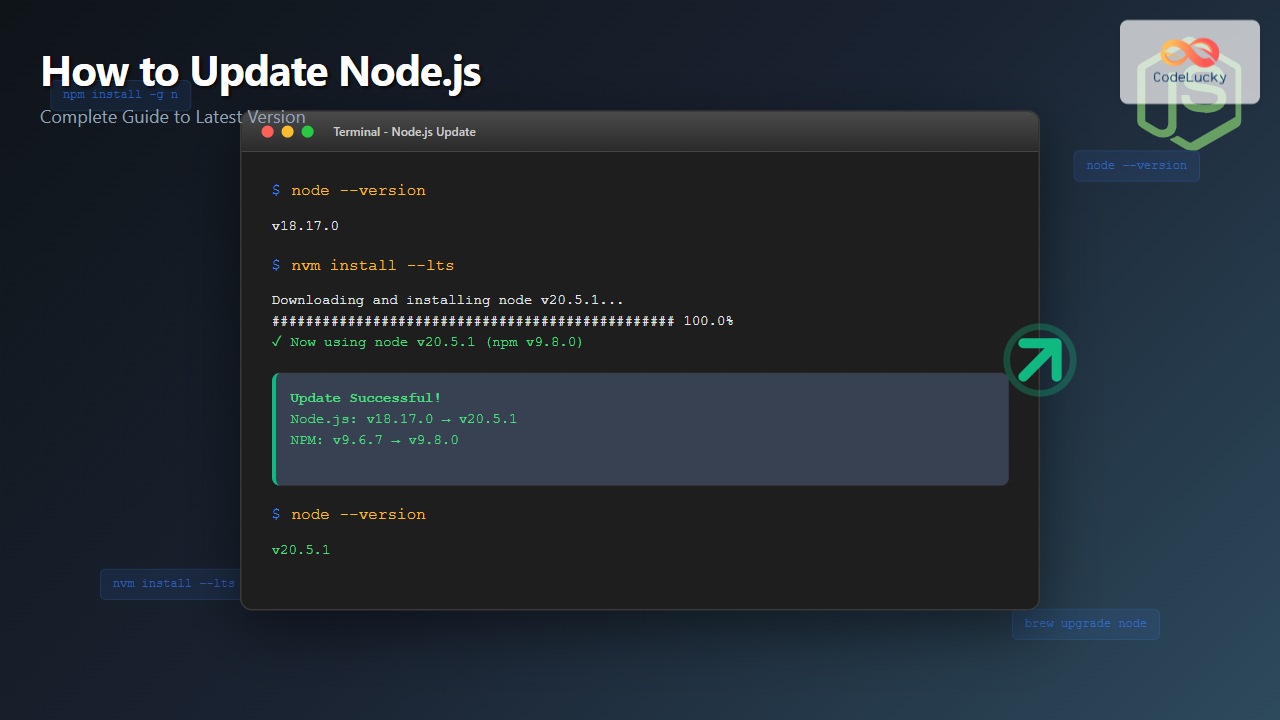
Example workflow output:
$ nvm install --lts
Downloading and installing node v20.5.1...
Downloading https://nodejs.org/dist/v20.5.1/node-v20.5.1-linux-x64.tar.xz...
##################################################################### 100.0%
Computing checksum with sha256sum
Checksums matched!
Now using node v20.5.1 (npm v9.8.0)

Method 4: Using Node Package Manager (NPM)
Update Node.js using the ‘n’ package manager:
# Install 'n' globally
npm install -g n

# Update to latest stable version
sudo n stable

# Update to latest version
sudo n latest

# Install specific version
sudo n 20.5.1
Example output:
$ sudo n latest
  installing : node-v20.5.1
       mkdir : /usr/local/n/versions/node/20.5.1
       fetch : https://nodejs.org/dist/v20.5.1/node-v20.5.1-linux-x64.tar.xz
##################################################################### 100.0%
   installed : v20.5.1 (with npm 9.8.0)
Method 5: Building from Source
For advanced users requiring custom configurations:
Prerequisites
# Ubuntu/Debian
sudo apt-get install build-essential curl git python3

# CentOS/RHEL
sudo yum groupinstall "Development Tools"
sudo yum install git python3
Build Process
# Clone Node.js repository
git clone https://github.com/nodejs/node.git
cd node

# Checkout latest stable tag
git checkout $(git describe --tags --abbrev=0)

# Configure and build
./configure
make -j$(nproc)
sudo make install

Updating NPM Separately
Sometimes you need to update NPM independently of Node.js:
# Update to latest NPM version
npm install -g npm@latest

# Update to specific version
npm install -g [email protected]

# Check NPM version
npm --version
Managing Multiple Node.js Projects
For developers working with multiple projects requiring different Node.js versions:
Project-Specific Version Files
Create a .nvmrc file in your project root:
20.5.1Use the project-specific version:
cd your-project
nvm use
# Automatically uses version specified in .nvmrc
Troubleshooting Common Issues
Permission Issues (Linux/macOS)
If you encounter permission errors:
# Fix npm permissions
mkdir ~/.npm-global
npm config set prefix '~/.npm-global'
echo 'export PATH=~/.npm-global/bin:$PATH' >> ~/.profile
source ~/.profile
PATH Issues
Verify Node.js is in your PATH:
echo $PATH
which node
which npm
Cache Issues
Clear npm cache if experiencing issues:
npm cache clean --force
npm cache verify
Best Practices for Node.js Updates
- Backup projects: Always backup your projects before major updates
- Test thoroughly: Test your applications after updating
- Use LTS versions: For production environments, prefer LTS releases
- Version management: Use NVM for flexible version switching
- Regular updates: Schedule regular update checks and maintenance
- Documentation: Keep track of Node.js versions used in different projects
Verifying Successful Update
After updating, run comprehensive verification:
# Check versions
node --version
npm --version

# Verify installation paths
which node
which npm

# Test basic functionality
node -e "console.log('Node.js is working!')"
npm list -g --depth=0
Expected successful output:
v20.5.1
9.8.0
/usr/local/bin/node
/usr/local/bin/npm
Node.js is working!
└── [email protected]

Conclusion
Updating Node.js is essential for maintaining a secure, performant development environment. Whether you choose the official installer, package managers, or version managers like NVM, each method offers distinct advantages. NVM provides the most flexibility for developers managing multiple projects, while package managers offer streamlined updates for single-version environments.
Remember to test your applications thoroughly after updates and consider using LTS versions for production environments. Regular maintenance and updates will ensure your Node.js development environment remains current with the latest features and security patches.
- Why Update Node.js?
- Checking Your Current Node.js Version
- Method 1: Using Official Node.js Installer
- Method 2: Using Package Managers
- Method 3: Using Node Version Manager (NVM)
- Method 4: Using Node Package Manager (NPM)
- Method 5: Building from Source
- Updating NPM Separately
- Managing Multiple Node.js Projects
- Troubleshooting Common Issues
- Best Practices for Node.js Updates
- Verifying Successful Update
- Conclusion