

Making mistakes with Git commits is a common occurrence in software development. Whether you committed too early, made a typo in your commit message, or included the wrong files, knowing how to safely undo your most recent local commit is essential for maintaining a clean project history.
This comprehensive guide will walk you through multiple methods to undo your most recent Git commit, complete with examples, visual outputs, and interactive scenarios to help you choose the right approach for your situation.
Understanding Git Commits and Repository States
Before diving into the methods, it’s crucial to understand what happens when you make a commit and the different states your repository can be in.

When you undo a commit, you’re essentially moving changes backward through these states. The method you choose depends on what you want to do with your changes and whether you’ve already pushed to a remote repository.
Method 1: Using git reset –soft (Preserve Changes in Staging)
The git reset --soft command undoes the most recent commit while keeping your changes staged and ready for a new commit. This is perfect when you want to modify your commit message or add more changes.
Command Syntax
git reset --soft HEAD~1Step-by-Step Example
Initial State:
$ git log --oneline
abc1234 (HEAD -> main) Fix typo in README
def5678 Add user authentication
ghi9012 Initial commit

$ git status
On branch main
nothing to commit, working tree clean
Execute the Reset:
$ git reset --soft HEAD~1Result:
$ git log --oneline
def5678 (HEAD -> main) Add user authentication
ghi9012 Initial commit

$ git status
On branch main
Changes to be committed:
  (use "git restore --staged ..." to unstage)
        modified:   README.md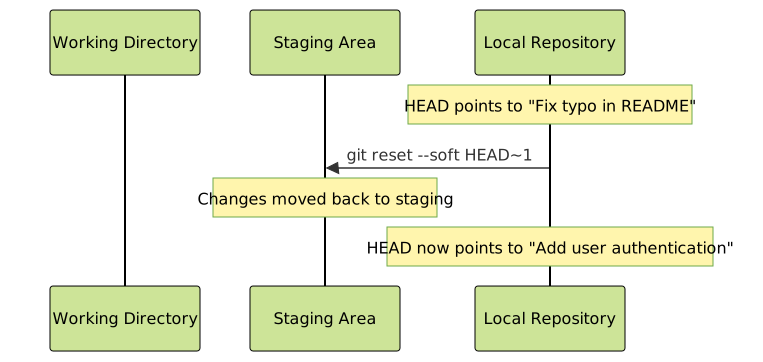
When to Use git reset –soft
- You want to modify the commit message
- You need to add more files to the commit
- You want to split one commit into multiple commits
- You made a commit too early and want to continue working
Method 2: Using git reset –mixed (Default Behavior)
The git reset --mixed command (or simply git reset) undoes the most recent commit and unstages the changes, moving them back to your working directory. This gives you the flexibility to selectively stage changes for your next commit.
Command Syntax
git reset HEAD~1
# or explicitly
git reset --mixed HEAD~1
Step-by-Step Example
Initial State:
$ git log --oneline
abc1234 (HEAD -> main) Add contact form validation
def5678 Add user authentication
ghi9012 Initial commit

$ git status
On branch main
nothing to commit, working tree clean
Execute the Reset:
$ git reset HEAD~1Result:
$ git log --oneline
def5678 (HEAD -> main) Add user authentication
ghi9012 Initial commit

$ git status
On branch main
Changes not staged for commit:
  (use "git add ..." to update what will be committed)
  (use "git restore ..." to discard changes in working directory)
        modified:   contact-form.js
        modified:   validation.css
Interactive Example: Selectively Re-staging Changes
After using git reset --mixed, you can selectively choose which changes to include in your next commit:
# Stage only the JavaScript changes
$ git add contact-form.js

$ git status
On branch main
Changes to be committed:
  (use "git restore --staged ..." to unstage)
        modified:   contact-form.js

Changes not staged for commit:
  (use "git add ..." to update what will be committed)
  (use "git restore ..." to discard changes in working directory)
        modified:   validation.css

# Create a focused commit
$ git commit -m "Add contact form JavaScript validation"

# Later, stage and commit the CSS changes
$ git add validation.css
$ git commit -m "Add validation CSS styles"
Method 3: Using git reset –hard (Discard Changes Completely)
⚠️ Warning: This method permanently deletes your changes. Use with extreme caution!
The git reset --hard command undoes the most recent commit and completely discards all changes, returning your repository to the exact state of the previous commit.
Command Syntax
git reset --hard HEAD~1Step-by-Step Example
Initial State:
$ git log --oneline
abc1234 (HEAD -> main) Experimental feature (broken)
def5678 Add user authentication
ghi9012 Initial commit

$ ls -la
total 24
drwxr-xr-x  3 user group  256 Aug 29 16:30 .
drwxr-xr-x  5 user group  160 Aug 29 16:25 ..
drwxr-xr-x  8 user group  256 Aug 29 16:30 .git
-rw-r--r--  1 user group  150 Aug 29 16:30 README.md
-rw-r--r--  1 user group  450 Aug 29 16:30 broken-feature.js
Execute the Reset:
$ git reset --hard HEAD~1Result:
$ git log --oneline
def5678 (HEAD -> main) Add user authentication
ghi9012 Initial commit

$ ls -la
total 20
drwxr-xr-x  3 user group  256 Aug 29 16:31 .
drwxr-xr-x  5 user group  160 Aug 29 16:25 ..
drwxr-xr-x  8 user group  256 Aug 29 16:31 .git
-rw-r--r--  1 user group  120 Aug 29 16:31 README.md

# Notice: broken-feature.js is completely gone
When to Use git reset –hard
- You’re certain the last commit was completely wrong
- The changes introduce breaking bugs
- You want to start fresh from the previous commit
- You’re experimenting and don’t need to preserve the changes
Method 4: Using git revert (Safe for Shared Repositories)
Unlike git reset, which rewrites history, git revert creates a new commit that undoes the changes from the most recent commit. This is the safest method when you’ve already pushed your commit to a shared repository.
Command Syntax
git revert HEADStep-by-Step Example
Initial State:
$ git log --oneline
abc1234 (HEAD -> main) Remove important feature
def5678 Add user authentication
ghi9012 Initial commit
Execute the Revert:
$ git revert HEADGit will open your default editor for the commit message:
Revert "Remove important feature"

This reverts commit abc1234567890abcdef1234567890abcdef12345.

# Please enter the commit message for your changes. Lines starting
# with '#' will be ignored, and an empty message aborts the commit.
Result:
$ git log --oneline
xyz9876 (HEAD -> main) Revert "Remove important feature"
abc1234 Remove important feature
def5678 Add user authentication
ghi9012 Initial commit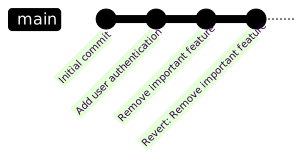
When to Use git revert
- You’ve already pushed the commit to a shared repository
- Other developers have based their work on your commit
- You want to maintain a complete history of changes
- You’re working on a main branch with strict policies
Method 5: Using git commit –amend (Modify the Last Commit)
The git commit --amend command allows you to modify the most recent commit without creating a new commit. This is perfect for fixing commit messages or adding forgotten files.
Amending the Commit Message
# Current commit has a typo
$ git log --oneline
abc1234 (HEAD -> main) Fix bugg in user validation

# Amend the commit message
$ git commit --amend -m "Fix bug in user validation"

# Result
$ git log --oneline
def5678 (HEAD -> main) Fix bug in user validation
Adding Files to the Last Commit
# You forgot to add a file to your last commit
$ git status
On branch main
Untracked files:
  (use "git add ..." to include in what will be committed)
        forgot-this-file.js

# Stage the forgotten file
$ git add forgot-this-file.js

# Amend the last commit to include it
$ git commit --amend --no-edit

# The file is now part of the last commit without changing the message
Interactive Amend Session
# Start an interactive amend session
$ git commit --amend

# Git opens your editor with the current commit message
Fix user validation logic

# Add detailed description:
# - Fixed null pointer exception in email validation
# - Added unit tests for edge cases
# - Updated documentation

# Save and close the editor
Comparison Table: Choosing the Right Method
| Method | Changes Preservation | History Impact | Safe for Shared Repos | Best Use Case |
|---|---|---|---|---|
git reset --soft |
Staged | Rewrites | No | Modify commit, add more changes |
git reset --mixed |
Working directory | Rewrites | No | Selective re-staging |
git reset --hard |
Discarded | Rewrites | No | Complete removal |
git revert |
Creates opposite | Preserves | Yes | Shared repositories |
git commit --amend |
Modified in place | Rewrites last only | No | Fix last commit |
Advanced Scenarios and Recovery Options
Recovering from git reset –hard
If you accidentally used git reset --hard and need to recover your changes, Git’s reflog can help:
# View the reflog to find your lost commit
$ git reflog
def5678 (HEAD -> main) HEAD@{0}: reset: moving to HEAD~1
abc1234 HEAD@{1}: commit: Lost commit with important changes
def5678 HEAD@{2}: commit: Add user authentication

# Recover the lost commit
$ git reset --hard abc1234

# Or create a new branch from the lost commit
$ git branch recover-lost-work abc1234
Undoing Multiple Commits
You can undo multiple commits by adjusting the number:
# Undo the last 3 commits
$ git reset --soft HEAD~3

# Undo commits back to a specific commit hash
$ git reset --mixed abc1234

# Revert multiple commits (creates multiple revert commits)
$ git revert HEAD~2..HEAD
Best Practices and Safety Tips
Before Making Changes
- Check your repository status: Always run
git statusandgit log --onelinebefore undoing commits - Create a backup branch:
git branch backup-branchbefore major operations - Verify you haven’t pushed: Use
git log --oneline origin/main..HEADto see unpushed commits
Safety Guidelines
- Never reset pushed commits unless you’re certain no one else has pulled them
- Use revert for shared repositories to maintain history integrity
- Test your changes after undoing commits to ensure everything works correctly
- Communicate with your team when undoing commits that might affect others
Common Mistakes to Avoid
- Using
git reset --hardwithout backing up important changes - Resetting commits that have already been pushed to shared repositories
- Forgetting to check which branch you’re on before undoing commits
- Not understanding the difference between reset and revert
Conclusion
Understanding how to undo your most recent Git commit is a fundamental skill that every developer should master. The key is choosing the right method based on your specific situation:
- Use git reset –soft when you want to modify or extend your last commit
- Use git reset –mixed when you want to selectively re-stage changes
- Use git reset –hard when you want to completely discard changes (with caution)
- Use git revert when working with shared repositories
- Use git commit –amend for simple fixes to the last commit
Remember that Git’s safety features, like the reflog, can help you recover from mistakes. However, prevention is always better than cure—always double-check your commands and consider the impact on your team when working with shared repositories.
By mastering these techniques, you’ll be able to maintain a clean, professional Git history while confidently handling the inevitable mistakes that occur during development.
- Understanding Git Commits and Repository States
- Method 1: Using git reset –soft (Preserve Changes in Staging)
- Method 2: Using git reset –mixed (Default Behavior)
- Method 3: Using git reset –hard (Discard Changes Completely)
- Method 4: Using git revert (Safe for Shared Repositories)
- Method 5: Using git commit –amend (Modify the Last Commit)
- Comparison Table: Choosing the Right Method
- Advanced Scenarios and Recovery Options
- Best Practices and Safety Tips
- Conclusion





