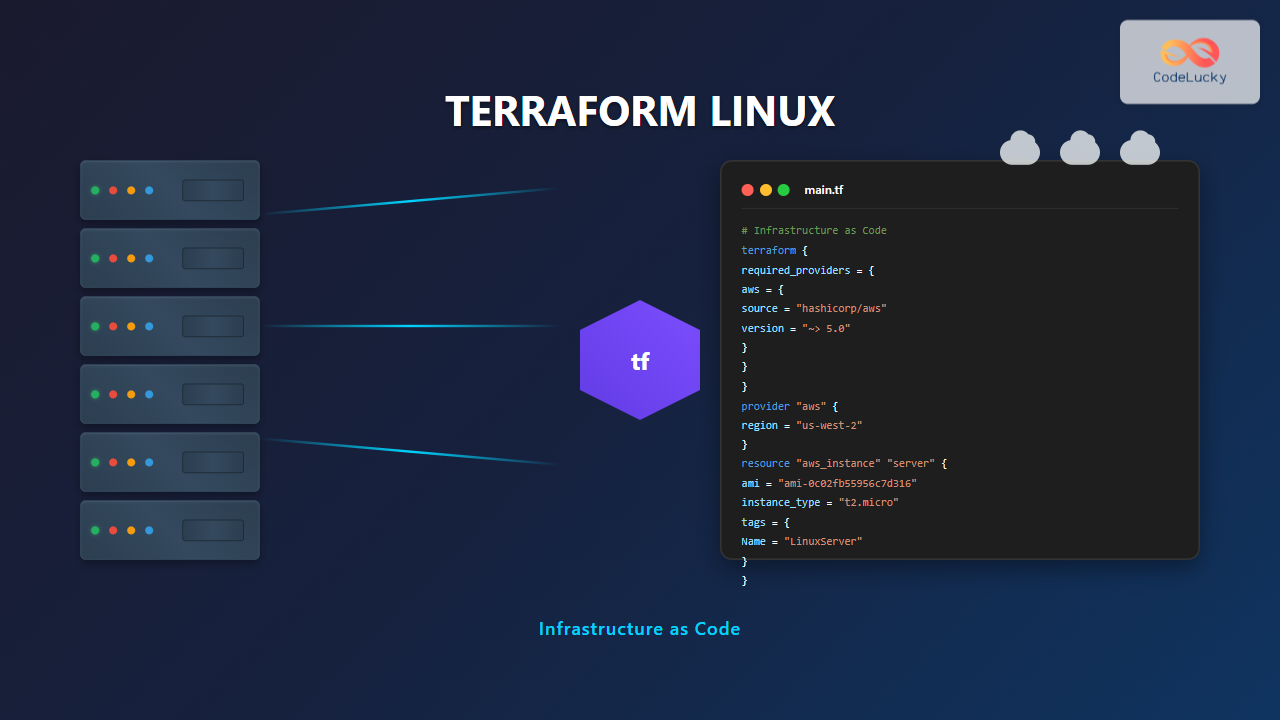
Terraform is a powerful open-source Infrastructure as Code (IaC) tool that allows you to define, provision, and manage infrastructure resources using declarative configuration files. When combined with Linux systems, Terraform becomes an essential tool for DevOps engineers and system administrators to automate infrastructure deployment and management across multiple cloud providers and on-premises environments.
What is Terraform and Infrastructure as Code?
Infrastructure as Code (IaC) is a practice where infrastructure is defined and managed through code rather than manual processes. Terraform, developed by HashiCorp, uses a domain-specific language called HashiCorp Configuration Language (HCL) to describe infrastructure resources in a human-readable format.
Key Benefits of Terraform on Linux:
- Version Control: Infrastructure configurations can be stored in Git repositories
- Reproducibility: Identical environments can be created consistently
- Scalability: Easy scaling of resources up or down
- Multi-Cloud Support: Works with AWS, Azure, GCP, and many other providers
- State Management: Tracks current infrastructure state
Installing Terraform on Linux
There are several methods to install Terraform on Linux systems. Here are the most common approaches:
Method 1: Using Package Managers
Ubuntu/Debian:
# Add HashiCorp GPG key
curl -fsSL https://apt.releases.hashicorp.com/gpg | sudo apt-key add -

# Add HashiCorp repository
sudo apt-add-repository "deb [arch=amd64] https://apt.releases.hashicorp.com $(lsb_release -cs) main"

# Update package list and install Terraform
sudo apt update
sudo apt install terraform
CentOS/RHEL/Fedora:
# Add HashiCorp repository
sudo yum install -y yum-utils
sudo yum-config-manager --add-repo https://rpm.releases.hashicorp.com/RHEL/hashicorp.repo

# Install Terraform
sudo yum install terraform
Method 2: Manual Installation
# Download the latest version (replace version number as needed)
wget https://releases.hashicorp.com/terraform/1.5.7/terraform_1.5.7_linux_amd64.zip

# Unzip the package
unzip terraform_1.5.7_linux_amd64.zip

# Move to system PATH
sudo mv terraform /usr/local/bin/

# Verify installation
terraform --version
Expected Output:
Terraform v1.5.7
on linux_amd64
Essential Terraform Commands for Linux
Here are the fundamental Terraform commands every Linux administrator should know:
1. terraform init
Initializes a Terraform working directory and downloads required providers.
terraform initSample Output:
Initializing the backend...

Initializing provider plugins...
- Finding latest version of hashicorp/aws...
- Installing hashicorp/aws v5.15.0...
- Installed hashicorp/aws v5.15.0 (signed by HashiCorp)

Terraform has been successfully initialized!
2. terraform plan
Creates an execution plan showing what actions Terraform will take.
terraform plan3. terraform apply
Applies the changes defined in your configuration files.
terraform apply4. terraform destroy
Destroys all resources managed by the current Terraform configuration.
terraform destroy5. terraform validate
Validates the syntax and configuration of Terraform files.
terraform validate6. terraform fmt
Formats Terraform configuration files for consistency.
terraform fmtCreating Your First Terraform Configuration
Let’s create a simple Terraform configuration to provision a basic AWS EC2 instance:
Step 1: Create the Configuration File
mkdir terraform-example
cd terraform-example
nano main.tf
Step 2: Define the Configuration
# main.tf
terraform {
  required_providers {
    aws = {
      source  = "hashicorp/aws"
      version = "~> 5.0"
    }
  }
}

provider "aws" {
  region = "us-west-2"
}

resource "aws_instance" "web_server" {
  ami           = "ami-0c02fb55956c7d316"  # Amazon Linux 2
  instance_type = "t2.micro"

  tags = {
    Name = "MyWebServer"
    Environment = "Development"
  }
}

output "instance_ip" {
  value = aws_instance.web_server.public_ip
}
Step 3: Initialize and Apply
# Initialize the working directory
terraform init

# Review the execution plan
terraform plan

# Apply the configuration
terraform apply
Expected Output:
Plan: 1 to add, 0 to change, 0 to destroy.

Changes to Outputs:
  + instance_ip = (known after apply)

Do you want to perform these actions?
  Terraform will perform the actions described above.
  Only 'yes' will be accepted to approve.

  Enter a value: yes

aws_instance.web_server: Creating...
aws_instance.web_server: Still creating... [10s elapsed]
aws_instance.web_server: Creation complete after 30s [id=i-0123456789abcdef0]

Apply complete! Resources: 1 added, 0 changed, 0 destroyed.

Outputs:

instance_ip = "54.123.45.67"
Working with Terraform State
Terraform maintains a state file (terraform.tfstate) that maps real-world resources to your configuration. Understanding state management is crucial for effective Terraform usage.
State Commands:
View State:
terraform state listOutput:
aws_instance.web_serverShow Detailed State Information:
terraform state show aws_instance.web_serverRemove Resource from State:
terraform state rm aws_instance.web_serverAdvanced Terraform Features
Variables and Input Validation
Create a variables.tf file to make your configuration more flexible:
# variables.tf
variable "instance_type" {
  description = "EC2 instance type"
  type        = string
  default     = "t2.micro"

  validation {
    condition = contains(["t2.micro", "t2.small", "t2.medium"], var.instance_type)
    error_message = "Instance type must be t2.micro, t2.small, or t2.medium."
  }
}

variable "environment" {
  description = "Environment name"
  type        = string
  default     = "development"
}
Using Variables in Configuration:
# Updated main.tf
resource "aws_instance" "web_server" {
  ami           = "ami-0c02fb55956c7d316"
  instance_type = var.instance_type

  tags = {
    Name        = "WebServer-${var.environment}"
    Environment = var.environment
  }
}
Terraform Modules
Modules allow you to create reusable components. Here’s a simple module structure:
# modules/web-server/main.tf
resource "aws_instance" "server" {
  ami           = var.ami_id
  instance_type = var.instance_type

  tags = var.tags
}

# modules/web-server/variables.tf
variable "ami_id" {
  description = "AMI ID for the instance"
  type        = string
}

variable "instance_type" {
  description = "Instance type"
  type        = string
  default     = "t2.micro"
}

variable "tags" {
  description = "Tags for the instance"
  type        = map(string)
  default     = {}
}

# modules/web-server/outputs.tf
output "instance_id" {
  value = aws_instance.server.id
}

output "public_ip" {
  value = aws_instance.server.public_ip
}
Using the Module:
# main.tf
module "web_server" {
  source = "./modules/web-server"

  ami_id        = "ami-0c02fb55956c7d316"
  instance_type = "t2.micro"

  tags = {
    Name        = "MyWebServer"
    Environment = "Production"
  }
}

output "server_ip" {
  value = module.web_server.public_ip
}
Terraform Workspaces
Workspaces allow you to manage multiple environments with the same configuration:
# List workspaces
terraform workspace list

# Create a new workspace
terraform workspace new production

# Switch to a workspace
terraform workspace select production

# Show current workspace
terraform workspace show
Expected Output:
$ terraform workspace list
* default

$ terraform workspace new production
Created and switched to workspace "production"!

$ terraform workspace show
production
Best Practices for Terraform on Linux
1. Directory Structure
project/
├── environments/
│   ├── dev/
│   ├── staging/
│   └── prod/
├── modules/
│   ├── vpc/
│   ├── ec2/
│   └── rds/
├── main.tf
├── variables.tf
├── outputs.tf
└── terraform.tfvars
2. Version Pinning
terraform {
  required_version = ">= 1.0"

  required_providers {
    aws = {
      source  = "hashicorp/aws"
      version = "~> 5.0"
    }
  }
}
3. Remote State Management
terraform {
  backend "s3" {
    bucket         = "my-terraform-state-bucket"
    key            = "prod/terraform.tfstate"
    region         = "us-west-2"
    dynamodb_table = "terraform-locks"
    encrypt        = true
  }
}
Troubleshooting Common Issues
1. Provider Plugin Issues
# Clear provider cache
rm -rf .terraform/

# Reinitialize
terraform init
2. State Lock Issues
# Force unlock (use with caution)
terraform force-unlock LOCK_ID
3. Import Existing Resources
# Import an existing AWS instance
terraform import aws_instance.web_server i-1234567890abcdef0
Terraform with CI/CD Pipelines
Integrate Terraform with your Linux-based CI/CD pipelines using shell scripts:
#!/bin/bash
# deploy.sh

set -e

echo "Initializing Terraform..."
terraform init

echo "Validating configuration..."
terraform validate

echo "Planning deployment..."
terraform plan -out=tfplan

echo "Applying changes..."
terraform apply tfplan

echo "Deployment completed successfully!"
Performance Optimization
1. Parallel Execution
# Increase parallelism
terraform apply -parallelism=20
2. Targeted Operations
# Target specific resources
terraform apply -target=aws_instance.web_server
3. State Refresh Optimization
# Skip refresh for faster operations
terraform apply -refresh=false
Security Considerations
1. Sensitive Variables
variable "database_password" {
  description = "Database password"
  type        = string
  sensitive   = true
}
2. State File Security
- Never commit state files to version control
- Use remote state with encryption
- Implement proper access controls
- Enable state locking
3. Environment File Protection
# .gitignore
*.tfstate
*.tfstate.*
*.tfvars
.terraform/
Monitoring and Logging
Enable detailed logging for troubleshooting:
# Set Terraform log level
export TF_LOG=DEBUG
export TF_LOG_PATH=terraform.log

# Run Terraform commands
terraform apply
Conclusion
Terraform on Linux provides a powerful platform for implementing Infrastructure as Code practices. By mastering the commands, configuration syntax, and best practices outlined in this guide, you’ll be able to efficiently manage infrastructure across multiple environments and cloud providers. Remember to always validate your configurations, use version control, and implement proper security measures when working with Terraform in production environments.
Start with simple configurations and gradually incorporate advanced features like modules, workspaces, and remote state management as your infrastructure requirements grow. The combination of Terraform’s declarative approach and Linux’s flexibility makes for a robust infrastructure automation solution.
Related Posts
Configuration Management: Infrastructure as Code – Complete Guide to Modern DevOps Practices
Configuration Management and Infrastructure as Code (IaC) have revolutionized how modern organizations approach infrastructure deployment and management in Agile environments....
Katello Linux: Complete Guide to Enterprise Content and Configuration Management
Introduction to Katello Linux Katello is a powerful open-source content and configuration management platform that serves as the upstream project...
Vagrant Linux: Complete Guide to Development Environment Management
Vagrant revolutionizes development environment management by providing a consistent, reproducible way to create and manage virtual development environments. This comprehensive...
nomad Linux: Complete Guide to HashiCorp’s Workload Orchestrator
What is HashiCorp Nomad? HashiCorp Nomad is a simple yet powerful workload orchestrator that enables organizations to deploy and manage...

SaltStack Linux: Complete Guide to Intelligent IT Automation and Configuration Management
SaltStack has revolutionized the way system administrators and DevOps engineers manage infrastructure at scale. As a powerful configuration management and...
CI/CD Pipeline: Complete Implementation Guide for Modern DevOps Teams
What is a CI/CD Pipeline? A CI/CD pipeline (Continuous Integration/Continuous Deployment) is an automated workflow that enables development teams to...

Cloud-Native Agile: Revolutionizing Born-in-the-Cloud Development Practices
Cloud-native agile development represents a paradigm shift that fundamentally transforms how software teams approach application development, deployment, and maintenance. This...

Chef Linux: Complete Infrastructure Automation Platform Guide for DevOps
Chef is a powerful infrastructure automation platform that transforms the way organizations manage their Linux environments. As a configuration management...
Packer Linux: Complete Guide to Machine Image Builder for DevOps Automation
Packer is a powerful open-source tool developed by HashiCorp that automates the creation of machine images for multiple platforms from...
git Command Linux: Complete Guide to Version Control with Git
Git is the most widely used distributed version control system that helps developers track changes, collaborate on projects, and manage...
Consul Linux: Complete Guide to Service Mesh and Service Discovery
Consul is a powerful service mesh and service discovery tool developed by HashiCorp that enables organizations to connect, secure, and...
Puppet Linux: Complete Configuration Management Guide for System Administrators
Puppet is a powerful configuration management tool that revolutionizes how system administrators manage Linux infrastructure. By automating system configuration, software...