
SSL (Secure Sockets Layer) certificates are essential digital credentials that encrypt data transmission between your website and visitors’ browsers. Installing an SSL certificate transforms your HTTP site to HTTPS, providing authentication, data integrity, and encryption that protects sensitive information from cybercriminals.
This comprehensive guide walks you through everything you need to know about SSL certificate installation, from understanding different certificate types to implementing them across various hosting platforms.
Understanding SSL Certificates
SSL certificates work by establishing an encrypted link between a web server and browser. When visitors access your HTTPS-enabled website, their browser verifies your certificate’s authenticity and creates a secure tunnel for data exchange.

Types of SSL Certificates
Choose the right certificate type based on your website’s needs:
- Domain Validated (DV) – Basic encryption for single domains, fastest issuance
- Organization Validated (OV) – Enhanced validation including business verification
- Extended Validation (EV) – Highest security level with comprehensive company verification
- Wildcard Certificates – Secures main domain and all subdomains (*.yourdomain.com)
- Multi-Domain (SAN) – Protects multiple different domains with one certificate
Pre-Installation Requirements
Before installing your SSL certificate, ensure you have:
- Administrative access to your web server or hosting control panel
- Your SSL certificate files (typically .crt, .key, and .ca-bundle)
- Basic knowledge of your hosting platform (cPanel, Apache, Nginx, etc.)
- A backup of your current website configuration
Generating a Certificate Signing Request (CSR)
Most certificate authorities require a CSR before issuing your SSL certificate. Here’s how to generate one using OpenSSL:
openssl req -new -newkey rsa:2048 -nodes -keyout yourdomain.key -out yourdomain.csrExample CSR generation process:
Country Name (2 letter code) [AU]: US
State or Province Name (full name) [Some-State]: California
Locality Name (eg, city) []: San Francisco
Organization Name (eg, company) [Internet Widgits Pty Ltd]: Your Company Name
Organizational Unit Name (eg, section) []: IT Department
Common Name (e.g. server FQDN or YOUR name) []: www.yourdomain.com
Email Address []: [email protected]
Installation Methods by Platform
cPanel Installation
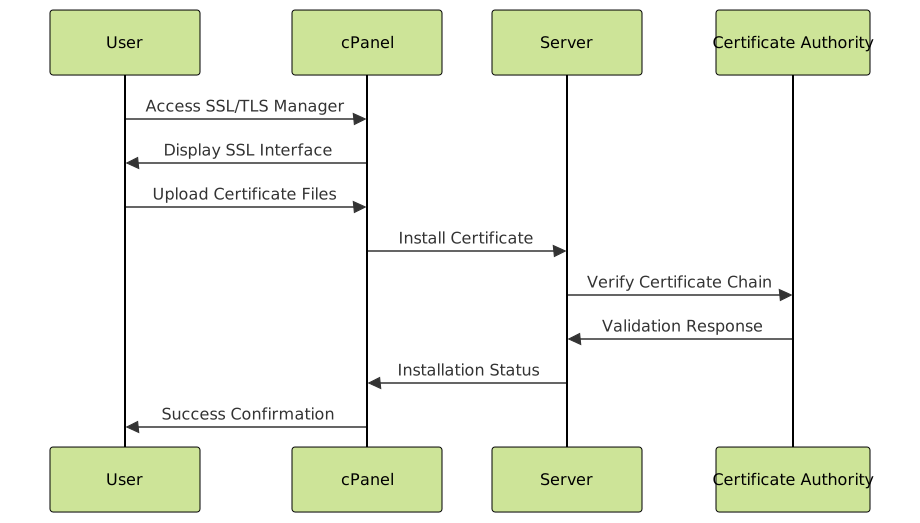
For shared hosting users, cPanel provides the easiest SSL installation method:
- Access SSL/TLS section in cPanel dashboard
- Navigate to “Manage SSL sites”
- Select your domain from the dropdown
- Paste certificate content:
- Certificate (CRT) in the first text area
- Private Key in the second text area
- Certificate Authority Bundle (if provided) in the third area
- Click “Install Certificate”
Apache Server Installation
For Apache web servers, you’ll need to configure SSL in your virtual host configuration:
# Enable SSL module
LoadModule ssl_module modules/mod_ssl.so

# SSL Virtual Host Configuration
<VirtualHost *:443>
    ServerName www.yourdomain.com
    DocumentRoot /var/www/html

    SSLEngine on
    SSLCertificateFile /path/to/yourdomain.crt
    SSLCertificateKeyFile /path/to/yourdomain.key
    SSLCertificateChainFile /path/to/intermediate.crt

    # Security headers
    Header always set Strict-Transport-Security "max-age=63072000; includeSubDomains; preload"
    Header always set X-Frame-Options DENY
    Header always set X-Content-Type-Options nosniff
</VirtualHost>
Restart Apache after configuration:
# Test configuration
sudo apache2ctl configtest

# Restart Apache
sudo systemctl restart apache2
Nginx Server Installation
Configure SSL in your Nginx server block:
server {
    listen 443 ssl http2;
    server_name www.yourdomain.com yourdomain.com;

    ssl_certificate /path/to/yourdomain.crt;
    ssl_certificate_key /path/to/yourdomain.key;

    # SSL Configuration
    ssl_protocols TLSv1.2 TLSv1.3;
    ssl_ciphers ECDHE-RSA-AES256-GCM-SHA512:DHE-RSA-AES256-GCM-SHA512;
    ssl_prefer_server_ciphers off;
    ssl_session_cache shared:SSL:10m;
    ssl_session_timeout 10m;

    # Security headers
    add_header Strict-Transport-Security "max-age=63072000" always;
    add_header X-Frame-Options DENY;
    add_header X-Content-Type-Options nosniff;

    location / {
        root /var/www/html;
        index index.html index.php;
    }
}

# Redirect HTTP to HTTPS
server {
    listen 80;
    server_name www.yourdomain.com yourdomain.com;
    return 301 https://$server_name$request_uri;
}
Let’s Encrypt Free SSL Installation
Let’s Encrypt provides free SSL certificates with automatic renewal. Here’s how to install using Certbot:
# Install Certbot
sudo apt update
sudo apt install certbot python3-certbot-apache

# Generate certificate for Apache
sudo certbot --apache -d yourdomain.com -d www.yourdomain.com

# For Nginx
sudo certbot --nginx -d yourdomain.com -d www.yourdomain.com
Automatic renewal setup:
# Test renewal
sudo certbot renew --dry-run

# Add to crontab for automatic renewal
sudo crontab -e
# Add this line:
0 12 * * * /usr/bin/certbot renew --quiet
SSL Installation Verification
After installation, verify your SSL certificate is working correctly:
Browser Testing
- Visit your HTTPS URL (https://yourdomain.com)
- Check for the padlock icon in the browser address bar
- Click the padlock to view certificate details
- Verify the certificate information matches your domain
Online SSL Checkers
Use these tools to perform comprehensive SSL testing:
- SSL Labs Server Test – Comprehensive security analysis
- WhyNoPadlock – Identifies mixed content issues
- SSL Shopper Certificate Checker – Basic certificate validation
Command Line Testing
# Test SSL connection
openssl s_client -connect yourdomain.com:443 -servername yourdomain.com

# Check certificate expiration
echo | openssl s_client -servername yourdomain.com -connect yourdomain.com:443 2>/dev/null | openssl x509 -noout -dates
Troubleshooting Common Issues
Mixed Content Errors
When your HTTPS site loads HTTP resources, browsers block them for security. Fix mixed content by:
- Updating all internal links to use HTTPS or relative URLs
- Replacing HTTP external resources with HTTPS alternatives
- Using Content Security Policy to upgrade insecure requests
<!-- Add to HTML head -->
<meta http-equiv="Content-Security-Policy" content="upgrade-insecure-requests">
Certificate Chain Issues
Incomplete certificate chains cause browser warnings. Ensure you install:
- Your domain certificate
- Intermediate certificates
- Root certificate (usually pre-installed in browsers)

Common Error Solutions
| Error | Cause | Solution |
|---|---|---|
| NET::ERR_CERT_AUTHORITY_INVALID | Untrusted certificate authority | Install proper certificate chain |
| NET::ERR_CERT_COMMON_NAME_INVALID | Domain mismatch | Verify certificate matches domain |
| NET::ERR_CERT_DATE_INVALID | Expired certificate | Renew or replace certificate |
| SSL_ERROR_BAD_CERT_DOMAIN | Wrong domain in certificate | Generate new certificate for correct domain |
Post-Installation Security Enhancements
HTTP to HTTPS Redirects
Ensure all traffic uses HTTPS by implementing proper redirects:
# Apache .htaccess
RewriteEngine On
RewriteCond %{HTTPS} off
RewriteRule ^(.*)$ https://%{HTTP_HOST}%{REQUEST_URI} [L,R=301]
# PHP redirect
if (!isset($_SERVER['HTTPS']) || $_SERVER['HTTPS'] !== 'on') {
$redirectURL = 'https://' . $_SERVER['HTTP_HOST'] . $_SERVER['REQUEST_URI'];
header("Location: $redirectURL");
exit();
}Security Headers Implementation
Enhance security with proper HTTP headers:
# Apache security headers
Header always set Strict-Transport-Security "max-age=31536000; includeSubDomains; preload"
Header always set X-Frame-Options SAMEORIGIN
Header always set X-Content-Type-Options nosniff
Header always set Referrer-Policy "strict-origin-when-cross-origin"
Header always set Permissions-Policy "geolocation=(), microphone=(), camera=()"
SSL Certificate Management Best Practices
- Monitor expiration dates – Set up alerts 30 days before expiry
- Use strong encryption – Prefer TLS 1.2+ and strong cipher suites
- Regular security updates – Keep server software updated
- Backup certificates – Store certificate files securely
- Document procedures – Maintain installation and renewal documentation
Automated Monitoring Script
#!/bin/bash
# SSL Certificate Monitoring Script

domain="yourdomain.com"
threshold_days=30

expiry_date=$(echo | openssl s_client -servername $domain -connect $domain:443 2>/dev/null | openssl x509 -noout -enddate | cut -d= -f2)
expiry_epoch=$(date -d "$expiry_date" +%s)
current_epoch=$(date +%s)
days_until_expiry=$(( (expiry_epoch - current_epoch) / 86400 ))

if [ $days_until_expiry -lt $threshold_days ]; then
    echo "Warning: SSL certificate for $domain expires in $days_until_expiry days"
    # Add notification logic (email, Slack, etc.)
fi
Installing SSL certificates is crucial for website security and user trust. By following this comprehensive guide, you’ve learned to implement SSL across different platforms, troubleshoot common issues, and maintain proper security practices. Remember to regularly monitor your certificates and keep your security configurations updated to protect against evolving threats.
Next steps: Consider implementing additional security measures like Content Security Policy (CSP), HTTP Public Key Pinning (HPKP), and regular security audits to further strengthen your website’s security posture.





