
Understanding Slow Website Performance
Slow website performance is a critical issue that can drastically affect user experience (UX), search engine rankings, and ultimately business success. Websites that load slowly cause visitor frustration, higher bounce rates, and reduce conversions. This article provides a detailed guide on how to identify the root causes of slow website speed and practical steps to fix them.
Common Causes of Slow Website Performance
Before fixing speed issues, it’s crucial to understand common sources of slowness:
- Large images and unoptimized media that take longer to load.
- Excessive HTTP requests due to too many scripts, stylesheets, or assets.
- Bloated or inefficient code including JavaScript, CSS, or backend processing.
- Slow server response times caused by poor hosting or server configuration.
- Lack of caching mechanisms for static content.
- Uncompressed files that increase payload sizes.
- Too many redirects that delay page loading.

How to Identify Slow Performance Issues
Diagnosing website speed issues begins with measurement. Use these tools and techniques:
- Google PageSpeed Insights: Provides detailed performance reports and suggestions.
- GTmetrix & WebPageTest: Analyze loading times, waterfall charts, and performance scores.
- Browser Developer Tools: Network tab shows load times, request sizes, and blocking resources.
- Core Web Vitals: Metrics like Largest Contentful Paint (LCP), First Input Delay (FID), and Cumulative Layout Shift (CLS) identify UX-related issues.
- Server logs and monitoring: Identify server response delays or errors.
Example: Using Chrome DevTools
Open your website in Chrome, press F12 to open DevTools, then select the Network tab. Reload the page and observe:
- Resource load times and sizes
- Number of requests
- Long tasks blocking main thread
This helps pinpoint heavy files or scripts delaying rendering.
Step-by-Step Fixes to Improve Website Speed
1. Optimize Images
Large images are a primary culprit. Fix by:
- Compressing images without quality loss using tools like
ImageOptimorTinyPNG. - Serving next-gen formats such as WebP for better compression.
- Implementing responsive images with
srcsetto deliver appropriate sizes for devices. - Lazy-loading images below the fold to defer loading until needed.
2. Minimize HTTP Requests
Reduce requests by:
- Combining CSS and JavaScript files to fewer bundles.
- Using CSS sprites for icons and small images.
- Eliminating unused CSS and JavaScript code.
3. Use Caching and Content Delivery Networks (CDN)
Caching stores static files locally in the browser, reducing load times on repeat visits.
- Browser caching: Add caching headers to store assets for a specified duration.
- Server-side caching: Use caching plugins or techniques depending on platform (e.g., WordPress Cache plugins).
- CDN: Deliver your website’s static content through geographically distributed servers to reduce latency.
Mermaid Diagram: Optimized Request Flow with Caching & CDN

4. Compress Files
Enable Gzip or Brotli compression on your web server to shrink HTML, CSS, and JavaScript files sent to users, boosting speed dramatically.
5. Optimize JavaScript and CSS
Blocking scripts delay page rendering. Steps to optimize:
- Deferring non-critical JavaScript with
deferorasyncattributes. - Minifying CSS and JavaScript by removing whitespace and comments.
- Loading critical CSS inline for faster first paint.
6. Improve Server Response Times
Server latency affects initial loading speed:
- Choose performant and reliable web hosting.
- Optimize database queries to reduce backend processing delays.
- Use HTTP/2 protocol to allow multiplexed simultaneous requests.
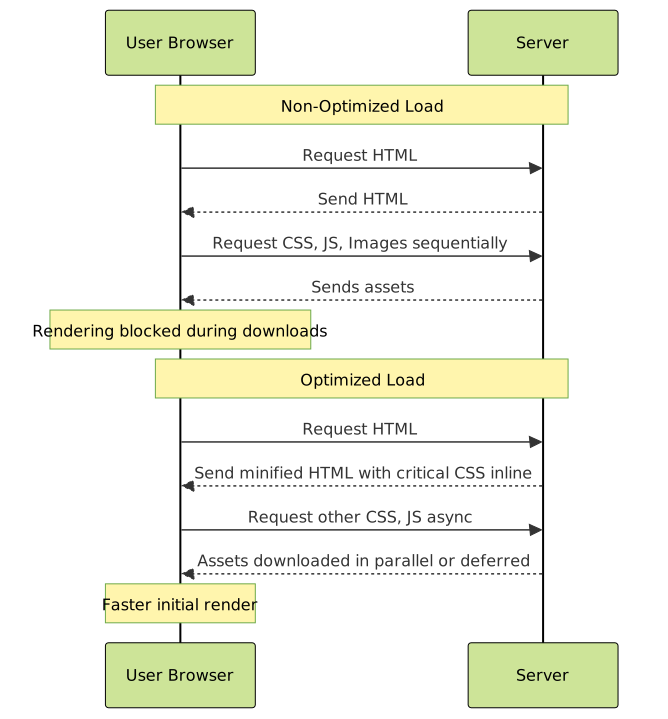
Visual Example: Effect of Optimization on Loading Sequence
Below is a simplified visualization of how an optimized loading sequence compares to a non-optimized one:
Interactive Example: Lazy Loading Images
Implementing lazy loading for images defers loading until they are near viewport, improving initial load time.
<img src="small-placeholder.jpg"
     data-src="large-image.jpg"
     alt="Example Image"
     loading="lazy">
This native loading="lazy" attribute is widely supported and requires minimal code change.
Summary Table of Fixes and Effects
| Fix | How It Improves Speed | Example Tools/Techniques |
|---|---|---|
| Image Optimization | Reduces payload size, faster downloads | TinyPNG, WebP, responsive images, lazy loading |
| Reduce HTTP Requests | Less overhead, fewer round-trips | File bundling, CSS sprites, remove unused code |
| Caching & CDN | Faster repeat loads, reduced latency | Browser cache, Cloudflare, Akamai |
| Compress Files | Smaller transferred data sizes | Gzip, Brotli |
| Optimize JS & CSS | Reduces blocking and speeds rendering | Minification, async/defer, critical CSS |
| Server & Backend | Lower response times, faster TTFB | Better hosting, optimized queries, HTTP/2 |
Conclusion
Slow website performance can be effectively diagnosed and fixed by a systematic approach: measuring using the right tools, identifying bottlenecks, then applying targeted optimizations involving images, code, caching, and servers. These improvements not only enhance user experience but also improve SEO and conversion rates.
Implementing the techniques and examples above will help web developers and site owners maintain fast, reliable, and user-friendly websites.





