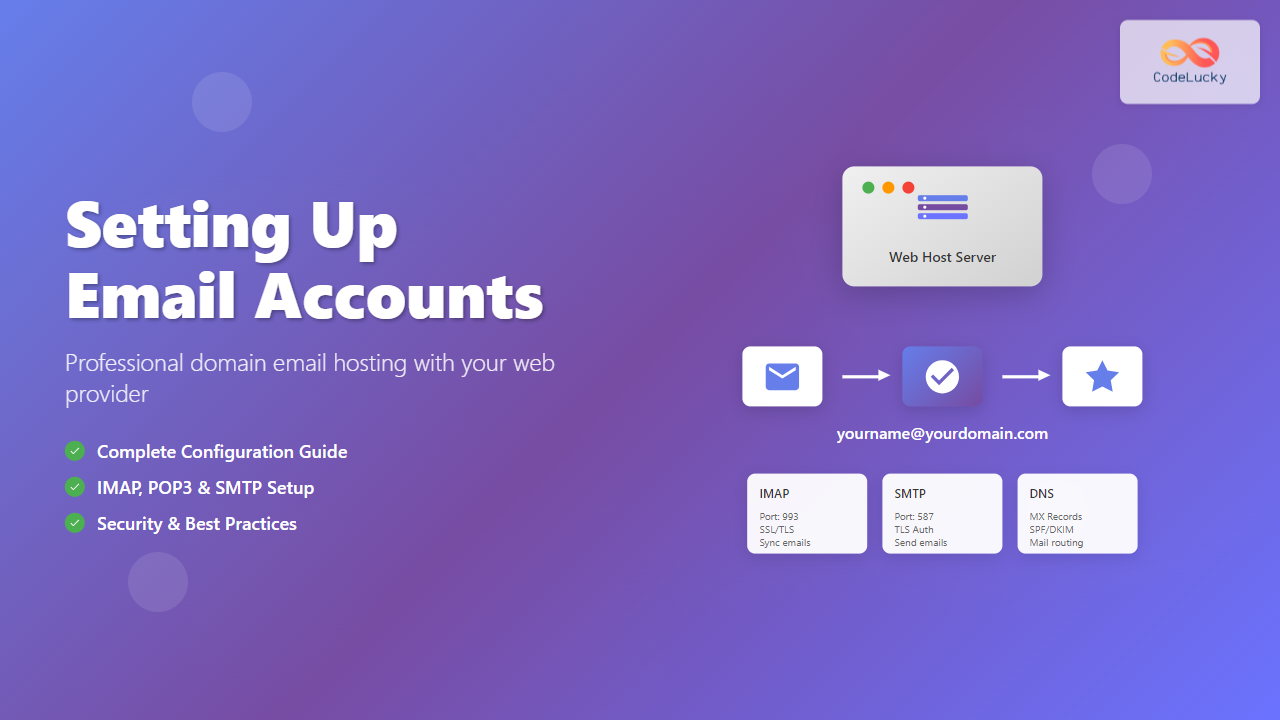
Professional email addresses using your domain name (like [email protected]) are essential for business credibility and brand recognition. Most web hosting providers offer email hosting services alongside their web hosting plans, making it convenient to manage both your website and email from a single provider. This comprehensive guide will walk you through the entire process of setting up email accounts with your web host.
Understanding Email Hosting vs. Web Hosting
While web hosting stores your website files, email hosting manages your email accounts and messages. Many hosting providers bundle these services together, but they operate on different servers and protocols. Email hosting uses protocols like IMAP, POP3, and SMTP to send, receive, and store emails.

Prerequisites Before Setting Up Email Accounts
Before creating email accounts, ensure you have:
- Active hosting account with email services included
- Domain name properly configured with your hosting provider
- DNS records pointing to your hosting provider
- Control panel access (cPanel, Plesk, or custom panel)
- Email client for configuration (Outlook, Thunderbird, or mobile app)
Step-by-Step Email Account Creation Process
1. Accessing Your Hosting Control Panel
Most hosting providers use cPanel as their control panel interface. Here’s how to access it:
- Log into your hosting account dashboard
- Look for “cPanel” or “Control Panel” link
- Click on it to open the control panel interface
- Navigate to the “Email” section
2. Creating Your First Email Account
In cPanel, follow these steps:
- Click on “Email Accounts” in the Email section
- Click “Create” or “+ Create Email Account”
- Fill in the required information:
- Username: The part before @ (e.g., “info”, “support”, “john”)
- Domain: Select your domain from dropdown
- Password: Create a strong password
- Storage Quota: Set storage limit (250MB to unlimited)
- Click “Create Account”

3. Configuring Email Account Settings
After creating the account, you’ll need to configure important settings:
Storage Quotas
Set appropriate storage limits based on expected usage:
- Personal use: 1-5 GB
- Business use: 5-25 GB
- High-volume: 25+ GB or unlimited
Autoresponders
Set up automatic replies for:
- Vacation messages
- Business hours notifications
- Acknowledgment receipts
Email Forwarding
Forward emails to other addresses for:
- Centralized email management
- Team collaboration
- Backup purposes
Email Client Configuration
To access your email accounts, you’ll need to configure email clients with the correct server settings. Most hosting providers offer both IMAP and POP3 access.
IMAP vs POP3: Choosing the Right Protocol
| Feature | IMAP | POP3 |
|---|---|---|
| Email Storage | Server-side | Local device |
| Multi-device Access | Yes, synchronized | Limited |
| Storage Usage | Uses server space | Uses local storage |
| Offline Access | Limited | Full access |
| Backup | Server handles backup | User responsible |
Common Server Settings Configuration
Here are typical server settings for most hosting providers:
IMAP Settings:
- Incoming Server: mail.yourdomain.com or imap.yourdomain.com
- Port: 993 (SSL) or 143 (non-SSL)
- Security: SSL/TLS encryption
POP3 Settings:
- Incoming Server: mail.yourdomain.com or pop.yourdomain.com
- Port: 995 (SSL) or 110 (non-SSL)
- Security: SSL/TLS encryption
SMTP Settings (Outgoing):
- Outgoing Server: mail.yourdomain.com or smtp.yourdomain.com
- Port: 465 (SSL) or 587 (TLS) or 25 (non-encrypted)
- Authentication: Required
- Security: SSL/TLS encryption

Webmail Access and Management
Most hosting providers offer webmail access, allowing you to check emails directly through a web browser without configuring email clients.
Popular Webmail Interfaces
- Roundcube: Modern, user-friendly interface with responsive design
- SquirrelMail: Lightweight, fast-loading interface
- Horde: Feature-rich with calendar and contact management
Accessing Webmail
You can typically access webmail through:
- Direct URL: webmail.yourdomain.com
- cPanel link: Through your hosting control panel
- Hosting dashboard: Quick access link in your hosting account
Advanced Email Features and Configuration
Email Aliases
Create multiple email addresses that forward to a single mailbox:
- Department aliases: sales@, support@, info@
- Personal variations: john.smith@, j.smith@, johnsmith@
- Catch-all: Receive emails sent to any non-existent address
Mailing Lists
Set up mailing lists for:
- Newsletter distribution
- Team communications
- Customer announcements
- Event notifications
Email Filtering and Rules
Create automatic rules to:
- Sort emails into folders based on sender or subject
- Block spam from specific domains or keywords
- Forward emails based on criteria
- Auto-delete emails matching certain conditions

Security Best Practices
Password Security
- Use complex passwords with mixed characters
- Enable two-factor authentication when available
- Change passwords regularly
- Don’t reuse passwords across accounts
SSL/TLS Encryption
Always use encrypted connections:
- SSL certificates for webmail access
- TLS encryption for email client connections
- Secure ports (993, 995, 587, 465)
Spam Protection
Implement multiple layers of spam protection:
- SpamAssassin: Content-based filtering
- Blacklists: Block known spam sources
- Greylisting: Temporary rejection of unknown senders
- CAPTCHA: Human verification for contact forms
DNS Records for Email Functionality
Proper DNS configuration is crucial for email delivery and security:
Essential DNS Records
| Record Type | Purpose | Example |
|---|---|---|
| MX | Mail server routing | 10 mail.yourdomain.com |
| A | Mail server IP | mail.yourdomain.com → 192.168.1.100 |
| SPF | Sender verification | “v=spf1 include:_spf.domain.com ~all” |
| DKIM | Email authentication | Digital signature verification |
| DMARC | Policy enforcement | “v=DMARC1; p=quarantine; rua=mailto:[email protected]” |

Troubleshooting Common Email Issues
Cannot Send Emails
Possible causes and solutions:
- SMTP authentication: Verify username and password
- Port blocking: Try alternative ports (587 instead of 25)
- SSL/TLS settings: Ensure encryption matches server requirements
- Firewall issues: Check if ports are blocked
Cannot Receive Emails
Check these settings:
- MX records: Verify DNS configuration
- Storage quota: Ensure mailbox isn’t full
- Spam filters: Check spam folder and filtering rules
- Email forwarding: Verify forwarding isn’t creating loops
Slow Email Performance
Optimization strategies:
- Clean up mailboxes: Delete old emails and attachments
- Use IMAP folders: Organize emails efficiently
- Limit email clients: Reduce concurrent connections
- Upgrade hosting: Consider higher-tier plans
Migration from Other Email Providers
When moving from services like Gmail or Yahoo to your web host email:
Data Export Process
- Backup existing emails using export tools
- Export contacts in CSV or vCard format
- Note important folders and organization structure
- Document email rules and filters
Import to New Host
- Upload email data using IMAP sync tools
- Import contacts through webmail interface
- Recreate folders and organization structure
- Set up new filtering rules
Performance Monitoring and Maintenance
Regular Maintenance Tasks
- Monitor storage usage: Clean up regularly to avoid quota issues
- Update email clients: Keep software current for security
- Review access logs: Check for suspicious activity
- Test email delivery: Regularly verify sending and receiving
- Backup important emails: Export critical communications
Performance Metrics to Track
- Delivery rates: Percentage of successfully delivered emails
- Response times: Server response for email operations
- Storage growth: Rate of mailbox size increase
- Spam detection: Accuracy of filtering systems
Choosing Between Self-Hosted and Third-Party Email
Consider these factors when deciding between hosting provider email and services like Google Workspace:
| Factor | Web Host Email | Third-Party (G Suite/Office 365) |
|---|---|---|
| Cost | Often included with hosting | Monthly per-user fees |
| Features | Basic email functionality | Advanced collaboration tools |
| Storage | Limited by hosting plan | Generous storage allowances |
| Reliability | Depends on hosting provider | Enterprise-grade uptime |
| Integration | Basic webmail interface | Full productivity suite |
Conclusion
Setting up email accounts with your web host provides professional credibility while maintaining cost-effectiveness. The process involves creating accounts through your hosting control panel, configuring proper DNS records, and setting up email clients with correct server settings. Remember to implement security best practices, including strong passwords, SSL encryption, and spam protection measures.
Regular maintenance, including monitoring storage usage and updating security settings, ensures optimal email performance. Whether you choose web host email or third-party solutions depends on your specific needs for features, reliability, and budget. With proper configuration and maintenance, web host email can serve as a reliable foundation for your professional communication needs.
Take time to explore your hosting provider’s specific email features and documentation, as implementations may vary. Most providers offer 24/7 support to help with email setup and troubleshooting, making the transition to professional domain-based email straightforward and manageable.
- Understanding Email Hosting vs. Web Hosting
- Prerequisites Before Setting Up Email Accounts
- Step-by-Step Email Account Creation Process
- Email Client Configuration
- Webmail Access and Management
- Advanced Email Features and Configuration
- Security Best Practices
- DNS Records for Email Functionality
- Troubleshooting Common Email Issues
- Migration from Other Email Providers
- Performance Monitoring and Maintenance
- Choosing Between Self-Hosted and Third-Party Email
- Conclusion