
Understanding PowerShell Security Landscape
PowerShell’s security model balances flexibility with protection. As a powerful automation tool with access to system resources, understanding its security mechanisms is essential for administrators and developers. This guide explores execution policies, code signing, and comprehensive security practices to protect your environment from malicious scripts while maintaining productivity.
PowerShell Execution Policies Explained
Execution policies determine which scripts PowerShell will run. They act as the first line of defense against unauthorized script execution, though they’re designed to prevent accidental execution rather than serve as a security boundary against determined attackers.
Available Execution Policies
PowerShell provides six execution policies, each offering different security levels:
# View current execution policy
Get-ExecutionPolicy

# View execution policy for all scopes
Get-ExecutionPolicy -List
Output:
Scope           ExecutionPolicy
-----           ---------------
MachinePolicy   Undefined
UserPolicy      Undefined
Process         Undefined
CurrentUser     RemoteSigned
LocalMachine    RemoteSigned
Execution Policy Types
Restricted – The default policy on Windows clients. No scripts run, only interactive commands:
Set-ExecutionPolicy Restricted -Scope CurrentUser

# Attempting to run a script
.\MyScript.ps1
# Error: File cannot be loaded because running scripts is disabled
AllSigned – All scripts must be signed by a trusted publisher, including local scripts:
Set-ExecutionPolicy AllSigned -Scope CurrentUser

# Only signed scripts execute
.\SignedScript.ps1  # Runs if signature valid
.\UnsignedScript.ps1  # Blocked
RemoteSigned – Local scripts run without signatures, downloaded scripts require signatures:
Set-ExecutionPolicy RemoteSigned -Scope CurrentUser

# Local script runs freely
.\LocalScript.ps1  # Executes

# Downloaded script needs signature
.\DownloadedScript.ps1  # Requires valid signature
Unrestricted – All scripts run, but downloaded scripts trigger a warning:
Set-ExecutionPolicy Unrestricted -Scope CurrentUser

# Warns for downloaded scripts
.\DownloadedScript.ps1
# Warning: Do you want to run software from this untrusted publisher?
Bypass – No blocking or warnings. Used for embedding PowerShell in applications:
# Typically set programmatically
powershell.exe -ExecutionPolicy Bypass -File .\Script.ps1
Undefined – No execution policy set at this scope:
Set-ExecutionPolicy Undefined -Scope CurrentUser
# Inherits from higher scopes

Setting Execution Policies
Execution policies operate at different scopes with specific precedence:
# Set for current user (persists across sessions)
Set-ExecutionPolicy RemoteSigned -Scope CurrentUser

# Set for entire machine (requires admin)
Set-ExecutionPolicy RemoteSigned -Scope LocalMachine

# Set for current process only (temporary)
Set-ExecutionPolicy Bypass -Scope Process

# Verify changes
Get-ExecutionPolicy -List
Output:
Scope           ExecutionPolicy
-----           ---------------
MachinePolicy   Undefined
UserPolicy      Undefined
Process         Bypass
CurrentUser     RemoteSigned
LocalMachine    AllSigned
Execution Policy Scope Precedence
PowerShell evaluates execution policies in this order (highest to lowest priority):
- MachinePolicy – Set by Group Policy for the computer
- UserPolicy – Set by Group Policy for the user
- Process – Set for current PowerShell session
- CurrentUser – Set for current user profile
- LocalMachine – Set for all users on the computer
# Process scope overrides CurrentUser
Set-ExecutionPolicy AllSigned -Scope CurrentUser
Set-ExecutionPolicy Bypass -Scope Process

Get-ExecutionPolicy  # Returns: Bypass
Digital Code Signing in PowerShell
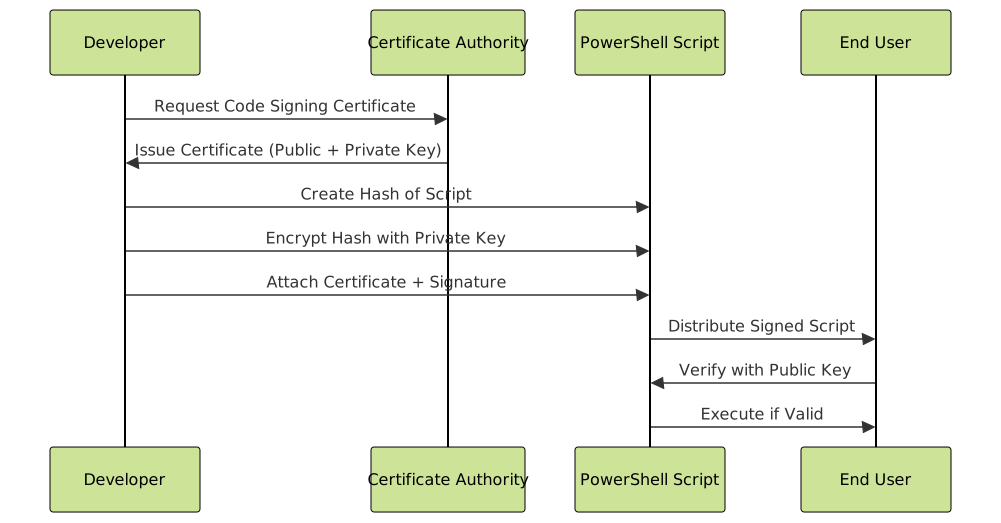
Code signing uses digital certificates to verify script authenticity and integrity. Signed scripts prove their origin and confirm they haven’t been tampered with since signing.
Understanding Digital Signatures
A digital signature contains:
- Certificate information (issuer, subject, validity period)
- Cryptographic hash of the script content
- Encrypted hash using the private key
- Timestamp proving when the signature was created
Creating a Self-Signed Certificate
For development and testing, create self-signed certificates:
# Create self-signed code signing certificate
$cert = New-SelfSignedCertificate `
    -Type CodeSigningCert `
    -Subject "CN=PowerShell Code Signing" `
    -CertStoreLocation "Cert:\CurrentUser\My" `
    -KeyExportPolicy Exportable `
    -KeySpec Signature `
    -KeyLength 2048 `
    -KeyAlgorithm RSA `
    -HashAlgorithm SHA256 `
    -NotAfter (Get-Date).AddYears(3)

# Display certificate details
$cert | Format-List Subject, Thumbprint, NotBefore, NotAfter
Output:
Subject    : CN=PowerShell Code Signing
Thumbprint : A1B2C3D4E5F6G7H8I9J0K1L2M3N4O5P6Q7R8S9T0
NotBefore  : 10/22/2025 4:17:25 PM
NotAfter   : 10/22/2028 4:17:25 PM
Trusting the Self-Signed Certificate
Self-signed certificates must be added to trusted stores:
# Get the certificate
$cert = Get-ChildItem Cert:\CurrentUser\My -CodeSigningCert |
    Where-Object { $_.Subject -eq "CN=PowerShell Code Signing" }

# Export to file
Export-Certificate -Cert $cert -FilePath "CodeSignCert.cer"

# Import to Trusted Root (requires admin for LocalMachine)
Import-Certificate -FilePath "CodeSignCert.cer" `
    -CertStoreLocation "Cert:\CurrentUser\Root"

# Import to Trusted Publishers
Import-Certificate -FilePath "CodeSignCert.cer" `
    -CertStoreLocation "Cert:\CurrentUser\TrustedPublisher"
Output:
   PSParentPath: Microsoft.PowerShell.Security\Certificate::CurrentUser\Root

Thumbprint                                Subject
----------                                -------
A1B2C3D4E5F6G7H8I9J0K1L2M3N4O5P6Q7R8S9T0  CN=PowerShell Code Signing
Signing PowerShell Scripts
Sign scripts using the Set-AuthenticodeSignature cmdlet:
# Create a sample script
$scriptContent = @'
# Test Script
Write-Host "This script is digitally signed!" -ForegroundColor Green
Get-Date
'@

Set-Content -Path "TestScript.ps1" -Value $scriptContent

# Get code signing certificate
$cert = Get-ChildItem Cert:\CurrentUser\My -CodeSigningCert |
    Where-Object { $_.Subject -eq "CN=PowerShell Code Signing" }

# Sign the script
Set-AuthenticodeSignature -FilePath "TestScript.ps1" -Certificate $cert

# Verify signature
Get-AuthenticodeSignature -FilePath "TestScript.ps1" |
    Format-List Status, StatusMessage, SignerCertificate
Output:
Status            : Valid
StatusMessage     : Signature verified.
SignerCertificate : [Subject]
                      CN=PowerShell Code Signing

                    [Issuer]
                      CN=PowerShell Code Signing

                    [Serial Number]
                      1A2B3C4D5E6F7A8B9C0D1E2F3A4B5C6D

                    [Not Before]
                      10/22/2025 4:17:25 PM

                    [Not After]
                      10/22/2028 4:17:25 PM

                    [Thumbprint]
                      A1B2C3D4E5F6G7H8I9J0K1L2M3N4O5P6Q7R8S9T0
The signed script now contains the digital signature block:
Get-Content "TestScript.ps1"
Output:
# Test Script
Write-Host "This script is digitally signed!" -ForegroundColor Green
Get-Date

# SIG # Begin signature block
# MIIFfwYJKoZIhvcNAQcCoIIFcDCCBWwCAQExCzAJBgUrDgMCGgUAMGkGCisGAQQB
# gjcCAQSgWzBZMDQGCisGAQQBgjcCAR4wJgIDAQAABBAfzDtgWUsITrck0sYpfvNR
# ...
# SIG # End signature block
Signing Multiple Scripts
Automate signing for multiple scripts:
# Function to sign all scripts in a directory
function Sign-Scripts {
    param(
        [string]$Path,
        [string]$CertificateSubject = "CN=PowerShell Code Signing"
    )

    # Get certificate
    $cert = Get-ChildItem Cert:\CurrentUser\My -CodeSigningCert |
        Where-Object { $_.Subject -eq $CertificateSubject }

    if (-not $cert) {
        Write-Error "Certificate not found: $CertificateSubject"
        return
    }

    # Get all PowerShell scripts
    $scripts = Get-ChildItem -Path $Path -Filter "*.ps1" -Recurse

    foreach ($script in $scripts) {
        try {
            $result = Set-AuthenticodeSignature -FilePath $script.FullName -Certificate $cert
            Write-Host "Signed: $($script.Name) - Status: $($result.Status)" -ForegroundColor Green
        }
        catch {
            Write-Error "Failed to sign $($script.Name): $_"
        }
    }
}

# Usage example
Sign-Scripts -Path "C:\Scripts"
Output:
Signed: Deploy.ps1 - Status: Valid
Signed: Backup.ps1 - Status: Valid
Signed: Monitor.ps1 - Status: Valid
Verifying Script Signatures
Always verify signatures before trusting scripts:
# Verify single script
$signature = Get-AuthenticodeSignature -FilePath "TestScript.ps1"

# Check signature status
switch ($signature.Status) {
    "Valid" {
        Write-Host "✓ Signature is valid" -ForegroundColor Green
        Write-Host "Signer: $($signature.SignerCertificate.Subject)"
    }
    "NotSigned" {
        Write-Warning "Script is not signed"
    }
    "HashMismatch" {
        Write-Error "Script has been modified after signing!"
    }
    "NotTrusted" {
        Write-Warning "Signer certificate is not trusted"
    }
    default {
        Write-Error "Signature verification failed: $($signature.Status)"
    }
}

# Detailed verification
$signature | Select-Object Status, StatusMessage,
    @{N='Signer';E={$_.SignerCertificate.Subject}},
    @{N='Issuer';E={$_.SignerCertificate.Issuer}},
    @{N='ValidFrom';E={$_.SignerCertificate.NotBefore}},
    @{N='ValidTo';E={$_.SignerCertificate.NotAfter}}
Output:
✓ Signature is valid
Signer: CN=PowerShell Code Signing

Status        : Valid
StatusMessage : Signature verified.
Signer        : CN=PowerShell Code Signing
Issuer        : CN=PowerShell Code Signing
ValidFrom     : 10/22/2025 4:17:25 PM
ValidTo       : 10/22/2028 4:17:25 PM
Timestamping Signatures
Timestamps preserve signature validity even after the certificate expires:
# Sign with timestamp
Set-AuthenticodeSignature -FilePath "TestScript.ps1" `
    -Certificate $cert `
    -TimestampServer "http://timestamp.digicert.com"

# Verify timestamp
$signature = Get-AuthenticodeSignature -FilePath "TestScript.ps1"
$signature.TimeStamperCertificate | Format-List Subject, NotBefore, NotAfter
Output:
Subject    : CN=DigiCert Timestamp 2025, O=DigiCert Inc, C=US
NotBefore  : 10/1/2024 12:00:00 AM
NotAfter   : 10/15/2035 11:59:59 PM
Timestamp servers to use:
- DigiCert: http://timestamp.digicert.com
- Sectigo: http://timestamp.sectigo.com
- GlobalSign: http://timestamp.globalsign.com/tsa/r6advanced1
Constrained Language Mode
Constrained Language Mode restricts PowerShell capabilities to prevent malicious operations:
# Check current language mode
$ExecutionContext.SessionState.LanguageMode

# In Full Language Mode (normal)
$ExecutionContext.SessionState.LanguageMode
# Output: FullLanguage

# Attempting restricted operations in Constrained Mode
# (Typically enforced by AppLocker or Device Guard)

# Allowed operations
Get-Process
Get-Service
"Hello" + " World"

# Blocked operations
[System.IO.File]::WriteAllText("test.txt", "data")  # Blocked
Add-Type -TypeDefinition "class Test {}"  # Blocked
Invoke-Expression "Get-Process"  # Blocked
Creating Constrained Sessions
# Create session configuration with constraints
$sessionConfig = @{
    SessionType = 'RestrictedRemoteServer'
    LanguageMode = 'ConstrainedLanguage'
    ExecutionPolicy = 'RemoteSigned'
}

Register-PSSessionConfiguration -Name "ConstrainedSession" @sessionConfig

# Connect to constrained session
$session = New-PSSession -ConfigurationName "ConstrainedSession"

# Test language mode
Invoke-Command -Session $session -ScriptBlock {
    $ExecutionContext.SessionState.LanguageMode
}
# Output: ConstrainedLanguage
Security Best Practices
Script Content Security
Implement secure coding practices:
# BAD: Hardcoded credentials
$password = "MyPassword123"

# GOOD: Secure credential handling
$cred = Get-Credential -UserName "admin" -Message "Enter credentials"

# BAD: Command injection vulnerability
$userInput = Read-Host "Enter computer name"
Invoke-Expression "Get-Service -ComputerName $userInput"

# GOOD: Parameterized command
$computerName = Read-Host "Enter computer name"
Get-Service -ComputerName $computerName

# BAD: Unrestricted file access
$filePath = Read-Host "Enter file path"
Get-Content $filePath

# GOOD: Validate and sanitize input
$filePath = Read-Host "Enter file path"
if (Test-Path $filePath -PathType Leaf) {
    $resolvedPath = Resolve-Path $filePath
    if ($resolvedPath.Path -like "C:\AllowedFolder\*") {
        Get-Content $resolvedPath
    } else {
        Write-Error "Access denied to this location"
    }
}
Credential Management
Never store credentials in plain text:
# Store encrypted credentials
$cred = Get-Credential
$cred.Password | ConvertFrom-SecureString |
    Set-Content "C:\Secure\encrypted.txt"

# Retrieve encrypted credentials
$username = "domain\user"
$encryptedPwd = Get-Content "C:\Secure\encrypted.txt" |
    ConvertTo-SecureString
$cred = New-Object System.Management.Automation.PSCredential($username, $encryptedPwd)

# Use with commands
Invoke-Command -ComputerName "Server01" -Credential $cred -ScriptBlock {
    Get-Service
}

# Certificate-based credential protection
$certThumbprint = "A1B2C3D4E5F6G7H8I9J0K1L2M3N4O5P6Q7R8S9T0"
$cert = Get-Item "Cert:\CurrentUser\My\$certThumbprint"

$secureString = ConvertTo-SecureString "MyPassword" -AsPlainText -Force
$encryptedData = $secureString | ConvertFrom-SecureString -Cert $cert
Input Validation
Always validate user input:
function Invoke-SafeCommand {
    [CmdletBinding()]
    param(
        [Parameter(Mandatory)]
        [ValidatePattern('^[a-zA-Z0-9\-]+$')]
        [string]$ComputerName,

        [Parameter(Mandatory)]
        [ValidateSet('Running', 'Stopped', 'All')]
        [string]$ServiceStatus,

        [Parameter()]
        [ValidateRange(1, 100)]
        [int]$MaxResults = 10
    )

    # Input is validated by parameter attributes
    $filter = switch ($ServiceStatus) {
        'Running' { { $_.Status -eq 'Running' } }
        'Stopped' { { $_.Status -eq 'Stopped' } }
        'All' { { $true } }
    }

    Get-Service -ComputerName $ComputerName |
        Where-Object $filter |
        Select-Object -First $MaxResults
}

# Valid usage
Invoke-SafeCommand -ComputerName "SERVER01" -ServiceStatus "Running"

# Invalid usage attempts
Invoke-SafeCommand -ComputerName "Server; Invoke-Expression 'malicious'"
# Error: Cannot validate argument on parameter 'ComputerName'

Invoke-SafeCommand -ComputerName "SERVER01" -ServiceStatus "Unknown"
# Error: Cannot validate argument on parameter 'ServiceStatus'

Logging and Auditing
Implement comprehensive logging:
# Enable script block logging (requires admin)
New-Item -Path "HKLM:\Software\Policies\Microsoft\Windows\PowerShell\ScriptBlockLogging" -Force
Set-ItemProperty -Path "HKLM:\Software\Policies\Microsoft\Windows\PowerShell\ScriptBlockLogging" `
    -Name "EnableScriptBlockLogging" -Value 1

# Enable module logging
New-Item -Path "HKLM:\Software\Policies\Microsoft\Windows\PowerShell\ModuleLogging" -Force
Set-ItemProperty -Path "HKLM:\Software\Policies\Microsoft\Windows\PowerShell\ModuleLogging" `
    -Name "EnableModuleLogging" -Value 1

# Create custom logging function
function Write-AuditLog {
    param(
        [string]$Message,
        [ValidateSet('Info', 'Warning', 'Error', 'Security')]
        [string]$Level = 'Info',
        [string]$LogPath = "C:\Logs\PowerShell-Audit.log"
    )

    $timestamp = Get-Date -Format "yyyy-MM-dd HH:mm:ss"
    $user = [System.Security.Principal.WindowsIdentity]::GetCurrent().Name
    $logEntry = "$timestamp [$Level] $user - $Message"

    Add-Content -Path $LogPath -Value $logEntry
}

# Usage in scripts
Write-AuditLog -Message "Script execution started" -Level "Info"
Write-AuditLog -Message "Accessing sensitive data" -Level "Security"
Write-AuditLog -Message "Operation completed successfully" -Level "Info"
Secure Remote Sessions
Configure secure PowerShell remoting:
# Configure WinRM with HTTPS
New-SelfSignedCertificate -DnsName "server01.domain.com" `
    -CertStoreLocation "Cert:\LocalMachine\My" `
    -KeyAlgorithm RSA -KeyLength 2048

# Create HTTPS listener
$cert = Get-ChildItem Cert:\LocalMachine\My |
    Where-Object { $_.DnsNameList.Unicode -eq "server01.domain.com" }

New-WSManInstance -ResourceURI winrm/config/Listener `
    -SelectorSet @{Address="*"; Transport="HTTPS"} `
    -ValueSet @{Hostname="server01.domain.com"; CertificateThumbprint=$cert.Thumbprint}

# Connect using HTTPS
$sessionOption = New-PSSessionOption -SkipCACheck -SkipCNCheck
$session = New-PSSession -ComputerName "server01.domain.com" `
    -UseSSL -SessionOption $sessionOption

# Limit session capabilities
$sessionConfig = @{
    SessionType = 'RestrictedRemoteServer'
    VisibleCmdlets = 'Get-*', 'Set-Service', 'Restart-Service'
    VisibleFunctions = 'TabExpansion2'
    LanguageMode = 'ConstrainedLanguage'
}

Register-PSSessionConfiguration -Name "LimitedAccess" @sessionConfig
Detecting and Preventing Script Tampering
Implement integrity checks:
# Generate hash for script integrity
function New-ScriptHash {
    param([string]$ScriptPath)

    $hash = Get-FileHash -Path $ScriptPath -Algorithm SHA256
    $hashFile = "$ScriptPath.sha256"

    $hash.Hash | Set-Content $hashFile
    Write-Host "Hash saved to: $hashFile" -ForegroundColor Green
}

# Verify script integrity before execution
function Test-ScriptIntegrity {
    param([string]$ScriptPath)

    $hashFile = "$ScriptPath.sha256"

    if (-not (Test-Path $hashFile)) {
        Write-Error "Hash file not found: $hashFile"
        return $false
    }

    $storedHash = Get-Content $hashFile
    $currentHash = (Get-FileHash -Path $ScriptPath -Algorithm SHA256).Hash

    if ($storedHash -eq $currentHash) {
        Write-Host "✓ Script integrity verified" -ForegroundColor Green
        return $true
    } else {
        Write-Error "✗ Script has been modified!"
        return $false
    }
}

# Usage workflow
New-ScriptHash -ScriptPath "Deploy.ps1"

# Before execution
if (Test-ScriptIntegrity -ScriptPath "Deploy.ps1") {
    .\Deploy.ps1
} else {
    Write-Error "Aborting execution due to integrity check failure"
}
Advanced Security Configurations
Just Enough Administration (JEA)
Restrict users to specific commands and parameters:
# Create role capability file
$roleCapabilities = @{
    Path = "C:\JEA\ServiceAdmin.psrc"
    VisibleCmdlets = @(
        'Get-Service',
        @{
            Name = 'Restart-Service'
            Parameters = @{Name = 'Name'; ValidateSet = 'Spooler', 'W32Time'}
        }
    )
    VisibleFunctions = @('Get-ServiceStatus')
    LanguageMode = 'NoLanguage'
}

New-PSRoleCapabilityFile @roleCapabilities

# Create session configuration
$sessionConfig = @{
    Path = "C:\JEA\ServiceAdmin.pssc"
    SessionType = 'RestrictedRemoteServer'
    TranscriptDirectory = "C:\JEA\Transcripts"
    RunAsVirtualAccount = $true
}

New-PSSessionConfigurationFile @sessionConfig

# Register JEA endpoint
Register-PSSessionConfiguration -Name "ServiceAdmin" `
    -Path "C:\JEA\ServiceAdmin.pssc" -Force

# Connect to JEA endpoint
$session = New-PSSession -ComputerName localhost `
    -ConfigurationName "ServiceAdmin"

# Test restricted access
Invoke-Command -Session $session {
    Get-Service  # Allowed
    Restart-Service -Name "Spooler"  # Allowed
    Restart-Service -Name "WinRM"  # Denied
    Stop-Process -Name "notepad"  # Denied
}

AppLocker Integration
Control script execution using AppLocker:
# Get current AppLocker policy
Get-AppLockerPolicy -Effective -Xml | Out-File "C:\Temp\CurrentPolicy.xml"

# Create script rule
$scriptRule = New-AppLockerPolicy -RuleType Script -User "Everyone" `
    -RuleNamePrefix "AllowSigned" -SourcePath "C:\ApprovedScripts\*"

# Apply policy
Set-AppLockerPolicy -PolicyObject $scriptRule -Merge

# Test effective policy
Test-AppLockerPolicy -Path "C:\Scripts\MyScript.ps1" -User "Domain\User"
Incident Response and Forensics
Analyze PowerShell logs for security incidents:
# Query PowerShell operational log
Get-WinEvent -FilterHashtable @{
    LogName = 'Microsoft-Windows-PowerShell/Operational'
    ID = 4104  # Script block logging
    StartTime = (Get-Date).AddHours(-24)
} | Select-Object TimeCreated, Message | Format-List

# Find suspicious commands
$suspiciousPatterns = @(
    'Invoke-Expression',
    'DownloadString',
    'DownloadFile',
    'Net.WebClient',
    'Invoke-Command',
    'Enter-PSSession'
)

Get-WinEvent -FilterHashtable @{
    LogName = 'Microsoft-Windows-PowerShell/Operational'
    ID = 4104
} | Where-Object {
    $message = $_.Message
    $suspiciousPatterns | Where-Object { $message -match $_ }
} | Select-Object TimeCreated, Message

# Export findings
Get-WinEvent -FilterHashtable @{
    LogName = 'Microsoft-Windows-PowerShell/Operational'
    ID = 4103, 4104, 4105, 4106
    StartTime = (Get-Date).AddDays(-7)
} | Export-Csv "C:\Forensics\PowerShell-Activity.csv" -NoTypeInformation
Security Checklist
Implement this comprehensive security checklist:
function Test-PowerShellSecurity {
    [CmdletBinding()]
    param()

    $results = @()

    # Check execution policy
    $execPolicy = Get-ExecutionPolicy
    $results += [PSCustomObject]@{
        Check = "Execution Policy"
        Status = if ($execPolicy -in 'AllSigned', 'RemoteSigned') { "✓ Pass" } else { "✗ Fail" }
        Value = $execPolicy
        Recommendation = "Use AllSigned or RemoteSigned"
    }

    # Check script block logging
    $sbLogging = Get-ItemProperty -Path "HKLM:\Software\Policies\Microsoft\Windows\PowerShell\ScriptBlockLogging" `
        -Name "EnableScriptBlockLogging" -ErrorAction SilentlyContinue
    $results += [PSCustomObject]@{
        Check = "Script Block Logging"
        Status = if ($sbLogging.EnableScriptBlockLogging -eq 1) { "✓ Pass" } else { "✗ Fail" }
        Value = $sbLogging.EnableScriptBlockLogging
        Recommendation = "Enable script block logging"
    }

    # Check module logging
    $moduleLogging = Get-ItemProperty -Path "HKLM:\Software\Policies\Microsoft\Windows\PowerShell\ModuleLogging" `
        -Name "EnableModuleLogging" -ErrorAction SilentlyContinue
    $results += [PSCustomObject]@{
        Check = "Module Logging"
        Status = if ($moduleLogging.EnableModuleLogging -eq 1) { "✓ Pass" } else { "✗ Fail" }
        Value = $moduleLogging.EnableModuleLogging
        Recommendation = "Enable module logging"
    }

    # Check language mode
    $langMode = $ExecutionContext.SessionState.LanguageMode
    $results += [PSCustomObject]@{
        Check = "Language Mode"
        Status = if ($langMode -eq 'ConstrainedLanguage') { "✓ Pass" } else { "⚠ Warning" }
        Value = $langMode
        Recommendation = "Consider Constrained Language Mode for production"
    }

    # Check transcription
    $transcription = Get-ItemProperty -Path "HKLM:\Software\Policies\Microsoft\Windows\PowerShell\Transcription" `
        -Name "EnableTranscripting" -ErrorAction SilentlyContinue
    $results += [PSCustomObject]@{
        Check = "Transcription"
        Status = if ($transcription.EnableTranscripting -eq 1) { "✓ Pass" } else { "✗ Fail" }
        Value = $transcription.EnableTranscripting
        Recommendation = "Enable PowerShell transcription"
    }

    # Display results
    $results | Format-Table -AutoSize

    # Summary
    $passed = ($results | Where-Object { $_.Status -eq "✓ Pass" }).Count
    $total = $results.Count
    Write-Host "`nSecurity Score: $passed / $total" -ForegroundColor $(if ($passed -eq $total) { 'Green' } else { 'Yellow' })
}

# Run security audit
Test-PowerShellSecurity
Output:
Check                  Status     Value              Recommendation
-----                  ------     -----              --------------
Execution Policy       ✓ Pass     RemoteSigned       Use AllSigned or RemoteSigned
Script Block Logging   ✓ Pass     1                  Enable script block logging
Module Logging         ✗ Fail                        Enable module logging
Language Mode          ⚠ Warning  FullLanguage       Consider Constrained Language Mode for production
Transcription          ✗ Fail                        Enable PowerShell transcription

Security Score: 2 / 5
Secure Development Workflow
Follow this workflow for secure script development:
- Development – Write scripts with security in mind
- Code Review – Peer review for security vulnerabilities
- Testing – Test in isolated environment
- Signing – Sign scripts with valid certificate
- Distribution – Use secure channels for distribution
- Monitoring – Monitor execution and audit logs
# Secure development template
#Requires -Version 5.1
#Requires -RunAsAdministrator

<#
.SYNOPSIS
    Brief description
.DESCRIPTION
    Detailed description
.NOTES
    Author: Your Name
    Date: 2025-10-22
    Version: 1.0.0
    Security: Signed script - do not modify
#>

[CmdletBinding()]
param(
    [Parameter(Mandatory)]
    [ValidateNotNullOrEmpty()]
    [string]$Parameter1
)

# Set strict mode
Set-StrictMode -Version Latest
$ErrorActionPreference = 'Stop'

# Input validation
if ($Parameter1 -notmatch '^[a-zA-Z0-9]+$') {
    throw "Invalid input: Parameter1 must contain only alphanumeric characters"
}

try {
    # Main script logic
    Write-Verbose "Starting operation..."

    # Your secure code here

    Write-Verbose "Operation completed successfully"
}
catch {
    Write-Error "Operation failed: $_"
    throw
}
finally {
    # Cleanup
    Write-Verbose "Performing cleanup..."
}
Conclusion
PowerShell security requires a multi-layered approach combining execution policies, code signing, input validation, logging, and continuous monitoring. By implementing these security measures, you protect your systems from malicious scripts while maintaining the flexibility PowerShell provides.
Key takeaways:
- Set appropriate execution policies for your environment
- Sign all production scripts with trusted certificates
- Validate and sanitize all user input
- Enable comprehensive logging and auditing
- Use Just Enough Administration for delegated access
- Regularly audit scripts and logs for suspicious activity
- Follow secure coding practices throughout development
Security is not a one-time configuration but an ongoing process. Stay informed about new threats, update your security policies regularly, and educate your team on secure PowerShell practices. With proper security measures in place, PowerShell becomes a powerful and safe automation tool for your organization.





