
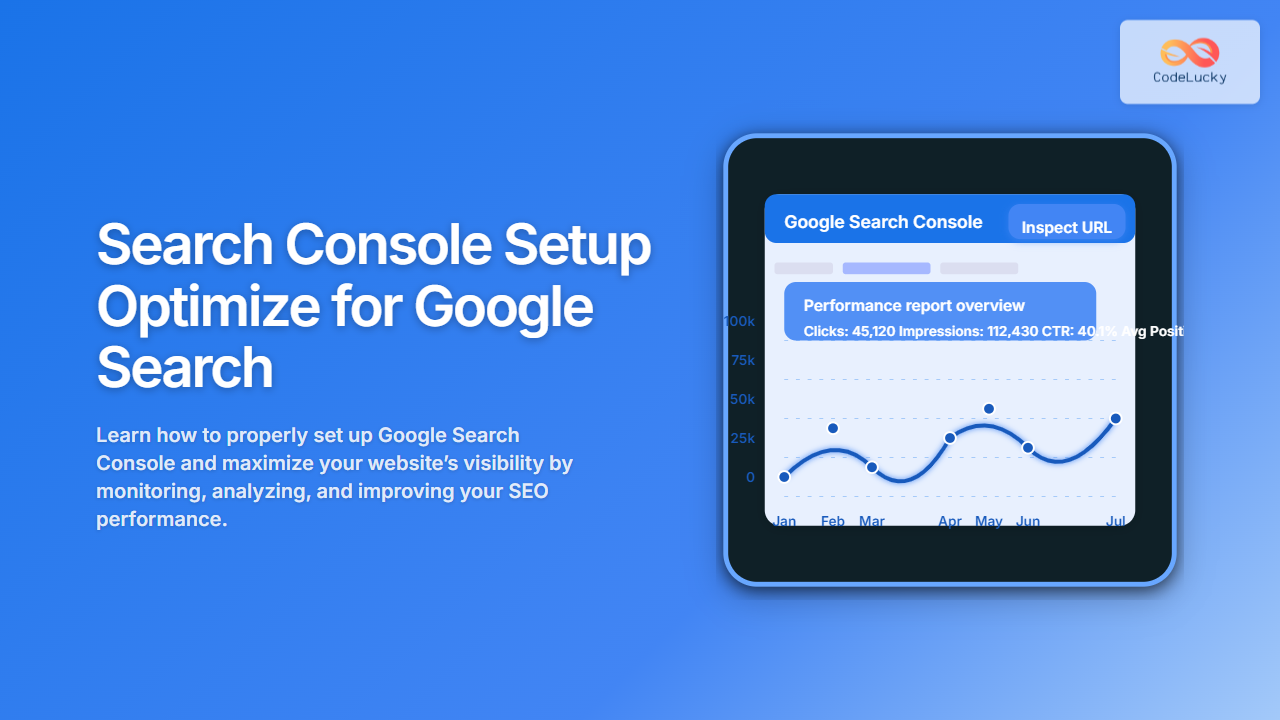
Google Search Console (GSC) is an essential tool for website owners, SEO specialists, and digital marketers to monitor and improve their site’s presence on Google Search. This detailed guide covers everything about setting up Search Console correctly and optimizing your site’s performance to rank higher, gain better visibility, and resolve issues with ease.
What is Google Search Console?
Google Search Console is a free service by Google that helps you monitor, maintain, and troubleshoot your website’s presence in Google Search results. It provides insights on search traffic, indexing status, crawling issues, sitemap submissions, and much more. Setting it up properly is fundamental for any SEO strategy.
Step-by-Step Guide to Setting Up Google Search Console
1. Create or Sign in to Your Google Account
Start by logging into your Google Account. If you don’t have one, create a new account to access Search Console.
2. Add Your Website Property
You can add your site in two ways: Domain Property or URL Prefix Property.
- Domain Property: Includes URLs across all protocols and subdomains (http, https, www, non-www).
- URL Prefix Property: Tracks only URLs under the exact prefix you enter.
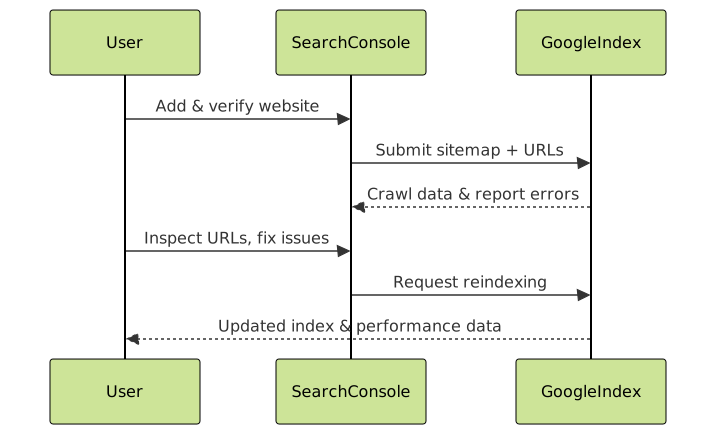
To add a property: Go to Search Console dashboard, click “Add property”, then select your preferred method and enter the website URL.
3. Verify Ownership of Your Website
Google requires verifying that you own the website. Several methods are available:
- HTML file upload: Upload a file Google provides to your website root directory.
- HTML tag: Add a meta tag to your homepage’s <head> section.
- DNS record: Add a TXT or CNAME record to your domain’s DNS settings.
- Google Analytics: Use your existing Google Analytics tracking code.
- Google Tag Manager: Use your GTM container snippet.

4. Submit Your Sitemap
Uploading a sitemap helps Google effectively crawl your website. Ideally, your sitemap URL is like: https://www.yoursite.com/sitemap.xml. In Search Console, under the “Sitemaps” section, enter your sitemap URL and submit it.
5. Explore Key Search Console Reports
Once your site is verified and data appears, use these reports to optimize SEO:
- Performance Report: Shows metrics like clicks, impressions, click-through rates (CTR), and average position for your pages and queries.
- Coverage Report: Lists indexed pages and errors preventing indexing.
- Mobile Usability: Identifies mobile experience issues.
- Enhancements: Structured Data errors, Core Web Vitals, AMP status.
How to Optimize Google Search Console for SEO
Utilize GSC’s data to boost your website’s Google Search ranking:
Monitor Performance and Improve Keywords
Analyze the performance report for top queries. Optimize your content targeting keywords with good impressions but low CTR by improving meta titles and descriptions.
Fix Indexing Issues Quickly
Regularly check Coverage reports for errors like “404 Not Found,” “Server errors,” or “redirect issues.” Use the URL Inspection tool to request reindexing after fixes.
Enhance Mobile Friendliness
Since Google uses mobile-first indexing, fixing errors from the Mobile Usability report is crucial for better rankings on mobile searches.
Leverage Structured Data and Rich Results
Use the Enhancements reports to locate issues with schema markup. Fixing these can help your listings appear with rich snippets like reviews, FAQs, or events.

Example: Using Search Console to Optimize a Blog Post
Suppose you publish a blog post titled “How to Setup Search Console.” After a couple of weeks, check the Search Console Performance report:
- You see high impressions for “Search Console setup” but low CTR (1%).
- Improve the meta title from “How to Setup Search Console” to “Search Console Setup: Complete Step-by-Step Guide for Beginners”
- Update meta description to be more engaging with a call-to-action.
- Submit URL for reindexing.
Result: CTR improves and clicks increase by 30% over the next month.
Interactive URL Inspection Tool Usage
The URL Inspection tool allows checking if a specific URL is indexed and how Google views the page. Here’s how you can use it interactively:
- Enter the URL of your webpage in the inspection bar.
- Review Indexing status, last crawl, and any detected issues.
- If needed, click “Request indexing” after making fixes to prompt Google to recrawl.
Best Practices for Maximizing Search Console Benefits
- Regularly monitor reports to catch issues early.
- Keep your sitemap updated and resubmit for major site changes.
- Use Search Console data alongside Google Analytics for deep insights.
- Improve page experience signals, including Core Web Vitals highlighted in Search Console.
- Test structured data with Google Rich Results Test to complement Search Console reports.
Conclusion
Setting up Google Search Console correctly and making data-driven optimizations is vital for improving your site’s search visibility. By utilizing Search Console’s extensive features—from performance insights and error detection to mobile usability and structured data reports—you can enhance your SEO strategy effectively. Regular engagement with Search Console ensures your site remains healthy, indexed properly, and aligned with Google’s search algorithms.
Start your Search Console setup today and leverage these insights to drive more organic traffic and grow your online presence.





