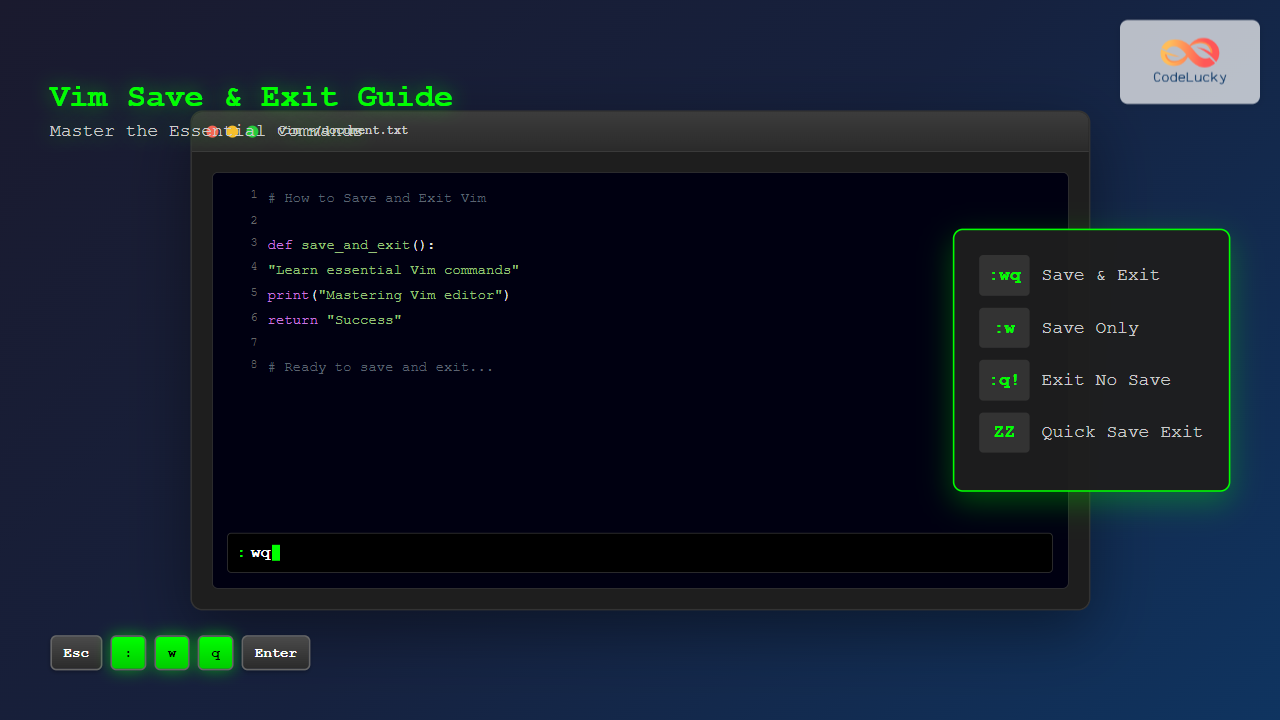
Vim (Vi Improved) is one of the most powerful and widely-used text editors in the programming world. However, for beginners, one of the most common challenges is understanding how to properly save changes and exit the editor. This comprehensive guide will walk you through all the essential methods to save and exit Vim, complete with examples and best practices.
Understanding Vim Modes
Before diving into save and exit commands, it’s crucial to understand Vim’s modal nature. Vim operates in different modes, and knowing which mode you’re in determines what commands are available.

- Normal Mode: Default mode for navigation and commands
- Insert Mode: For typing and editing text
- Visual Mode: For selecting text
- Command Mode: For executing commands (accessed by typing ‘:’)
Basic Save and Exit Commands
The Essential Command: :wq
The most commonly used command to save changes and exit Vim is :wq:
:wqThis command combines two operations:
:w– Write (save) the file:q– Quit Vim
Step-by-step process:
- Press
Escto ensure you’re in Normal mode - Type
:wq - Press
Enter
Expected output:
"filename.txt" 15L, 234C writtenAlternative: :x Command
The :x command is functionally equivalent to :wq but with a subtle difference – it only writes the file if changes have been made:
:xThis is more efficient as it doesn’t update the file’s timestamp if no changes were made.
Separate Save and Exit Commands
Saving Without Exiting
To save your changes but continue editing:
:wOutput example:
"script.py" 25L, 456C writtenSaving with a New Filename
To save the current buffer with a different name:
:w newfilename.txtThis creates a copy with the new name while keeping the original file open in Vim.
Exiting Without Saving
To exit Vim without saving changes:
:q!The exclamation mark forces the quit operation, discarding any unsaved changes.
Warning output if you try :q with unsaved changes:
E37: No write since last change (add ! to override)Advanced Save and Exit Techniques
Working with Multiple Files
When working with multiple files in Vim, you have several options:

:wa– Write all modified files:qa– Quit all files (fails if unsaved changes exist):wqa– Save and quit all files:qa!– Force quit all files without saving
Conditional Saves
Save only if the file has been modified:
:updateThis command is similar to :w but only writes if the buffer has been modified.
Keyboard Shortcuts and Quick Methods
Normal Mode Shortcuts
From Normal mode, you can use these quick combinations:
ZZ– Save and exit (equivalent to :wq)ZQ– Exit without saving (equivalent to :q!)
These shortcuts don’t require entering Command mode, making them faster for experienced users.
Insert Mode to Save and Exit
If you’re in Insert mode:
- Press
Escto return to Normal mode - Use any of the save/exit commands mentioned above
Troubleshooting Common Issues
File Permission Errors
If you encounter permission errors when saving:
E45: 'readonly' option is set (add ! to override)Solutions:
- Force write:
:w! - Save with sudo:
:w !sudo tee % - Save to a different location:
:w ~/backup_filename.txt
Swap File Issues
When Vim detects an existing swap file:

Options when encountering swap files:
- [O]pen Read-Only: View file without editing capability
- [E]dit anyway: Continue editing (risky if another process is using the file)
- [R]ecover: Restore from swap file
- [D]elete it: Remove swap file and start fresh
Best Practices and Tips
Frequent Saving
Develop the habit of saving frequently:
- Use
:wregularly during long editing sessions - Set up auto-save with
:set autowrite - Enable backup files with
:set backup
Verification Commands
Before exiting, verify your work:
:ls– List all open buffers:files– Show file status:echo @%– Display current filename
Emergency Recovery
If Vim crashes or you lose your session:
- Look for swap files:
vim -r - Recover specific file:
vim -r filename.txt - List recoverable files:
vim -r ""
Command Summary Table
| Command | Action | Use Case |
|---|---|---|
:wq |
Save and exit | Standard workflow completion |
:x |
Save and exit (if modified) | Efficient save and exit |
:w |
Save only | Continue editing after save |
:q! |
Exit without saving | Discard unwanted changes |
ZZ |
Save and exit (Normal mode) | Quick save and exit |
ZQ |
Exit without saving (Normal mode) | Quick exit without save |
:wqa |
Save and quit all files | Multiple file editing |
Advanced Configuration
Customizing Save Behavior
Add these lines to your .vimrc file for enhanced save functionality:
" Auto-save when switching buffers
set autowrite

" Create backup files
set backup
set backupdir=~/.vim/backup

" Enable swap files in a dedicated directory
set swapfile
set directory=~/.vim/swap

" Confirm before quitting without saving
set confirm
Mapping Custom Shortcuts
Create custom key mappings for frequent operations:
" Map Ctrl+S to save in Insert and Normal mode
nnoremap <C-s> :w<CR>
inoremap <C-s> <Esc>:w<CR>a

" Map F2 to save and exit
nnoremap <F2> :wq<CR>
Conclusion
Mastering Vim’s save and exit commands is fundamental to efficient text editing. The key commands to remember are :wq for save and exit, :w for save only, and :q! for exit without saving. As you become more comfortable with Vim, you’ll find that keyboard shortcuts like ZZ and ZQ can significantly speed up your workflow.
Remember to always ensure you’re in the correct mode before executing commands, and don’t hesitate to use :q! if you need to exit quickly without saving changes. With practice, these commands will become second nature, making Vim an incredibly powerful tool in your programming arsenal.

This workflow diagram illustrates the decision-making process when working with Vim, helping you choose the appropriate command based on your needs. Whether you’re a beginner learning the basics or an experienced user looking to optimize your workflow, understanding these save and exit methods will make your Vim experience more productive and enjoyable.