
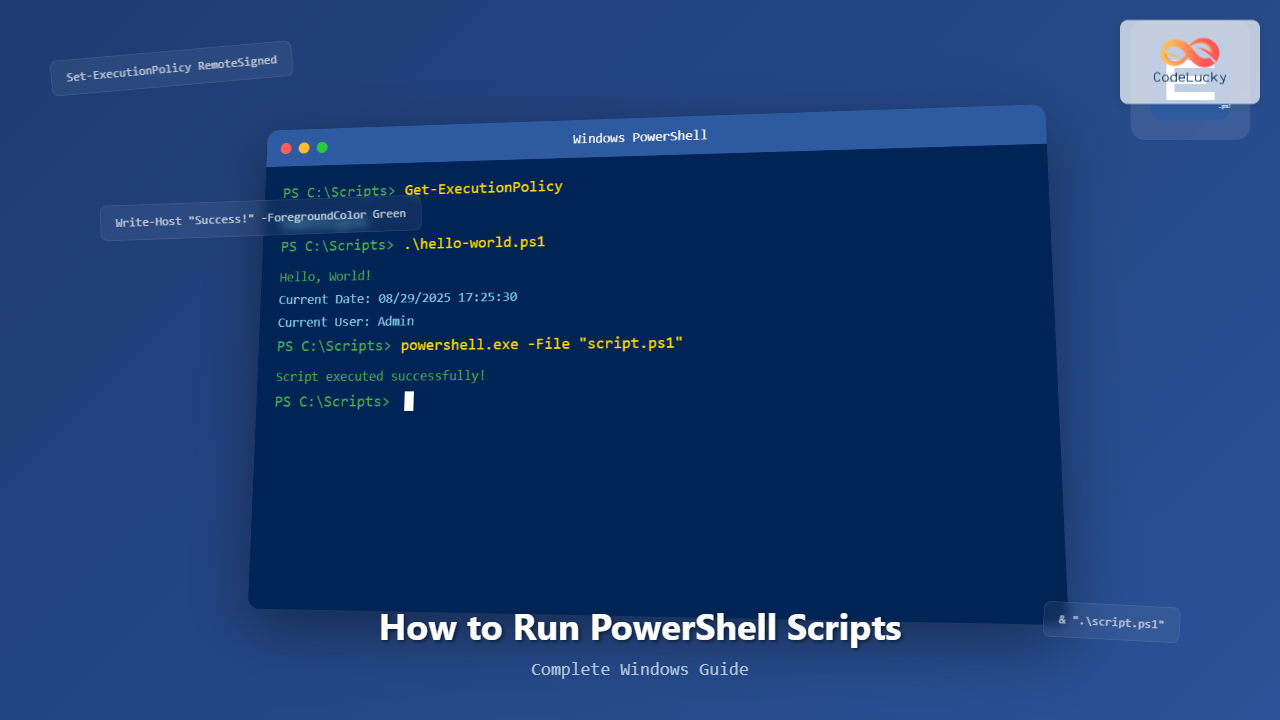
PowerShell is Microsoft’s powerful command-line shell and scripting language that enables system administrators and developers to automate tasks and manage Windows systems efficiently. Running PowerShell scripts is a fundamental skill that can save you countless hours of manual work. This comprehensive guide will walk you through every method of executing PowerShell scripts in Windows, from basic commands to advanced techniques.
Understanding PowerShell Scripts
PowerShell scripts are text files with a .ps1 extension that contain PowerShell commands and functions. These scripts can perform various tasks such as:
- System administration and configuration
- File and folder management
- Network operations
- Application deployment
- Data processing and reporting

Prerequisites and Setup
Before running PowerShell scripts, ensure you have:
- Windows PowerShell (pre-installed on Windows 7 and later) or PowerShell 7+
- Administrator privileges (for certain operations)
- Proper execution policy settings (covered in detail below)
Checking Your PowerShell Version
Open PowerShell and run this command to check your version:
$PSVersionTable.PSVersionExpected Output:
Major  Minor  Build  Revision
-----  -----  -----  --------
5      1      19041  906
Understanding Execution Policies
Windows PowerShell includes an execution policy feature that determines which scripts can run on your system. This security measure prevents malicious scripts from executing without your knowledge.
Types of Execution Policies
| Policy | Description | Use Case |
|---|---|---|
| Restricted | No scripts allowed (default) | High security environments |
| AllSigned | Only digitally signed scripts | Corporate environments |
| RemoteSigned | Local scripts run freely, remote scripts must be signed | Development machines |
| Unrestricted | All scripts run with warnings for remote scripts | Testing environments |
| Bypass | No restrictions or warnings | Automated systems |
Checking Current Execution Policy
Get-ExecutionPolicySetting Execution Policy
To enable script execution (requires administrator privileges):
Set-ExecutionPolicy RemoteSigned -Scope CurrentUser
Method 1: Running Scripts from PowerShell Console
This is the most straightforward method for executing PowerShell scripts.
Step 1: Open PowerShell
- Press
Windows + R, typepowershell, and press Enter - Or search for “PowerShell” in the Start menu
- For administrator privileges, right-click and select “Run as Administrator”
Step 2: Navigate to Script Location
cd "C:\Scripts"Step 3: Execute the Script
.\myscript.ps1Example Script (save as hello-world.ps1):
# Simple Hello World Script
Write-Host "Hello, World!" -ForegroundColor Green
Write-Host "Current Date: $(Get-Date)" -ForegroundColor Yellow
Write-Host "Current User: $env:USERNAME" -ForegroundColor Cyan
Expected Output:
Hello, World!
Current Date: 08/29/2025 17:25:30
Current User: YourUsername
Method 2: Running Scripts with Full Path
You can execute scripts from any location by specifying the full path:
& "C:\Scripts\myscript.ps1"The & operator (call operator) is essential when the path contains spaces:
& "C:\My Scripts\myscript.ps1"Method 3: Using PowerShell ISE (Integrated Scripting Environment)
PowerShell ISE provides a graphical interface for writing and executing scripts:
- Open PowerShell ISE from Start menu
- Create new script or open existing one (
Ctrl + O) - Write or modify your script
- Press
F5to run the entire script - Or select specific lines and press
F8to run selection
Method 4: Running Scripts from Command Prompt
Execute PowerShell scripts directly from Command Prompt:
powershell.exe -File "C:\Scripts\myscript.ps1"With parameters:
powershell.exe -File "C:\Scripts\myscript.ps1" -Parameter1 "Value1" -Parameter2 "Value2"Method 5: Using Task Scheduler
Automate script execution using Windows Task Scheduler:
Task Scheduler Setup:
- Open Task Scheduler (
taskschd.msc) - Create Basic Task
- Set trigger (daily, weekly, etc.)
- Action: Start a program
- Program:
powershell.exe - Arguments:
-File "C:\Scripts\myscript.ps1"
Method 6: Creating Batch Files
Create a batch file to run PowerShell scripts easily:
Create run-script.bat:
@echo off
powershell.exe -ExecutionPolicy Bypass -File "C:\Scripts\myscript.ps1"
pause
Double-click the batch file to execute your PowerShell script.
Advanced Script Execution Techniques
Running Scripts with Parameters
Script with Parameters (example-params.ps1):
param(
    [string]$Name,
    [int]$Age,
    [string]$City = "Unknown"
)

Write-Host "Name: $Name" -ForegroundColor Green
Write-Host "Age: $Age" -ForegroundColor Yellow
Write-Host "City: $City" -ForegroundColor Cyan
Execution with Parameters:
.\example-params.ps1 -Name "John Doe" -Age 30 -City "New York"Running Scripts Silently
Execute scripts without displaying output:
powershell.exe -WindowStyle Hidden -File "C:\Scripts\silent-script.ps1"Running Scripts with Different Execution Policies
powershell.exe -ExecutionPolicy Bypass -File "C:\Scripts\myscript.ps1"
Troubleshooting Common Issues
Issue 1: “Execution of scripts is disabled on this system”
Solution: Modify execution policy
Set-ExecutionPolicy RemoteSigned -Scope CurrentUserIssue 2: “File cannot be loaded because running scripts is disabled”
Solution: Use bypass parameter
powershell.exe -ExecutionPolicy Bypass -File "script.ps1"Issue 3: “The term is not recognized”
Solution: Use full path or correct syntax
# Instead of: script.ps1
# Use: .\script.ps1 or full path
.\script.ps1
Issue 4: Script runs but no output visible
Solution: Add pause or output redirection
# Add at end of script
Read-Host "Press Enter to continue..."
Security Best Practices
- Use appropriate execution policies for your environment
- Digitally sign scripts in corporate environments
- Validate input parameters in your scripts
- Run with least privileges necessary
- Review scripts before execution, especially from external sources
- Use -WhatIf parameter for testing destructive operations
Interactive Script Example
Here’s a practical example that demonstrates user interaction:
Interactive System Info Script (system-info.ps1):
# Interactive System Information Script
Write-Host "=== System Information Tool ===" -ForegroundColor Cyan
Write-Host ""

$choice = Read-Host "What information do you want? (1=Basic, 2=Detailed, 3=Network)"

switch ($choice) {
    "1" {
        Write-Host "Basic System Information:" -ForegroundColor Green
        Write-Host "Computer Name: $env:COMPUTERNAME"
        Write-Host "Username: $env:USERNAME"
        Write-Host "OS Version: $(Get-ComputerInfo | Select-Object -ExpandProperty WindowsProductName)"
    }
    "2" {
        Write-Host "Detailed System Information:" -ForegroundColor Yellow
        Get-ComputerInfo | Select-Object TotalPhysicalMemory, CsProcessors, BiosVersion | Format-List
    }
    "3" {
        Write-Host "Network Information:" -ForegroundColor Magenta
        Get-NetIPAddress | Where-Object {$_.AddressFamily -eq "IPv4" -and $_.IPAddress -ne "127.0.0.1"} | Select-Object IPAddress, InterfaceAlias
    }
    default {
        Write-Host "Invalid choice. Please run the script again." -ForegroundColor Red
    }
}

Write-Host ""
Read-Host "Press Enter to exit"
Performance and Monitoring
Monitor script execution time and performance:
# Measure script execution time
$stopwatch = [System.Diagnostics.Stopwatch]::StartNew()

# Your script content here
Start-Sleep -Seconds 2  # Example operation

$stopwatch.Stop()
Write-Host "Script executed in: $($stopwatch.Elapsed.TotalSeconds) seconds"
Conclusion
Running PowerShell scripts in Windows offers multiple approaches depending on your needs and environment. Whether you’re executing simple automation tasks or complex system administration scripts, understanding these methods will enhance your productivity and system management capabilities.
Key takeaways:
- Always check and configure execution policies appropriately
- Use the method that best fits your workflow and security requirements
- Test scripts in safe environments before production use
- Implement proper error handling and logging in your scripts
- Keep security best practices in mind when running scripts
With these techniques and examples, you’re well-equipped to run PowerShell scripts effectively in any Windows environment. Start with simple scripts and gradually build more complex automation solutions as you become more comfortable with PowerShell scripting.





