
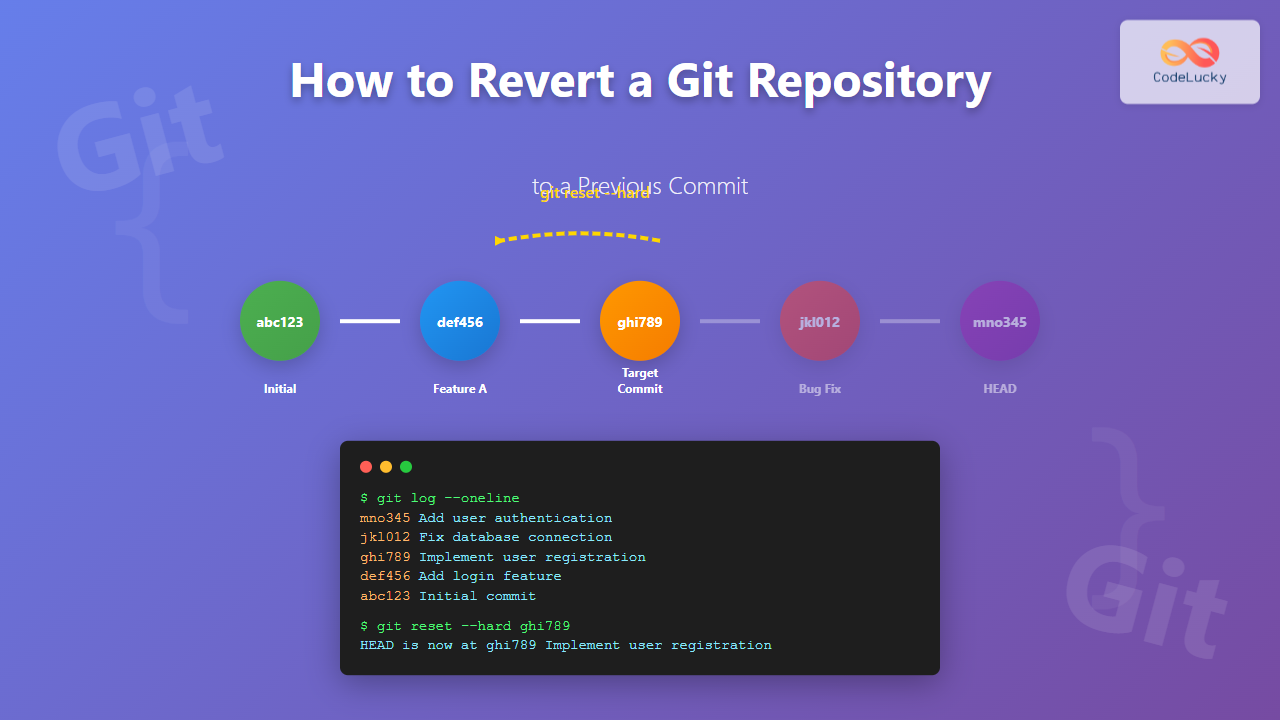
Version control is the backbone of modern software development, and Git stands as the most widely used distributed version control system. Sometimes, you need to undo changes and revert your repository to a previous state. Whether it’s due to introducing bugs, implementing incorrect features, or simply wanting to explore different approaches, knowing how to safely revert a Git repository is crucial for every developer.
This comprehensive guide will walk you through various methods to revert a Git repository to a previous commit, covering different scenarios and their appropriate solutions.
Understanding Git History and Commits
Before diving into reverting commits, it’s essential to understand how Git tracks changes. Every commit in Git has a unique SHA-1 hash identifier, and commits form a directed acyclic graph where each commit points to its parent(s).

When you want to revert to a previous commit, you have several options depending on your specific needs:
- git reset – Changes the repository history
- git revert – Creates new commits that undo changes
- git checkout – Temporarily moves to a different commit
Method 1: Using git reset (Destructive)
The git reset command is the most direct way to revert to a previous commit, but it’s also the most dangerous as it can permanently delete commit history.
Types of Git Reset
Git reset comes in three flavors:
- –soft: Keeps changes in staging area
- –mixed (default): Keeps changes in working directory
- –hard: Completely discards all changes
Finding the Target Commit
First, identify the commit you want to revert to:
git log --oneline
Example output:
f7b2c3d (HEAD -> main) Add user authentication
e8a4b9f Fix database connection issue
c1d5e7a Implement user registration
a9b8c7d Initial project setup
Soft Reset Example
To revert to commit c1d5e7a while keeping your changes staged:
git reset --soft c1d5e7a
Result:
HEAD is now at c1d5e7a Implement user registration
Your working directory and staging area will contain all the changes from the commits that were “undone.”
Hard Reset Example
To completely revert to a previous commit and discard all subsequent changes:
git reset --hard c1d5e7a
Result:
HEAD is now at c1d5e7a Implement user registration

⚠️ Warning: Hard reset permanently deletes commits. Use with extreme caution, especially on shared repositories.
Method 2: Using git revert (Safe)
The git revert command is the safest way to undo changes as it creates new commits that reverse the effects of previous commits without altering history.
Reverting a Single Commit
To revert the most recent commit:
git revert HEAD
To revert a specific commit:
git revert f7b2c3d
Example output:
[main 9f3e8d2] Revert "Add user authentication"
 3 files changed, 15 deletions(-)
 delete mode 100644 auth.js
Reverting Multiple Commits
To revert a range of commits:
git revert HEAD~3..HEAD
This creates separate revert commits for each commit in the range.
Reverting Without Creating Commits
To stage the revert changes without automatically committing:
git revert --no-commit f7b2c3d
git revert --no-commit e8a4b9f
git commit -m "Revert multiple problematic commits"

Method 3: Using git checkout (Temporary)
Git checkout allows you to temporarily move to a previous commit without making permanent changes to your repository history.
Checking Out a Specific Commit
git checkout c1d5e7a
Output:
Note: switching to 'c1d5e7a'.

You are in 'detached HEAD' state. You can look around, make experimental
changes and commit them, and you can discard any commits you make in this
state without impacting any branches by switching back to a branch.
Creating a New Branch from a Previous Commit
If you want to continue development from a previous commit:
git checkout -b hotfix-branch c1d5e7a
This creates a new branch starting from the specified commit.
Advanced Scenarios
Reverting Merge Commits
Merge commits have multiple parents, so you need to specify which parent to revert to:
git revert -m 1 merge_commit_hash
The -m 1 option specifies the first parent (main branch).
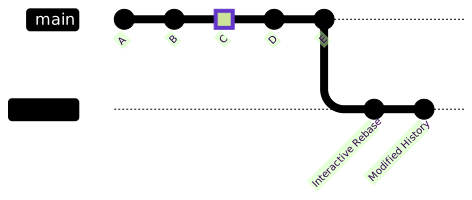
Interactive Rebase for Selective History Editing
For more complex history modifications:
git rebase -i HEAD~5
This opens an interactive editor where you can:
- Pick commits to keep
- Edit commit messages
- Squash commits together
- Drop unwanted commits
Best Practices and Safety Guidelines
Before Making Changes
1. Create a backup branch:
git branch backup-main
2. Check repository status:
git status
git log --oneline -10
3. Ensure clean working directory:
git stash
# or
git add . && git commit -m "WIP: Save current progress"
Team Collaboration Considerations
When working with shared repositories:
- Never use git reset –hard on pushed commits
- Prefer git revert for shared history
- Communicate with team members before major history changes
- Use feature branches for experimental work
Recovery Options
If you accidentally lose commits:
# View reflog to find lost commits
git reflog

# Recover a specific commit
git checkout 9fceb02
git branch recovery-branch
Practical Examples and Use Cases
Scenario 1: Fixing a Broken Deploy
Your latest commit broke production. Quick rollback:
# Safe option (recommended for production)
git revert HEAD
git push origin main

# Alternative: Reset to previous working commit
git reset --hard HEAD~1
git push --force-with-lease origin main
Scenario 2: Removing Sensitive Data
You accidentally committed API keys:
# Remove the commit containing sensitive data
git reset --hard HEAD~1

# Or use BFG Repo-Cleaner for files deep in history
java -jar bfg.jar --delete-files credentials.txt
git reflog expire --expire=now --all && git gc --prune=now --aggressive
Scenario 3: Experimental Feature Cleanup
You want to clean up experimental commits before merging:
git rebase -i HEAD~5
# In the editor, squash or drop unwanted commits

Troubleshooting Common Issues
Merge Conflicts During Revert
When reverting commits that conflict with current changes:
git revert abc123
# Conflict occurs
git status
# Edit conflicted files
git add .
git revert --continue
Undoing a Reset
If you accidentally reset too far:
git reflog
git reset --hard HEAD@{1}
Pushing After Reset
When you need to push a reset to remote:
# Safer option
git push --force-with-lease origin main

# Use only if you're certain
git push --force origin main
Conclusion
Reverting a Git repository to a previous commit is a powerful capability that every developer should master. The key is choosing the right method for your situation:
- Use git revert for shared repositories and when you want to preserve history
- Use git reset for local repositories when you want to permanently remove commits
- Use git checkout for temporary exploration of previous states
Always prioritize safety by creating backups, understanding the implications of each command, and communicating with your team when making history-altering changes. With these tools and best practices, you can confidently navigate Git’s version control capabilities and maintain a clean, functional codebase.
Remember that Git’s distributed nature means that even “destructive” operations like hard reset can often be recovered from using the reflog, making Git more forgiving than it initially appears. Practice these commands in test repositories to build confidence before applying them to important projects.





