Introduction
Removing files and directories is one of the most frequent tasks performed in a Linux terminal using the bash shell. Knowing how to do this quickly and safely can streamline workflows, recover disk space, and help maintain an organized system. This article covers comprehensive techniques for removing files and directories efficiently using bash commands, including tips, examples, and useful visuals.
Basic Commands for Removing Files and Directories
The foundational commands used to delete files and directories in the bash shell are rm and rmdir. Understanding their differences and options is key for quick and safe file management.
Removing Files with rm
The rm command removes files. By default, it deletes files but not directories.
# Remove a single file
rm file.txt

# Remove multiple files
rm file1.txt file2.txt

# Remove all files with .log extension
rm *.log
Visual output: After running rm file.txt, no output appears, but the file is gone. Using ls will confirm removal:
$ ls
file1.txt  file2.txt

$ rm file1.txt

$ ls
file2.txt
Removing Empty Directories with rmdir
rmdir is used to remove empty directories only. It refuses to remove directories that have files or other directories inside.
# Remove an empty directory named "old_folder"
rmdir old_folder
Removing Directories and Their Contents
To remove directories that are not empty (including all files and nested directories), use rm with the recursive option -r.
Recursive Removal Using rm -r
This command removes the specified directory and everything inside it. It is powerful and should be used with caution.
# Remove directory "project" and all its contents
rm -r project
Force Removal with rm -rf
The -f (force) flag suppresses warnings and errors, making rm -rf very quick but potentially dangerous if misused.
# Force remove directory "backup" and everything inside without prompts
rm -rf backup
Warning: rm -rf can delete critical files irreversibly if used carelessly.
Interactive Removal for Safety
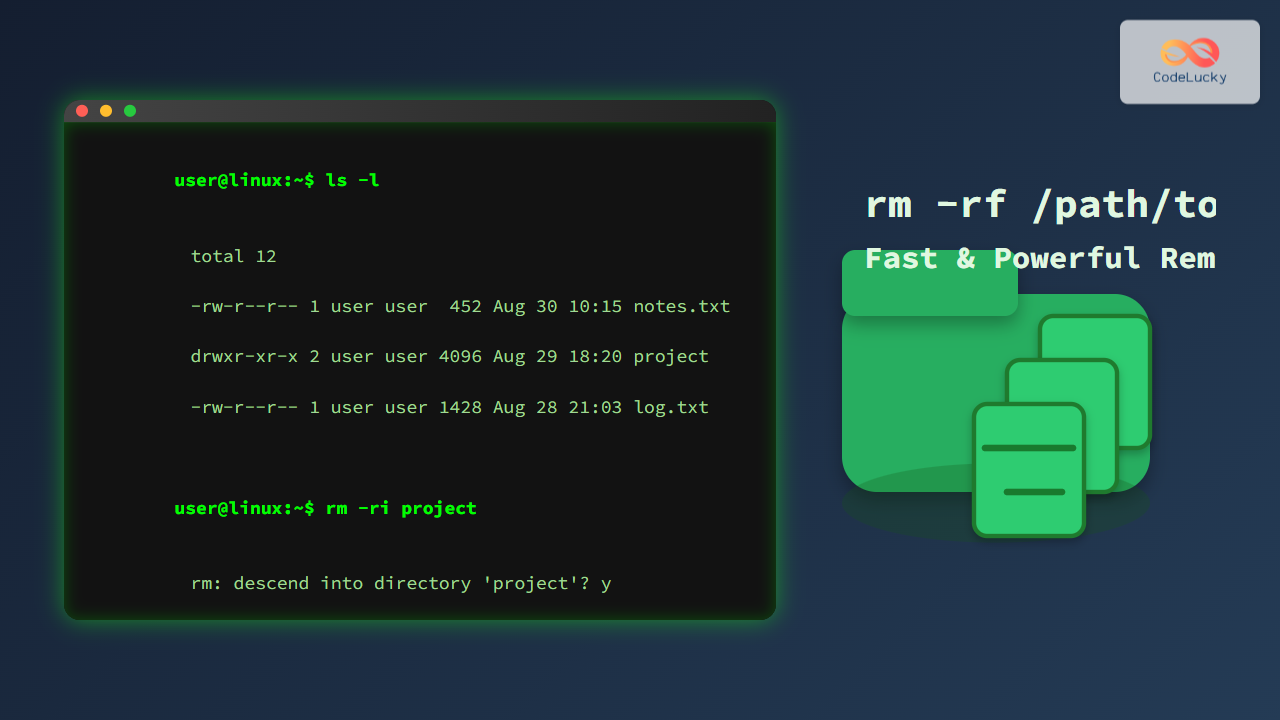
To avoid accidental deletion of important files or directories, use the interactive option -i with rm.
# Ask for confirmation before each removal
rm -ri project
This will prompt you for each file or directory to confirm deletion individually.
Using Wildcards to Remove Groups of Files
Wildcards like * and ? allow quick removal of multiple files matching patterns.
# Remove all .tmp files in current directory
rm *.tmp

# Remove files starting with "temp"
rm temp*

# Remove all files with a single character extension like file.a, file.b
rm file.?
Combining Commands for Speed
Commands can be chained or combined to speed up removals of mixed files and directories:
# Remove "cache" directory and all .log files at once
rm -rf cache *.log
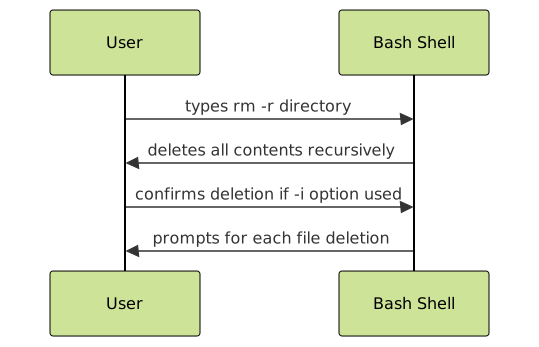
Visualizing File Deletion Flow
Advanced Tips and Best Practices
- Always double-check paths: Using absolute paths minimizes accidental deletion in the wrong directory.
- Back up important data: Use backup tools or version control for critical files before deletion.
- Use the interactive mode: When unsure,
rm -iorrm -r -iincreases safety. - Leverage
trash-cli: For safer deletions, consider using a trash tool that moves files to recycle bin equivalents instead of permanent removal.
Summary Table of Key Commands
| Command | Use Case | Example |
|---|---|---|
rm file |
Remove single file | rm notes.txt |
rm -r dir |
Remove directory and contents recursively | rm -r my_folder |
rm -rf dir |
Force remove directory without prompts | rm -rf old_project |
rmdir dir |
Remove empty directory only | rmdir empty_folder |
rm -i file |
Interactive deletion, asks confirmation | rm -i important.txt |
Conclusion
Mastering file and directory removal via the bash shell boosts efficiency and system management skills for any Linux user. By understanding when and how to use rm, rmdir, and their options, one can delete files quickly while minimizing risks of data loss. Always prioritize safety with interactive flags or backups when needed.
Practical use of the commands and patterns shown here will make terminal file removal tasks faster, safer, and more intuitive.