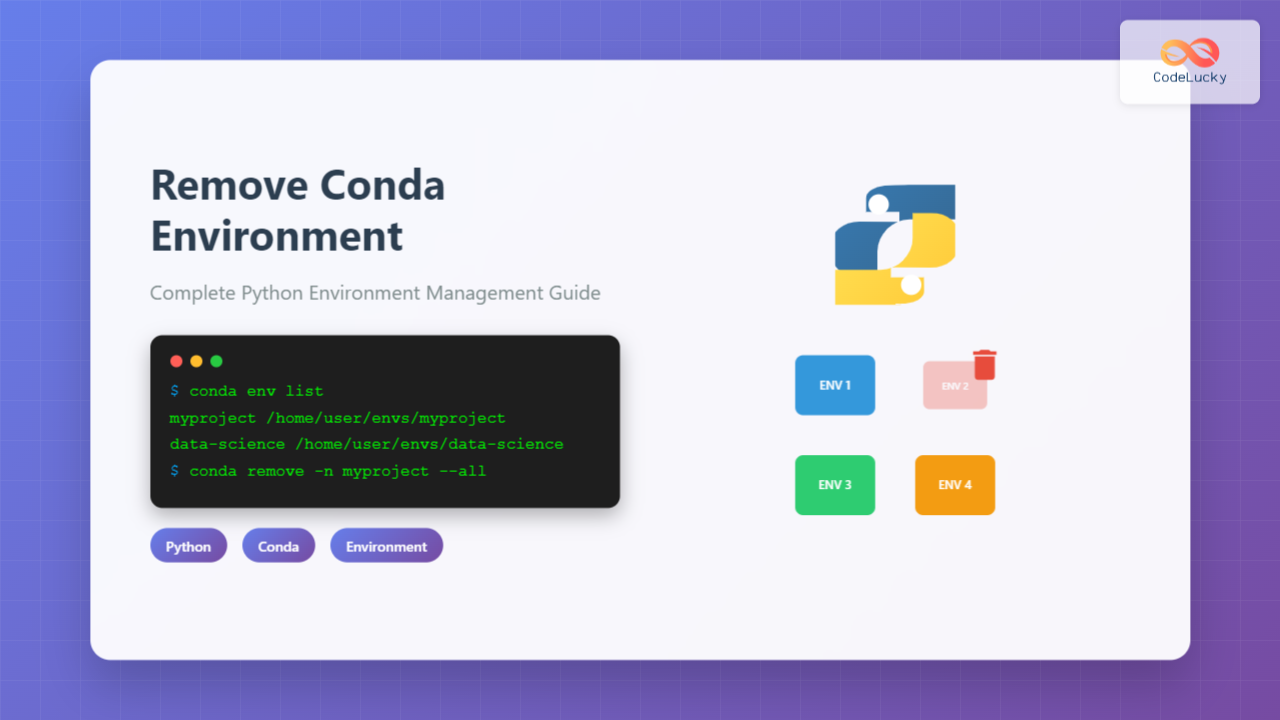
Managing Python environments is crucial for maintaining clean development workflows, and knowing how to properly remove Conda environments is an essential skill for any Python developer. Whether you’re cleaning up old projects, freeing disk space, or resolving environment conflicts, this comprehensive guide will walk you through every method to remove Conda environments safely and effectively.
Understanding Conda Environments
Before diving into removal methods, it’s important to understand what Conda environments are and why proper removal matters. Conda environments are isolated Python installations that contain specific versions of Python packages, allowing you to work on different projects with different dependencies without conflicts.

Checking Available Conda Environments
Before removing an environment, you should first list all available environments to identify the one you want to delete. Use the following command:
conda env listAlternatively, you can use:
conda info --envsThis will display output similar to:
# conda environments:
#
base                  *  /home/user/miniconda3
myproject                /home/user/miniconda3/envs/myproject
data-science             /home/user/miniconda3/envs/data-science
web-dev                  /home/user/miniconda3/envs/web-dev
The asterisk (*) indicates the currently active environment.
Method 1: Remove Environment by Name
The most straightforward way to remove a Conda environment is using the environment name. This is the recommended method for most use cases.
Basic Removal Command
conda remove --name environment_name --allFor example, to remove an environment named “myproject”:
conda remove --name myproject --allThe --all flag removes all packages in the environment, effectively deleting the entire environment.
Alternative Syntax
You can also use the shorter -n flag:
conda remove -n myproject --allExpected Output
When you run the removal command, Conda will show you what will be removed and ask for confirmation:
The following packages will be REMOVED:

  _libgcc_mutex-0.1-main
  blas-1.0-mkl
  ca-certificates-2021.10.26-h06a4308_2
  certifi-2021.10.8-py39h06a4308_2
  # ... (list of all packages)

Proceed ([y]/n)? y

Removing packages...
Done.
Method 2: Remove Environment Using conda env remove
Another method specifically designed for environment management is the conda env remove command:
conda env remove --name environment_nameOr using the short form:
conda env remove -n environment_nameExample:
conda env remove -n data-science
Method 3: Remove Environment by Path
If you know the exact path to the environment directory, you can remove it using the path instead of the name:
conda remove --prefix /path/to/environment --allFor example:
conda remove --prefix /home/user/miniconda3/envs/myproject --allThis method is useful when dealing with environments that might have naming conflicts or when working with environments in non-standard locations.
Force Removal Without Confirmation
For automated scripts or when you’re certain about the removal, you can skip the confirmation prompt using the --yes or -y flag:
conda remove -n myproject --all --yes⚠️ Warning: Use this option carefully, as it will permanently delete the environment without asking for confirmation.
Removing Specific Packages Instead of Entire Environment
Sometimes you might want to remove only specific packages from an environment rather than deleting the entire environment. You can do this by omitting the --all flag:
conda remove -n myproject package_nameTo remove multiple packages:
conda remove -n myproject numpy pandas matplotlibTroubleshooting Common Issues
Environment Currently Active
If you try to remove an environment that’s currently active, you’ll get an error. First, deactivate the environment:
conda deactivate
conda remove -n myproject --all
Environment Not Found
If Conda can’t find the environment, double-check the name using conda env list. Environment names are case-sensitive.
Permission Issues
On some systems, you might need elevated permissions:
sudo conda remove -n myproject --allCorrupted Environment
If an environment is corrupted and can’t be removed normally, you can manually delete the environment folder:
rm -rf /path/to/miniconda3/envs/environment_nameNote: This should be a last resort, as it bypasses Conda’s cleanup mechanisms.

Best Practices for Environment Management
Regular Cleanup
Regularly review and remove unused environments to free up disk space:
# List all environments with their sizes
conda info --envs
du -sh ~/miniconda3/envs/*
Export Before Removal
Before removing an environment, consider exporting its configuration for future recreation:
conda env export -n myproject > myproject_environment.ymlYou can later recreate the environment using:
conda env create -f myproject_environment.ymlUse Descriptive Names
Always use descriptive environment names that clearly indicate their purpose to avoid accidentally removing important environments.
Batch Environment Removal
For removing multiple environments at once, you can use a bash loop:
# Remove multiple environments
for env in env1 env2 env3; do
    conda remove -n $env --all --yes
done
Or remove all environments except base:
# List all environment names except base
conda env list | grep -v "^#" | grep -v "base" | awk '{print $1}' | while read env; do
    conda remove -n $env --all --yes
done
Verifying Environment Removal
After removing an environment, verify that it’s been completely removed:
# Check if environment still exists in list
conda env list

# Verify directory is removed (replace path with your actual path)
ls ~/miniconda3/envs/
If the environment no longer appears in the list and its directory is gone, the removal was successful.
Alternative: Using Conda Clean
For general cleanup of Conda cache and unused packages across all environments:
# Remove unused packages and caches
conda clean --all

# Remove only package tarballs
conda clean --tarballs

# Remove only package cache
conda clean --packages
Conclusion
Removing Conda environments is a straightforward process when you know the right commands and methods. The key points to remember are:
- Always list environments first to confirm the correct name
- Use
conda remove -n environment_name --allfor complete removal - Deactivate environments before removing them
- Consider exporting environment configurations before deletion
- Verify removal by checking the environment list
By following these practices, you’ll maintain clean, organized Conda installations and avoid common pitfalls when managing Python environments. Regular environment cleanup not only saves disk space but also prevents confusion when working on multiple projects with different dependencies.
Remember that removing an environment is permanent, so always double-check before confirming the deletion. With these techniques, you’ll be able to efficiently manage your Conda environments and maintain an organized development workflow.