The dreaded white screen in React Native iOS release builds is one of the most frustrating issues developers encounter. While your app works perfectly in development mode, the production build shows nothing but a blank white screen. This comprehensive guide will walk you through the most effective solutions to diagnose and fix this common problem.
Understanding the White Screen Issue
The white screen problem typically occurs when JavaScript execution fails silently in release builds. Unlike development mode, release builds don’t show error messages by default, making debugging challenging. The issue often stems from:
- JavaScript bundle loading failures
- Missing or corrupted assets
- Code signing issues
- Memory constraints
- Network connectivity problems

Method 1: Enable Debug Mode in Release Build
The first step is to enable debugging in your release build to see actual error messages. This helps identify the root cause of the white screen.
Step 1: Modify AppDelegate.m
Open your ios/YourApp/AppDelegate.m file and temporarily enable debugging:
#import "AppDelegate.h"
#import <React/RCTBridge.h>
#import <React/RCTBundleURLProvider.h>
#import <React/RCTRootView.h>

@implementation AppDelegate

- (BOOL)application:(UIApplication *)application didFinishLaunchingWithOptions:(NSDictionary *)launchOptions
{
  RCTBridge *bridge = [[RCTBridge alloc] initWithDelegate:self launchOptions:launchOptions];
  RCTRootView *rootView = [[RCTRootView alloc] initWithBridge:bridge
                                                   moduleName:@"YourAppName"
                                            initialProperties:nil];

  // Enable debugging in release build (temporary)
  #ifdef DEBUG
    rootView.backgroundColor = [[UIColor alloc] initWithRed:1.0f green:1.0f blue:1.0f alpha:1];
  #else
    // Add this line to see errors in release builds
    [[NSUserDefaults standardUserDefaults] setBool:YES forKey:@"RCTDevMenuEnabled"];
    rootView.backgroundColor = [[UIColor alloc] initWithRed:1.0f green:1.0f blue:1.0f alpha:1];
  #endif

  self.window = [[UIWindow alloc] initWithFrame:[UIScreen mainScreen].bounds];
  UIViewController *rootViewController = [UIViewController new];
  rootViewController.view = rootView;
  self.window.rootViewController = rootViewController;
  [self.window makeKeyAndVisible];
  return YES;
}

- (NSURL *)sourceURLForBridge:(RCTBridge *)bridge
{
#if DEBUG
  return [[RCTBundleURLProvider sharedSettings] jsBundleURLForBundleRoot:@"index" fallbackResource:nil];
#else
  return [[NSBundle mainBundle] URLForResource:@"main" withExtension:@"jsbundle"];
#endif
}

@end
Step 2: Build and Test
Build your app in release mode and check the console output in Xcode. You should now see JavaScript errors that were previously hidden.
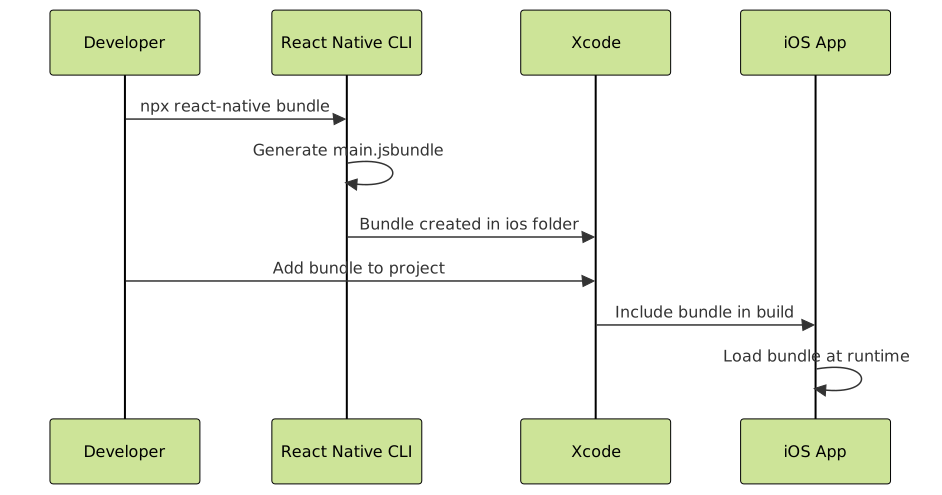
Method 2: Verify JavaScript Bundle Generation
Often, the white screen occurs because the JavaScript bundle isn’t properly generated or included in the release build.
Manual Bundle Generation
Generate the bundle manually to ensure it’s created correctly:
# Navigate to your project root
cd /path/to/your/react-native-project

# Create the bundle directory if it doesn't exist
mkdir -p ios/YourApp

# Generate the JavaScript bundle
npx react-native bundle \
  --platform ios \
  --dev false \
  --entry-file index.js \
  --bundle-output ios/YourApp/main.jsbundle \
  --assets-dest ios/YourApp/
Add Bundle to Xcode Project
- Open your project in Xcode
- Right-click on your app target in the navigator
- Select “Add Files to [YourApp]”
- Navigate to the generated
main.jsbundlefile - Ensure “Add to target” is checked for your app target
- Click “Add”
Method 3: Fix Asset Loading Issues
Missing or incorrectly referenced assets can cause white screens. Here’s how to resolve asset-related problems:
Check Image References
Ensure all images are properly referenced and exist in your project:
// ❌ Incorrect - dynamic require won't work in release builds
const imageName = 'logo';
const image = require(`./assets/${imageName}.png`);

// ✅ Correct - static require
const image = require('./assets/logo.png');

// ✅ Alternative - use imported assets
import logoImage from './assets/logo.png';

// ✅ For remote images, add error handling
<Image
  source={{uri: 'https://example.com/image.png'}}
  onError={(error) => console.log('Image load error:', error)}
  defaultSource={require('./assets/placeholder.png')}
/>
Verify Asset Bundle
Check if assets are properly included in the generated bundle:
# Check what's included in your assets
ls -la ios/YourApp/assets/

# Verify bundle contents
file ios/YourApp/main.jsbundle
Method 4: Handle Network and Remote Dependencies
Network issues can cause white screens, especially if your app depends on remote resources.
Implement Proper Error Handling
import React, {useEffect, useState} from 'react';
import {View, Text, ActivityIndicator} from 'react-native';

const App = () => {
  const [isLoading, setIsLoading] = useState(true);
  const [hasError, setHasError] = useState(false);
  const [errorMessage, setErrorMessage] = useState('');

  useEffect(() => {
    try {
      // Initialize your app
      initializeApp();
    } catch (error) {
      console.error('App initialization error:', error);
      setHasError(true);
      setErrorMessage(error.message);
      setIsLoading(false);
    }
  }, []);

  const initializeApp = async () => {
    try {
      // Add your initialization logic here
      // Example: API calls, authentication, etc.

      // Simulate initialization
      await new Promise(resolve => setTimeout(resolve, 1000));

      setIsLoading(false);
    } catch (error) {
      setHasError(true);
      setErrorMessage(error.message);
      setIsLoading(false);
    }
  };

  if (hasError) {
    return (
      <View style={{flex: 1, justifyContent: 'center', alignItems: 'center'}}>
        <Text>Error: {errorMessage}</Text>
        <Text onPress={() => {
          setHasError(false);
          setIsLoading(true);
          initializeApp();
        }}>Retry</Text>
      </View>
    );
  }

  if (isLoading) {
    return (
      <View style={{flex: 1, justifyContent: 'center', alignItems: 'center'}}>
        <ActivityIndicator size="large" />
        <Text>Loading...</Text>
      </View>
    );
  }

  return (
    // Your main app component
    <View style={{flex: 1}}>
      <Text>App loaded successfully!</Text>
    </View>
  );
};

export default App;
Method 5: Memory and Performance Optimization
iOS devices have strict memory limits that can cause apps to crash or show white screens in release builds.
Implement Error Boundaries
import React from 'react';
import {View, Text} from 'react-native';

class ErrorBoundary extends React.Component {
  constructor(props) {
    super(props);
    this.state = {hasError: false, error: null};
  }

  static getDerivedStateFromError(error) {
    return {hasError: true, error};
  }

  componentDidCatch(error, errorInfo) {
    console.log('Error caught by boundary:', error);
    console.log('Error info:', errorInfo);

    // You can also log to a crash reporting service here
    // crashlytics().recordError(error);
  }

  render() {
    if (this.state.hasError) {
      return (
        <View style={{flex: 1, justifyContent: 'center', alignItems: 'center'}}>
          <Text>Something went wrong</Text>
          <Text onPress={() => this.setState({hasError: false, error: null})}>
            Try Again
          </Text>
        </View>
      );
    }

    return this.props.children;
  }
}

// Wrap your app with ErrorBoundary
const App = () => (
  <ErrorBoundary>
    <YourMainAppComponent />
  </ErrorBoundary>
);
Method 6: Debug with Remote Debugging
Enable remote debugging for release builds to identify JavaScript errors:

Enable Debug Menu in Release
Add this to your AppDelegate.m temporarily:
// In AppDelegate.m, add this import
#import <React/RCTDevSettings.h>

// In didFinishLaunchingWithOptions method
- (BOOL)application:(UIApplication *)application didFinishLaunchingWithOptions:(NSDictionary *)launchOptions
{
  // ... existing code ...

  // Enable dev menu in release builds (for debugging only)
  #ifndef DEBUG
    [[RCTDevSettings sharedSettings] setIsDebuggingRemotely:YES];
  #endif

  // ... rest of the code ...
}
Method 7: Check Build Configuration
Verify that your build configuration is correct for release builds:
Xcode Build Settings
- Open your project in Xcode
- Select your project target
- Go to “Build Settings”
- Verify these settings for Release configuration:
- Dead Code Stripping: Yes
- Strip Debug Symbols During Copy: Yes
- Optimization Level: Fastest, Smallest [-Os]
- Validate Product: Yes
Info.plist Configuration
Ensure your Info.plist has proper configuration:
<?xml version="1.0" encoding="UTF-8"?>
<!DOCTYPE plist PUBLIC "-//Apple//DTD PLIST 1.0//EN" "http://www.apple.com/DTDs/PropertyList-1.0.dtd">
<plist version="1.0">
<dict>
    <!-- Other keys -->

    <!-- Required for React Native -->
    <key>NSAppTransportSecurity</key>
    <dict>
        <key>NSExceptionDomains</key>
        <dict>
            <key>localhost</key>
            <dict>
                <key>NSExceptionAllowsInsecureHTTPLoads</key>
                <true/>
            </dict>
        </dict>
    </dict>

    <!-- Ensure bundle display name -->
    <key>CFBundleDisplayName</key>
    <string>YourAppName</string>

</dict>
</plist>
Method 8: Clean Build and Reset
Sometimes cached files cause issues. Perform a complete clean:
# Clean React Native cache
npx react-native start --reset-cache

# Clean npm/yarn cache
npm cache clean --force
# or
yarn cache clean

# Clean iOS build
cd ios
xcodebuild clean -workspace YourApp.xcworkspace -scheme YourApp
rm -rf ~/Library/Developer/Xcode/DerivedData/YourApp-*

# Clean node modules and reinstall
cd ..
rm -rf node_modules
rm package-lock.json  # or yarn.lock
npm install  # or yarn install

# Reinstall pods
cd ios
rm -rf Pods Podfile.lock
pod deintegrate
pod setup
pod install
Prevention Strategies
To avoid white screen issues in future releases:
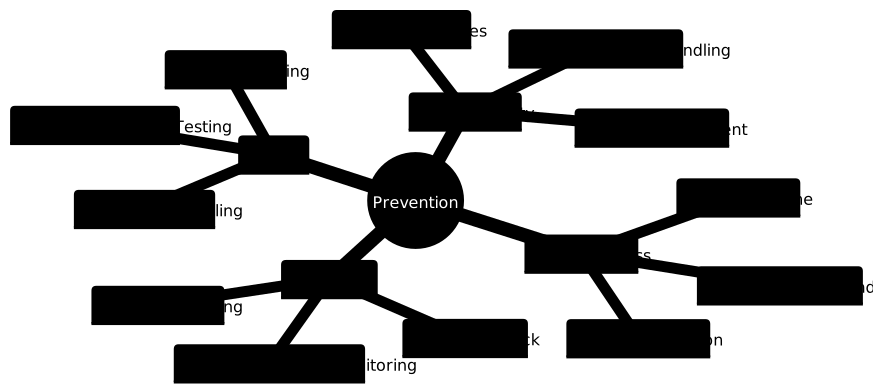
Implement Comprehensive Testing
- Test release builds regularly during development
- Use physical devices for testing, not just simulators
- Test on different iOS versions and device models
- Monitor memory usage using Xcode Instruments
Set Up Crash Reporting
Integrate crash reporting to catch issues in production:
// Example with Firebase Crashlytics
import crashlytics from '@react-native-firebase/crashlytics';

// Log custom errors
crashlytics().log('App startup initiated');

// Record errors
try {
  // Your code
} catch (error) {
  crashlytics().recordError(error);
}
Create a Release Checklist
- ✅ Generate and verify JavaScript bundle
- ✅ Test on physical devices
- ✅ Verify all assets are included
- ✅ Check network error handling
- ✅ Test with slow/no internet connection
- ✅ Verify memory usage is within limits
- ✅ Test app launch from cold start
- ✅ Verify all third-party integrations
Troubleshooting Common Scenarios
Scenario 1: App Works in Development, White Screen in Release
Solution: This typically indicates a bundling issue. Follow Method 2 to manually generate and verify the JavaScript bundle.
Scenario 2: White Screen Only on Specific Devices
Solution: Check device compatibility, iOS version requirements, and memory constraints. Older devices may have insufficient memory.
Scenario 3: White Screen After App Store Release
Solution: App Store builds have additional optimizations. Ensure your code doesn’t rely on development-only features and test with App Store Connect TestFlight builds.
Scenario 4: Intermittent White Screen
Solution: This suggests a race condition or network-related issue. Implement proper loading states and error handling as shown in Method 4.
By following these comprehensive troubleshooting methods, you should be able to identify and resolve the white screen issue in your React Native iOS release builds. Remember to always test release builds throughout your development process to catch these issues early. The key is systematic debugging, starting with enabling error visibility and then working through each potential cause methodically.