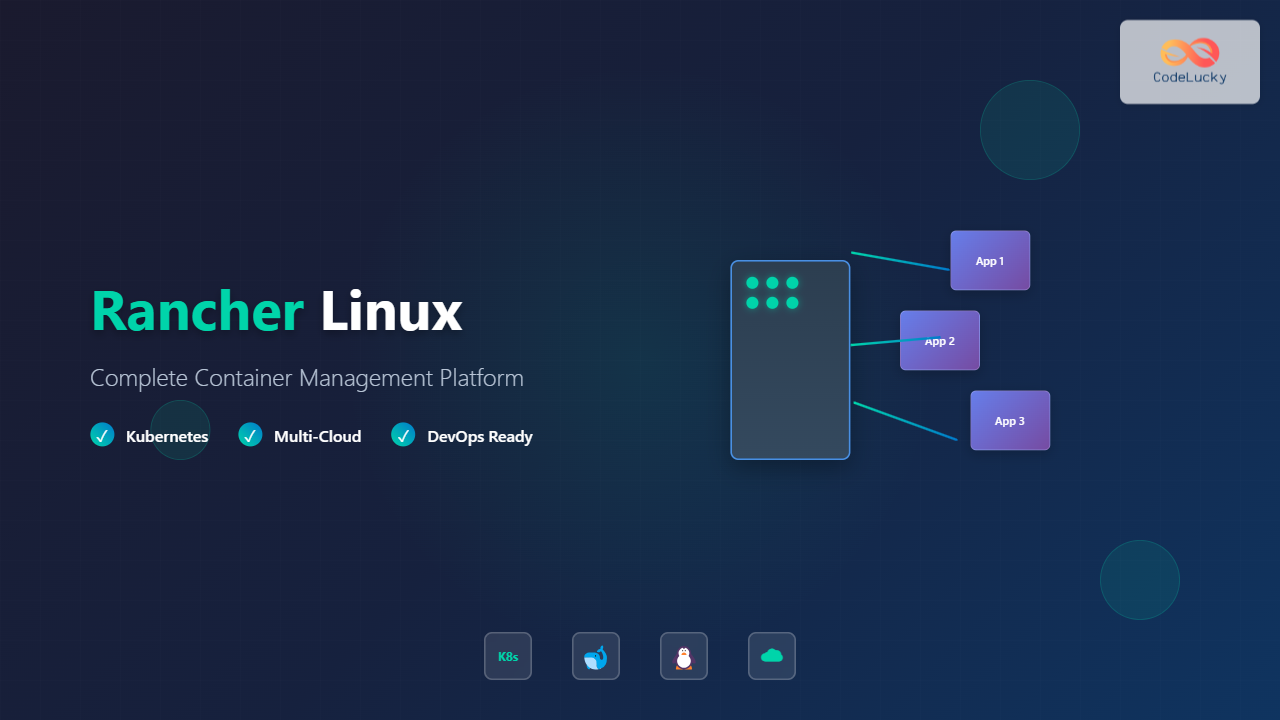
Rancher Linux revolutionizes container management by providing a comprehensive platform that simplifies Kubernetes orchestration, multi-cloud deployments, and enterprise-grade container operations. This powerful Linux distribution and management platform enables DevOps teams to deploy, manage, and scale containerized applications across diverse infrastructure environments.
What is Rancher Linux?
Rancher Linux is a lightweight, security-focused Linux distribution designed specifically for running containers. It consists of two main components: a minimal Linux kernel that runs Docker containers and a system Docker that manages system services. This architecture provides unparalleled efficiency and security for containerized workloads.
The platform offers:
- Minimal attack surface with reduced system components
- Immutable infrastructure approach
- Built-in Docker support
- Easy upgrade and rollback mechanisms
- Cloud-native architecture
Core Architecture Components
System Docker vs User Docker
Rancher Linux implements a unique two-Docker architecture:
User Docker: Handles application containers and user workloads
This separation ensures system stability while providing flexibility for application deployment.
Installation and Setup
Prerequisites
Before installing Rancher Linux, ensure your system meets these requirements:
- Minimum 1GB RAM (2GB recommended)
- 10GB available disk space
- 64-bit processor architecture
- Network connectivity for package downloads
ISO Installation Method
Download and boot from the Rancher Linux ISO:
# Boot from ISO and run installation
sudo rancher-install -d /dev/sda

# Configure cloud-config during installation
sudo rancher-install -d /dev/sda -c cloud-config.yml
Cloud-Config Setup
Create a cloud-config.yml file for automated configuration:
#cloud-config
hostname: rancher-server
ssh_authorized_keys:
  - ssh-rsa AAAAB3NzaC1yc2E... [email protected]

rancher:
  network:
    interfaces:
      eth0:
        address: 192.168.1.100/24
        gateway: 192.168.1.1
        mtu: 1500
        dhcp: false

  services_include:
    kernel-headers: true
    kernel-extras: true

write_files:
  - path: /opt/rancher/bin/start.sh
    permissions: "0755"
    content: |
      #!/bin/bash
      echo "Rancher Linux started successfully"
Container Management Operations
Managing System Services
Rancher Linux uses system Docker to manage core services:
# View running system services
sudo system-docker ps

# Check system service logs
sudo system-docker logs network

# Restart a system service
sudo system-docker restart console

# Enable a system service
sudo ros service enable kernel-headers
sudo ros service up kernel-headers
Expected Output:
CONTAINER ID   IMAGE                    COMMAND                  STATUS
a1b2c3d4e5f6   rancher/os-console:v1.5  "/usr/bin/ros entryp…"   Up 2 hours
b2c3d4e5f6g7   rancher/os-docker:1.12   "ros entrypoint dock…"   Up 2 hours
c3d4e5f6g7h8   rancher/os-network       "/usr/bin/ros entryp…"   Up 2 hours
User Container Operations
Manage application containers using standard Docker commands:
# Deploy a web application
docker run -d --name nginx-app \
  -p 80:80 \
  -v /opt/web:/usr/share/nginx/html \
  nginx:alpine

# Monitor container performance
docker stats nginx-app

# Scale application with docker-compose
cat > docker-compose.yml << EOF
version: '3'
services:
  web:
    image: nginx:alpine
    ports:
      - "80:80"
    deploy:
      replicas: 3
EOF

docker-compose up -d --scale web=3
Networking Configuration
Network Interface Management
Configure network interfaces using cloud-config or ROS commands:
# Configure static IP address
sudo ros config set rancher.network.interfaces.eth0.address 192.168.1.100/24
sudo ros config set rancher.network.interfaces.eth0.gateway 192.168.1.1
sudo ros config set rancher.network.interfaces.eth0.mtu 1500

# Apply network configuration
sudo system-docker restart network

# Verify network configuration
ip addr show eth0
route -n
Docker Network Setup
Create custom Docker networks for container communication:
# Create custom bridge network
docker network create \
  --driver bridge \
  --subnet=172.20.0.0/16 \
  --ip-range=172.20.240.0/20 \
  custom-network

# Deploy containers in custom network
docker run -d --name database \
  --network custom-network \
  --ip 172.20.0.2 \
  mysql:5.7

docker run -d --name webapp \
  --network custom-network \
  --ip 172.20.0.3 \
  -p 8080:80 \
  nginx:alpine
Storage Management
Persistent Volume Configuration
Configure persistent storage for containers:
# Create persistent volume directories
sudo mkdir -p /opt/data/{mysql,logs,config}
sudo chmod 755 /opt/data/*

# Mount external storage
sudo mount /dev/sdb1 /opt/data
echo "/dev/sdb1 /opt/data ext4 defaults 0 2" | sudo tee -a /etc/fstab

# Deploy container with persistent storage
docker run -d --name mysql-persistent \
  -v /opt/data/mysql:/var/lib/mysql \
  -v /opt/data/logs:/var/log/mysql \
  -e MYSQL_ROOT_PASSWORD=secure123 \
  mysql:5.7
Storage Driver Optimization
Configure Docker storage driver for optimal performance:
# Configure overlay2 storage driver
sudo ros config set rancher.docker.storage_driver overlay2
sudo ros config set rancher.docker.graph /opt/docker

# Set storage options
sudo ros config set 'rancher.docker.storage_opts[0]' 'overlay2.override_kernel_check=true'

# Apply storage configuration
sudo system-docker restart docker
Security and Access Control
SSH Key Management
Secure access to Rancher Linux systems:
# Generate SSH key pair
ssh-keygen -t rsa -b 4096 -f ~/.ssh/rancher_key

# Add public key to cloud-config
sudo ros config set 'rancher.ssh.keys.user[0]' "$(cat ~/.ssh/rancher_key.pub)"

# Configure SSH daemon
sudo ros config set rancher.services.sshd.image rancher/os-openssh:v1.5.0
sudo ros config set rancher.services.sshd.ports '["22:22"]'

# Enable SSH service
sudo system-docker start sshd
Container Security Policies
Implement security policies for container deployment:
# Run container with security constraints
docker run -d --name secure-app \
  --read-only \
  --tmpfs /tmp:rw,noexec,nosuid \
  --user 1000:1000 \
  --cap-drop ALL \
  --cap-add NET_BIND_SERVICE \
  --security-opt no-new-privileges \
  nginx:alpine

# Scan container for vulnerabilities
docker run --rm -v /var/run/docker.sock:/var/run/docker.sock \
  aquasec/trivy:latest image nginx:alpine
Monitoring and Logging
System Monitoring Setup
Deploy monitoring stack for comprehensive system visibility:
# Deploy Prometheus monitoring
docker run -d --name prometheus \
  -p 9090:9090 \
  -v /opt/prometheus:/etc/prometheus \
  prom/prometheus:latest

# Deploy Node Exporter
docker run -d --name node-exporter \
  --net="host" \
  --pid="host" \
  -v "/:/host:ro,rslave" \
  prom/node-exporter:latest \
  --path.rootfs=/host

# Deploy Grafana dashboard
docker run -d --name grafana \
  -p 3000:3000 \
  -v /opt/grafana:/var/lib/grafana \
  grafana/grafana:latest
Centralized Logging
Configure centralized logging for all containers:
# Configure Docker daemon logging
sudo ros config set 'rancher.docker.log_opts.max-size' '10m'
sudo ros config set 'rancher.docker.log_opts.max-file' '3'

# Deploy ELK stack for log aggregation
docker run -d --name elasticsearch \
  -p 9200:9200 \
  -e "discovery.type=single-node" \
  -v /opt/elasticsearch:/usr/share/elasticsearch/data \
  docker.elastic.co/elasticsearch/elasticsearch:7.9.0

# Configure log forwarding
docker run -d --name filebeat \
  -v /var/lib/docker:/var/lib/docker:ro \
  -v /var/run/docker.sock:/var/run/docker.sock:ro \
  docker.elastic.co/beats/filebeat:7.9.0
Backup and Recovery
System State Backup
Create comprehensive backup strategies:
# Backup system configuration
sudo ros config export > /opt/backup/rancher-config-$(date +%Y%m%d).yml

# Create system snapshot
sudo tar -czf /opt/backup/system-$(date +%Y%m%d).tar.gz \
  /var/lib/rancher/state \
  /opt/rancher \
  /etc/docker

# Backup container volumes
docker run --rm \
  -v /opt/data:/backup-source:ro \
  -v /opt/backup:/backup-dest \
  alpine:latest \
  tar -czf /backup-dest/volumes-$(date +%Y%m%d).tar.gz -C /backup-source .
Disaster Recovery Procedures
Implement recovery procedures for system restoration:
# Restore system configuration
sudo ros config import < /opt/backup/rancher-config-20240826.yml
sudo system-docker restart docker

# Restore application data
docker run --rm \
  -v /opt/data:/restore-dest \
  -v /opt/backup:/backup-source:ro \
  alpine:latest \
  tar -xzf /backup-source/volumes-20240826.tar.gz -C /restore-dest

# Verify system integrity
sudo ros config validate
docker system info
Performance Optimization
Resource Management
Optimize system resources for container workloads:
# Configure container resource limits
docker run -d --name resource-limited-app \
  --memory=512m \
  --cpus=1.5 \
  --memory-swap=1g \
  --oom-kill-disable=false \
  nginx:alpine

# Monitor resource usage
docker stats --format "table {{.Container}}\t{{.CPUPerc}}\t{{.MemUsage}}\t{{.MemPerc}}"

# Optimize kernel parameters
echo 'vm.max_map_count=262144' | sudo tee -a /etc/sysctl.conf
echo 'fs.file-max=65536' | sudo tee -a /etc/sysctl.conf
sudo sysctl -p
Troubleshooting Common Issues
Container Runtime Problems
Diagnose and resolve common container issues:
# Debug container startup issues
docker logs --details container_name
docker inspect container_name | jq '.[] | .State'

# Check system docker health
sudo system-docker ps -a
sudo system-docker logs docker

# Verify system services
sudo ros service list
sudo ros service logs network
Network Connectivity Issues
Resolve network-related problems:
# Test network connectivity
ping -c 4 8.8.8.8
nslookup google.com

# Debug Docker networking
docker network ls
docker network inspect bridge

# Reset network configuration
sudo system-docker restart network
sudo ros service restart network
Best Practices and Recommendations
Production Deployment Guidelines
- Immutable Infrastructure: Treat Rancher Linux nodes as immutable and replace rather than modify
- Version Control: Store cloud-config files in version control systems
- Resource Planning: Plan resource allocation based on workload requirements
- Security Updates: Regularly update Rancher Linux and container images
- Monitoring: Implement comprehensive monitoring and alerting
Automation Strategies
Automate deployment and management tasks:
# Create deployment script
cat > deploy-app.sh << 'EOF'
#!/bin/bash
set -e

# Pull latest images
docker pull nginx:alpine
docker pull mysql:5.7

# Deploy application stack
docker-compose -f production.yml up -d

# Health check
sleep 30
curl -f http://localhost:80/health || exit 1

echo "Deployment completed successfully"
EOF

chmod +x deploy-app.sh
Integration with Orchestration Platforms
Kubernetes Integration
Rancher Linux seamlessly integrates with Kubernetes:
# Install Kubernetes components
sudo ros service enable kubernetes
sudo ros service up kubernetes

# Configure kubectl
mkdir -p ~/.kube
sudo cp /etc/kubernetes/admin.conf ~/.kube/config
sudo chown $(id -u):$(id -g) ~/.kube/config

# Verify cluster status
kubectl cluster-info
kubectl get nodes
Rancher Linux provides an excellent foundation for containerized applications, offering security, efficiency, and simplicity. By following the practices outlined in this guide, you can successfully deploy and manage container workloads in production environments while maintaining operational excellence and security standards.
Remember to regularly update your Rancher Linux systems, monitor performance metrics, and implement proper backup strategies to ensure reliable container operations.
Related Posts
docker Linux: Complete Container Platform Guide for Developers
Docker has revolutionized software development and deployment by introducing lightweight containerization technology. As a platform that enables developers to package...
Container Operating Systems: Complete Guide to Docker and Kubernetes Platforms
Container operating systems have revolutionized how we deploy, manage, and scale applications in modern computing environments. Unlike traditional operating systems...

OpenShift Linux: Complete Guide to Enterprise Kubernetes Platform Management
OpenShift represents Red Hat's enterprise-grade Kubernetes platform that revolutionizes how organizations deploy, manage, and scale containerized applications on Linux systems....

Kubernetes Linux: Complete Guide to Container Orchestration Platform
Kubernetes has revolutionized how we deploy, manage, and scale containerized applications on Linux systems. As the leading container orchestration platform,...
containerd Linux: Complete Guide to Industry-Standard Container Runtime
Containerd has emerged as the industry-standard container runtime, serving as the foundation for modern containerization platforms like Docker and Kubernetes....

podman Command Linux: Complete Container Management Guide
Podman (Pod Manager) is a powerful, daemonless container engine that provides a Docker-compatible command-line interface for managing containers and pods...
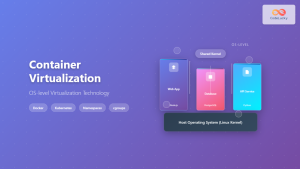
Container Virtualization: Complete Guide to OS-level Virtualization Technology
Container virtualization represents a revolutionary approach to application deployment and resource management through OS-level virtualization. Unlike traditional hardware virtualization, containers...

kind Linux: Complete Guide to Running Kubernetes in Docker Containers
What is kind (Kubernetes in Docker)? kind (Kubernetes in Docker) is a powerful tool designed for running local Kubernetes clusters...
nomad Linux: Complete Guide to HashiCorp’s Workload Orchestrator
What is HashiCorp Nomad? HashiCorp Nomad is a simple yet powerful workload orchestrator that enables organizations to deploy and manage...
MicroK8s Linux: Complete Guide to Canonical’s Lightweight Kubernetes Distribution
MicroK8s is Canonical's lightweight, single-package Kubernetes distribution designed for developers, IoT, and edge computing environments. Unlike traditional Kubernetes installations that...
Minikube Linux: Complete Guide to Local Kubernetes Development
Minikube has revolutionized local Kubernetes development by providing developers with a lightweight, single-node Kubernetes cluster that runs directly on their...

machinectl Command Linux: Complete Guide to Managing systemd Containers and VMs
The machinectl command is a powerful utility in Linux systems that provides comprehensive management capabilities for systemd containers and virtual...