
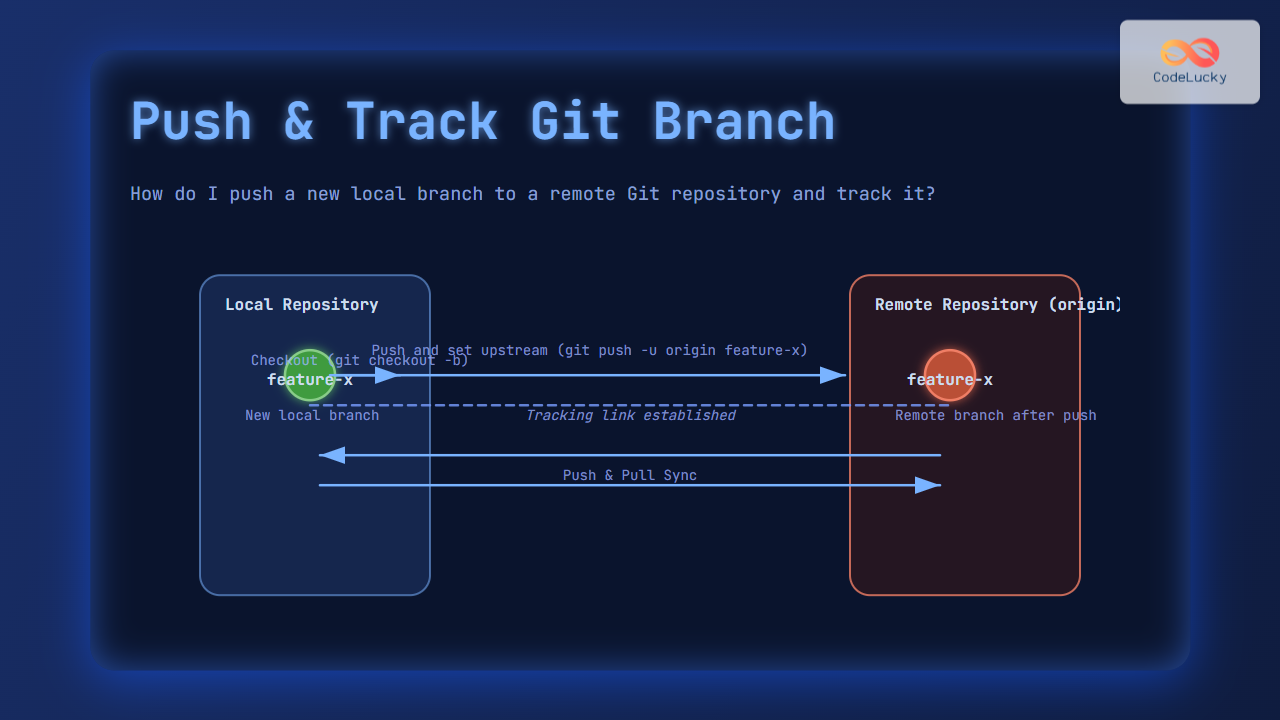
When working with Git, pushing a new local branch to a remote repository and tracking it is an essential workflow for collaborative software development. This comprehensive guide dives into the step-by-step process of creating, pushing, and tracking branches, ensuring smooth team collaboration and version management. Whether you are a beginner or need a refresher, this article simplifies these concepts with clear explanations, practical examples, and visual aids using Mermaid diagrams.
What Does It Mean to Push and Track a Branch in Git?
In Git, a branch is a pointer to a specific commit within your repository’s history, allowing isolated development of features or fixes. When you create a new local branch, it exists only on your machine unless you push it to a remote repository like GitHub or GitLab. Pushing a branch means sending your local branch commits to the remote repository so others can access it. Tracking a branch means setting up your local branch to synchronize easily with its remote counterpart through commands like git pull and git push.

Step 1: Create a New Local Branch
Start by creating a local branch using the git branch or git checkout -b command. The latter creates and immediately switches to the new branch.
git checkout -b feature-x
Output:
Switched to a new branch 'feature-x'
You now have a local branch named feature-x ready for development work.
Step 2: Push the New Branch to the Remote Repository
Once you have commits on your new branch, pushing it to the remote repository makes it accessible to others.
git push -u origin feature-x
Explanation of command components:
git push: Sends local commits to remote.-u(or--set-upstream): Sets the remote branch as the upstream reference, enabling easy tracking.origin: Default remote name for your repository.feature-x: The branch name being pushed.
Output example after pushing:
Counting objects: 5, done.
Delta compression using up to 8 threads.
Compressing objects: 100% (3/3), done.
Writing objects: 100% (5/5), 515 bytes | 515.00 KiB/s, done.
Total 5 (delta 0), reused 0 (delta 0)
remote:
remote: Create a pull request for 'feature-x' on GitHub by visiting:
remote:      https://github.com/username/repository/pull/new/feature-x
remote:
To github.com:username/repository.git
 * [new branch]      feature-x -> feature-x
Branch 'feature-x' set up to track remote branch 'feature-x' from 'origin'.
Step 3: Verify Tracking of the Branch
To confirm your local branch is correctly tracking the remote branch, use:
git branch -vv
Possible output:
* feature-x 4a5e6d8 [origin/feature-x] Implement new login feature
The [origin/feature-x] tag indicates the local branch is tracking the remote branch.

Alternative: Using git push Without -u
Without the -u option, Git pushes the branch but does not link it to the remote branch for future tracking:
git push origin feature-x
Your local branch will push successfully, but on subsequent pushes or pulls, you must specify the remote and branch explicitly.
Setting Up Tracking After the Push with git branch
If the branch was already pushed without -u, you can set upstream tracking afterwards:
git branch --set-upstream-to=origin/feature-x
This command links your local branch feature-x with the remote branch origin/feature-x.
Summary of Common Commands
| Action | Command | Description |
|---|---|---|
| Create & Switch to new branch | git checkout -b feature-x |
Creates and switches to feature-x branch locally |
| Push and track branch | git push -u origin feature-x |
Pushes branch and sets tracking with remote |
| Push without tracking | git push origin feature-x |
Pushes branch but no tracking set |
| Set tracking after push | git branch --set-upstream-to=origin/feature-x |
Sets tracking relationship after push |
| View branches and tracking info | git branch -vv |
Lists all branches and which remotes they track |
Interactive Explanation: Tracking Push Workflow
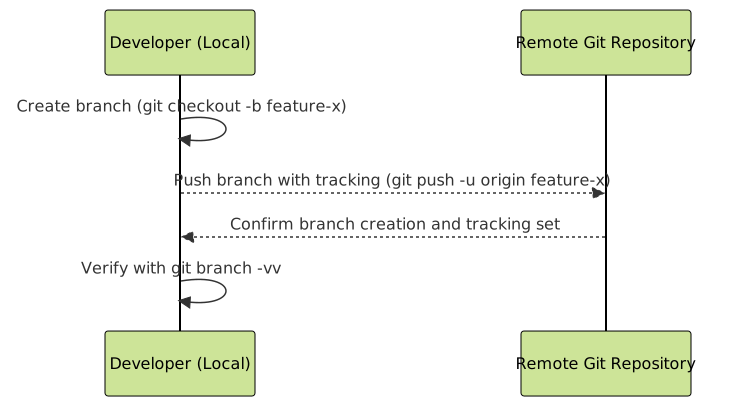
To visualize the typical workflow of pushing a new local branch and establishing tracking, here is a mermaid sequence diagram emphasizing the key steps:
Additional Tips for Efficient Git Branch Management
- Always use
-uwhen pushing a new branch for the first time to streamline later pushes and pulls. - Use
git statusto check your current branch and staged changes before pushing. - If collaborating, regularly pull changes from the remote branch using
git pullto avoid conflicts. - Clean up obsolete branches remotely with
git push origin --delete branch-namewhen the feature is merged or no longer needed.
Conclusion
Pushing a new local branch to a remote Git repository and setting it up for tracking is fundamental for effective version control and team collaboration. By using git push -u origin <branch-name>, developers can easily synchronize their changes with the remote repository and simplify future interactions with that branch. The visual and interactive explanations provided here at CodeLucky.com empower developers to master this workflow confidently.





