PowerShell provides robust built-in capabilities for working with structured data formats including XML, JSON, and CSV. These formats are fundamental to modern automation, API integration, configuration management, and data exchange. Understanding how to manipulate these formats efficiently enables you to automate complex workflows, process API responses, manage configuration files, and transform data between systems.
This comprehensive guide explores the cmdlets, techniques, and best practices for handling XML, JSON, and CSV data in PowerShell with practical examples and real-world scenarios.
Understanding Data Formats in PowerShell
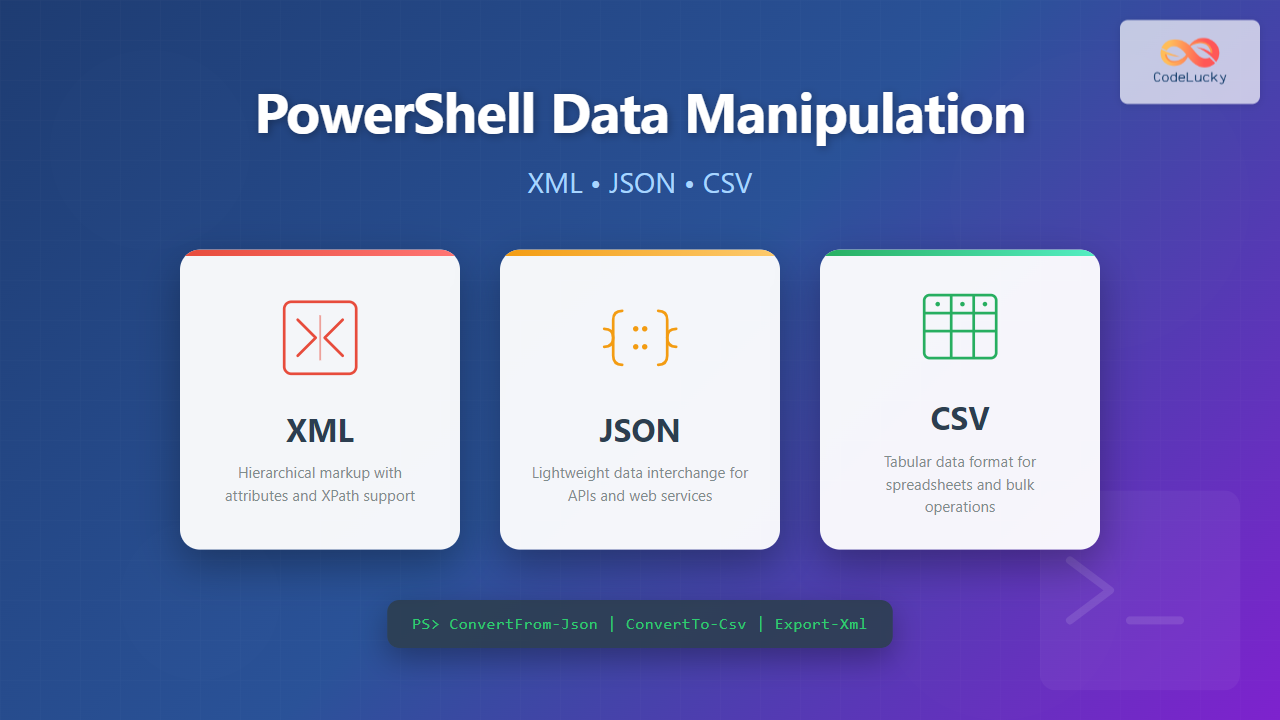
PowerShell treats data formats as objects, allowing you to leverage the pipeline and object-oriented features for seamless data manipulation. Each format serves specific purposes:
- XML (eXtensible Markup Language): Hierarchical data with attributes, ideal for configuration files and structured documents
- JSON (JavaScript Object Notation): Lightweight data interchange format, commonly used in REST APIs and modern applications
- CSV (Comma-Separated Values): Tabular data format, perfect for spreadsheet-like data and bulk operations

Working with CSV Files
CSV is the most straightforward format for tabular data. PowerShell’s CSV cmdlets automatically convert data between objects and CSV format.
Importing CSV Data
The Import-Csv cmdlet reads CSV files and converts each row into a custom object with properties matching the column headers.
# Create a sample CSV file
$csvData = @"
Name,Department,Salary,Location
John Smith,IT,75000,New York
Sarah Johnson,HR,65000,Boston
Mike Williams,IT,80000,New York
Emily Davis,Finance,70000,Chicago
"@

$csvData | Out-File -FilePath "employees.csv"

# Import CSV data
$employees = Import-Csv -Path "employees.csv"

# Display imported objects
$employees | Format-Table

# Access specific properties
$employees | Where-Object { $_.Department -eq "IT" } | Format-Table
Output:
Name            Department Salary Location
----            ---------- ------ --------
John Smith      IT         75000  New York
Sarah Johnson   HR         65000  Boston
Mike Williams   IT         80000  New York
Emily Davis     Finance    70000  Chicago

Name          Department Salary Location
----          ---------- ------ --------
John Smith    IT         75000  New York
Mike Williams IT         80000  New York
Exporting to CSV
The Export-Csv cmdlet converts PowerShell objects to CSV format and saves them to a file.
# Get processes and export to CSV
Get-Process |
    Select-Object Name, Id, CPU, WorkingSet |
    Where-Object { $_.CPU -gt 10 } |
    Export-Csv -Path "processes.csv" -NoTypeInformation

# Create custom objects and export
$servers = @(
    [PSCustomObject]@{
        ServerName = "WEB-01"
        IPAddress = "192.168.1.10"
        Status = "Online"
        LastCheck = Get-Date
    },
    [PSCustomObject]@{
        ServerName = "DB-01"
        IPAddress = "192.168.1.20"
        Status = "Online"
        LastCheck = Get-Date
    }
)

$servers | Export-Csv -Path "servers.csv" -NoTypeInformation

# Read back and display
Import-Csv -Path "servers.csv" | Format-Table
Advanced CSV Manipulation
# Import with custom delimiter
$data = Import-Csv -Path "data.txt" -Delimiter "`t"

# Append to existing CSV
$newEmployee = [PSCustomObject]@{
    Name = "Robert Brown"
    Department = "Marketing"
    Salary = 68000
    Location = "Seattle"
}

$newEmployee | Export-Csv -Path "employees.csv" -Append -NoTypeInformation

# Transform CSV data
$employees = Import-Csv -Path "employees.csv"
$transformed = $employees | ForEach-Object {
    [PSCustomObject]@{
        FullName = $_.Name
        Dept = $_.Department
        AnnualSalary = [int]$_.Salary
        MonthlySalary = [math]::Round([int]$_.Salary / 12, 2)
        City = $_.Location
    }
}

$transformed | Export-Csv -Path "employees_transformed.csv" -NoTypeInformation
Working with JSON Data
JSON is the standard format for REST APIs and modern web services. PowerShell provides powerful cmdlets for JSON serialization and deserialization.
Converting to JSON
The ConvertTo-Json cmdlet serializes PowerShell objects into JSON format.
# Create a complex object
$user = [PSCustomObject]@{
    UserId = 1001
    Username = "jsmith"
    Profile = @{
        FirstName = "John"
        LastName = "Smith"
        Email = "[email protected]"
        Roles = @("Admin", "Developer")
    }
    Settings = @{
        Theme = "Dark"
        Notifications = $true
        Language = "en-US"
    }
    LoginHistory = @(
        @{ Date = "2025-10-20"; IPAddress = "192.168.1.100" },
        @{ Date = "2025-10-21"; IPAddress = "192.168.1.101" }
    )
}

# Convert to JSON
$jsonOutput = $user | ConvertTo-Json -Depth 5
$jsonOutput

# Save to file
$jsonOutput | Out-File -FilePath "user.json"
Output:
{
  "UserId": 1001,
  "Username": "jsmith",
  "Profile": {
    "FirstName": "John",
    "LastName": "Smith",
    "Email": "[email protected]",
    "Roles": [
      "Admin",
      "Developer"
    ]
  },
  "Settings": {
    "Theme": "Dark",
    "Notifications": true,
    "Language": "en-US"
  },
  "LoginHistory": [
    {
      "Date": "2025-10-20",
      "IPAddress": "192.168.1.100"
    },
    {
      "Date": "2025-10-21",
      "IPAddress": "192.168.1.101"
    }
  ]
}
Parsing JSON Data
The ConvertFrom-Json cmdlet deserializes JSON strings into PowerShell objects.
# JSON string from API response
$apiResponse = @"
{
  "status": "success",
  "data": {
    "users": [
      {
        "id": 1,
        "name": "Alice Cooper",
        "active": true,
        "department": "Engineering"
      },
      {
        "id": 2,
        "name": "Bob Dylan",
        "active": true,
        "department": "Marketing"
      }
    ],
    "totalCount": 2
  }
}
"@

# Parse JSON
$response = $apiResponse | ConvertFrom-Json

# Access nested properties
Write-Output "Status: $($response.status)"
Write-Output "Total Users: $($response.data.totalCount)"

# Iterate through array
$response.data.users | ForEach-Object {
    Write-Output "User: $($_.name) - Department: $($_.department)"
}

# Filter and transform
$activeEngineers = $response.data.users |
    Where-Object { $_.active -and $_.department -eq "Engineering" }

$activeEngineers | Format-Table
Output:
Status: success
Total Users: 2
User: Alice Cooper - Department: Engineering
User: Bob Dylan - Department: Marketing

id name         active department
-- ----         ------ ----------
 1 Alice Cooper   True Engineering
Working with JSON Files
# Read JSON configuration file
$config = Get-Content -Path "config.json" -Raw | ConvertFrom-Json

# Modify configuration
$config.Settings.MaxConnections = 100
$config.Settings.Timeout = 30

# Save modified configuration
$config | ConvertTo-Json -Depth 10 | Set-Content -Path "config.json"

# Merge JSON objects
$defaultConfig = @{
    AppName = "MyApp"
    Version = "1.0"
    Settings = @{
        Debug = $false
        Port = 8080
    }
} | ConvertTo-Json | ConvertFrom-Json

$userConfig = @{
    Settings = @{
        Debug = $true
        CustomPath = "C:\Data"
    }
} | ConvertTo-Json | ConvertFrom-Json

# Simple merge (user settings override defaults)
$mergedConfig = $defaultConfig.PSObject.Copy()
$userConfig.PSObject.Properties | ForEach-Object {
    $mergedConfig.($_.Name) = $_.Value
}

Working with XML Data
XML provides hierarchical data representation with attributes and namespaces. PowerShell treats XML as objects with full XPath support.
Loading and Parsing XML
# Create sample XML
$xmlContent = @"


        PowerShell Mastery
        John Doe
        2024
        49.99


        Advanced Scripting
        Jane Smith
        2025
        59.99


        The Data Chronicles
        Mike Johnson
        2023
        29.99


"@

$xmlContent | Out-File -FilePath "catalog.xml"

# Load XML file
[xml]$catalog = Get-Content -Path "catalog.xml"

# Access elements
Write-Output "First book title: $($catalog.Catalog.Book[0].Title)"
Write-Output "First book author: $($catalog.Catalog.Book[0].Author)"

# Access attributes
Write-Output "First book ID: $($catalog.Catalog.Book[0].id)"
Write-Output "First book category: $($catalog.Catalog.Book[0].category)"

# Iterate through all books
foreach ($book in $catalog.Catalog.Book) {
    Write-Output "[$($book.id)] $($book.Title) by $($book.Author) - `$$($book.Price)"
}
Output:
First book title: PowerShell Mastery
First book author: John Doe
First book ID: 001
First book category: Technology
[001] PowerShell Mastery by John Doe - $49.99
[002] Advanced Scripting by Jane Smith - $59.99
[003] The Data Chronicles by Mike Johnson - $29.99
Using XPath for XML Queries
# Load XML
[xml]$catalog = Get-Content -Path "catalog.xml"

# Select nodes using XPath
$techBooks = $catalog.SelectNodes("//Book[@category='Technology']")

Write-Output "Technology Books:"
foreach ($book in $techBooks) {
    Write-Output "  - $($book.Title)"
}

# Select with conditions
$recentBooks = $catalog.SelectNodes("//Book[Year >= 2024]")

Write-Output "`nBooks from 2024 onwards:"
foreach ($book in $recentBooks) {
    Write-Output "  - $($book.Title) ($($book.Year))"
}

# Get specific values
$prices = $catalog.SelectNodes("//Price[@currency='USD']")
$totalValue = ($prices | ForEach-Object { [decimal]$_.'#text' } | Measure-Object -Sum).Sum

Write-Output "`nTotal catalog value: `$$totalValue"
Output:
Technology Books:
  - PowerShell Mastery
  - Advanced Scripting

Books from 2024 onwards:
  - PowerShell Mastery (2024)
  - Advanced Scripting (2025)

Total catalog value: $139.97
Creating and Modifying XML
# Create new XML document
$xml = New-Object System.Xml.XmlDocument

# Add declaration
$declaration = $xml.CreateXmlDeclaration("1.0", "UTF-8", $null)
$xml.AppendChild($declaration) | Out-Null

# Create root element
$root = $xml.CreateElement("Configuration")
$xml.AppendChild($root) | Out-Null

# Add elements with text
$appSettings = $xml.CreateElement("AppSettings")
$root.AppendChild($appSettings) | Out-Null

$setting1 = $xml.CreateElement("Setting")
$setting1.SetAttribute("key", "DatabaseConnection")
$setting1.SetAttribute("value", "Server=localhost;Database=MyDB")
$appSettings.AppendChild($setting1) | Out-Null

$setting2 = $xml.CreateElement("Setting")
$setting2.SetAttribute("key", "MaxRetries")
$setting2.SetAttribute("value", "3")
$appSettings.AppendChild($setting2) | Out-Null

# Save to file
$xml.Save("$(Get-Location)\config.xml")

# Modify existing XML
[xml]$catalog = Get-Content -Path "catalog.xml"

# Add new book
$newBook = $catalog.CreateElement("Book")
$newBook.SetAttribute("id", "004")
$newBook.SetAttribute("category", "Science")

$title = $catalog.CreateElement("Title")
$title.InnerText = "Data Science Fundamentals"
$newBook.AppendChild($title) | Out-Null

$author = $catalog.CreateElement("Author")
$author.InnerText = "Sarah Williams"
$newBook.AppendChild($author) | Out-Null

$year = $catalog.CreateElement("Year")
$year.InnerText = "2025"
$newBook.AppendChild($year) | Out-Null

$price = $catalog.CreateElement("Price")
$price.SetAttribute("currency", "USD")
$price.InnerText = "54.99"
$newBook.AppendChild($price) | Out-Null

$catalog.Catalog.AppendChild($newBook) | Out-Null

# Save modified XML
$catalog.Save("$(Get-Location)\catalog.xml")
Converting XML to Other Formats
# Load XML
[xml]$catalog = Get-Content -Path "catalog.xml"

# Convert XML to CSV
$books = foreach ($book in $catalog.Catalog.Book) {
    [PSCustomObject]@{
        ID = $book.id
        Category = $book.category
        Title = $book.Title
        Author = $book.Author
        Year = $book.Year
        Price = $book.Price
        Currency = $book.Price.currency
    }
}

$books | Export-Csv -Path "books.csv" -NoTypeInformation

# Convert XML to JSON
$jsonBooks = $books | ConvertTo-Json -Depth 3
$jsonBooks | Out-File -FilePath "books.json"

Write-Output "Converted XML to CSV and JSON formats"
$books | Format-Table
Real-World Scenarios
Processing API Responses
# Simulate API response with JSON
$apiResponse = @"
{
  "users": [
    {"id": 1, "name": "Alice", "email": "[email protected]", "status": "active"},
    {"id": 2, "name": "Bob", "email": "[email protected]", "status": "inactive"},
    {"id": 3, "name": "Charlie", "email": "[email protected]", "status": "active"}
  ]
}
"@

# Parse and filter
$data = $apiResponse | ConvertFrom-Json
$activeUsers = $data.users | Where-Object { $_.status -eq "active" }

# Export to CSV for reporting
$activeUsers | Select-Object id, name, email |
    Export-Csv -Path "active_users.csv" -NoTypeInformation

Write-Output "Active users exported to CSV"
Configuration Management
# Read configuration from different formats
function Get-Configuration {
    param(
        [string]$ConfigPath
    )

    $extension = [System.IO.Path]::GetExtension($ConfigPath)

    switch ($extension) {
        ".json" {
            return Get-Content $ConfigPath -Raw | ConvertFrom-Json
        }
        ".xml" {
            [xml]$xml = Get-Content $ConfigPath
            return $xml
        }
        ".csv" {
            return Import-Csv $ConfigPath
        }
        default {
            throw "Unsupported configuration format: $extension"
        }
    }
}

# Usage
$jsonConfig = Get-Configuration -ConfigPath "settings.json"
$xmlConfig = Get-Configuration -ConfigPath "config.xml"

Data Transformation Pipeline
# Convert CSV to JSON with transformation
$employees = Import-Csv -Path "employees.csv"

$transformed = $employees | ForEach-Object {
    [PSCustomObject]@{
        employee_id = [int]$_.Name.GetHashCode() -band 0x7FFFFFFF
        full_name = $_.Name
        department = @{
            name = $_.Department
            location = $_.Location
        }
        compensation = @{
            annual_salary = [int]$_.Salary
            monthly_salary = [math]::Round([int]$_.Salary / 12, 2)
            currency = "USD"
        }
        metadata = @{
            last_updated = (Get-Date).ToString("yyyy-MM-dd")
            source = "HR_System"
        }
    }
}

$transformed | ConvertTo-Json -Depth 5 | Out-File "employees.json"

Write-Output "Transformed $($employees.Count) employee records"
Bulk Data Processing
# Process large CSV file in batches
function Process-LargeCSV {
    param(
        [string]$InputPath,
        [string]$OutputPath,
        [int]$BatchSize = 1000
    )

    $reader = [System.IO.StreamReader]::new($InputPath)
    $header = $reader.ReadLine()
    $batch = @()
    $lineCount = 0

    while ($null -ne ($line = $reader.ReadLine())) {
        $batch += $line
        $lineCount++

        if ($batch.Count -ge $BatchSize) {
            # Process batch
            $csvData = ($header, $batch) -join "`n" | ConvertFrom-Csv
            $processed = $csvData | Where-Object { $_.Status -eq "Active" }

            # Append to output
            if ($lineCount -eq $BatchSize) {
                $processed | Export-Csv -Path $OutputPath -NoTypeInformation
            } else {
                $processed | Export-Csv -Path $OutputPath -NoTypeInformation -Append
            }

            $batch = @()
            Write-Progress -Activity "Processing CSV" -Status "$lineCount rows processed"
        }
    }

    # Process remaining records
    if ($batch.Count -gt 0) {
        $csvData = ($header, $batch) -join "`n" | ConvertFrom-Csv
        $processed = $csvData | Where-Object { $_.Status -eq "Active" }
        $processed | Export-Csv -Path $OutputPath -NoTypeInformation -Append
    }

    $reader.Close()
    Write-Output "Processing complete: $lineCount rows"
}
Performance Considerations
Memory-Efficient Processing
# Inefficient: Loading entire file into memory
$data = Get-Content "large_file.json" -Raw | ConvertFrom-Json
$data | Where-Object { $_.active } | Export-Csv "output.csv"

# Efficient: Streaming approach for large files
$streamReader = [System.IO.StreamReader]::new("large_file.json")
$content = $streamReader.ReadToEnd()
$streamReader.Close()

$data = $content | ConvertFrom-Json

# Process in chunks
$data | ForEach-Object -Begin {
    $chunk = @()
    $chunkSize = 100
} -Process {
    $chunk += $_
    if ($chunk.Count -ge $chunkSize) {
        $chunk | Where-Object { $_.active } |
            Export-Csv "output.csv" -Append -NoTypeInformation
        $chunk = @()
    }
} -End {
    if ($chunk.Count -gt 0) {
        $chunk | Where-Object { $_.active } |
            Export-Csv "output.csv" -Append -NoTypeInformation
    }
}
Optimizing XML Operations
# Inefficient: Multiple SelectNodes calls
[xml]$xml = Get-Content "large.xml"
foreach ($node in $xml.SelectNodes("//Item")) {
    $detail = $xml.SelectNodes("//Detail[@id='$($node.id)']")  # Repeated lookups
}

# Efficient: Single query with XPath predicates
[xml]$xml = Get-Content "large.xml"
$items = $xml.SelectNodes("//Item")
$detailsMap = @{}
$xml.SelectNodes("//Detail") | ForEach-Object {
    $detailsMap[$_.id] = $_
}

foreach ($item in $items) {
    $detail = $detailsMap[$item.id]  # Direct lookup
}

Error Handling and Validation
# Robust CSV import with error handling
function Import-CsvSafely {
    param(
        [string]$Path,
        [string[]]$RequiredColumns
    )

    try {
        if (-not (Test-Path $Path)) {
            throw "File not found: $Path"
        }

        $data = Import-Csv -Path $Path -ErrorAction Stop

        # Validate required columns
        $headers = $data[0].PSObject.Properties.Name
        foreach ($column in $RequiredColumns) {
            if ($column -notin $headers) {
                throw "Missing required column: $column"
            }
        }

        return $data
    }
    catch {
        Write-Error "Failed to import CSV: $_"
        return $null
    }
}

# JSON validation
function Test-JsonValid {
    param([string]$JsonString)

    try {
        $null = $JsonString | ConvertFrom-Json -ErrorAction Stop
        return $true
    }
    catch {
        Write-Warning "Invalid JSON: $_"
        return $false
    }
}

# XML schema validation
function Test-XmlValid {
    param(
        [string]$XmlPath,
        [string]$SchemaPath
    )

    try {
        $xml = New-Object System.Xml.XmlDocument
        $xml.Schemas.Add($null, $SchemaPath) | Out-Null
        $xml.Load($XmlPath)
        $xml.Validate($null)
        return $true
    }
    catch {
        Write-Warning "XML validation failed: $_"
        return $false
    }
}
Best Practices
CSV Best Practices
- Always use
-NoTypeInformationwithExport-Csvto avoid unnecessary type metadata - Handle headers explicitly when merging multiple CSV files
- Use
Select-Objectto control which properties are exported - Consider memory usage when processing large CSV files
- Validate data types after import, as all CSV values are strings
JSON Best Practices
- Always use
-Depthparameter withConvertTo-Jsonfor nested objects (default is 2) - Use
-RawwithGet-Contentwhen reading JSON files - Validate JSON structure before processing with try-catch blocks
- Consider using
-AsHashtableparameter in PowerShell 6+ for better performance - Handle null values and missing properties explicitly
XML Best Practices
- Use XPath for efficient node selection instead of looping
- Leverage namespaces when working with complex XML documents
- Always save XML documents using the
Save()method for proper formatting - Use
SelectSingleNodewhen expecting a single result - Consider using XML Linq (XDocument) for modern .NET applications
Conclusion
PowerShell provides comprehensive tools for manipulating XML, JSON, and CSV data formats. The built-in cmdlets Import-Csv, Export-Csv, ConvertFrom-Json, ConvertTo-Json, and XML DOM manipulation capabilities enable seamless data transformation and integration workflows.
Key takeaways:
- CSV is ideal for tabular data and direct object import/export
- JSON excels at representing hierarchical data and API communication
- XML provides robust structure with attributes and XPath querying
- Choose formats based on data structure, destination systems, and performance requirements
- Implement proper error handling and validation for production scripts
- Consider memory efficiency when processing large datasets
Mastering these data formats empowers you to build sophisticated automation solutions, integrate with diverse systems, and efficiently process data at scale in your PowerShell workflows.