
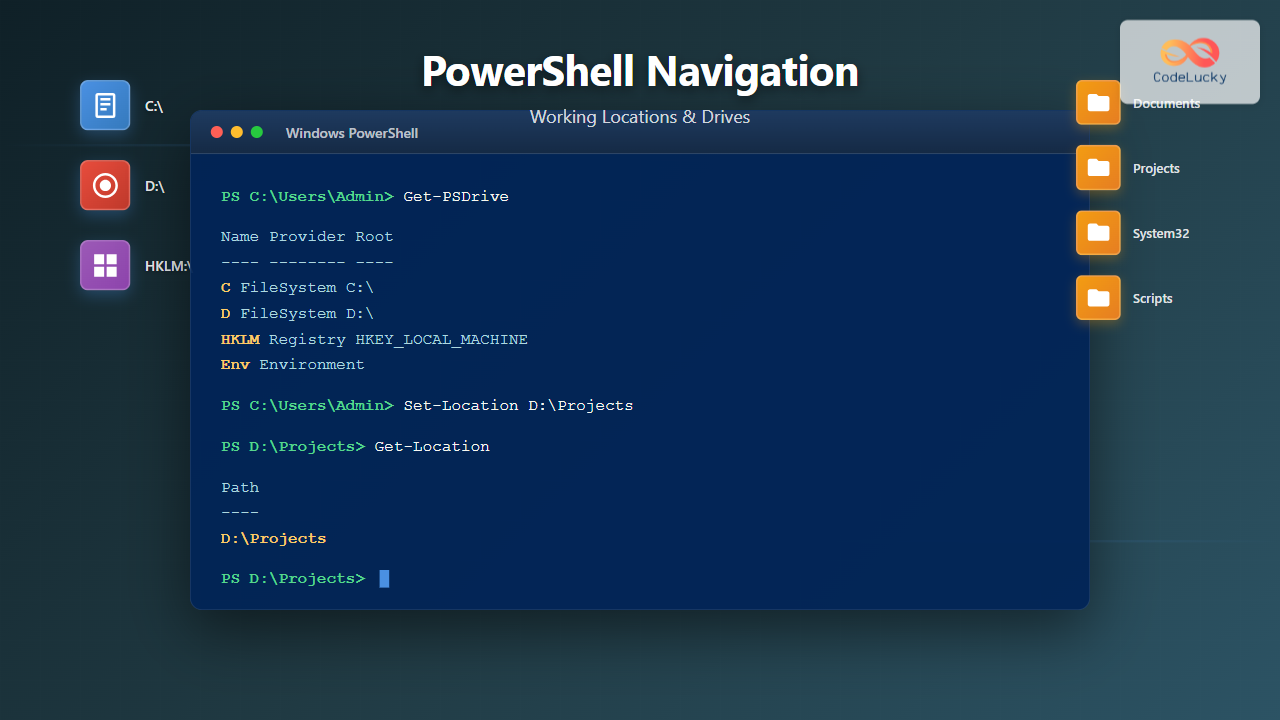
PowerShell provides a unified approach to navigating different data stores through its provider-based architecture. Whether you’re working with the file system, registry, or custom drives, understanding location management is fundamental to effective PowerShell scripting and administration.
Understanding PowerShell Providers and Drives
PowerShell treats different data stores as drives, similar to how you access C: or D: drives in Windows. However, PowerShell extends this concept beyond physical disks to include the registry, environment variables, certificates, and more.
What are PowerShell Providers?
Providers are .NET programs that expose data stores as drives. They allow you to navigate and manipulate different types of data using the same cmdlets you’d use for file system operations.
Get-PSProviderOutput:
Name                 Capabilities                              Drives
----                 ------------                              ------
Registry             ShouldProcess, Transactions              {HKLM, HKCU}
Alias                ShouldProcess                             {Alias}
Environment          ShouldProcess                             {Env}
FileSystem           Filter, ShouldProcess, Credentials       {C, D, Temp}
Function             ShouldProcess                             {Function}
Variable             ShouldProcess                             {Variable}
Certificate          ShouldProcess                             {Cert}
Viewing Available Drives
Use the Get-PSDrive cmdlet to list all available drives in your current session:
Get-PSDriveOutput:
Name           Used (GB)     Free (GB) Provider      Root
----           ---------     --------- --------      ----
Alias                                  Alias
C                 125.45        350.22 FileSystem    C:\
Cert                                   Certificate   \
D                  85.30        200.15 FileSystem    D:\
Env                                    Environment
Function                               Function
HKCU                                   Registry      HKEY_CURRENT_USER
HKLM                                   Registry      HKEY_LOCAL_MACHINE
Variable                               Variable
WSMan                                  WSMan
Working with Current Location
Getting Your Current Location
The Get-Location cmdlet (alias: pwd, gl) displays your current working directory:
Get-Location
# or use the shorter alias
pwd
Output:
Path
----
C:\Users\Administrator\Documents
Changing Directories
Use Set-Location (alias: cd, chdir, sl) to navigate between directories:
# Navigate to a specific directory
Set-Location C:\Windows\System32

# Move to parent directory
Set-Location ..

# Move up two levels
Set-Location ..\..

# Navigate to user's home directory
Set-Location ~

# Navigate to root of current drive
Set-Location \
Example with output:
PS C:\Users\Administrator> Set-Location C:\Windows
PS C:\Windows> Get-Location

Path
----
C:\Windows

PS C:\Windows> Set-Location ..
PS C:\> Get-Location

Path
----
C:\
Navigating Different Drive Types
File System Navigation
File system drives work exactly as you’d expect from traditional command-line interfaces:
# Switch to D: drive
Set-Location D:\

# Navigate to a specific folder
Set-Location D:\Projects\PowerShell

# List items in current location
Get-ChildItem

# List items with full path
Get-ChildItem | Select-Object FullName
Registry Navigation
PowerShell allows you to navigate the Windows Registry using the same commands:
# Navigate to HKEY_LOCAL_MACHINE
Set-Location HKLM:\

# Navigate to Software key
Set-Location HKLM:\Software

# List registry keys (like directories)
Get-ChildItem

# Navigate to a specific key
Set-Location "HKLM:\Software\Microsoft\Windows\CurrentVersion"
Example output:
PS C:\> Set-Location HKLM:\Software\Microsoft\Windows\CurrentVersion
PS HKLM:\Software\Microsoft\Windows\CurrentVersion> Get-ChildItem | Select-Object -First 5

    Hive: HKEY_LOCAL_MACHINE\Software\Microsoft\Windows\CurrentVersion

Name                           Property
----                           --------
App Paths
AppHost
AppModel
AppModelUnlock
AppReadiness
Environment Variables Navigation
Access environment variables as if they were files in a directory:
# Navigate to Environment drive
Set-Location Env:\

# List all environment variables
Get-ChildItem

# Access specific environment variable
Get-Content Env:\PATH

# Set an environment variable
Set-Content Env:\MY_VARIABLE -Value "MyValue"
Output:
PS Env:\> Get-ChildItem | Select-Object -First 5

Name                           Value
----                           -----
ALLUSERSPROFILE               C:\ProgramData
APPDATA                       C:\Users\Administrator\AppData\Roaming
CommonProgramFiles            C:\Program Files\Common Files
COMPUTERNAME                  DESKTOP-ABC123
ComSpec                       C:\Windows\system32\cmd.exe
Managing the Location Stack
PowerShell maintains a location stack that allows you to save and return to previous locations efficiently.
Push and Pop Locations
# Save current location and move to new one
Push-Location C:\Windows

# Do some work in the new location
Get-ChildItem

# Return to previous location
Pop-Location

# View current location
Get-Location
Interactive Example:
PS C:\Users\Administrator\Documents> Push-Location C:\Windows\System32
PS C:\Windows\System32> Push-Location D:\Projects
PS D:\Projects> Get-Location

Path
----
D:\Projects

PS D:\Projects> Pop-Location
PS C:\Windows\System32> Pop-Location
PS C:\Users\Administrator\Documents>
Viewing the Location Stack
# View all locations in the stack
Get-Location -Stack
Output:
Path
----
C:\Windows\System32
C:\Users\Administrator\Documents
Creating Custom PSDrives
One of PowerShell’s most powerful features is the ability to create custom drives that map to any location.
Creating a Temporary Drive
# Create a drive mapped to a long path
New-PSDrive -Name "Proj" -PSProvider FileSystem -Root "C:\Users\Administrator\Documents\Projects"

# Navigate using the short name
Set-Location Proj:\

# List contents
Get-ChildItem
Output:
Name           Used (GB)     Free (GB) Provider      Root
----           ---------     --------- --------      ----
Proj                                   FileSystem    C:\Users\Administrator\Documents\Projects

PS Proj:\> Get-Location

Path
----
Proj:\
Creating a Persistent Drive
By default, custom drives only last for the current session. Use the -Persist parameter to create a permanent network drive:
# Create a persistent network drive (requires network share)
New-PSDrive -Name "S" -PSProvider FileSystem -Root "\\Server\Share" -Persist

# Create with credentials
$credential = Get-Credential
New-PSDrive -Name "Shared" -PSProvider FileSystem -Root "\\Server\Share" -Credential $credential -Persist
Removing Custom Drives
# Remove a custom drive
Remove-PSDrive -Name "Proj"

# Remove multiple drives
Remove-PSDrive -Name "Proj", "Shared"
Advanced Navigation Techniques
Path Resolution and Validation
# Resolve relative paths to absolute
Resolve-Path .\Documents

# Test if a path exists
Test-Path C:\Windows\System32

# Get absolute path without navigation
$fullPath = (Resolve-Path ".\file.txt").Path
Example with output:
PS C:\Users\Administrator> Resolve-Path .\Documents

Path
----
C:\Users\Administrator\Documents

PS C:\Users\Administrator> Test-Path C:\Windows\System32
True

PS C:\Users\Administrator> Test-Path C:\NonExistent
False
Converting Between Provider Paths
# Convert provider path to local path
$localPath = Convert-Path HKLM:\Software

# Split path into components
Split-Path C:\Windows\System32\notepad.exe -Parent  # Returns: C:\Windows\System32
Split-Path C:\Windows\System32\notepad.exe -Leaf    # Returns: notepad.exe

# Join path components
Join-Path C:\Windows System32  # Returns: C:\Windows\System32
Working with Multiple Locations
# Save multiple locations
Push-Location C:\Windows
Push-Location D:\Projects
Push-Location E:\Backup

# View stack
Get-Location -Stack

# Pop specific number of locations
Pop-Location
Pop-Location  # Back to C:\Windows
Practical Navigation Scenarios
Scenario 1: Project Structure Navigation
# Create shortcuts for common project directories
New-PSDrive -Name "Source" -PSProvider FileSystem -Root "C:\Projects\MyApp\src"
New-PSDrive -Name "Tests" -PSProvider FileSystem -Root "C:\Projects\MyApp\tests"
New-PSDrive -Name "Docs" -PSProvider FileSystem -Root "C:\Projects\MyApp\documentation"

# Quick navigation
Set-Location Source:\Controllers
Set-Location Tests:\Unit
Set-Location Docs:\
Scenario 2: Registry Configuration Management
# Navigate to common registry locations
Set-Location HKLM:\Software\Microsoft\Windows\CurrentVersion\Run

# View startup programs
Get-ItemProperty -Path . | Format-List

# Navigate to user registry
Set-Location HKCU:\Software

# Create a custom drive for frequent registry access
New-PSDrive -Name "StartupApps" -PSProvider Registry -Root "HKLM:\Software\Microsoft\Windows\CurrentVersion\Run"
Set-Location StartupApps:\
Scenario 3: Efficient Multi-Location Workflows
# Work across multiple directories without losing context
Set-Location C:\Projects\WebApp

# Save current location and check logs
Push-Location C:\Logs
Get-Content .\application.log -Tail 20
Pop-Location

# Continue working in original directory
# Current location is still C:\Projects\WebApp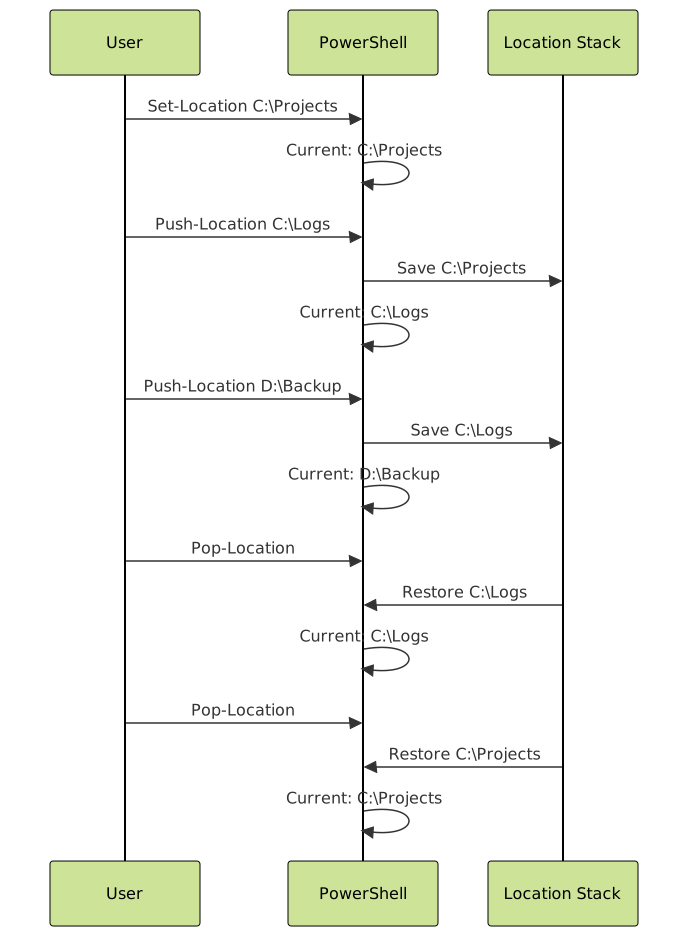
Performance and Best Practices
Efficient Path Operations
# Use -LiteralPath for paths with special characters
Get-Item -LiteralPath "C:\[Test]\file.txt"

# Cache frequently used paths
$projectRoot = "C:\Projects\MyApp"
Set-Location $projectRoot

# Use relative paths when appropriate
Set-Location .\src\controllers
Set-Location ..\..\tests
Error Handling
# Check if path exists before navigation
$targetPath = "C:\Projects\NewApp"
if (Test-Path $targetPath) {
    Set-Location $targetPath
} else {
    Write-Warning "Path does not exist: $targetPath"
}

# Handle navigation errors
try {
    Set-Location C:\NonExistent -ErrorAction Stop
} catch {
    Write-Host "Failed to navigate: $_" -ForegroundColor Red
    # Stay in current location or handle gracefully
}
Script Portability
# Store and restore location in scripts
$originalLocation = Get-Location
try {
    Set-Location C:\Temp
    # Perform operations
} finally {
    Set-Location $originalLocation
}

# Or use Push/Pop for cleaner code
Push-Location C:\Temp
try {
    # Perform operations
} finally {
    Pop-Location
}
Common Navigation Patterns
Profile-Based Drive Mappings
Add frequently used drive mappings to your PowerShell profile for automatic availability:
# Edit your profile
notepad $PROFILE

# Add custom drives (paste this into your profile)
New-PSDrive -Name "Projects" -PSProvider FileSystem -Root "C:\Users\$env:USERNAME\Projects" -Description "Development Projects"
New-PSDrive -Name "Scripts" -PSProvider FileSystem -Root "C:\Users\$env:USERNAME\Documents\PowerShell" -Description "PowerShell Scripts"
Quick Directory Switching
# Create a function for quick switching (add to profile)
function Set-ProjectLocation {
    param([string]$ProjectName)

    $projectsRoot = "C:\Projects"
    $targetPath = Join-Path $projectsRoot $ProjectName

    if (Test-Path $targetPath) {
        Set-Location $targetPath
    } else {
        Write-Warning "Project '$ProjectName' not found"
    }
}

# Usage
Set-ProjectLocation WebApp
Set-ProjectLocation MobileApp
Troubleshooting Common Issues
Access Denied Errors
# Run as Administrator for protected locations
# Check current privileges
$isAdmin = ([Security.Principal.WindowsPrincipal][Security.Principal.WindowsIdentity]::GetCurrent()).IsInRole([Security.Principal.WindowsBuiltInRole]::Administrator)

if (-not $isAdmin) {
    Write-Warning "Administrator privileges required for this location"
}
Path Too Long
# Use UNC paths or subst for very long paths
New-PSDrive -Name "Long" -PSProvider FileSystem -Root "\\?\C:\Very\Long\Path\That\Exceeds\260\Characters"

# Or create a junction point
# cmd /c mklink /J C:\Short "C:\Very\Long\Path\That\Exceeds\260\Characters"
Drive Letter Conflicts
# Check for existing drives before creation
$driveName = "X"
if (Get-PSDrive -Name $driveName -ErrorAction SilentlyContinue) {
    Write-Warning "Drive $driveName already exists"
} else {
    New-PSDrive -Name $driveName -PSProvider FileSystem -Root "C:\MyFolder"
}
Summary
PowerShell’s navigation system extends far beyond simple file system operations. By understanding providers, drives, and location management, you can efficiently work with diverse data stores including the registry, environment variables, and custom locations. The location stack provides powerful context management, while custom PSDrives enable workflow optimization. Mastering these concepts is essential for effective PowerShell administration and automation.
Key takeaways:
- PowerShell providers expose different data stores as navigable drives
- Use
Set-LocationandGet-Locationfor basic navigation across all drive types - The location stack with
Push-LocationandPop-Locationenables efficient context switching - Custom PSDrives create shortcuts to frequently accessed locations
- Registry and environment variables are navigable just like file systems
- Proper error handling and path validation ensure robust scripts





