PowerShell’s verb-noun syntax is one of its most distinctive and powerful features, making commands predictable, discoverable, and intuitive. Unlike traditional command-line interfaces with cryptic abbreviations, PowerShell uses a consistent naming convention where every command (cmdlet) follows the Verb-Noun pattern. This standardization dramatically reduces the learning curve and enables you to guess command names with remarkable accuracy.
What is Verb-Noun Syntax?
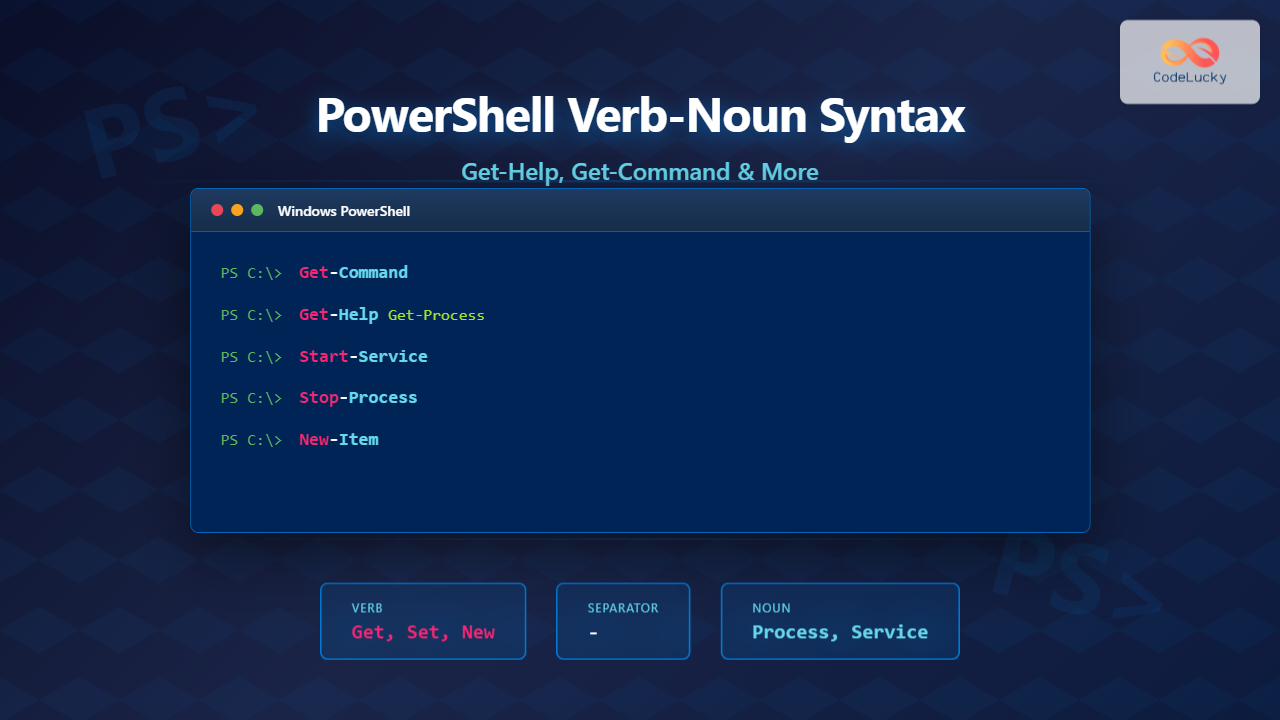
The verb-noun syntax is PowerShell’s naming convention for cmdlets where each command consists of two parts separated by a hyphen:
- Verb: Describes the action to perform (Get, Set, New, Remove, Start, Stop, etc.)
- Noun: Identifies the object or resource being acted upon (Process, Service, Item, Content, etc.)
For example, Get-Process retrieves process information, while Stop-Service stops a Windows service. This pattern makes PowerShell remarkably self-documenting.

Approved PowerShell Verbs
PowerShell maintains a list of approved verbs to ensure consistency across all cmdlets. These verbs are grouped into categories based on their purpose:
Common Verbs
Get-Verb | Where-Object {$_.Group -eq "Common"} | Select-Object Verb, Group

# Output:
Verb        Group
----        -----
Add         Common
Clear       Common
Close       Common
Copy        Common
Enter       Common
Exit        Common
Find        Common
Format      Common
Get         Common
Hide        Common
Join        Common
Lock        Common
Move        Common
New         Common
Open        Common
Optimize    Common
Pop         Common
Push        Common
Redo        Common
Remove      Common
Rename      Common
Reset       Common
Resize      Common
Search      Common
Select      Common
Set         Common
Show        Common
Skip        Common
Split       Common
Step        Common
Switch      Common
Undo        Common
Unlock      Common
Watch       Common
Data Verbs
Get-Verb | Where-Object {$_.Group -eq "Data"} | Select-Object Verb, Description

# Output examples:
Verb        Description
----        -----------
Backup      Stores data by replicating it
Checkpoint  Creates a snapshot of the current state
Compare     Evaluates data against another
Compress    Compacts data
Convert     Changes data format
Export      Outputs data to external destination
Import      Creates data from external source
Restore     Returns data to original state
Save        Preserves data to avoid loss
Understanding Get-Help: Your PowerShell Documentation Gateway
The Get-Help cmdlet is your primary resource for learning about PowerShell commands, concepts, and features. It provides comprehensive documentation directly in your terminal.
Basic Get-Help Usage
# Get help for a specific cmdlet
Get-Help Get-Process

# Output:
NAME
    Get-Process

SYNOPSIS
    Gets the processes that are running on the local computer.

SYNTAX
    Get-Process [[-Name] <String[]>] [-ComputerName <String[]>]
    [-FileVersionInfo] [-Module] [<CommonParameters>]

DESCRIPTION
    The Get-Process cmdlet gets the processes on a local or remote computer...
Get-Help Parameters
# Show detailed help with examples
Get-Help Get-Process -Detailed

# Show full technical documentation
Get-Help Get-Process -Full

# Show only examples
Get-Help Get-Process -Examples

# Show help in separate window (Windows only)
Get-Help Get-Process -ShowWindow

# Get help about PowerShell concepts
Get-Help about_Variables
Get-Help about_Operators
Get-Help about_Functions
Updating Help Content
# Update help for all modules (requires admin rights)
Update-Help

# Update help for specific module
Update-Help -Module Microsoft.PowerShell.Management

# Update help with errors suppressed
Update-Help -ErrorAction SilentlyContinue
Mastering Get-Command: Discover Available Cmdlets
The Get-Command cmdlet helps you discover what commands are available in PowerShell, filter them by type, module, or pattern, and explore their syntax.
Finding Commands by Pattern
# Get all commands with "Process" in the name
Get-Command *Process*

# Output:
CommandType     Name                          Version    Source
-----------     ----                          -------    ------
Cmdlet          Debug-Process                 7.0.0.0    Microsoft.PowerShell.Management
Cmdlet          Get-Process                   7.0.0.0    Microsoft.PowerShell.Management
Cmdlet          Start-Process                 7.0.0.0    Microsoft.PowerShell.Management
Cmdlet          Stop-Process                  7.0.0.0    Microsoft.PowerShell.Management
Cmdlet          Wait-Process                  7.0.0.0    Microsoft.PowerShell.Management
Filtering by Verb or Noun
# Get all cmdlets that use the "Get" verb
Get-Command -Verb Get

# Get all cmdlets that work with Services
Get-Command -Noun Service

# Output for Get-Command -Noun Service:
CommandType     Name                          Version    Source
-----------     ----                          -------    ------
Cmdlet          Get-Service                   7.0.0.0    Microsoft.PowerShell.Management
Cmdlet          New-Service                   7.0.0.0    Microsoft.PowerShell.Management
Cmdlet          Restart-Service               7.0.0.0    Microsoft.PowerShell.Management
Cmdlet          Resume-Service                7.0.0.0    Microsoft.PowerShell.Management
Cmdlet          Set-Service                   7.0.0.0    Microsoft.PowerShell.Management
Cmdlet          Start-Service                 7.0.0.0    Microsoft.PowerShell.Management
Cmdlet          Stop-Service                  7.0.0.0    Microsoft.PowerShell.Management
Cmdlet          Suspend-Service               7.0.0.0    Microsoft.PowerShell.Management
Filtering by Command Type
# Get only cmdlets
Get-Command -CommandType Cmdlet

# Get only functions
Get-Command -CommandType Function

# Get only aliases
Get-Command -CommandType Alias

# Get commands from specific module
Get-Command -Module Microsoft.PowerShell.Security
Inspecting Command Syntax
# Show command syntax
Get-Command Get-Process -Syntax

# Output:
Get-Process [[-Name] <string[]>] [-ComputerName <string[]>]
[-FileVersionInfo] [-Module] [<CommonParameters>]

Get-Process [[-Name] <string[]>] -IncludeUserName [<CommonParameters>]

Get-Process -Id <int[]> [-ComputerName <string[]>] [-FileVersionInfo]
[-Module] [<CommonParameters>]

Get-Process -Id <int[]> -IncludeUserName [<CommonParameters>]

Get-Process -InputObject <Process[]> [-ComputerName <string[]>]
[-FileVersionInfo] [-Module] [<CommonParameters>]

Get-Process -InputObject <Process[]> -IncludeUserName [<CommonParameters>]
Common Verb Categories and Examples
Data Retrieval (Get Verbs)
# Get information about processes
Get-Process

# Get Windows services
Get-Service

# Get files and folders
Get-ChildItem C:\Windows

# Get content from a file
Get-Content C:\logs\app.log

# Get event logs
Get-EventLog -LogName Application -Newest 10

# Get network adapter information
Get-NetAdapter
Data Modification (Set Verbs)
# Set service startup type
Set-Service -Name "wuauserv" -StartupType Manual

# Set file content
Set-Content -Path C:\temp\config.txt -Value "New Configuration"

# Set execution policy
Set-ExecutionPolicy RemoteSigned -Scope CurrentUser

# Set location (change directory)
Set-Location C:\Projects
Object Creation (New Verbs)
# Create new directory
New-Item -Path C:\Projects\NewApp -ItemType Directory

# Create new file
New-Item -Path C:\temp\test.txt -ItemType File

# Create new service
New-Service -Name "MyService" -BinaryPathName "C:\apps\service.exe"

# Create new alias
New-Alias -Name "list" -Value "Get-ChildItem"
Object Removal (Remove Verbs)
# Remove file or directory
Remove-Item -Path C:\temp\old.txt

# Remove service
Remove-Service -Name "MyService"

# Remove variable
Remove-Variable -Name "tempVar"

# Remove module from session
Remove-Module -Name "MyModule"
Interactive Command Discovery Workflow
Here’s a practical workflow for discovering and learning new PowerShell commands:
# Step 1: Find commands related to your task
Get-Command *Network*

# Step 2: Narrow down by verb
Get-Command -Verb Get -Noun *Network*

# Step 3: Check command syntax
Get-Command Get-NetAdapter -Syntax

# Step 4: View examples
Get-Help Get-NetAdapter -Examples

# Step 5: Try the command
Get-NetAdapter

# Step 6: Explore parameters
Get-Help Get-NetAdapter -Parameter *
Advanced Get-Command Techniques
Finding Commands with Specific Parameters
# Find cmdlets with ComputerName parameter (for remote execution)
Get-Command -ParameterName ComputerName | Select-Object Name, Module

# Find cmdlets with Credential parameter
Get-Command -ParameterName Credential | Select-Object Name, Source

# Output example:
Name                              Source
----                              ------
Connect-PSSession                 Microsoft.PowerShell.Core
Enter-PSSession                   Microsoft.PowerShell.Core
Get-Credential                    Microsoft.PowerShell.Security
Get-Service                       Microsoft.PowerShell.Management
Get-WmiObject                     Microsoft.PowerShell.Management
Exploring Command Details
# Get detailed information about a cmdlet
Get-Command Get-Process | Format-List *

# Output includes:
HelpUri              : https://go.microsoft.com/fwlink/?LinkID=...
DLL                  : Microsoft.PowerShell.Commands.Management.dll
Verb                 : Get
Noun                 : Process
CommandType          : Cmdlet
Definition           : Get-Process [[-Name] ]...
ParameterSets        : {Name, Id, InputObject}
Parameters           : {[Name, System.Management.Automation...]...}
Practical Examples: Combining Verb-Noun Knowledge
Service Management
# View all service-related commands
Get-Command -Noun Service

# Get status of specific service
Get-Service -Name "wuauserv"

# Output:
Status   Name               DisplayName
------   ----               -----------
Running  wuauserv           Windows Update

# Stop a service
Stop-Service -Name "wuauserv"

# Start a service
Start-Service -Name "wuauserv"

# Restart a service
Restart-Service -Name "wuauserv"

# Set service to start automatically
Set-Service -Name "wuauserv" -StartupType Automatic
Process Management
# View all process-related commands
Get-Command -Noun Process

# Get all running processes
Get-Process

# Get specific process
Get-Process -Name "chrome"

# Start a new process
Start-Process notepad.exe

# Stop a process
Stop-Process -Name "notepad"

# Wait for process to complete
Wait-Process -Name "installer"
File System Operations
# Item-related commands (files/folders)
Get-Command -Noun Item

# Get files and folders
Get-ChildItem C:\Projects

# Create new folder
New-Item -Path C:\Projects\NewFolder -ItemType Directory

# Copy items
Copy-Item -Path C:\source\file.txt -Destination C:\destination\

# Move items
Move-Item -Path C:\temp\old.txt -Destination C:\archive\

# Remove items
Remove-Item -Path C:\temp\*.log

# Rename items
Rename-Item -Path C:\file.txt -NewName "newfile.txt"
Best Practices for Using Verb-Noun Syntax
Predictable Command Discovery
When you need to perform a task, think in verb-noun terms:
- Need to retrieve information? Try
Get-* - Need to modify something? Try
Set-* - Need to create something? Try
New-* - Need to remove something? Try
Remove-* - Need to start something? Try
Start-* - Need to stop something? Try
Stop-*
Using Tab Completion
# Type partial command and press Tab
Get-Proc[Tab]  # Completes to Get-Process

# Tab through multiple matches
Get-S[Tab][Tab][Tab]  # Cycles through Get-Service, Get-ScheduledTask, etc.

# Tab complete parameters
Get-Process -N[Tab]  # Completes to -Name
Combining with Get-Help
# Quick workflow for new commands
Get-Command *Registry*
Get-Help Get-ItemProperty -Examples
Get-ItemProperty -Path "HKLM:\Software\Microsoft\Windows\CurrentVersion"
Common Cmdlet Categories
Management Cmdlets
Get-Command -Module Microsoft.PowerShell.Management |
    Select-Object Name -First 20

# Sample output:
Add-Content
Clear-Content
Clear-Item
Clear-ItemProperty
Copy-Item
Get-ChildItem
Get-Content
Get-Item
Get-ItemProperty
Get-Location
Get-Process
Get-Service
Move-Item
New-Item
Remove-Item
Set-Content
Set-Item
Set-Location
Start-Process
Stop-Process
Utility Cmdlets
Get-Command -Module Microsoft.PowerShell.Utility |
    Select-Object Name -First 15

# Sample output:
Compare-Object
ConvertFrom-Json
ConvertTo-Json
Export-Csv
Format-List
Format-Table
Get-Date
Get-Member
Get-Random
Import-Csv
Measure-Object
Select-Object
Sort-Object
Where-Object
Write-Host
Troubleshooting Common Issues
Command Not Found
# Error: The term 'Get-Something' is not recognized

# Solution 1: Check if command exists
Get-Command Get-Something

# Solution 2: Search for similar commands
Get-Command *Something*

# Solution 3: Check available modules
Get-Module -ListAvailable

# Solution 4: Import required module
Import-Module ModuleName
Help Content Missing
# Error: Help content not available

# Solution: Update help (requires admin)
Update-Help -ErrorAction SilentlyContinue

# Or use online help
Get-Help Get-Process -Online
Key Takeaways
Understanding PowerShell’s verb-noun syntax provides these advantages:
- Predictability: Guess command names based on the action and target
- Discoverability: Use
Get-Commandwith patterns to find relevant cmdlets - Self-Documentation: Command names clearly indicate their purpose
- Consistency: All cmdlets follow the same naming convention
- Comprehensive Help:
Get-Helpprovides detailed documentation for every command
The verb-noun pattern, combined with Get-Help and Get-Command, creates a powerful discovery system that makes PowerShell accessible to beginners while remaining efficient for experts. Start with these foundational cmdlets, explore related commands using the techniques covered here, and you’ll quickly build proficiency in PowerShell automation.
Remember: when in doubt, Get-Command finds it, and Get-Help explains it. This simple workflow unlocks the full potential of PowerShell’s thousands of cmdlets.