
PowerShell is a powerful automation framework, but with great power comes great responsibility. Security hardening is essential to protect your systems from unauthorized access, credential theft, and data breaches. This comprehensive guide covers secure remote shell configuration, over-the-wire encryption, and secrets management in PowerShell environments.
Understanding PowerShell Security Fundamentals
PowerShell security encompasses multiple layers: execution policies, remoting protocols, credential management, and audit logging. Each layer requires careful configuration to create a defense-in-depth strategy.
Execution Policies and Script Signing
Execution policies control which scripts can run on your system. While not a security boundary, they prevent accidental execution of malicious scripts.
# Check current execution policy
Get-ExecutionPolicy -List

# Set execution policy for current user
Set-ExecutionPolicy -ExecutionPolicy RemoteSigned -Scope CurrentUser

# Verify digital signature of a script
Get-AuthenticodeSignature -FilePath .\MyScript.ps1

# Sign a script with your code signing certificate
$cert = Get-ChildItem -Path Cert:\CurrentUser\My -CodeSigningCert
Set-AuthenticodeSignature -FilePath .\MyScript.ps1 -Certificate $cert
Output example:
Directory: Microsoft.PowerShell.Security\Certificate::CurrentUser\My

SignerCertificate                         Status                         Path
-----------------                         ------                         ----
E5C4B9F3A2D1C8B7E6F5A4D3C2B1A0E9         Valid                          MyScript.ps1

Securing PowerShell Remoting with WinRM
Windows Remote Management (WinRM) is the default protocol for PowerShell remoting. Proper configuration is critical for secure remote access.
Configuring WinRM with HTTPS
HTTPS encryption protects credentials and data in transit. Here’s how to configure WinRM for HTTPS:
# Create self-signed certificate for testing (use CA-issued cert in production)
$cert = New-SelfSignedCertificate -DnsName "server.domain.com" `
    -CertStoreLocation "Cert:\LocalMachine\My" `
    -KeyExportPolicy NonExportable `
    -KeySpec KeyExchange

# Configure WinRM HTTPS listener
New-WSManInstance -ResourceURI winrm/config/Listener `
    -SelectorSet @{Address="*";Transport="HTTPS"} `
    -ValueSet @{Hostname="server.domain.com";CertificateThumbprint=$cert.Thumbprint}

# Configure firewall rule
New-NetFirewallRule -DisplayName "WinRM HTTPS" `
    -Direction Inbound `
    -LocalPort 5986 `
    -Protocol TCP `
    -Action Allow

# Verify HTTPS listener
Get-WSManInstance -ResourceURI winrm/config/Listener -Enumerate
Output:
cfg                   : http://schemas.microsoft.com/wbem/wsman/1/config/listener
xsi                   : http://www.w3.org/2001/XMLSchema-instance
lang                  : en-US
Address               : *
Transport             : HTTPS
Port                  : 5986
Hostname              : server.domain.com
Enabled               : true
URLPrefix             : wsman
CertificateThumbprint : E5C4B9F3A2D1C8B7E6F5A4D3C2B1A0E9F8D7C6B5
Connecting Securely to Remote Systems
# Connect using HTTPS
$session = New-PSSession -ComputerName "server.domain.com" `
    -UseSSL `
    -Credential (Get-Credential)

# Execute commands remotely
Invoke-Command -Session $session -ScriptBlock {
    Get-Service | Where-Object Status -eq 'Running'
}

# Configure session options for additional security
$options = New-PSSessionOption `
    -SkipCACheck:$false `
    -SkipCNCheck:$false `
    -SkipRevocationCheck:$false `
    -OperationTimeout 60000 `
    -IdleTimeout 180000

$session = New-PSSession -ComputerName "server.domain.com" `
    -UseSSL `
    -SessionOption $options `
    -Credential (Get-Credential)

# Always clean up sessions
Remove-PSSession -Session $session
Implementing Just Enough Administration (JEA)
JEA restricts what users can do during PowerShell remoting sessions, implementing the principle of least privilege.
# Create role capability file
New-PSRoleCapabilityFile -Path "C:\JEA\RestartService.psrc" `
    -VisibleCmdlets @{
        Name = 'Restart-Service'
        Parameters = @{
            Name = 'Name'
            ValidateSet = 'Spooler', 'W3SVC'
        }
    },
    @{
        Name = 'Get-Service'
    }

# Create session configuration file
New-PSSessionConfigurationFile -Path "C:\JEA\ServiceManagement.pssc" `
    -SessionType RestrictedRemoteServer `
    -RunAsVirtualAccount `
    -RoleDefinitions @{
        'DOMAIN\ServiceOperators' = @{ RoleCapabilities = 'RestartService' }
    }

# Register JEA endpoint
Register-PSSessionConfiguration -Name "ServiceManagement" `
    -Path "C:\JEA\ServiceManagement.pssc" `
    -Force

# Connect to JEA endpoint
$session = New-PSSession -ComputerName localhost `
    -ConfigurationName ServiceManagement `
    -Credential (Get-Credential)

# Test restricted access
Invoke-Command -Session $session -ScriptBlock {
    Get-Command  # Shows only allowed commands
}

SSH-Based PowerShell Remoting
PowerShell 6+ supports SSH as an alternative to WinRM, providing cross-platform remoting capabilities with industry-standard encryption.
Configuring OpenSSH Server
# Install OpenSSH Server on Windows
Add-WindowsCapability -Online -Name OpenSSH.Server~~~~0.0.1.0

# Start and configure SSH service
Start-Service sshd
Set-Service -Name sshd -StartupType 'Automatic'

# Configure PowerShell as SSH subsystem
$sshdConfig = "C:\ProgramData\ssh\sshd_config"
Add-Content -Path $sshdConfig -Value "Subsystem powershell c:/progra~1/powershell/7/pwsh.exe -sshs -NoLogo"

# Restart SSH service
Restart-Service sshd

# Configure firewall (if not already done)
New-NetFirewallRule -Name sshd -DisplayName 'OpenSSH Server (sshd)' `
    -Enabled True -Direction Inbound -Protocol TCP -Action Allow -LocalPort 22
Connecting via SSH
# Connect using SSH-based remoting
$session = New-PSSession -HostName "server.domain.com" `
    -UserName "admin" `
    -SSHTransport

# Use key-based authentication (more secure)
$session = New-PSSession -HostName "server.domain.com" `
    -UserName "admin" `
    -KeyFilePath "C:\Users\admin\.ssh\id_rsa"

# Execute commands
Invoke-Command -Session $session -ScriptBlock {
    Get-Process | Select-Object -First 5
}

# Clean up
Remove-PSSession $session
SSH Key Management Best Practices
# Generate SSH key pair (run in pwsh on Windows)
ssh-keygen -t ed25519 -C "[email protected]" -f "$HOME\.ssh\id_ed25519"

# Set proper permissions on private key (Windows)
icacls "$HOME\.ssh\id_ed25519" /inheritance:r
icacls "$HOME\.ssh\id_ed25519" /grant:r "$env:USERNAME:(R)"

# Copy public key to remote server
$publicKey = Get-Content "$HOME\.ssh\id_ed25519.pub"
$session = New-PSSession -HostName "server.domain.com" -UserName "admin"
Invoke-Command -Session $session -ScriptBlock {
    param($key)
    $authKeys = "$HOME\.ssh\authorized_keys"
    New-Item -ItemType Directory -Path "$HOME\.ssh" -Force | Out-Null
    Add-Content -Path $authKeys -Value $key
} -ArgumentList $publicKey
Over-the-Wire Encryption and Data Protection
Protecting data in transit and at rest is crucial for maintaining confidentiality and integrity.
Understanding PowerShell Remoting Encryption
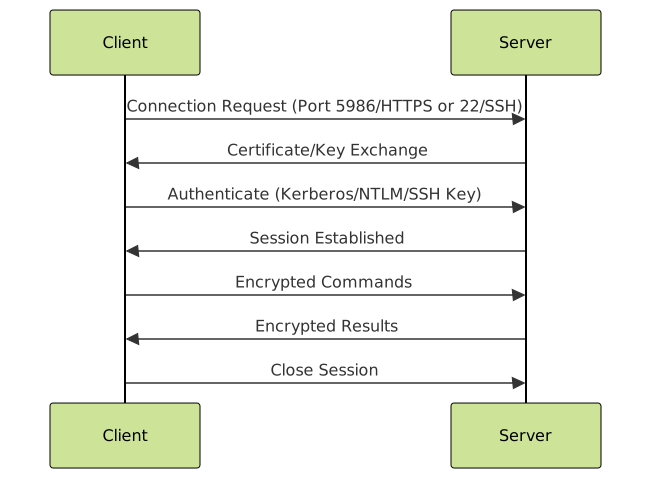
Encrypting Sensitive Data
# Using Data Protection API (DPAPI) for local encryption
$secureString = ConvertTo-SecureString "MySecret123!" -AsPlainText -Force
$encrypted = $secureString | ConvertFrom-SecureString
$encrypted | Out-File "C:\Secure\encrypted.txt"

# Decrypt
$encryptedData = Get-Content "C:\Secure\encrypted.txt"
$secureString = $encryptedData | ConvertTo-SecureString
$plainText = [System.Runtime.InteropServices.Marshal]::PtrToStringAuto(
    [System.Runtime.InteropServices.Marshal]::SecureStringToBSTR($secureString)
)

# Using AES encryption with custom key
$key = New-Object Byte[] 32
[Security.Cryptography.RNGCryptoServiceProvider]::Create().GetBytes($key)
$key | Out-File "C:\Secure\aes.key" -Encoding Byte

$secureString = ConvertTo-SecureString "MySecret123!" -AsPlainText -Force
$encrypted = $secureString | ConvertFrom-SecureString -Key $key
$encrypted | Out-File "C:\Secure\encrypted_aes.txt"

# Decrypt with key
$key = Get-Content "C:\Secure\aes.key" -Encoding Byte
$encryptedData = Get-Content "C:\Secure\encrypted_aes.txt"
$secureString = $encryptedData | ConvertTo-SecureString -Key $key
Secure File Transfer
# Transfer files securely using PowerShell remoting
$session = New-PSSession -ComputerName "server.domain.com" -UseSSL -Credential (Get-Credential)

# Copy file to remote server
Copy-Item -Path "C:\Local\sensitive.txt" `
    -Destination "C:\Remote\" `
    -ToSession $session

# Copy file from remote server
Copy-Item -Path "C:\Remote\data.txt" `
    -Destination "C:\Local\" `
    -FromSession $session

# Transfer with progress
$file = "C:\Large\bigfile.zip"
Copy-Item -Path $file -Destination "C:\Remote\" -ToSession $session -Verbose

Remove-PSSession $session
Secrets Management in PowerShell
Never hardcode credentials or API keys in scripts. Use secure secrets management solutions instead.
Using SecretManagement Module
# Install SecretManagement module
Install-Module -Name Microsoft.PowerShell.SecretManagement -Force
Install-Module -Name Microsoft.PowerShell.SecretStore -Force

# Register SecretStore vault
Register-SecretVault -Name "LocalStore" -ModuleName "Microsoft.PowerShell.SecretStore" -DefaultVault

# Configure SecretStore (first-time setup)
Set-SecretStoreConfiguration -Authentication Password -PasswordTimeout 3600 -Interaction None

# Store a secret
$credential = Get-Credential
Set-Secret -Name "DatabaseCredential" -Secret $credential -Vault "LocalStore"

# Store API key as SecureString
$apiKey = Read-Host "Enter API Key" -AsSecureString
Set-Secret -Name "APIKey" -Secret $apiKey -Vault "LocalStore"

# Retrieve secrets
$dbCred = Get-Secret -Name "DatabaseCredential" -Vault "LocalStore"
$apiKey = Get-Secret -Name "APIKey" -Vault "LocalStore" -AsPlainText

# List all secrets
Get-SecretInfo -Vault "LocalStore"

# Remove secret
Remove-Secret -Name "OldCredential" -Vault "LocalStore"
Output example:
Name                  Type          VaultName
----                  ----          ---------
DatabaseCredential    PSCredential  LocalStore
APIKey                SecureString  LocalStore
ServiceAccount        PSCredential  LocalStore
Azure Key Vault Integration
# Install Az.KeyVault module
Install-Module -Name Az.KeyVault -Force

# Connect to Azure
Connect-AzAccount

# Create Key Vault (one-time setup)
$rgName = "MyResourceGroup"
$kvName = "MyKeyVault$(Get-Random)"
$location = "EastUS"

New-AzResourceGroup -Name $rgName -Location $location
New-AzKeyVault -Name $kvName -ResourceGroupName $rgName -Location $location

# Store secret in Key Vault
$secretValue = ConvertTo-SecureString "MyDatabasePassword!" -AsPlainText -Force
Set-AzKeyVaultSecret -VaultName $kvName -Name "DatabasePassword" -SecretValue $secretValue

# Retrieve secret
$secret = Get-AzKeyVaultSecret -VaultName $kvName -Name "DatabasePassword"
$plainText = [System.Runtime.InteropServices.Marshal]::PtrToStringAuto(
    [System.Runtime.InteropServices.Marshal]::SecureStringToBSTR($secret.SecretValue)
)

# Use in script
$connectionString = "Server=myserver;Database=mydb;User Id=admin;Password=$plainText"

# Store certificate
$certPath = "C:\Certs\mycert.pfx"
$certPassword = ConvertTo-SecureString "CertPassword!" -AsPlainText -Force
Import-AzKeyVaultCertificate -VaultName $kvName -Name "MyCertificate" `
    -FilePath $certPath -Password $certPassword
Environment-Specific Configuration
# Create configuration file structure
$config = @{
    Development = @{
        DatabaseServer = "dev-sql.local"
        APIEndpoint = "https://api-dev.domain.com"
        SecretVault = "DevVault"
    }
    Production = @{
        DatabaseServer = "prod-sql.domain.com"
        APIEndpoint = "https://api.domain.com"
        SecretVault = "ProdVault"
    }
}

# Save configuration
$config | ConvertTo-Json -Depth 3 | Out-File "config.json"

# Load environment-specific config
function Get-EnvironmentConfig {
    param([string]$Environment = "Development")

    $config = Get-Content "config.json" | ConvertFrom-Json
    return $config.$Environment
}

# Use in script
$env = Get-EnvironmentConfig -Environment "Production"
$dbPassword = Get-Secret -Name "DatabasePassword" -Vault $env.SecretVault
$connection = "Server=$($env.DatabaseServer);User Id=admin;Password=$($dbPassword)"

Credential Management Best Practices
Secure Credential Prompt
# Never store plaintext passwords
# BAD - Don't do this
$username = "admin"
$password = "P@ssw0rd123"

# GOOD - Use Get-Credential
$credential = Get-Credential -Message "Enter admin credentials"

# Use with remote sessions
$session = New-PSSession -ComputerName "server.domain.com" -Credential $credential

# Create PSCredential object from SecretStore
$username = "domain\admin"
$password = Get-Secret -Name "AdminPassword" -AsPlainText | ConvertTo-SecureString -AsPlainText -Force
$credential = New-Object System.Management.Automation.PSCredential($username, $password)
Managed Service Accounts
# Create Group Managed Service Account (gMSA) - run on Domain Controller
New-ADServiceAccount -Name "PowerShellAutomation" `
    -DNSHostName "automation.domain.com" `
    -PrincipalsAllowedToRetrieveManagedPassword "AutomationServers" `
    -ManagedPasswordIntervalInDays 30

# Install gMSA on automation server
Install-ADServiceAccount -Identity "PowerShellAutomation"

# Test gMSA
Test-ADServiceAccount -Identity "PowerShellAutomation"

# Use gMSA in scheduled task
$action = New-ScheduledTaskAction -Execute "PowerShell.exe" `
    -Argument "-File C:\Scripts\Automation.ps1"
$trigger = New-ScheduledTaskTrigger -Daily -At 3am
$principal = New-ScheduledTaskPrincipal -UserId "DOMAIN\PowerShellAutomation$" `
    -LogonType Password
Register-ScheduledTask -TaskName "AutomationTask" `
    -Action $action -Trigger $trigger -Principal $principal
Auditing and Logging
Comprehensive logging is essential for detecting security incidents and maintaining compliance.
Enable PowerShell Logging
# Enable Script Block Logging via Group Policy or registry
$regPath = "HKLM:\Software\Policies\Microsoft\Windows\PowerShell\ScriptBlockLogging"
New-Item -Path $regPath -Force | Out-Null
Set-ItemProperty -Path $regPath -Name "EnableScriptBlockLogging" -Value 1

# Enable Module Logging
$regPath = "HKLM:\Software\Policies\Microsoft\Windows\PowerShell\ModuleLogging"
New-Item -Path $regPath -Force | Out-Null
Set-ItemProperty -Path $regPath -Name "EnableModuleLogging" -Value 1

# Enable Transcription
$regPath = "HKLM:\Software\Policies\Microsoft\Windows\PowerShell\Transcription"
New-Item -Path $regPath -Force | Out-Null
Set-ItemProperty -Path $regPath -Name "EnableTranscripting" -Value 1
Set-ItemProperty -Path $regPath -Name "OutputDirectory" -Value "C:\PSTranscripts"
Set-ItemProperty -Path $regPath -Name "EnableInvocationHeader" -Value 1

# Query PowerShell logs
Get-WinEvent -LogName "Microsoft-Windows-PowerShell/Operational" -MaxEvents 100 |
    Where-Object {$_.Id -eq 4104} |  # Script Block Logging events
    Select-Object TimeCreated, Message -First 5
Custom Security Logging
# Create security audit function
function Write-SecurityAudit {
    param(
        [Parameter(Mandatory)]
        [string]$Action,

        [Parameter(Mandatory)]
        [string]$User,

        [string]$Resource,
        [string]$Result,
        [hashtable]$Details
    )

    $logEntry = [PSCustomObject]@{
        Timestamp = Get-Date -Format "yyyy-MM-dd HH:mm:ss"
        Action = $Action
        User = $User
        Resource = $Resource
        Result = $Result
        Details = ($Details | ConvertTo-Json -Compress)
        ComputerName = $env:COMPUTERNAME
    }

    $logPath = "C:\Logs\SecurityAudit.log"
    $logEntry | Export-Csv -Path $logPath -Append -NoTypeInformation

    # Also write to Windows Event Log
    Write-EventLog -LogName Application -Source "PowerShellSecurity" `
        -EventId 1001 -EntryType Information `
        -Message "Action: $Action, User: $User, Result: $Result"
}

# Use in scripts
try {
    $session = New-PSSession -ComputerName "server.domain.com" -Credential $cred
    Write-SecurityAudit -Action "RemoteConnection" -User $env:USERNAME `
        -Resource "server.domain.com" -Result "Success" `
        -Details @{Protocol="WinRM"; Port=5986}
} catch {
    Write-SecurityAudit -Action "RemoteConnection" -User $env:USERNAME `
        -Resource "server.domain.com" -Result "Failed" `
        -Details @{Error=$_.Exception.Message}
}
Security Hardening Checklist
Implement these measures to secure your PowerShell environment:
System-Level Hardening
- Use RemoteSigned or AllSigned execution policy
- Enable PowerShell Script Block Logging, Module Logging, and Transcription
- Disable PowerShell v2 if not required:
Disable-WindowsOptionalFeature -Online -FeatureName MicrosoftWindowsPowerShellV2Root - Configure Constrained Language Mode for untrusted users
- Implement Application Control (AppLocker or Windows Defender Application Control)
- Keep PowerShell updated to the latest version
Network and Remoting
- Use HTTPS (port 5986) instead of HTTP (port 5985) for WinRM
- Implement certificate-based authentication when possible
- Configure JEA endpoints for role-based access control
- Restrict remoting to specific IP addresses using firewall rules
- Disable WinRM when not needed:
Disable-PSRemoting -Force - Use SSH with key-based authentication for cross-platform scenarios
Credential and Secrets Management
- Never hardcode credentials in scripts
- Use SecretManagement module or Azure Key Vault for secrets
- Implement Group Managed Service Accounts (gMSA) for automation
- Rotate credentials regularly
- Use separate accounts for different privilege levels
- Enable MFA for administrative accounts
Code Security
- Sign all production scripts with code signing certificates
- Validate and sanitize user input to prevent injection attacks
- Use parameterized queries for database operations
- Implement error handling without exposing sensitive information
- Perform security code reviews
- Use static analysis tools (PSScriptAnalyzer) with security rules
Real-World Security Scenario
Here’s a complete example demonstrating secure automation with credential management, logging, and error handling:
#Requires -Version 7
#Requires -Modules Microsoft.PowerShell.SecretManagement, Az.KeyVault

<#
.SYNOPSIS
    Securely connects to multiple servers and collects system information
.DESCRIPTION
    Demonstrates security best practices including secrets management,
    secure remoting, auditing, and error handling
#>

[CmdletBinding()]
param(
    [Parameter(Mandatory)]
    [ValidateSet('Development', 'Production')]
    [string]$Environment,

    [Parameter(Mandatory)]
    [string[]]$ComputerName
)

# Initialize logging
$logPath = "C:\Logs\SystemAudit_$(Get-Date -Format 'yyyyMMdd').log"

function Write-AuditLog {
    param([string]$Message, [string]$Level = "INFO")
    $entry = "$(Get-Date -Format 'yyyy-MM-dd HH:mm:ss') [$Level] $Message"
    Add-Content -Path $logPath -Value $entry
    Write-Verbose $entry
}

try {
    Write-AuditLog "Script started by $env:USERNAME"

    # Load environment configuration
    $config = Get-Content ".\config.json" | ConvertFrom-Json
    $envConfig = $config.$Environment

    # Retrieve credentials from SecretVault
    Write-AuditLog "Retrieving credentials from $($envConfig.SecretVault)"
    $credential = Get-Secret -Name "AdminCredential" -Vault $envConfig.SecretVault

    # Configure secure session options
    $sessionOptions = New-PSSessionOption -SkipCACheck:$false `
        -SkipCNCheck:$false -SkipRevocationCheck:$false `
        -OperationTimeout 60000 -IdleTimeout 180000

    $results = foreach ($computer in $ComputerName) {
        try {
            Write-AuditLog "Connecting to $computer"

            # Establish secure session
            $session = New-PSSession -ComputerName $computer -UseSSL `
                -Credential $credential -SessionOption $sessionOptions `
                -ErrorAction Stop

            # Collect system information
            $info = Invoke-Command -Session $session -ScriptBlock {
                [PSCustomObject]@{
                    ComputerName = $env:COMPUTERNAME
                    OSVersion = (Get-CimInstance Win32_OperatingSystem).Caption
                    LastBootTime = (Get-CimInstance Win32_OperatingSystem).LastBootUpTime
                    FreeMemoryGB = [math]::Round((Get-CimInstance Win32_OperatingSystem).FreePhysicalMemory/1MB, 2)
                    CPULoad = (Get-CimInstance Win32_Processor).LoadPercentage
                    Services = (Get-Service | Where-Object Status -eq 'Running').Count
                }
            }

            Write-AuditLog "Successfully collected data from $computer"

            # Clean up session
            Remove-PSSession -Session $session

            $info

        } catch {
            $errorMsg = $_.Exception.Message
            Write-AuditLog "Failed to connect to $computer: $errorMsg" "ERROR"

            [PSCustomObject]@{
                ComputerName = $computer
                Status = "Failed"
                Error = $errorMsg
            }
        }
    }

    # Export results securely
    $outputPath = "C:\Reports\SystemAudit_$Environment_$(Get-Date -Format 'yyyyMMdd').csv"
    $results | Export-Csv -Path $outputPath -NoTypeInformation

    Write-AuditLog "Report saved to $outputPath"
    Write-AuditLog "Script completed successfully"

    return $results

} catch {
    Write-AuditLog "Critical error: $($_.Exception.Message)" "ERROR"
    throw
} finally {
    # Cleanup
    Get-PSSession | Remove-PSSession
}
Advanced Security Topics
Detecting Malicious PowerShell Activity
# Monitor for suspicious PowerShell commands
$suspiciousPatterns = @(
    'Invoke-Expression',
    'DownloadString',
    'DownloadFile',
    'System.Net.WebClient',
    'IEX',
    '-EncodedCommand',
    'Invoke-Mimikatz',
    'Invoke-Shellcode'
)

# Search PowerShell logs
$events = Get-WinEvent -FilterHashtable @{
    LogName = 'Microsoft-Windows-PowerShell/Operational'
    Id = 4104  # Script Block Logging
    StartTime = (Get-Date).AddDays(-1)
}

$suspicious = $events | Where-Object {
    $message = $_.Message
    $suspiciousPatterns | Where-Object { $message -match $_ }
} | Select-Object TimeCreated, Message, UserId

if ($suspicious) {
    Write-Warning "Suspicious PowerShell activity detected!"
    $suspicious | Export-Csv "C:\Security\SuspiciousActivity.csv" -NoTypeInformation

    # Send alert
    Send-MailMessage -To "[email protected]" `
        -From "[email protected]" `
        -Subject "Security Alert: Suspicious PowerShell Activity" `
        -Body "Check attached report" `
        -Attachments "C:\Security\SuspiciousActivity.csv" `
        -SmtpServer "smtp.domain.com"
}
Implementing Defense in Depth
# Multi-layered security function
function Invoke-SecureCommand {
    [CmdletBinding()]
    param(
        [Parameter(Mandatory)]
        [scriptblock]$ScriptBlock,

        [Parameter(Mandatory)]
        [string]$ComputerName,

        [PSCredential]$Credential
    )

    # Layer 1: Input validation
    if ($ComputerName -notmatch '^[a-zA-Z0-9\-\.]+$') {
        throw "Invalid computer name format"
    }

    # Layer 2: Credential validation
    if (-not $Credential) {
        $Credential = Get-Secret -Name "RemoteAccess" -Vault "SecureVault"
    }

    # Layer 3: Connection validation
    if (-not (Test-WSMan -ComputerName $ComputerName -ErrorAction SilentlyContinue)) {
        throw "Cannot establish secure connection to $ComputerName"
    }

    # Layer 4: Audit logging
    $auditEntry = @{
        Timestamp = Get-Date
        User = $env:USERNAME
        TargetComputer = $ComputerName
        Action = "RemoteExecution"
    }

    try {
        # Layer 5: Secure execution
        $session = New-PSSession -ComputerName $ComputerName `
            -Credential $Credential -UseSSL -ErrorAction Stop

        $result = Invoke-Command -Session $session -ScriptBlock $ScriptBlock

        $auditEntry['Status'] = 'Success'
        $auditEntry['Result'] = "Executed successfully"

        return $result

    } catch {
        $auditEntry['Status'] = 'Failed'
        $auditEntry['Error'] = $_.Exception.Message
        throw

    } finally {
        # Layer 6: Cleanup
        if ($session) {
            Remove-PSSession -Session $session
        }

        # Layer 7: Audit trail
        $auditEntry | ConvertTo-Json | Add-Content "C:\Logs\ExecutionAudit.log"
    }
}

# Usage
Invoke-SecureCommand -ComputerName "server01.domain.com" -ScriptBlock {
    Get-Service -Name "W3SVC"
}
Conclusion
PowerShell security hardening requires a comprehensive approach covering execution policies, secure remoting, encryption, credential management, and continuous monitoring. By implementing these best practices, you create multiple layers of defense that protect your infrastructure from unauthorized access and data breaches.
Key takeaways include always using encrypted protocols (HTTPS/SSH), never hardcoding credentials, implementing JEA for least privilege access, enabling comprehensive logging, and regularly auditing your security posture. Security is not a one-time setup but an ongoing process requiring vigilance and regular updates.
As PowerShell continues evolving with new security features and capabilities, stay informed about the latest best practices and adapt your security strategy accordingly. Remember: the most secure environment is one where security is built in from the beginning, not added as an afterthought.





