
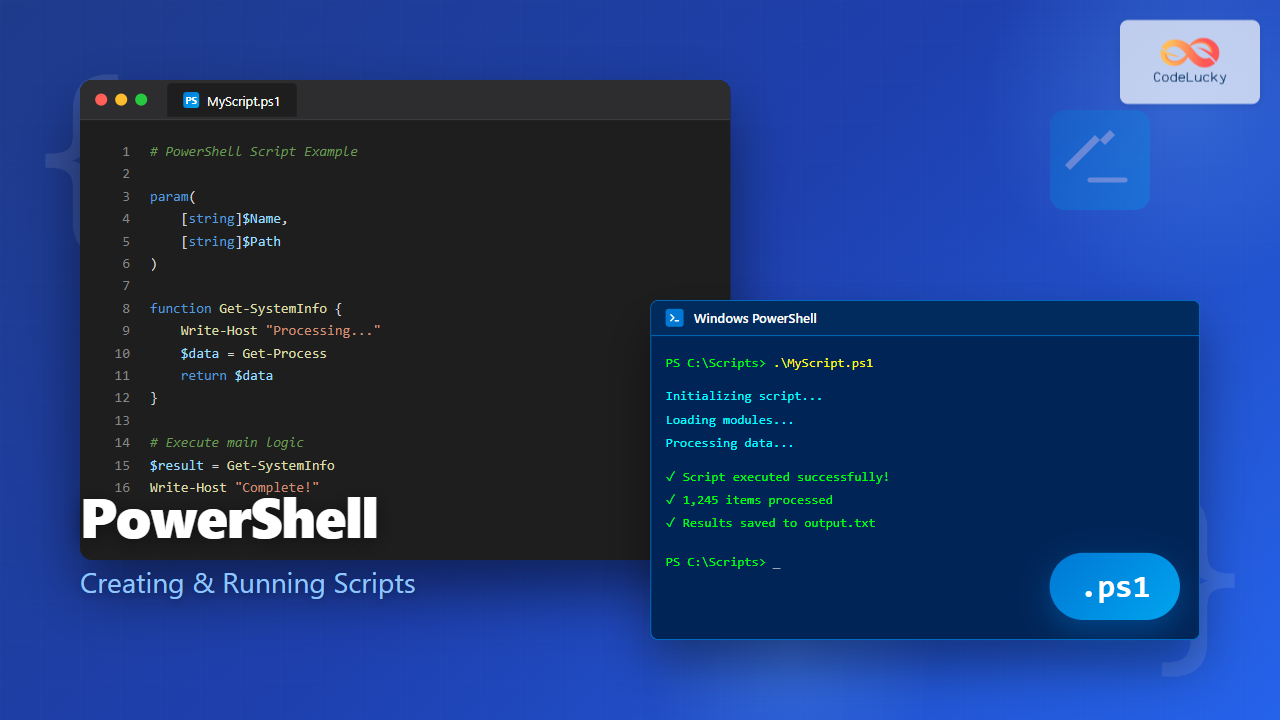
PowerShell scripts (.ps1 files) are the foundation of automation in Windows environments. Whether you’re managing servers, automating repetitive tasks, or building complex workflows, understanding how to create and execute .ps1 files is essential for any IT professional or developer.
This comprehensive guide walks you through everything you need to know about PowerShell scripting, from creating your first script to implementing advanced techniques and best practices.
What Are PowerShell .ps1 Files?
PowerShell script files use the .ps1 extension and contain a series of PowerShell commands that execute sequentially. Unlike running commands interactively in the PowerShell console, scripts allow you to save, share, and reuse your automation logic.

Key Characteristics
- Extension: Always ends with .ps1
- Plain Text: Can be edited with any text editor
- Sequential Execution: Commands run from top to bottom
- Reusable: Run multiple times with consistent results
- Parameterized: Can accept input arguments
Creating Your First PowerShell Script
Let’s create a simple PowerShell script step by step. You can use any text editor, but PowerShell ISE or Visual Studio Code with the PowerShell extension provide syntax highlighting and debugging features.
Method 1: Using Notepad
# Open Notepad
notepad MyFirstScript.ps1

# Add this content:
Write-Host "Hello from PowerShell Script!" -ForegroundColor Green
Get-Date
Write-Host "Script execution completed." -ForegroundColor Cyan

# Save the file
Method 2: Using PowerShell ISE
# Open PowerShell ISE
ise

# Create new script (Ctrl+N)
# Add your commands
# Save as .ps1 file (Ctrl+S)
Method 3: Creating from PowerShell Console
# Create script directly from console
@'
Write-Host "Creating script from console!" -ForegroundColor Yellow
Get-Process | Select-Object -First 5
'@ | Out-File -FilePath ".\ConsoleScript.ps1" -Encoding UTF8
Understanding PowerShell Execution Policies
Before running scripts, you must understand execution policies. These security features control which scripts can run on your system to prevent malicious code execution.

Checking Current Execution Policy
Get-ExecutionPolicy
Output:
Restricted
Setting Execution Policy
# Set for current user (recommended)
Set-ExecutionPolicy -ExecutionPolicy RemoteSigned -Scope CurrentUser

# Set for entire machine (requires Administrator)
Set-ExecutionPolicy -ExecutionPolicy RemoteSigned -Scope LocalMachine

# View all scopes
Get-ExecutionPolicy -List
Output:
        Scope ExecutionPolicy
        ----- ---------------
MachinePolicy       Undefined
   UserPolicy       Undefined
      Process       Undefined
  CurrentUser    RemoteSigned
 LocalMachine       Restricted
Execution Policy Levels Explained
- Restricted: Default setting; no scripts run
- AllSigned: Only scripts signed by trusted publisher
- RemoteSigned: Local scripts run; downloaded scripts must be signed
- Unrestricted: All scripts run with warning for downloaded ones
- Bypass: Nothing blocked; no warnings
Running PowerShell Scripts: Multiple Methods
Method 1: From PowerShell Console
# Navigate to script directory
cd C:\Scripts

# Run with relative path
.\MyFirstScript.ps1

# Run with absolute path
C:\Scripts\MyFirstScript.ps1

# Run from any location using full path
& "C:\Scripts\My Script With Spaces.ps1"
Output:
Hello from PowerShell Script!
Wednesday, October 22, 2025 2:52:00 PM
Script execution completed.
Method 2: From Command Prompt
powershell -File "C:\Scripts\MyFirstScript.ps1"

REM Or execute commands directly
powershell -Command "& 'C:\Scripts\MyFirstScript.ps1'"
Method 3: From File Explorer
Right-click the .ps1 file and select “Run with PowerShell”. This opens a PowerShell window, executes the script, and closes automatically.
Method 4: Using PowerShell ISE
- Open script in PowerShell ISE
- Press F5 to run entire script
- Press F8 to run selected lines
Script Parameters and Arguments
Parameters make scripts flexible and reusable by accepting input values at runtime.
Basic Parameter Example
# Save as Greet-User.ps1
param(
    [string]$Name,
    [int]$Age
)

Write-Host "Hello, $Name!" -ForegroundColor Green
Write-Host "You are $Age years old." -ForegroundColor Cyan
Running with parameters:
.\Greet-User.ps1 -Name "John" -Age 30
Output:
Hello, John!
You are 30 years old.
Advanced Parameter Features
# Save as Advanced-Script.ps1
param(
    [Parameter(Mandatory=$true)]
    [string]$ComputerName,

    [Parameter(Mandatory=$false)]
    [ValidateSet("Start", "Stop", "Restart")]
    [string]$Action = "Start",

    [switch]$Verbose
)

if ($Verbose) {
    Write-Host "Computer: $ComputerName" -ForegroundColor Yellow
    Write-Host "Action: $Action" -ForegroundColor Yellow
}

Write-Host "Performing $Action on $ComputerName..." -ForegroundColor Green
Usage:
.\Advanced-Script.ps1 -ComputerName "SERVER01" -Action "Restart" -Verbose
Output:
Computer: SERVER01
Action: Restart
Performing Restart on SERVER01...
Script Structure and Best Practices

Well-Structured Script Template
<#
.SYNOPSIS
    Brief description of script purpose
.DESCRIPTION
    Detailed description of what the script does
.PARAMETER Path
    Description of Path parameter
.EXAMPLE
    .\MyScript.ps1 -Path "C:\Data"
    Description of example
.NOTES
    Author: Your Name
    Date: October 22, 2025
    Version: 1.0
#>

param(
    [Parameter(Mandatory=$true)]
    [ValidateScript({Test-Path $_})]
    [string]$Path
)

# Set strict mode for better error detection
Set-StrictMode -Version Latest

# Error handling
try {
    # Main logic here
    Write-Host "Processing path: $Path" -ForegroundColor Green

    $items = Get-ChildItem -Path $Path
    Write-Host "Found $($items.Count) items" -ForegroundColor Cyan

    # Additional processing
    foreach ($item in $items) {
        Write-Host "  - $($item.Name)"
    }

} catch {
    Write-Error "An error occurred: $_"
    exit 1
}

Write-Host "Script completed successfully!" -ForegroundColor Green
exit 0
Working with Functions in Scripts
Functions organize code into reusable blocks and make scripts more maintainable.
# Save as Function-Example.ps1

function Get-DiskInfo {
    param(
        [string]$ComputerName = $env:COMPUTERNAME
    )

    $disks = Get-WmiObject -Class Win32_LogicalDisk -ComputerName $ComputerName -Filter "DriveType=3"

    foreach ($disk in $disks) {
        [PSCustomObject]@{
            Drive = $disk.DeviceID
            Label = $disk.VolumeName
            SizeGB = [math]::Round($disk.Size / 1GB, 2)
            FreeGB = [math]::Round($disk.FreeSpace / 1GB, 2)
            UsedPercent = [math]::Round((($disk.Size - $disk.FreeSpace) / $disk.Size) * 100, 2)
        }
    }
}

function Show-Report {
    param($Data)

    Write-Host "`nDisk Space Report" -ForegroundColor Yellow
    Write-Host ("=" * 70) -ForegroundColor Yellow
    $Data | Format-Table -AutoSize
}

# Main script execution
$diskData = Get-DiskInfo
Show-Report -Data $diskData
Output:
Disk Space Report
======================================================================
Drive Label      SizeGB FreeGB UsedPercent
----- -----      ------ ------ -----------
C:    Windows    237.23  89.45       62.29
D:    Data       931.51 456.78       50.96
Error Handling and Debugging
Try-Catch-Finally Blocks
# Save as Error-Handling.ps1

param([string]$FilePath)

try {
    Write-Host "Attempting to read file..." -ForegroundColor Cyan

    $content = Get-Content -Path $FilePath -ErrorAction Stop
    Write-Host "File read successfully!" -ForegroundColor Green
    Write-Host "Lines: $($content.Count)"

} catch [System.IO.FileNotFoundException] {
    Write-Error "File not found: $FilePath"

} catch [System.UnauthorizedAccessException] {
    Write-Error "Access denied to file: $FilePath"

} catch {
    Write-Error "Unexpected error: $($_.Exception.Message)"

} finally {
    Write-Host "Cleanup operations completed." -ForegroundColor Yellow
}
Debugging Techniques
# Enable debug output
$DebugPreference = "Continue"
Write-Debug "This is a debug message"

# Use verbose output
$VerbosePreference = "Continue"
Write-Verbose "This is verbose information"

# Add breakpoints in ISE
Set-PSBreakpoint -Script ".\MyScript.ps1" -Line 10

# Step through code
# F10 - Step Over
# F11 - Step Into
# Shift+F11 - Step Out
Practical Script Examples
Example 1: File Backup Script
# Save as Backup-Files.ps1

param(
    [Parameter(Mandatory=$true)]
    [string]$SourcePath,

    [Parameter(Mandatory=$true)]
    [string]$DestinationPath,

    [switch]$IncludeSubfolders
)

# Validate paths
if (-not (Test-Path $SourcePath)) {
    Write-Error "Source path does not exist: $SourcePath"
    exit 1
}

# Create destination if it doesn't exist
if (-not (Test-Path $DestinationPath)) {
    New-Item -ItemType Directory -Path $DestinationPath | Out-Null
    Write-Host "Created destination folder: $DestinationPath" -ForegroundColor Green
}

# Create timestamped backup folder
$timestamp = Get-Date -Format "yyyyMMdd_HHmmss"
$backupFolder = Join-Path $DestinationPath "Backup_$timestamp"
New-Item -ItemType Directory -Path $backupFolder | Out-Null

# Copy files
try {
    if ($IncludeSubfolders) {
        Copy-Item -Path "$SourcePath\*" -Destination $backupFolder -Recurse -Force
    } else {
        Copy-Item -Path "$SourcePath\*" -Destination $backupFolder -Force
    }

    $fileCount = (Get-ChildItem -Path $backupFolder -Recurse -File).Count
    Write-Host "Backup completed successfully!" -ForegroundColor Green
    Write-Host "Files backed up: $fileCount" -ForegroundColor Cyan
    Write-Host "Backup location: $backupFolder" -ForegroundColor Cyan

} catch {
    Write-Error "Backup failed: $($_.Exception.Message)"
    exit 1
}
Usage:
.\Backup-Files.ps1 -SourcePath "C:\Documents" -DestinationPath "D:\Backups" -IncludeSubfolders
Example 2: System Information Report
# Save as Get-SystemReport.ps1

function Get-SystemInfo {
    $os = Get-CimInstance -ClassName Win32_OperatingSystem
    $cpu = Get-CimInstance -ClassName Win32_Processor
    $memory = Get-CimInstance -ClassName Win32_PhysicalMemory

    [PSCustomObject]@{
        ComputerName = $env:COMPUTERNAME
        OS = $os.Caption
        OSVersion = $os.Version
        Architecture = $os.OSArchitecture
        Processor = $cpu.Name
        Cores = $cpu.NumberOfCores
        LogicalProcessors = $cpu.NumberOfLogicalProcessors
        TotalRAM_GB = [math]::Round(($memory | Measure-Object Capacity -Sum).Sum / 1GB, 2)
        LastBootTime = $os.LastBootUpTime
        Uptime = (Get-Date) - $os.LastBootUpTime
    }
}

function Export-Report {
    param($Data, $Path)

    $reportPath = Join-Path $Path "SystemReport_$(Get-Date -Format 'yyyyMMdd_HHmmss').html"

    $html = @"
<html>
<head>
    <style>
        body { font-family: Arial, sans-serif; margin: 20px; }
        table { border-collapse: collapse; width: 100%; }
        th, td { border: 1px solid #ddd; padding: 8px; text-align: left; }
        th { background-color: #4CAF50; color: white; }
    </style>
</head>
<body>
    <h1>System Information Report</h1>
    <p>Generated: $(Get-Date)</p>
    $(ConvertTo-Html -InputObject $Data -Fragment)
</body>
</html>
"@

    $html | Out-File -FilePath $reportPath -Encoding UTF8
    Write-Host "Report saved to: $reportPath" -ForegroundColor Green
}

# Generate and display report
$systemInfo = Get-SystemInfo
$systemInfo | Format-List

# Optionally export to HTML
Export-Report -Data $systemInfo -Path "C:\Reports"
Script Signing and Security
Signing scripts adds a digital signature that verifies the script’s authenticity and integrity.
Creating a Self-Signed Certificate
# Create certificate for code signing
$cert = New-SelfSignedCertificate -Subject "PowerShell Code Signing" `
    -CertStoreLocation "Cert:\CurrentUser\My" `
    -Type CodeSigningCert

# View the certificate
Get-ChildItem Cert:\CurrentUser\My -CodeSigningCert
Signing a Script
# Get the certificate
$cert = Get-ChildItem Cert:\CurrentUser\My -CodeSigningCert | Select-Object -First 1

# Sign the script
Set-AuthenticodeSignature -FilePath ".\MyScript.ps1" -Certificate $cert
Verifying Script Signature
# Check signature status
Get-AuthenticodeSignature -FilePath ".\MyScript.ps1"
Common Issues and Troubleshooting

Issue 1: Script Not Recognized
Error: “The term ‘.\script.ps1’ is not recognized…”
Solution:
# Use full path or ensure you're in the correct directory
cd C:\Scripts
.\MyScript.ps1

# Or use the call operator
& "C:\Scripts\MyScript.ps1"
Issue 2: Execution Policy Restriction
Error: “…cannot be loaded because running scripts is disabled…”
Solution:
# Check policy
Get-ExecutionPolicy

# Set to RemoteSigned
Set-ExecutionPolicy -ExecutionPolicy RemoteSigned -Scope CurrentUser

# Or bypass for single session
powershell -ExecutionPolicy Bypass -File ".\MyScript.ps1"
Issue 3: Access Denied
Error: “Access to the path is denied”
Solution:
# Run PowerShell as Administrator
# Right-click PowerShell icon > Run as Administrator

# Or request elevation in script
#Requires -RunAsAdministrator
Advanced Scripting Techniques
Script Modules
# Save as MyModule.psm1

function Get-Greeting {
    param([string]$Name)
    "Hello, $Name!"
}

function Get-Farewell {
    param([string]$Name)
    "Goodbye, $Name!"
}

Export-ModuleMember -Function Get-Greeting, Get-Farewell

# Use in script:
# Import-Module .\MyModule.psm1
# Get-Greeting -Name "John"
Scheduled Script Execution
# Create scheduled task to run script daily
$action = New-ScheduledTaskAction -Execute "PowerShell.exe" `
    -Argument "-File C:\Scripts\DailyBackup.ps1"

$trigger = New-ScheduledTaskTrigger -Daily -At "2:00 AM"

Register-ScheduledTask -Action $action -Trigger $trigger `
    -TaskName "Daily Backup Script" -Description "Automated daily backup"
Progress Indicators
# Show progress during long operations
$files = Get-ChildItem -Path "C:\Data" -Recurse
$totalFiles = $files.Count
$current = 0

foreach ($file in $files) {
    $current++
    $percentComplete = ($current / $totalFiles) * 100

    Write-Progress -Activity "Processing Files" `
        -Status "File: $($file.Name)" `
        -PercentComplete $percentComplete

    # Process file
    Start-Sleep -Milliseconds 100
}

Write-Progress -Activity "Processing Files" -Completed
Performance Optimization Tips
- Use .NET methods: Often faster than cmdlets for specific operations
- Filter early: Use -Filter instead of Where-Object when possible
- Pipeline carefully: Large datasets can slow down pipelines
- Avoid repeated calls: Store results in variables for reuse
- Use -NoEnumerate: Prevents unwrapping arrays in pipeline
# Slow - multiple Get-ChildItem calls
foreach ($i in 1..10) {
    $files = Get-ChildItem -Path "C:\Temp"
}

# Fast - call once, reuse result
$files = Get-ChildItem -Path "C:\Temp"
foreach ($i in 1..10) {
    # Use $files
}
Best Practices Checklist
- Use meaningful script and variable names
- Add comment-based help at the script beginning
- Implement parameter validation
- Use error handling (try-catch blocks)
- Set strict mode for better error detection
- Return proper exit codes (0 for success, non-zero for failure)
- Test scripts in isolated environments first
- Use version control (Git) for script management
- Document dependencies and requirements
- Avoid hardcoded paths; use parameters instead
- Clean up resources (close connections, remove temp files)
- Log important operations and errors
Conclusion
PowerShell scripting with .ps1 files transforms repetitive tasks into automated, reliable processes. Starting with simple scripts and gradually incorporating parameters, functions, and error handling creates robust automation solutions that save time and reduce errors.
The key to mastering PowerShell scripting is practice. Begin with small automation tasks in your daily work, experiment with different techniques, and gradually build more complex scripts as your confidence grows. Understanding execution policies, proper error handling, and best practices ensures your scripts are secure, maintainable, and effective.
Whether you’re automating system administration tasks, processing data, or building deployment pipelines, PowerShell .ps1 files provide the flexibility and power needed for modern IT automation. The examples and techniques covered in this guide provide a solid foundation for creating professional-grade PowerShell scripts that meet real-world automation needs.





