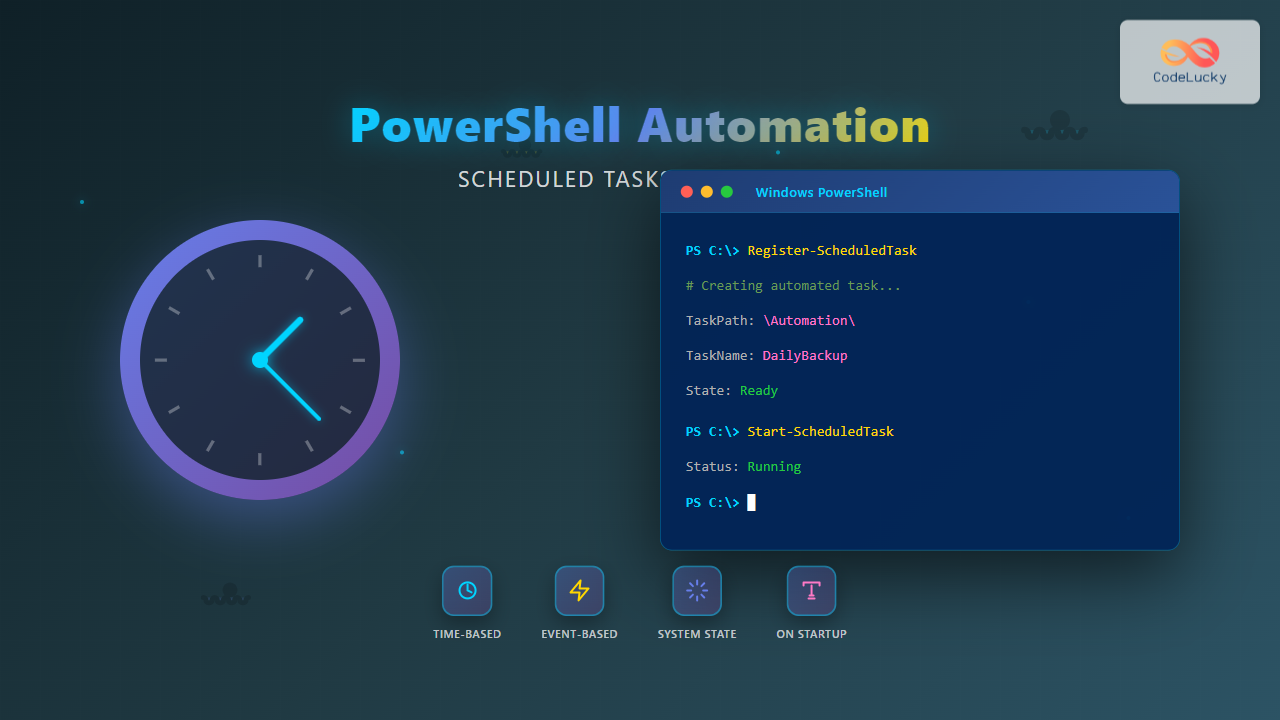
Scheduled tasks are essential for automating repetitive operations in Windows environments. PowerShell provides robust cmdlets for creating, managing, and monitoring scheduled tasks without relying on the graphical Task Scheduler interface. This comprehensive guide explores scheduled task automation using PowerShell’s ScheduledTasks module.
Understanding PowerShell Scheduled Tasks
The ScheduledTasks module introduced in Windows 8 and Windows Server 2012 provides native PowerShell cmdlets for task automation. These cmdlets interact directly with the Windows Task Scheduler service, offering programmatic control over task creation, modification, and execution.

Core ScheduledTasks Cmdlets
The module includes several primary cmdlets for task management:
Get-ScheduledTask– Retrieves scheduled task informationNew-ScheduledTask– Creates new scheduled task objectsRegister-ScheduledTask– Registers tasks with Task SchedulerSet-ScheduledTask– Modifies existing tasksUnregister-ScheduledTask– Removes scheduled tasksStart-ScheduledTask– Manually executes tasksStop-ScheduledTask– Terminates running tasks
Creating Your First Scheduled Task
Creating a scheduled task requires defining three essential components: the action to perform, the trigger that initiates execution, and optional settings for task behavior.
Basic Task Creation Example
# Define the action - what the task will execute
$action = New-ScheduledTaskAction -Execute "PowerShell.exe" `
    -Argument "-NoProfile -WindowStyle Hidden -File C:\Scripts\BackupScript.ps1"

# Define the trigger - when the task will run (daily at 2 AM)
$trigger = New-ScheduledTaskTrigger -Daily -At 2:00AM

# Define the principal - under which account the task runs
$principal = New-ScheduledTaskPrincipal -UserId "SYSTEM" `
    -LogonType ServiceAccount -RunLevel Highest

# Register the task
Register-ScheduledTask -TaskName "DailyBackup" `
    -Action $action `
    -Trigger $trigger `
    -Principal $principal `
    -Description "Automated daily backup at 2 AM"
Output:
TaskPath   TaskName     State
--------   --------     -----
\          DailyBackup  Ready
Understanding Task Components
Each scheduled task consists of multiple configurable elements that determine its behavior and execution context.
Task Actions
Actions define what the task executes. PowerShell supports executable programs, scripts, and COM handlers:
# Execute a PowerShell script
$action1 = New-ScheduledTaskAction -Execute "PowerShell.exe" `
    -Argument "-File C:\Scripts\Cleanup.ps1"

# Execute a batch file
$action2 = New-ScheduledTaskAction -Execute "C:\Scripts\backup.bat"

# Execute with working directory
$action3 = New-ScheduledTaskAction -Execute "Python.exe" `
    -Argument "process_data.py" `
    -WorkingDirectory "C:\DataProcessing"

# Multiple actions in sequence
$actions = @($action1, $action2, $action3)
Task Triggers
Triggers specify when tasks execute. PowerShell supports various trigger types including time-based, event-based, and system-state triggers:
# Daily trigger
$dailyTrigger = New-ScheduledTaskTrigger -Daily -At 3:00PM

# Weekly trigger (every Monday and Friday)
$weeklyTrigger = New-ScheduledTaskTrigger -Weekly -At 9:00AM `
    -DaysOfWeek Monday,Friday

# At startup
$startupTrigger = New-ScheduledTaskTrigger -AtStartup

# At logon
$logonTrigger = New-ScheduledTaskTrigger -AtLogOn

# On specific event
$eventTrigger = New-ScheduledTaskTrigger -Once -At (Get-Date) `
    -RepetitionInterval (New-TimeSpan -Minutes 30)
Advanced Trigger Configuration
PowerShell enables sophisticated trigger configurations including repetition patterns, delays, and conditional execution.
Repetition and Delays
# Repeat every 15 minutes for 8 hours
$trigger = New-ScheduledTaskTrigger -Once -At 8:00AM `
    -RepetitionInterval (New-TimeSpan -Minutes 15) `
    -RepetitionDuration (New-TimeSpan -Hours 8)

# Random delay up to 1 hour
$trigger.RandomDelay = "PT1H"

# Start only if idle for 10 minutes
$settings = New-ScheduledTaskSettingsSet -RunOnlyIfIdle `
    -IdleDuration (New-TimeSpan -Minutes 10) `
    -IdleWaitTimeout (New-TimeSpan -Minutes 30)

Register-ScheduledTask -TaskName "PeriodicCheck" `
    -Action $action `
    -Trigger $trigger `
    -Settings $settings
Output:
TaskPath   TaskName        State
--------   --------        -----
\          PeriodicCheck   Ready
Event-Based Triggers
Event-based triggers respond to Windows Event Log entries, enabling reactive automation:
# Trigger on application error events
$eventQuery = @"
"@
$CIMTriggerClass = Get-CimClass -ClassName MSFT_TaskEventTrigger `
-Namespace Root/Microsoft/Windows/TaskScheduler
$trigger = New-CimInstance -CimClass $CIMTriggerClass -ClientOnly
$trigger.Subscription = $eventQuery
$trigger.Enabled = $true
# Create action to log the event
$action = New-ScheduledTaskAction -Execute "PowerShell.exe" `
-Argument "-Command `"Add-Content -Path C:\Logs\AppErrors.txt -Value `$(Get-Date)`"`""
Register-ScheduledTask -TaskName "LogAppErrors" `
-Trigger $trigger `
-Action $action `
-Description "Logs application error events"
Task Settings and Configuration
Task settings control execution behavior including compatibility, priority, and resource management.

Comprehensive Settings Example
$settings = New-ScheduledTaskSettingsSet `
    -AllowStartIfOnBatteries `
    -DontStopIfGoingOnBatteries `
    -StartWhenAvailable `
    -RunOnlyIfNetworkAvailable `
    -WakeToRun `
    -ExecutionTimeLimit (New-TimeSpan -Hours 2) `
    -RestartCount 3 `
    -RestartInterval (New-TimeSpan -Minutes 5) `
    -Priority 4

# Apply settings to task
$action = New-ScheduledTaskAction -Execute "PowerShell.exe" `
    -Argument "-File C:\Scripts\NetworkSync.ps1"

$trigger = New-ScheduledTaskTrigger -Daily -At 4:00AM

Register-ScheduledTask -TaskName "NetworkSync" `
    -Action $action `
    -Trigger $trigger `
    -Settings $settings `
    -Description "Network synchronization with retry logic"
Output:
TaskPath   TaskName      State
--------   --------      -----
\          NetworkSync   Ready
Managing Task Security and Principals
Task principals define the security context and privileges under which tasks execute.
Security Context Options
# Run as SYSTEM with highest privileges
$systemPrincipal = New-ScheduledTaskPrincipal `
    -UserId "SYSTEM" `
    -LogonType ServiceAccount `
    -RunLevel Highest

# Run as specific user with password
$userPrincipal = New-ScheduledTaskPrincipal `
    -UserId "DOMAIN\ServiceAccount" `
    -LogonType Password `
    -RunLevel Limited

# Run only when user is logged on
$interactivePrincipal = New-ScheduledTaskPrincipal `
    -UserId "DOMAIN\User" `
    -LogonType Interactive

# Register task with specific principal
Register-ScheduledTask -TaskName "MaintenanceTask" `
    -Action $action `
    -Trigger $trigger `
    -Principal $systemPrincipal
Credential Management
# Secure credential handling
$credential = Get-Credential -Message "Enter task execution credentials"

Register-ScheduledTask -TaskName "SecureTask" `
    -Action $action `
    -Trigger $trigger `
    -User $credential.UserName `
    -Password $credential.GetNetworkCredential().Password
Querying and Managing Existing Tasks
PowerShell provides powerful filtering and management capabilities for scheduled tasks.
Retrieving Tasks
# Get all scheduled tasks
Get-ScheduledTask

# Get tasks by name pattern
Get-ScheduledTask -TaskName "*Backup*"

# Get tasks by path
Get-ScheduledTask -TaskPath "\Microsoft\Windows\PowerShell\"

# Get detailed task information
$task = Get-ScheduledTask -TaskName "DailyBackup"
$task | Get-ScheduledTaskInfo

# Display trigger details
$task.Triggers | Format-List *

# Display action details
$task.Actions | Format-List *
Output Example:
LastRunTime        : 10/22/2025 2:00:00 AM
LastTaskResult     : 0
NextRunTime        : 10/23/2025 2:00:00 AM
NumberOfMissedRuns : 0
TaskName           : DailyBackup
TaskPath           : \
Filtering and Analysis
# Find tasks that failed last execution
Get-ScheduledTask | Get-ScheduledTaskInfo |
    Where-Object {$_.LastTaskResult -ne 0} |
    Select-Object TaskName, TaskPath, LastTaskResult, LastRunTime

# Find disabled tasks
Get-ScheduledTask | Where-Object {$_.State -eq "Disabled"}

# Find tasks running as SYSTEM
Get-ScheduledTask | Where-Object {$_.Principal.UserId -eq "SYSTEM"} |
    Select-Object TaskName, State

# Export task list to CSV
Get-ScheduledTask | Export-Csv -Path "C:\Reports\ScheduledTasks.csv" -NoTypeInformation
Modifying Existing Tasks
Tasks can be modified without recreating them using Set-ScheduledTask:
# Get existing task
$task = Get-ScheduledTask -TaskName "DailyBackup"

# Modify trigger
$newTrigger = New-ScheduledTaskTrigger -Daily -At 3:00AM
$task.Triggers[0] = $newTrigger

# Update task
Set-ScheduledTask -TaskName "DailyBackup" -Trigger $newTrigger

# Modify action
$newAction = New-ScheduledTaskAction -Execute "PowerShell.exe" `
    -Argument "-File C:\Scripts\EnhancedBackup.ps1"

Set-ScheduledTask -TaskName "DailyBackup" -Action $newAction

# Modify settings
$newSettings = New-ScheduledTaskSettingsSet -ExecutionTimeLimit (New-TimeSpan -Hours 4)
Set-ScheduledTask -TaskName "DailyBackup" -Settings $newSettings

# Disable task
Disable-ScheduledTask -TaskName "DailyBackup"

# Enable task
Enable-ScheduledTask -TaskName "DailyBackup"
Manual Task Execution and Control
Tasks can be manually started, stopped, and monitored independent of their schedules:
# Start task immediately
Start-ScheduledTask -TaskName "DailyBackup"

# Stop running task
Stop-ScheduledTask -TaskName "DailyBackup"

# Check task status
$taskInfo = Get-ScheduledTaskInfo -TaskName "DailyBackup"
Write-Host "Task State: $($task.State)"
Write-Host "Last Run: $($taskInfo.LastRunTime)"
Write-Host "Last Result: $($taskInfo.LastTaskResult)"
Write-Host "Next Run: $($taskInfo.NextRunTime)"

# Wait for task completion
Start-ScheduledTask -TaskName "DailyBackup"
do {
    Start-Sleep -Seconds 5
    $info = Get-ScheduledTaskInfo -TaskName "DailyBackup"
} while ($info.LastRunTime -lt (Get-Date))

Write-Host "Task completed with result: $($info.LastTaskResult)"
Practical Automation Scenarios
Real-world examples demonstrate common automation patterns using scheduled tasks.
Database Backup Automation
# Create backup script action
$backupAction = New-ScheduledTaskAction -Execute "PowerShell.exe" `
    -Argument "-NoProfile -ExecutionPolicy Bypass -File C:\Scripts\DatabaseBackup.ps1"

# Weekly schedule (Sunday at 1 AM)
$weeklyTrigger = New-ScheduledTaskTrigger -Weekly -At 1:00AM -DaysOfWeek Sunday

# Settings for long-running backup
$backupSettings = New-ScheduledTaskSettingsSet `
    -StartWhenAvailable `
    -ExecutionTimeLimit (New-TimeSpan -Hours 6) `
    -RestartCount 2 `
    -RestartInterval (New-TimeSpan -Minutes 10)

# Run with system privileges
$systemPrincipal = New-ScheduledTaskPrincipal -UserId "SYSTEM" `
    -LogonType ServiceAccount -RunLevel Highest

# Register task
Register-ScheduledTask -TaskName "WeeklyDBBackup" `
    -Action $backupAction `
    -Trigger $weeklyTrigger `
    -Settings $backupSettings `
    -Principal $systemPrincipal `
    -Description "Weekly database backup every Sunday at 1 AM"
Log Rotation and Cleanup
# Cleanup action
$cleanupAction = New-ScheduledTaskAction -Execute "PowerShell.exe" `
    -Argument "-Command `"Get-ChildItem C:\Logs\*.log | Where-Object {`$_.LastWriteTime -lt (Get-Date).AddDays(-30)} | Remove-Item -Force`""

# Daily execution at midnight
$dailyTrigger = New-ScheduledTaskTrigger -Daily -At 12:00AM

# Standard settings
$cleanupSettings = New-ScheduledTaskSettingsSet -RunOnlyIfIdle `
    -IdleDuration (New-TimeSpan -Minutes 5)

Register-ScheduledTask -TaskName "LogCleanup" `
    -Action $cleanupAction `
    -Trigger $dailyTrigger `
    -Settings $cleanupSettings `
    -Description "Daily cleanup of logs older than 30 days"
Service Health Monitoring
# Monitoring script content (save as C:\Scripts\ServiceMonitor.ps1)
$scriptContent = @'
$serviceName = "MyImportantService"
$service = Get-Service -Name $serviceName -ErrorAction SilentlyContinue

if ($service.Status -ne "Running") {
    Start-Service -Name $serviceName
    $logEntry = "$(Get-Date) - Service $serviceName was stopped. Restarted automatically."
    Add-Content -Path "C:\Logs\ServiceMonitor.log" -Value $logEntry

    # Send email notification
    Send-MailMessage -To "[email protected]" `
        -From "[email protected]" `
        -Subject "Service Alert: $serviceName Restarted" `
        -Body $logEntry `
        -SmtpServer "smtp.company.com"
}
'@

Set-Content -Path "C:\Scripts\ServiceMonitor.ps1" -Value $scriptContent

# Create monitoring action
$monitorAction = New-ScheduledTaskAction -Execute "PowerShell.exe" `
    -Argument "-File C:\Scripts\ServiceMonitor.ps1"

# Check every 5 minutes
$monitorTrigger = New-ScheduledTaskTrigger -Once -At (Get-Date) `
    -RepetitionInterval (New-TimeSpan -Minutes 5)

# Allow starting if on batteries (for laptops)
$monitorSettings = New-ScheduledTaskSettingsSet `
    -AllowStartIfOnBatteries `
    -DontStopIfGoingOnBatteries `
    -StartWhenAvailable

Register-ScheduledTask -TaskName "ServiceHealthMonitor" `
    -Action $monitorAction `
    -Trigger $monitorTrigger `
    -Settings $monitorSettings `
    -Description "Monitors and restarts critical service every 5 minutes"
Complex Workflow Automation

Multi-Step Deployment Task
# Create multiple actions for deployment pipeline
$stopService = New-ScheduledTaskAction -Execute "PowerShell.exe" `
    -Argument "-Command `"Stop-Service -Name 'AppService' -Force`""

$deployCode = New-ScheduledTaskAction -Execute "PowerShell.exe" `
    -Argument "-File C:\Deployment\DeployApp.ps1"

$startService = New-ScheduledTaskAction -Execute "PowerShell.exe" `
    -Argument "-Command `"Start-Service -Name 'AppService'`""

$verifyDeployment = New-ScheduledTaskAction -Execute "PowerShell.exe" `
    -Argument "-File C:\Deployment\VerifyDeployment.ps1"

# Combine all actions
$deploymentActions = @($stopService, $deployCode, $startService, $verifyDeployment)

# Weekly deployment window (Saturday 2 AM)
$deploymentTrigger = New-ScheduledTaskTrigger -Weekly -At 2:00AM -DaysOfWeek Saturday

# Extended timeout for deployment
$deploymentSettings = New-ScheduledTaskSettingsSet `
    -ExecutionTimeLimit (New-TimeSpan -Hours 4) `
    -RestartCount 1 `
    -RestartInterval (New-TimeSpan -Minutes 30)

Register-ScheduledTask -TaskName "WeeklyDeployment" `
    -Action $deploymentActions `
    -Trigger $deploymentTrigger `
    -Settings $deploymentSettings `
    -Description "Automated weekly application deployment"
Error Handling and Logging
Robust task automation requires comprehensive error handling and logging mechanisms.
Task Execution Wrapper
# Create wrapper script (C:\Scripts\TaskWrapper.ps1)
$wrapperScript = @'
param(
    [string]$ScriptPath,
    [string]$LogPath = "C:\Logs\TaskExecution.log"
)

$startTime = Get-Date
$logEntry = @()

try {
    $logEntry += "[$startTime] Starting execution: $ScriptPath"

    # Execute the actual script
    & $ScriptPath

    $endTime = Get-Date
    $duration = $endTime - $startTime
    $logEntry += "[$endTime] Completed successfully in $($duration.TotalSeconds) seconds"
    $exitCode = 0
}
catch {
    $endTime = Get-Date
    $logEntry += "[$endTime] ERROR: $($_.Exception.Message)"
    $logEntry += "Stack Trace: $($_.ScriptStackTrace)"
    $exitCode = 1
}
finally {
    # Write to log file
    $logEntry | Out-File -FilePath $LogPath -Append

    # Optional: Send notification on failure
    if ($exitCode -ne 0) {
        # Send-MailMessage or other notification mechanism
    }

    exit $exitCode
}
'@

Set-Content -Path "C:\Scripts\TaskWrapper.ps1" -Value $wrapperScript

# Use wrapper in scheduled task
$wrappedAction = New-ScheduledTaskAction -Execute "PowerShell.exe" `
    -Argument "-File C:\Scripts\TaskWrapper.ps1 -ScriptPath C:\Scripts\MyTask.ps1"

$trigger = New-ScheduledTaskTrigger -Daily -At 9:00AM

Register-ScheduledTask -TaskName "WrappedTask" `
    -Action $wrappedAction `
    -Trigger $trigger `
    -Description "Task with error handling and logging"
Task Monitoring and Reporting
Create comprehensive monitoring solutions to track task execution across your environment:
# Generate task execution report
function Get-TaskExecutionReport {
    param(
        [int]$DaysBack = 7
    )

    $tasks = Get-ScheduledTask
    $report = foreach ($task in $tasks) {
        $info = Get-ScheduledTaskInfo -TaskName $task.TaskName -TaskPath $task.TaskPath

        [PSCustomObject]@{
            TaskName = $task.TaskName
            TaskPath = $task.TaskPath
            State = $task.State
            LastRunTime = $info.LastRunTime
            LastResult = $info.LastTaskResult
            NextRunTime = $info.NextRunTime
            MissedRuns = $info.NumberOfMissedRuns
            Status = if ($info.LastTaskResult -eq 0) { "Success" } else { "Failed" }
            DaysSinceRun = if ($info.LastRunTime) {
                ((Get-Date) - $info.LastRunTime).Days
            } else {
                $null
            }
        }
    }

    # Filter recent executions
    $recentTasks = $report | Where-Object {
        $_.DaysSinceRun -le $DaysBack -or $_.State -eq "Running"
    }

    return $recentTasks
}

# Generate and export report
$report = Get-TaskExecutionReport -DaysBack 7
$report | Export-Csv -Path "C:\Reports\TaskReport_$(Get-Date -Format 'yyyyMMdd').csv" -NoTypeInformation

# Display summary
$failedTasks = $report | Where-Object {$_.Status -eq "Failed"}
Write-Host "Total Tasks: $($report.Count)"
Write-Host "Failed Tasks: $($failedTasks.Count)"
Write-Host "Disabled Tasks: $(($report | Where-Object {$_.State -eq 'Disabled'}).Count)"
Exporting and Importing Tasks
Tasks can be exported to XML for backup, version control, or deployment across systems:
# Export single task
Export-ScheduledTask -TaskName "DailyBackup" |
    Out-File -FilePath "C:\TaskBackups\DailyBackup.xml"

# Export all custom tasks (non-Microsoft)
Get-ScheduledTask | Where-Object {$_.TaskPath -notlike "\Microsoft\*"} |
    ForEach-Object {
        $fileName = "$($_.TaskName).xml" -replace '[\\/:*?"<>|]', '_'
        Export-ScheduledTask -TaskName $_.TaskName -TaskPath $_.TaskPath |
            Out-File -FilePath "C:\TaskBackups\$fileName"
    }

# Import task from XML
Register-ScheduledTask -Xml (Get-Content "C:\TaskBackups\DailyBackup.xml" | Out-String) `
    -TaskName "DailyBackup" `
    -User "SYSTEM" `
    -Force

# Import with different credentials
Register-ScheduledTask -Xml (Get-Content "C:\TaskBackups\Task.xml" | Out-String) `
    -TaskName "ImportedTask" `
    -User "DOMAIN\ServiceAccount" `
    -Password (Read-Host -AsSecureString "Enter password")
Remote Task Management
Manage scheduled tasks on remote computers using PowerShell remoting:
# Enable PSRemoting (run once on remote computer)
Enable-PSRemoting -Force

# Get tasks from remote computer
$remoteTasks = Invoke-Command -ComputerName "Server01" -ScriptBlock {
    Get-ScheduledTask
}

# Create task on remote computer
Invoke-Command -ComputerName "Server01" -ScriptBlock {
    $action = New-ScheduledTaskAction -Execute "PowerShell.exe" `
        -Argument "-File C:\Scripts\RemoteTask.ps1"

    $trigger = New-ScheduledTaskTrigger -Daily -At 3:00AM

    Register-ScheduledTask -TaskName "RemoteTask" `
        -Action $action `
        -Trigger $trigger
}

# Bulk deployment to multiple servers
$servers = @("Server01", "Server02", "Server03")

$taskScript = {
    param($TaskXml, $TaskName)
    Register-ScheduledTask -Xml $TaskXml -TaskName $TaskName -Force
}

$taskXml = Get-Content "C:\TaskBackups\StandardTask.xml" | Out-String

foreach ($server in $servers) {
    Invoke-Command -ComputerName $server -ScriptBlock $taskScript `
        -ArgumentList $taskXml, "StandardTask"
}
Performance Optimization
Optimize task performance and resource usage with proper configuration:
# Create resource-conscious task
$optimizedSettings = New-ScheduledTaskSettingsSet `
    -Priority 7 `
    -RunOnlyIfIdle `
    -IdleDuration (New-TimeSpan -Minutes 10) `
    -IdleWaitTimeout (New-TimeSpan -Hours 2) `
    -ExecutionTimeLimit (New-TimeSpan -Hours 1) `
    -MultipleInstances IgnoreNew

# Low priority task for background processing
$backgroundAction = New-ScheduledTaskAction -Execute "PowerShell.exe" `
    -Argument "-File C:\Scripts\BackgroundProcess.ps1"

$backgroundTrigger = New-ScheduledTaskTrigger -Once -At (Get-Date) `
    -RepetitionInterval (New-TimeSpan -Hours 1)

Register-ScheduledTask -TaskName "BackgroundProcessor" `
    -Action $backgroundAction `
    -Trigger $backgroundTrigger `
    -Settings $optimizedSettings `
    -Description "Low priority background processing task"
Best Practices and Tips
- Use absolute paths: Always specify complete file paths in actions to avoid execution context issues
- Test thoroughly: Manually execute tasks with
Start-ScheduledTaskbefore relying on scheduled execution - Implement logging: Add comprehensive logging to task scripts for troubleshooting
- Set execution limits: Prevent runaway tasks with appropriate
ExecutionTimeLimitvalues - Monitor regularly: Use
Get-ScheduledTaskInfoto track task success rates and identify failures - Use service accounts: Run tasks under dedicated service accounts with minimum required privileges
- Version control XML exports: Store task definitions in version control for change tracking
- Handle credentials securely: Use
Get-Credentialor secure credential stores instead of hardcoding passwords - Consider network dependencies: Use
-RunOnlyIfNetworkAvailablefor tasks requiring network resources - Plan for failures: Configure restart attempts and notification mechanisms for critical tasks
Troubleshooting Common Issues
Task Shows “Running” But Not Executing
# Check if task is actually running
Get-ScheduledTask -TaskName "TaskName" | Get-ScheduledTaskInfo

# Force stop and restart
Stop-ScheduledTask -TaskName "TaskName"
Start-ScheduledTask -TaskName "TaskName"

# Check for execution time limit issues
$task = Get-ScheduledTask -TaskName "TaskName"
$task.Settings.ExecutionTimeLimit
Task Returns Non-Zero Exit Code
# Check last run result
$info = Get-ScheduledTaskInfo -TaskName "TaskName"
Write-Host "Exit Code: $($info.LastTaskResult) (0x$($info.LastTaskResult.ToString('X')))"

# View task history in Event Viewer
Get-WinEvent -LogName "Microsoft-Windows-TaskScheduler/Operational" |
    Where-Object {$_.Message -like "*TaskName*"} |
    Select-Object TimeCreated, Message -First 5
Permissions Issues
# Verify task principal
$task = Get-ScheduledTask -TaskName "TaskName"
$task.Principal | Format-List *

# Re-register with correct credentials
$credential = Get-Credential
Set-ScheduledTask -TaskName "TaskName" `
    -User $credential.UserName `
    -Password $credential.GetNetworkCredential().Password
Conclusion
PowerShell’s scheduled task capabilities provide enterprise-grade automation for Windows environments. By mastering task creation, trigger configuration, security contexts, and monitoring techniques, you can build reliable automated workflows that reduce manual intervention and improve operational efficiency. The ScheduledTasks module offers programmatic control exceeding the graphical Task Scheduler interface, enabling sophisticated automation scenarios including event-driven execution, complex multi-step workflows, and centralized management across multiple systems.
Implement proper error handling, logging, and monitoring to ensure your automated tasks execute reliably. Regular auditing of scheduled tasks helps identify failures, optimize performance, and maintain security compliance. Whether automating backups, deployments, monitoring, or maintenance operations, PowerShell scheduled tasks form the foundation of efficient Windows system administration.