PowerShell provides powerful cmdlets for interacting with REST APIs and making web requests. Whether you’re automating API calls, testing endpoints, or integrating with web services, Invoke-WebRequest and Invoke-RestMethod are essential tools in your PowerShell toolkit.
This comprehensive guide covers everything from basic HTTP requests to advanced authentication techniques, with practical examples you can use immediately.
Understanding REST APIs and HTTP Requests
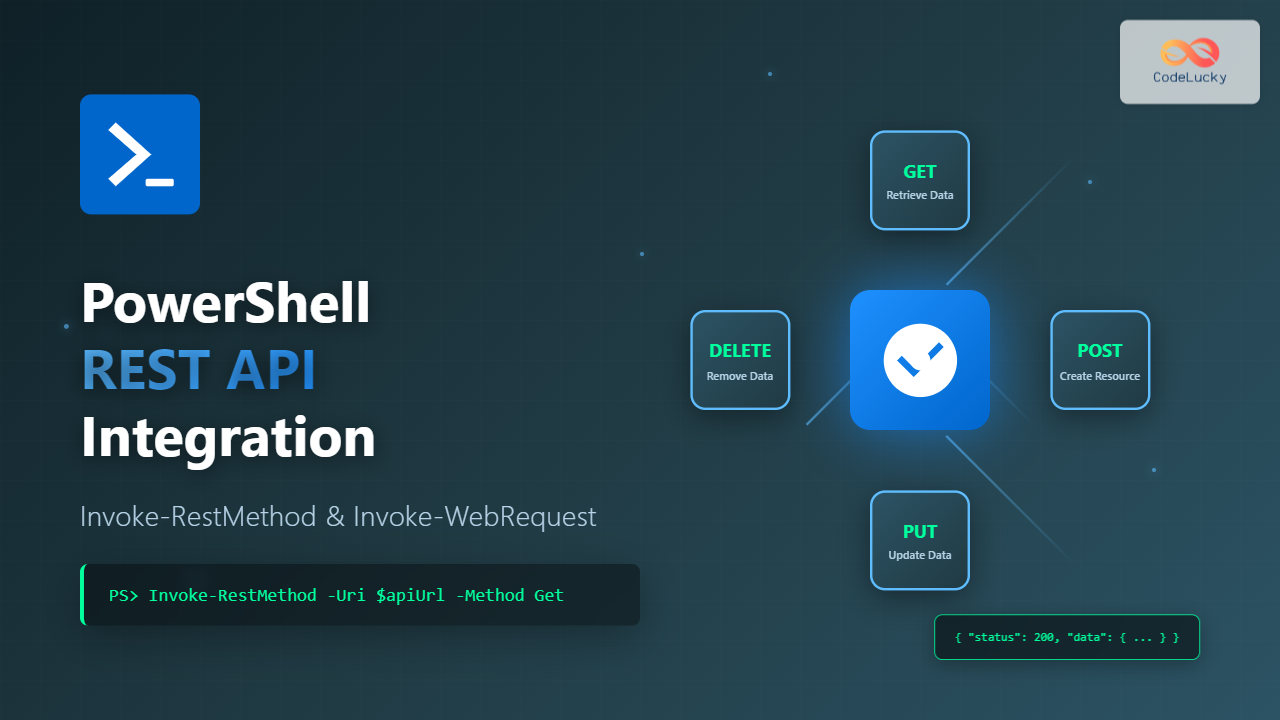
REST (Representational State Transfer) APIs use HTTP methods to perform operations on resources. Before diving into PowerShell cmdlets, let’s understand the core HTTP methods:
- GET – Retrieve data from a server
- POST – Send data to create a new resource
- PUT – Update an existing resource
- PATCH – Partially update a resource
- DELETE – Remove a resource

Invoke-RestMethod vs Invoke-WebRequest
PowerShell offers two primary cmdlets for web requests, each serving different purposes:
Invoke-RestMethod
Invoke-RestMethod automatically parses JSON, XML, and other structured responses into PowerShell objects. It’s ideal for working with APIs that return data you want to manipulate directly.
# Returns parsed PowerShell objects
$users = Invoke-RestMethod -Uri "https://jsonplaceholder.typicode.com/users"
$users[0].name  # Direct property access
Invoke-WebRequest
Invoke-WebRequest returns detailed response information including headers, status codes, and raw content. It’s better for scraping web pages, analyzing responses, or when you need full HTTP details.
# Returns full web response object
$response = Invoke-WebRequest -Uri "https://jsonplaceholder.typicode.com/users"
$response.StatusCode        # 200
$response.Headers          # All HTTP headers
$response.Content          # Raw JSON string
Making GET Requests
Basic GET Request
Retrieving data from an API is the most common operation. Here’s a simple example using a public API:
# Using Invoke-RestMethod
$posts = Invoke-RestMethod -Uri "https://jsonplaceholder.typicode.com/posts"
$posts | Select-Object -First 3 | Format-Table

# Output:
# userId id title                                                           body
# ------ -- -----                                                           ----
#      1  1 sunt aut facere repellat provident quos ut                      quia et suscipit...
#      1  2 qui est esse                                                     est rerum tempore...
#      1  3 ea molestias quasi exercitationem repellat qui ipsa sit aut     et iusto sed quo...
GET Request with Query Parameters
APIs often require query parameters to filter or customize responses:
# Method 1: Build URI with parameters
$baseUri = "https://jsonplaceholder.typicode.com/posts"
$userId = 1
$fullUri = "$baseUri?userId=$userId"
$userPosts = Invoke-RestMethod -Uri $fullUri

# Method 2: Use hash table (PowerShell 7+)
$params = @{
    userId = 1
}
$userPosts = Invoke-RestMethod -Uri $baseUri -Body $params -Method Get

Write-Host "Found $($userPosts.Count) posts for user $userId"
# Output: Found 10 posts for user 1
Inspecting Response Details
Use Invoke-WebRequest when you need to examine HTTP details:
$response = Invoke-WebRequest -Uri "https://jsonplaceholder.typicode.com/posts/1"

Write-Host "Status Code: $($response.StatusCode)"
Write-Host "Content Type: $($response.Headers['Content-Type'])"
Write-Host "Response Length: $($response.RawContentLength) bytes"

# Output:
# Status Code: 200
# Content Type: application/json; charset=utf-8
# Response Length: 292 bytes
Making POST Requests
POST requests send data to create new resources. The body must be properly formatted, typically as JSON:
# Create data object
$newPost = @{
    title = "PowerShell REST API Tutorial"
    body = "Learning to use Invoke-RestMethod effectively"
    userId = 1
}

# Convert to JSON and send
$jsonBody = $newPost | ConvertTo-Json

$result = Invoke-RestMethod -Uri "https://jsonplaceholder.typicode.com/posts" `
    -Method Post `
    -Body $jsonBody `
    -ContentType "application/json"

Write-Host "Created post with ID: $($result.id)"
# Output: Created post with ID: 101
POST with Form Data
Some APIs accept form-encoded data instead of JSON:
$formData = @{
    username = "john_doe"
    email = "[email protected]"
    subscribe = "true"
}

$response = Invoke-RestMethod -Uri "https://api.example.com/subscribe" `
    -Method Post `
    -Body $formData `
    -ContentType "application/x-www-form-urlencoded"
Making PUT and PATCH Requests
PUT replaces an entire resource, while PATCH updates specific fields:
# PUT - Complete replacement
$updatedPost = @{
    id = 1
    title = "Updated Title"
    body = "Updated content"
    userId = 1
} | ConvertTo-Json

$result = Invoke-RestMethod -Uri "https://jsonplaceholder.typicode.com/posts/1" `
    -Method Put `
    -Body $updatedPost `
    -ContentType "application/json"

# PATCH - Partial update
$partialUpdate = @{
    title = "New Title Only"
} | ConvertTo-Json

$result = Invoke-RestMethod -Uri "https://jsonplaceholder.typicode.com/posts/1" `
    -Method Patch `
    -Body $partialUpdate `
    -ContentType "application/json"

Write-Host "Updated title: $($result.title)"
Making DELETE Requests
DELETE requests remove resources from the server:
$response = Invoke-WebRequest -Uri "https://jsonplaceholder.typicode.com/posts/1" `
    -Method Delete

if ($response.StatusCode -eq 200) {
    Write-Host "Successfully deleted post"
} else {
    Write-Host "Delete failed with status: $($response.StatusCode)"
}

# Output: Successfully deleted post
Authentication Methods

Basic Authentication
Basic authentication encodes username and password in Base64:
# Method 1: Using -Credential parameter
$username = "api_user"
$password = ConvertTo-SecureString "api_password" -AsPlainText -Force
$credential = New-Object System.Management.Automation.PSCredential($username, $password)

$response = Invoke-RestMethod -Uri "https://api.example.com/data" `
    -Credential $credential

# Method 2: Manual Base64 encoding
$base64Auth = [Convert]::ToBase64String([Text.Encoding]::ASCII.GetBytes("${username}:api_password"))
$headers = @{
    Authorization = "Basic $base64Auth"
}

$response = Invoke-RestMethod -Uri "https://api.example.com/data" `
    -Headers $headers
Bearer Token Authentication
Modern APIs commonly use bearer tokens (JWT or similar):
$token = "eyJhbGciOiJIUzI1NiIsInR5cCI6IkpXVCJ9..."

$headers = @{
    Authorization = "Bearer $token"
    "Content-Type" = "application/json"
}

$response = Invoke-RestMethod -Uri "https://api.example.com/protected-resource" `
    -Headers $headers `
    -Method Get

Write-Host "Retrieved protected data: $($response.data)"
API Key Authentication
API keys can be passed via headers or query parameters:
# Header-based API key
$headers = @{
    "X-API-Key" = "your-api-key-here"
}

$response = Invoke-RestMethod -Uri "https://api.example.com/data" `
    -Headers $headers

# Query parameter API key
$uri = "https://api.example.com/data?api_key=your-api-key-here"
$response = Invoke-RestMethod -Uri $uri
Working with Headers
Custom headers control request behavior and provide metadata:
$headers = @{
    "User-Agent" = "PowerShell/7.0"
    "Accept" = "application/json"
    "Accept-Language" = "en-US"
    "Custom-Header" = "CustomValue"
}

$response = Invoke-WebRequest -Uri "https://httpbin.org/headers" `
    -Headers $headers

# Examine response headers
$response.Headers.GetEnumerator() | ForEach-Object {
    Write-Host "$($_.Key): $($_.Value)"
}
Error Handling and Status Codes

Proper error handling ensures robust scripts:
try {
    $response = Invoke-RestMethod -Uri "https://jsonplaceholder.typicode.com/posts/999999" `
        -Method Get `
        -ErrorAction Stop

    Write-Host "Success: $($response.title)"
}
catch {
    $statusCode = $_.Exception.Response.StatusCode.Value__
    $statusDescription = $_.Exception.Response.StatusDescription

    Write-Host "Error: HTTP $statusCode - $statusDescription" -ForegroundColor Red

    switch ($statusCode) {
        404 { Write-Host "Resource not found" }
        401 { Write-Host "Authentication required" }
        403 { Write-Host "Access forbidden" }
        500 { Write-Host "Server error occurred" }
        default { Write-Host "Unexpected error: $($_.Exception.Message)" }
    }
}

# Output:
# Error: HTTP 404 - Not Found
# Resource not found
Retry Logic with Exponential Backoff
Implement retry logic for transient failures:
function Invoke-RestMethodWithRetry {
    param(
        [string]$Uri,
        [int]$MaxRetries = 3,
        [int]$InitialDelaySeconds = 2
    )

    $attempt = 0
    $delay = $InitialDelaySeconds

    while ($attempt -lt $MaxRetries) {
        try {
            $response = Invoke-RestMethod -Uri $Uri -ErrorAction Stop
            return $response
        }
        catch {
            $attempt++
            if ($attempt -ge $MaxRetries) {
                throw "Failed after $MaxRetries attempts: $($_.Exception.Message)"
            }

            Write-Host "Attempt $attempt failed. Retrying in $delay seconds..." -ForegroundColor Yellow
            Start-Sleep -Seconds $delay
            $delay *= 2  # Exponential backoff
        }
    }
}

# Usage
$data = Invoke-RestMethodWithRetry -Uri "https://api.example.com/unstable-endpoint"
Handling Different Response Formats
JSON Responses
JSON is automatically parsed by Invoke-RestMethod:
$users = Invoke-RestMethod -Uri "https://jsonplaceholder.typicode.com/users"

# Access nested properties
foreach ($user in $users | Select-Object -First 3) {
    Write-Host "Name: $($user.name)"
    Write-Host "Email: $($user.email)"
    Write-Host "City: $($user.address.city)"
    Write-Host "---"
}

# Output:
# Name: Leanne Graham
# Email: [email protected]
# City: Gwenborough
# ---
XML Responses
XML is also automatically parsed into structured objects:
$xmlData = Invoke-RestMethod -Uri "https://www.w3schools.com/xml/note.xml"

Write-Host "To: $($xmlData.note.to)"
Write-Host "From: $($xmlData.note.from)"
Write-Host "Subject: $($xmlData.note.heading)"
Write-Host "Message: $($xmlData.note.body)"
Binary Data and File Downloads
Download files directly to disk:
# Download a file
$fileUri = "https://example.com/sample.pdf"
$outputPath = "C:\Downloads\sample.pdf"

Invoke-WebRequest -Uri $fileUri -OutFile $outputPath

Write-Host "Downloaded file to: $outputPath"
Write-Host "File size: $([math]::Round((Get-Item $outputPath).Length / 1MB, 2)) MB"
Upload Files with POST
Send files to APIs using multipart/form-data:
$filePath = "C:\Documents\report.pdf"
$uri = "https://api.example.com/upload"

# Method 1: Using InFile parameter (PowerShell 7+)
$response = Invoke-RestMethod -Uri $uri `
    -Method Post `
    -InFile $filePath `
    -ContentType "application/pdf"

# Method 2: Multipart form data
$boundary = [System.Guid]::NewGuid().ToString()
$fileContent = [System.IO.File]::ReadAllBytes($filePath)
$fileName = [System.IO.Path]::GetFileName($filePath)

$bodyLines = @(
    "--$boundary",
    "Content-Disposition: form-data; name=`"file`"; filename=`"$fileName`"",
    "Content-Type: application/pdf",
    "",
    [System.Text.Encoding]::GetEncoding("ISO-8859-1").GetString($fileContent),
    "--$boundary--"
)

$body = $bodyLines -join "`r`n"

$response = Invoke-RestMethod -Uri $uri `
    -Method Post `
    -Body $body `
    -ContentType "multipart/form-data; boundary=$boundary"

Write-Host "Upload successful: $($response.status)"
Working with Cookies and Sessions
Maintain session state across multiple requests:
# Create a session variable
$session = New-Object Microsoft.PowerShell.Commands.WebRequestSession

# First request establishes session
$loginData = @{
    username = "user"
    password = "pass"
} | ConvertTo-Json

$response = Invoke-RestMethod -Uri "https://api.example.com/login" `
    -Method Post `
    -Body $loginData `
    -ContentType "application/json" `
    -SessionVariable session

# Subsequent requests use the same session
$userData = Invoke-RestMethod -Uri "https://api.example.com/profile" `
    -WebSession $session

# Examine cookies
$session.Cookies.GetCookies("https://api.example.com") | ForEach-Object {
    Write-Host "Cookie: $($_.Name) = $($_.Value)"
}
Pagination and Large Datasets
Handle paginated API responses efficiently:
function Get-AllPages {
    param(
        [string]$BaseUri,
        [int]$PageSize = 50
    )

    $allResults = @()
    $page = 1

    do {
        $uri = "$BaseUri?_page=$page&_limit=$PageSize"
        Write-Host "Fetching page $page..." -ForegroundColor Cyan

        $response = Invoke-WebRequest -Uri $uri
        $pageData = $response.Content | ConvertFrom-Json

        $allResults += $pageData
        $page++

        # Check if there are more pages (Link header or empty response)
        $hasMore = $pageData.Count -eq $PageSize

    } while ($hasMore)

    return $allResults
}

# Usage
$allPosts = Get-AllPages -BaseUri "https://jsonplaceholder.typicode.com/posts" -PageSize 20
Write-Host "Retrieved total of $($allPosts.Count) posts"

# Output:
# Fetching page 1...
# Fetching page 2...
# ...
# Retrieved total of 100 posts
Proxy Configuration
Route requests through a proxy server:
# Simple proxy
$proxy = "http://proxy.company.com:8080"
$response = Invoke-RestMethod -Uri "https://api.example.com/data" `
    -Proxy $proxy

# Proxy with authentication
$proxyCredential = Get-Credential
$response = Invoke-RestMethod -Uri "https://api.example.com/data" `
    -Proxy $proxy `
    -ProxyCredential $proxyCredential

# Use system proxy settings
$response = Invoke-RestMethod -Uri "https://api.example.com/data" `
    -ProxyUseDefaultCredentials
Rate Limiting and Throttling
Respect API rate limits to avoid being blocked:
function Invoke-ThrottledRequest {
    param(
        [string[]]$Uris,
        [int]$RequestsPerMinute = 60
    )

    $delaySeconds = 60 / $RequestsPerMinute
    $results = @()

    foreach ($uri in $Uris) {
        Write-Host "Requesting: $uri"

        $response = Invoke-RestMethod -Uri $uri
        $results += $response

        # Check rate limit headers
        if ($response.Headers -and $response.Headers['X-RateLimit-Remaining']) {
            $remaining = $response.Headers['X-RateLimit-Remaining']
            Write-Host "Rate limit remaining: $remaining" -ForegroundColor Yellow
        }

        Start-Sleep -Seconds $delaySeconds
    }

    return $results
}

# Usage
$endpoints = @(
    "https://api.example.com/resource/1",
    "https://api.example.com/resource/2",
    "https://api.example.com/resource/3"
)

$data = Invoke-ThrottledRequest -Uris $endpoints -RequestsPerMinute 30
SSL/TLS Certificate Handling
Work with self-signed certificates or custom certificate validation:
# Skip certificate validation (use with caution!)
$response = Invoke-RestMethod -Uri "https://self-signed.example.com/api" `
    -SkipCertificateCheck

# For PowerShell 5.1 and earlier
add-type @"
    using System.Net;
    using System.Security.Cryptography.X509Certificates;
    public class TrustAllCertsPolicy : ICertificatePolicy {
        public bool CheckValidationResult(
            ServicePoint srvPoint, X509Certificate certificate,
            WebRequest request, int certificateProblem) {
            return true;
        }
    }
"@
[System.Net.ServicePointManager]::CertificatePolicy = New-Object TrustAllCertsPolicy
[System.Net.ServicePointManager]::SecurityProtocol = [System.Net.SecurityProtocolType]::Tls12

# Now make your request
$response = Invoke-RestMethod -Uri "https://self-signed.example.com/api"
Real-World Example: GitHub API Integration
Complete example integrating with GitHub’s REST API:
function Get-GitHubUserRepos {
    param(
        [Parameter(Mandatory)]
        [string]$Username,
        [string]$Token
    )

    $headers = @{
        "Accept" = "application/vnd.github.v3+json"
        "User-Agent" = "PowerShell-Script"
    }

    if ($Token) {
        $headers["Authorization"] = "token $Token"
    }

    try {
        # Get user information
        $userUri = "https://api.github.com/users/$Username"
        $user = Invoke-RestMethod -Uri $userUri -Headers $headers

        Write-Host "`nUser: $($user.name) (@$($user.login))" -ForegroundColor Green
        Write-Host "Public Repos: $($user.public_repos)"
        Write-Host "Followers: $($user.followers)"
        Write-Host "`nRepositories:" -ForegroundColor Cyan

        # Get repositories
        $reposUri = "https://api.github.com/users/$Username/repos?sort=updated&per_page=10"
        $repos = Invoke-RestMethod -Uri $reposUri -Headers $headers

        $repos | ForEach-Object {
            Write-Host "  📦 $($_.name)" -ForegroundColor Yellow
            Write-Host "     ⭐ Stars: $($_.stargazers_count) | 🍴 Forks: $($_.forks_count)"
            Write-Host "     $($_.description)"
            Write-Host ""
        }

        # Check rate limit
        $rateLimitUri = "https://api.github.com/rate_limit"
        $rateLimit = Invoke-RestMethod -Uri $rateLimitUri -Headers $headers
        Write-Host "API Rate Limit: $($rateLimit.rate.remaining)/$($rateLimit.rate.limit)" -ForegroundColor Magenta

    }
    catch {
        Write-Host "Error: $($_.Exception.Message)" -ForegroundColor Red
    }
}

# Usage
Get-GitHubUserRepos -Username "octocat"
Performance Optimization Tips
- Use Invoke-RestMethod for APIs – It’s faster than parsing JSON manually
- Reuse WebRequestSession – Avoid creating new sessions for each request
- Implement caching – Store frequently accessed data locally
- Parallel requests – Use
ForEach-Object -Parallelin PowerShell 7+ - Compress responses – Add
Accept-Encoding: gzipheader
# Parallel requests (PowerShell 7+)
$urls = @(
    "https://jsonplaceholder.typicode.com/posts/1",
    "https://jsonplaceholder.typicode.com/posts/2",
    "https://jsonplaceholder.typicode.com/posts/3"
)

$results = $urls | ForEach-Object -Parallel {
    Invoke-RestMethod -Uri $_
} -ThrottleLimit 5

Write-Host "Fetched $($results.Count) posts in parallel"
Debugging and Troubleshooting
Use these techniques to diagnose issues:
# Enable verbose output
$response = Invoke-RestMethod -Uri "https://api.example.com/data" -Verbose

# Use -Debug to see detailed information
$response = Invoke-RestMethod -Uri "https://api.example.com/data" -Debug

# Inspect raw response with Invoke-WebRequest
$response = Invoke-WebRequest -Uri "https://httpbin.org/get"
Write-Host "Status: $($response.StatusCode)"
Write-Host "Headers:"
$response.Headers | Format-Table
Write-Host "Raw Content:"
$response.Content

# Test connectivity
Test-NetConnection -ComputerName "api.example.com" -Port 443
Best Practices Checklist
- Always use HTTPS for sensitive data
- Store API keys and tokens securely (use Azure Key Vault, environment variables, or encrypted files)
- Implement proper error handling with try-catch blocks
- Respect API rate limits and implement exponential backoff
- Use appropriate HTTP methods (don’t use GET for data modification)
- Set meaningful User-Agent headers to identify your application
- Log API interactions for troubleshooting
- Validate responses before processing
- Use timeout parameters to prevent hanging requests
- Clean up sessions and dispose of resources properly
Common Pitfalls to Avoid
# ❌ DON'T: Hardcode credentials
$headers = @{ Authorization = "Bearer abc123token" }

# ✅ DO: Use secure methods
$token = Get-Content ".\secure-token.txt" | ConvertTo-SecureString
$BSTR = [System.Runtime.InteropServices.Marshal]::SecureStringToBSTR($token)
$plainToken = [System.Runtime.InteropServices.Marshal]::PtrToStringAuto($BSTR)
$headers = @{ Authorization = "Bearer $plainToken" }

# ❌ DON'T: Ignore status codes
$response = Invoke-RestMethod -Uri "https://api.example.com/data"
# Process without checking success

# ✅ DO: Check responses
try {
    $response = Invoke-RestMethod -Uri "https://api.example.com/data" -ErrorAction Stop
    if ($response.status -eq "success") {
        # Process data
    }
}
catch {
    Write-Error "API request failed: $($_.Exception.Message)"
}

# ❌ DON'T: Make synchronous calls in loops
foreach ($id in 1..100) {
    $data = Invoke-RestMethod -Uri "https://api.example.com/item/$id"
}

# ✅ DO: Use parallel processing (PowerShell 7+)
$results = 1..100 | ForEach-Object -Parallel {
    Invoke-RestMethod -Uri "https://api.example.com/item/$_"
} -ThrottleLimit 10
Conclusion
PowerShell’s Invoke-RestMethod and Invoke-WebRequest cmdlets provide comprehensive capabilities for interacting with REST APIs and web services. By mastering authentication, error handling, and proper request formatting, you can automate complex API workflows efficiently.
Key takeaways:
- Use
Invoke-RestMethodfor structured API responses andInvoke-WebRequestfor detailed HTTP information - Implement robust error handling and retry logic for production scripts
- Secure your credentials using proper credential management techniques
- Optimize performance with parallel requests and caching strategies
- Always respect API rate limits and implement appropriate throttling
Start experimenting with these examples using public APIs like JSONPlaceholder, GitHub, or httpbin.org to build your confidence before integrating with production systems.