
PowerShell extends far beyond simple file system operations. Through its provider infrastructure, you can navigate and manipulate various data stores using the same cmdlets you use for file management. This unified approach makes working with the Windows Registry, environment variables, and other data sources intuitive and powerful.
Understanding PowerShell Providers
PowerShell providers act as adapters that expose different data stores as drives, allowing you to navigate them like a file system. This abstraction enables consistent commands across diverse data sources.
Listing Available Providers
To see all providers installed on your system, use the Get-PSProvider cmdlet:
Get-PSProviderOutput:
Name                 Capabilities                       Drives
----                 ------------                       ------
Registry             ShouldProcess                      HKLM, HKCU
Alias                ShouldProcess                      Alias
Environment          ShouldProcess                      Env
FileSystem           Filter, ShouldProcess, Credentials C, D, E
Function             ShouldProcess                      Function
Variable             ShouldProcess                      Variable
Certificate          ShouldProcess                      Cert
Each provider exposes specific capabilities and creates one or more drives you can navigate.

Viewing Provider Drives
To list all drives exposed by providers:
Get-PSDriveOutput (abbreviated):
Name       Used (GB)     Free (GB) Provider      Root
----       ---------     --------- --------      ----
Alias                              Alias
C             145.23        354.77 FileSystem    C:\
Cert                               Certificate   \
Env                                Environment
Function                           Function
HKCU                               Registry      HKEY_CURRENT_USER
HKLM                               Registry      HKEY_LOCAL_MACHINE
Variable                           Variable
Working with the Windows Registry
The Windows Registry is a hierarchical database storing system and application settings. PowerShell provides two main registry drives: HKLM: (HKEY_LOCAL_MACHINE) for system-wide settings and HKCU: (HKEY_CURRENT_USER) for user-specific settings.
Navigating the Registry
You navigate the registry using the same cmdlets as the file system:
# Navigate to HKEY_CURRENT_USER
Set-Location HKCU:

# View current location
Get-Location

# List subkeys (like directories)
Get-ChildItem

# Navigate to a specific key
Set-Location HKCU:\Software\Microsoft\Windows\CurrentVersion
Output:
Path
----
HKCU:\Software\Microsoft\Windows\CurrentVersion

    Hive: HKEY_CURRENT_USER\Software\Microsoft\Windows\CurrentVersion

Name                           Property
----                           --------
Explorer
Internet Settings
Policies
Run
RunOnce
Themes
Reading Registry Values
Registry keys contain properties (values). Use Get-ItemProperty to read them:
# Read all properties from a registry key
Get-ItemProperty -Path "HKCU:\Control Panel\Desktop"

# Read a specific property
Get-ItemProperty -Path "HKCU:\Control Panel\Desktop" -Name "Wallpaper"

# Store value in variable
$wallpaper = (Get-ItemProperty -Path "HKCU:\Control Panel\Desktop").Wallpaper
Write-Host "Current wallpaper: $wallpaper"
Output:
PSPath       : Microsoft.PowerShell.Core\Registry::HKEY_CURRENT_USER\Control Panel\Desktop
PSParentPath : Microsoft.PowerShell.Core\Registry::HKEY_CURRENT_USER\Control Panel
PSChildName  : Desktop
Wallpaper    : C:\Users\John\Pictures\background.jpg
WallpaperStyle : 10
TileWallpaper : 0
Creating Registry Keys and Values
Use New-Item to create keys and New-ItemProperty to add values:
# Create a new registry key
New-Item -Path "HKCU:\Software\CodeLucky" -Force

# Create a subkey
New-Item -Path "HKCU:\Software\CodeLucky\Settings" -Force

# Add a string value
New-ItemProperty -Path "HKCU:\Software\CodeLucky\Settings" `
    -Name "Version" -Value "1.0.0" -PropertyType String

# Add a DWORD value
New-ItemProperty -Path "HKCU:\Software\CodeLucky\Settings" `
    -Name "MaxRetries" -Value 5 -PropertyType DWord

# Add a multi-string value
New-ItemProperty -Path "HKCU:\Software\CodeLucky\Settings" `
    -Name "Servers" -Value @("server1", "server2", "server3") `
    -PropertyType MultiString
Output:
Version      : 1.0.0
MaxRetries   : 5
Servers      : {server1, server2, server3}
PSPath       : Microsoft.PowerShell.Core\Registry::HKEY_CURRENT_USER\Software\CodeLucky\Settings
Modifying Registry Values
Use Set-ItemProperty to modify existing values:
# Modify a string value
Set-ItemProperty -Path "HKCU:\Software\CodeLucky\Settings" `
    -Name "Version" -Value "2.0.0"

# Modify a DWORD value
Set-ItemProperty -Path "HKCU:\Software\CodeLucky\Settings" `
    -Name "MaxRetries" -Value 10

# Verify changes
Get-ItemProperty -Path "HKCU:\Software\CodeLucky\Settings"
Removing Registry Keys and Values
Clean up registry entries when they’re no longer needed:
# Remove a specific value
Remove-ItemProperty -Path "HKCU:\Software\CodeLucky\Settings" -Name "MaxRetries"

# Remove an entire key and all subkeys
Remove-Item -Path "HKCU:\Software\CodeLucky" -Recurse -Force
Practical Registry Example: Managing Startup Programs
# Function to list startup programs
function Get-StartupPrograms {
    $paths = @(
        "HKLM:\SOFTWARE\Microsoft\Windows\CurrentVersion\Run",
        "HKCU:\SOFTWARE\Microsoft\Windows\CurrentVersion\Run"
    )

    foreach ($path in $paths) {
        if (Test-Path $path) {
            Write-Host "`n$path" -ForegroundColor Cyan
            Get-ItemProperty -Path $path |
                Select-Object -Property * -ExcludeProperty PS* |
                Format-Table -AutoSize
        }
    }
}

# Function to add a startup program
function Add-StartupProgram {
    param(
        [string]$Name,
        [string]$Path,
        [switch]$AllUsers
    )

    $regPath = if ($AllUsers) {
        "HKLM:\SOFTWARE\Microsoft\Windows\CurrentVersion\Run"
    } else {
        "HKCU:\SOFTWARE\Microsoft\Windows\CurrentVersion\Run"
    }

    New-ItemProperty -Path $regPath -Name $Name -Value $Path -PropertyType String -Force
    Write-Host "Added $Name to startup programs" -ForegroundColor Green
}

# Usage examples
Get-StartupPrograms

# Add a program to current user startup
Add-StartupProgram -Name "MyApp" -Path "C:\Apps\MyApp.exe"

# Add a program to all users startup (requires admin)
# Add-StartupProgram -Name "CompanyTool" -Path "C:\Tools\CompanyTool.exe" -AllUsers
Working with Environment Variables
Environment variables store system and user configuration data. PowerShell provides the Env: drive for accessing these variables.
Viewing Environment Variables
# List all environment variables
Get-ChildItem Env:

# View a specific variable
$env:USERNAME
$env:COMPUTERNAME
$env:PATH

# Using Get-Item
Get-Item Env:PATH

# Format PATH for better readability
$env:PATH -split ';'
Output:
Name                           Value
----                           -----
ALLUSERSPROFILE               C:\ProgramData
APPDATA                       C:\Users\John\AppData\Roaming
CommonProgramFiles            C:\Program Files\Common Files
COMPUTERNAME                  DESKTOP-ABC123
HOMEDRIVE                     C:
HOMEPATH                      \Users\John
LOCALAPPDATA                  C:\Users\John\AppData\Local
NUMBER_OF_PROCESSORS          8
OS                            Windows_NT
PATH                          C:\Windows\system32;C:\Windows;C:\Program Files\...
PROCESSOR_ARCHITECTURE        AMD64
USERNAME                      John
USERPROFILE                   C:\Users\John
windir                        C:\Windows
Creating and Modifying Environment Variables
You can set environment variables for the current session or persistently:
# Set for current session only
$env:MY_APP_CONFIG = "C:\Config\app.json"
$env:DEBUG_MODE = "true"

# Verify
Write-Host "Config path: $env:MY_APP_CONFIG"
Write-Host "Debug mode: $env:DEBUG_MODE"

# Using Set-Item
Set-Item -Path Env:MY_API_KEY -Value "abc123xyz789"
Setting Persistent Environment Variables
To make environment variables permanent, use the [System.Environment] .NET class:
# Set user-level environment variable (persists after restart)
[System.Environment]::SetEnvironmentVariable(
    "MY_APP_PATH",
    "C:\MyApp",
    [System.EnvironmentVariableTarget]::User
)

# Set system-level environment variable (requires admin)
[System.Environment]::SetEnvironmentVariable(
    "COMPANY_TOOL",
    "C:\Tools\CompanyTool",
    [System.EnvironmentVariableTarget]::Machine
)

# Get environment variable
[System.Environment]::GetEnvironmentVariable("MY_APP_PATH", "User")

# Remove environment variable
[System.Environment]::SetEnvironmentVariable(
    "MY_APP_PATH",
    $null,
    [System.EnvironmentVariableTarget]::User
)
Modifying the PATH Variable
The PATH variable is crucial for command execution. Here’s how to safely modify it:
# Function to add to PATH (current session)
function Add-ToPath {
    param([string]$NewPath)

    if (Test-Path $NewPath) {
        $currentPath = $env:PATH
        if ($currentPath -notlike "*$NewPath*") {
            $env:PATH = "$currentPath;$NewPath"
            Write-Host "Added $NewPath to PATH" -ForegroundColor Green
        } else {
            Write-Host "$NewPath already in PATH" -ForegroundColor Yellow
        }
    } else {
        Write-Host "Path $NewPath does not exist" -ForegroundColor Red
    }
}

# Function to add to PATH permanently
function Add-ToPathPermanent {
    param(
        [string]$NewPath,
        [ValidateSet("User", "Machine")]
        [string]$Target = "User"
    )

    if (-not (Test-Path $NewPath)) {
        Write-Host "Path does not exist: $NewPath" -ForegroundColor Red
        return
    }

    $currentPath = [System.Environment]::GetEnvironmentVariable("PATH", $Target)

    if ($currentPath -notlike "*$NewPath*") {
        $newPathValue = "$currentPath;$NewPath"
        [System.Environment]::SetEnvironmentVariable(
            "PATH",
            $newPathValue,
            [System.EnvironmentVariableTarget]::$Target
        )
        Write-Host "Added $NewPath to $Target PATH permanently" -ForegroundColor Green
    } else {
        Write-Host "$NewPath already in $Target PATH" -ForegroundColor Yellow
    }
}

# Usage
Add-ToPath "C:\Tools\MyTool"
Add-ToPathPermanent -NewPath "C:\Scripts" -Target "User"
Practical Environment Variable Example: Development Environment Setup
# Script to configure development environment
function Set-DevEnvironment {
    param(
        [string]$ProjectRoot,
        [string]$DatabaseConnection,
        [string]$ApiEndpoint
    )

    # Session variables
    $env:PROJECT_ROOT = $ProjectRoot
    $env:DB_CONNECTION = $DatabaseConnection
    $env:API_ENDPOINT = $ApiEndpoint
    $env:ENVIRONMENT = "Development"

    # Persistent user variables
    [System.Environment]::SetEnvironmentVariable(
        "PROJECT_ROOT", $ProjectRoot, "User"
    )

    Write-Host "`nDevelopment environment configured:" -ForegroundColor Green
    Write-Host "  Project Root: $env:PROJECT_ROOT"
    Write-Host "  Database: $env:DB_CONNECTION"
    Write-Host "  API: $env:API_ENDPOINT"
    Write-Host "  Environment: $env:ENVIRONMENT"
}

# Display environment configuration
function Show-DevEnvironment {
    $vars = @("PROJECT_ROOT", "DB_CONNECTION", "API_ENDPOINT", "ENVIRONMENT", "PATH")

    Write-Host "`nCurrent Development Environment:" -ForegroundColor Cyan
    foreach ($var in $vars) {
        $value = [System.Environment]::GetEnvironmentVariable($var)
        if ($var -eq "PATH") {
            Write-Host "`n$var entries:" -ForegroundColor Yellow
            $value -split ';' | Where-Object { $_ } | ForEach-Object { Write-Host "  $_" }
        } else {
            Write-Host "$var = $value"
        }
    }
}

# Usage
Set-DevEnvironment -ProjectRoot "C:\Projects\MyApp" `
    -DatabaseConnection "Server=localhost;Database=MyApp" `
    -ApiEndpoint "https://api.example.com/v1"

Show-DevEnvironment
Advanced Provider Operations
Creating Custom PSDrives
You can create custom drives that point to specific locations:
# Create a drive for quick access to project folder
New-PSDrive -Name "Project" -PSProvider FileSystem -Root "C:\Projects\MyApp"

# Create a drive for registry location
New-PSDrive -Name "AppSettings" -PSProvider Registry `
    -Root "HKCU:\Software\CodeLucky\Settings"

# Use the custom drives
Set-Location Project:
Get-ChildItem

Set-Location AppSettings:
Get-ItemProperty .

# List custom drives
Get-PSDrive -PSProvider FileSystem, Registry

# Remove custom drive
Remove-PSDrive -Name "Project"
Output:
Name       Used (GB)     Free (GB) Provider      Root
----       ---------     --------- --------      ----
AppSettings                        Registry      HKEY_CURRENT_USER\Software\CodeLucky\Settings
Project          0.05       354.72 FileSystem    C:\Projects\MyApp
Working with Certificate Provider
The certificate provider allows you to manage certificates:
# Navigate to certificate store
Set-Location Cert:\CurrentUser\My

# List certificates
Get-ChildItem

# Find certificates expiring soon
Get-ChildItem -Recurse |
    Where-Object { $_.NotAfter -lt (Get-Date).AddDays(30) } |
    Select-Object Subject, NotAfter, Thumbprint

# Export a certificate
$cert = Get-ChildItem | Where-Object { $_.Subject -like "*example.com*" }
if ($cert) {
    Export-Certificate -Cert $cert -FilePath "C:\Temp\cert.cer"
}
Combining Providers in Scripts
This example demonstrates using multiple providers together:
# Application deployment script using multiple providers
function Deploy-Application {
    param(
        [string]$AppName,
        [string]$SourcePath,
        [string]$DestPath
    )

    Write-Host "Deploying $AppName..." -ForegroundColor Cyan

    # 1. Check registry for existing installation
    $regPath = "HKLM:\SOFTWARE\$AppName"
    if (Test-Path $regPath) {
        $version = (Get-ItemProperty $regPath).Version
        Write-Host "Existing version found: $version" -ForegroundColor Yellow
    }

    # 2. Set environment variable for app path
    [System.Environment]::SetEnvironmentVariable(
        "${AppName}_PATH",
        $DestPath,
        [System.EnvironmentVariableTarget]::Machine
    )
    Write-Host "Set ${AppName}_PATH environment variable" -ForegroundColor Green

    # 3. Copy files
    if (Test-Path $SourcePath) {
        Copy-Item -Path $SourcePath -Destination $DestPath -Recurse -Force
        Write-Host "Files copied to $DestPath" -ForegroundColor Green
    }

    # 4. Update registry with new installation info
    New-Item -Path $regPath -Force | Out-Null
    New-ItemProperty -Path $regPath -Name "Version" -Value "2.0.0" -Force | Out-Null
    New-ItemProperty -Path $regPath -Name "InstallPath" -Value $DestPath -Force | Out-Null
    New-ItemProperty -Path $regPath -Name "InstallDate" `
        -Value (Get-Date -Format "yyyy-MM-dd") -Force | Out-Null

    Write-Host "Registry updated with installation information" -ForegroundColor Green

    # 5. Add to PATH
    $currentPath = [System.Environment]::GetEnvironmentVariable("PATH", "Machine")
    if ($currentPath -notlike "*$DestPath*") {
        [System.Environment]::SetEnvironmentVariable(
            "PATH",
            "$currentPath;$DestPath",
            [System.EnvironmentVariableTarget]::Machine
        )
        Write-Host "Added to system PATH" -ForegroundColor Green
    }

    Write-Host "`nDeployment completed successfully!" -ForegroundColor Green
}

# Usage (requires admin privileges)
# Deploy-Application -AppName "MyApp" -SourcePath "C:\Temp\MyApp" -DestPath "C:\Program Files\MyApp"
Security Considerations
Registry Permissions
Always verify permissions before modifying system registry keys:
# Check if running as administrator
function Test-Administrator {
    $currentUser = [Security.Principal.WindowsIdentity]::GetCurrent()
    $principal = New-Object Security.Principal.WindowsPrincipal($currentUser)
    return $principal.IsInRole([Security.Principal.WindowsBuiltInRole]::Administrator)
}

if (-not (Test-Administrator)) {
    Write-Host "This operation requires administrator privileges" -ForegroundColor Red
    exit
}

# Backup registry key before modification
function Backup-RegistryKey {
    param([string]$Path)

    $timestamp = Get-Date -Format "yyyyMMdd_HHmmss"
    $backupPath = "$env:TEMP\RegBackup_$timestamp.reg"

    reg export $Path.Replace("HKCU:\", "HKEY_CURRENT_USER\").Replace("HKLM:\", "HKEY_LOCAL_MACHINE\") $backupPath
    Write-Host "Registry backed up to: $backupPath" -ForegroundColor Green
}

# Usage
Backup-RegistryKey -Path "HKCU:\Software\CodeLucky"
Safe Environment Variable Handling
# Function to safely modify sensitive environment variables
function Set-SecureEnvironmentVariable {
    param(
        [string]$Name,
        [SecureString]$SecureValue,
        [ValidateSet("User", "Machine")]
        [string]$Target = "User"
    )

    # Convert SecureString to plain text
    $BSTR = [System.Runtime.InteropServices.Marshal]::SecureStringToBSTR($SecureValue)
    $PlainValue = [System.Runtime.InteropServices.Marshal]::PtrToStringAuto($BSTR)

    try {
        [System.Environment]::SetEnvironmentVariable($Name, $PlainValue, $Target)
        Write-Host "Environment variable $Name set successfully" -ForegroundColor Green
    }
    finally {
        # Clear sensitive data from memory
        [System.Runtime.InteropServices.Marshal]::ZeroFreeBSTR($BSTR)
        $PlainValue = $null
    }
}

# Usage
$securePassword = Read-Host "Enter password" -AsSecureString
Set-SecureEnvironmentVariable -Name "DB_PASSWORD" -SecureValue $securePassword -Target "User"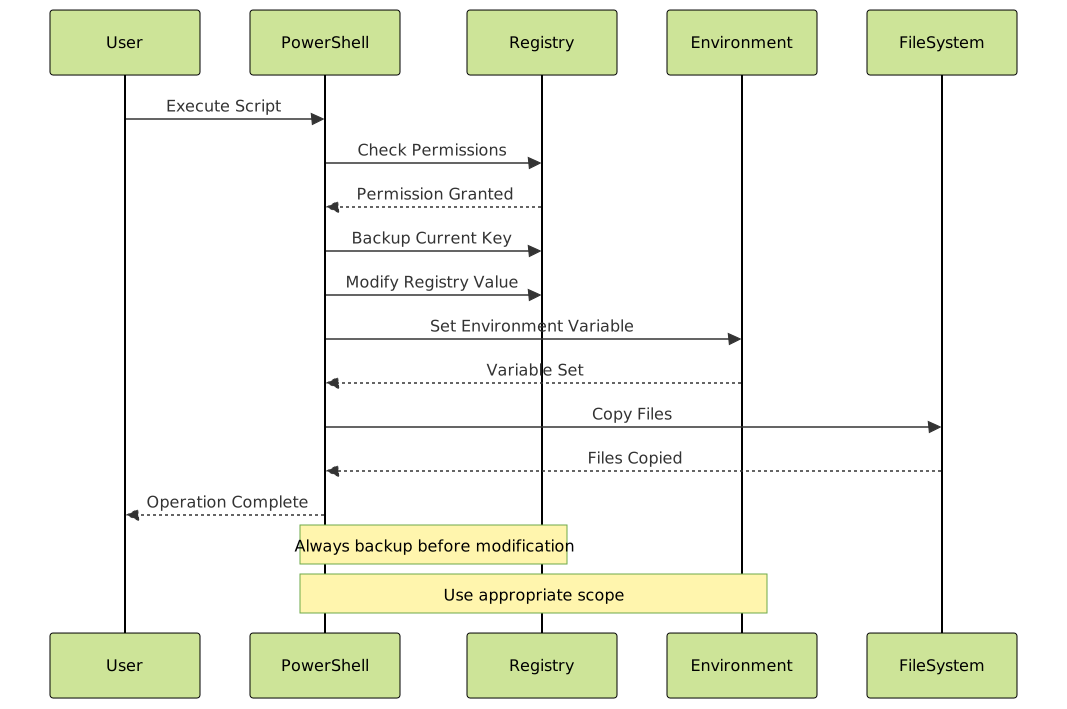
Troubleshooting Common Issues
Registry Access Denied
# Test registry key accessibility
function Test-RegistryAccess {
    param([string]$Path)

    try {
        Get-ItemProperty -Path $Path -ErrorAction Stop | Out-Null
        Write-Host "Access granted to $Path" -ForegroundColor Green
        return $true
    }
    catch [System.UnauthorizedAccessException] {
        Write-Host "Access denied to $Path - Administrator rights required" -ForegroundColor Red
        return $false
    }
    catch {
        Write-Host "Error accessing $Path: $($_.Exception.Message)" -ForegroundColor Red
        return $false
    }
}

# Usage
Test-RegistryAccess -Path "HKLM:\SOFTWARE\Microsoft\Windows\CurrentVersion\Run"
Environment Variable Not Updating
# Refresh environment variables without restarting
function Update-EnvironmentVariables {
    $locations = @(
        "HKLM:\SYSTEM\CurrentControlSet\Control\Session Manager\Environment",
        "HKCU:\Environment"
    )

    foreach ($location in $locations) {
        $vars = Get-ItemProperty -Path $location
        foreach ($var in $vars.PSObject.Properties) {
            if ($var.Name -notlike "PS*") {
                [System.Environment]::SetEnvironmentVariable(
                    $var.Name,
                    $var.Value,
                    "Process"
                )
            }
        }
    }

    Write-Host "Environment variables refreshed" -ForegroundColor Green
}

# Usage
Update-EnvironmentVariables
Best Practices and Tips
Registry Best Practices
- Always backup registry keys before modification
- Use -Force parameter cautiously
- Test changes in HKCU before applying to HKLM
- Document all registry modifications
- Use proper property types (String, DWord, Binary, etc.)
- Implement error handling for registry operations
Environment Variable Best Practices
- Use descriptive variable names with prefixes (e.g., APP_CONFIG)
- Document which variables are required for your application
- Avoid storing sensitive data in environment variables when possible
- Use appropriate scope (Process, User, or Machine)
- Clean up obsolete environment variables
Performance Optimization
# Efficient registry reading using pipeline
Get-ChildItem "HKCU:\Software\Microsoft\Windows\CurrentVersion\Run" |
    ForEach-Object {
        Get-ItemProperty $_.PSPath |
            Select-Object -Property * -ExcludeProperty PS* |
            Format-Table -AutoSize
    }

# Cache frequently accessed values
$script:CachedEnvVars = @{}

function Get-CachedEnvVar {
    param([string]$Name)

    if (-not $script:CachedEnvVars.ContainsKey($Name)) {
        $script:CachedEnvVars[$Name] = [System.Environment]::GetEnvironmentVariable($Name)
    }
    return $script:CachedEnvVars[$Name]
}

# Usage
$projectRoot = Get-CachedEnvVar "PROJECT_ROOT"
Complete Real-World Example: Application Configuration Manager
# Complete configuration management module
class AppConfigManager {
    [string]$AppName
    [string]$RegPath

    AppConfigManager([string]$appName) {
        $this.AppName = $appName
        $this.RegPath = "HKCU:\Software\$appName"
    }

    # Initialize application configuration
    [void]Initialize() {
        # Create registry structure
        if (-not (Test-Path $this.RegPath)) {
            New-Item -Path $this.RegPath -Force | Out-Null
            New-Item -Path "$($this.RegPath)\Settings" -Force | Out-Null
            Write-Host "Registry structure created for $($this.AppName)" -ForegroundColor Green
        }

        # Set default environment variables
        $this.SetEnvironmentVariable("$($this.AppName)_CONFIG_PATH", "$env:APPDATA\$($this.AppName)")
        $this.SetEnvironmentVariable("$($this.AppName)_LOG_LEVEL", "INFO")

        Write-Host "Configuration initialized for $($this.AppName)" -ForegroundColor Green
    }

    # Save configuration to registry
    [void]SaveConfig([hashtable]$config) {
        foreach ($key in $config.Keys) {
            $value = $config[$key]
            $type = switch ($value.GetType().Name) {
                "Int32" { "DWord" }
                "String[]" { "MultiString" }
                default { "String" }
            }

            New-ItemProperty -Path "$($this.RegPath)\Settings" `
                -Name $key -Value $value -PropertyType $type -Force | Out-Null
        }
        Write-Host "Configuration saved to registry" -ForegroundColor Green
    }

    # Load configuration from registry
    [hashtable]LoadConfig() {
        $config = @{}
        if (Test-Path "$($this.RegPath)\Settings") {
            $properties = Get-ItemProperty -Path "$($this.RegPath)\Settings"
            foreach ($prop in $properties.PSObject.Properties) {
                if ($prop.Name -notlike "PS*") {
                    $config[$prop.Name] = $prop.Value
                }
            }
        }
        return $config
    }

    # Set environment variable
    [void]SetEnvironmentVariable([string]$name, [string]$value) {
        [System.Environment]::SetEnvironmentVariable($name, $value, "User")
        $env:$name = $value
    }

    # Display current configuration
    [void]ShowConfig() {
        Write-Host "`nConfiguration for $($this.AppName):" -ForegroundColor Cyan

        Write-Host "`nRegistry Settings:" -ForegroundColor Yellow
        $config = $this.LoadConfig()
        $config.GetEnumerator() | Sort-Object Name | ForEach-Object {
            Write-Host "  $($_.Key) = $($_.Value)"
        }

        Write-Host "`nEnvironment Variables:" -ForegroundColor Yellow
        Get-ChildItem Env: | Where-Object { $_.Name -like "$($this.AppName)*" } | ForEach-Object {
            Write-Host "  $($_.Name) = $($_.Value)"
        }
    }

    # Cleanup configuration
    [void]Uninstall() {
        # Remove registry keys
        if (Test-Path $this.RegPath) {
            Remove-Item -Path $this.RegPath -Recurse -Force
            Write-Host "Registry keys removed" -ForegroundColor Green
        }

        # Remove environment variables
        Get-ChildItem Env: | Where-Object { $_.Name -like "$($this.AppName)*" } | ForEach-Object {
            [System.Environment]::SetEnvironmentVariable($_.Name, $null, "User")
        }
        Write-Host "Environment variables removed" -ForegroundColor Green
    }
}

# Usage example
$configManager = [AppConfigManager]::new("CodeLuckyApp")
$configManager.Initialize()

# Save configuration
$appConfig = @{
    "ServerUrl" = "https://api.codelucky.com"
    "Timeout" = 30
    "EnableLogging" = "true"
    "AllowedHosts" = @("localhost", "*.codelucky.com")
}
$configManager.SaveConfig($appConfig)

# Display configuration
$configManager.ShowConfig()

# Load and use configuration
$loadedConfig = $configManager.LoadConfig()
Write-Host "`nLoaded server URL: $($loadedConfig['ServerUrl'])"

# Cleanup (uncomment to remove)
# $configManager.Uninstall()
Conclusion
PowerShell’s provider infrastructure unifies access to diverse data stores through a consistent interface. Whether you’re managing registry keys, environment variables, or other system resources, the same cmdlets and patterns apply. This consistency makes PowerShell powerful for system administration and automation tasks.
Key takeaways include understanding provider architecture, safely manipulating registry keys with proper backups, managing environment variables at appropriate scopes, and implementing robust error handling. By combining these capabilities, you can create sophisticated configuration management solutions that integrate seamlessly with Windows systems.
Remember to always test registry modifications in a safe environment, use appropriate permissions, and document your changes thoroughly. The examples provided serve as building blocks for more complex automation scenarios tailored to your specific needs.





