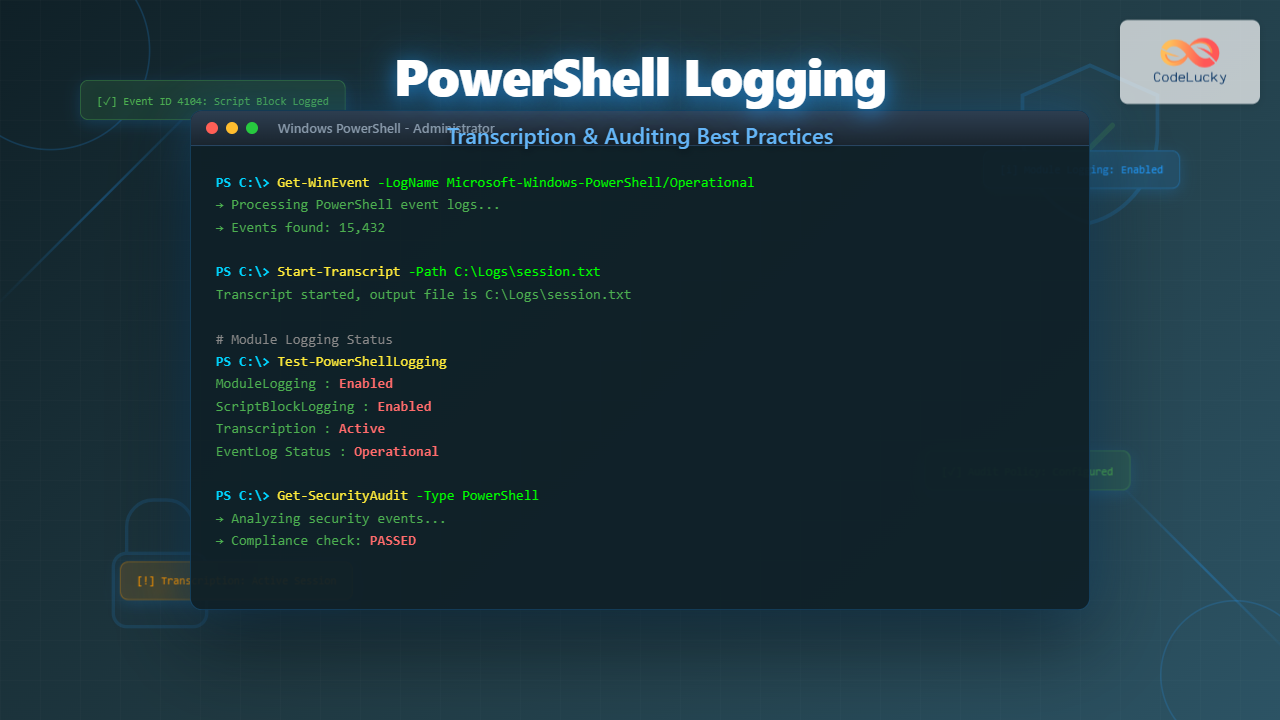
PowerShell logging and auditing are critical components of enterprise security and compliance strategies. Whether you’re tracking administrative actions, investigating security incidents, or meeting regulatory requirements, proper logging configuration ensures comprehensive visibility into PowerShell activity across your environment.
This comprehensive guide explores PowerShell’s logging mechanisms, transcription features, and auditing best practices to help you build a robust security monitoring framework.
Understanding PowerShell Logging Architecture
PowerShell provides multiple logging layers that capture different aspects of script execution and command activity. Understanding these layers is essential for implementing effective monitoring strategies.

Key Logging Components
Module Logging captures pipeline execution details and parameter values for specified modules. Script Block Logging records the actual code blocks being executed, providing visibility into dynamic and obfuscated scripts. Transcription creates session-level recordings of all input and output, while Event Logs provide centralized storage for security monitoring.
Enabling Module Logging
Module logging captures detailed execution information for specific PowerShell modules, including all parameters and their values. This is particularly valuable for auditing administrative modules.
Registry Configuration
# Enable module logging for all modules
$regPath = "HKLM:\SOFTWARE\Policies\Microsoft\Windows\PowerShell\ModuleLogging"

# Create registry path if it doesn't exist
if (!(Test-Path $regPath)) {
    New-Item -Path $regPath -Force | Out-Null
}

# Enable module logging
Set-ItemProperty -Path $regPath -Name "EnableModuleLogging" -Value 1

# Configure module names to log
$moduleNamesPath = "$regPath\ModuleNames"
if (!(Test-Path $moduleNamesPath)) {
    New-Item -Path $moduleNamesPath -Force | Out-Null
}

# Log all modules (using wildcard)
Set-ItemProperty -Path $moduleNamesPath -Name "*" -Value "*"
Output: No direct output. Configuration is stored in registry and takes effect for new PowerShell sessions.
Group Policy Configuration
# Verify module logging status
Get-ItemProperty -Path "HKLM:\SOFTWARE\Policies\Microsoft\Windows\PowerShell\ModuleLogging" -ErrorAction SilentlyContinue

# View logged events
Get-WinEvent -LogName "Microsoft-Windows-PowerShell/Operational" -MaxEvents 10 |
    Where-Object {$_.Id -eq 4103} |
    Select-Object TimeCreated, Message |
    Format-List
Sample Output:
TimeCreated : 10/22/2025 4:15:23 PM
Message     : CommandInvocation(Get-Process): "Get-Process"
              ParameterBinding(Get-Process): name="Name"; value="powershell"

TimeCreated : 10/22/2025 4:14:18 PM
Message     : CommandInvocation(Get-Service): "Get-Service"
              ParameterBinding(Get-Service): name="Name"; value="WinRM"
Implementing Script Block Logging
Script block logging is PowerShell’s most comprehensive logging mechanism, capturing the actual code being executed. This is critical for detecting malicious scripts and understanding attack patterns.
Basic Script Block Logging Setup
# Enable script block logging
$regPath = "HKLM:\SOFTWARE\Policies\Microsoft\Windows\PowerShell\ScriptBlockLogging"

if (!(Test-Path $regPath)) {
    New-Item -Path $regPath -Force | Out-Null
}

Set-ItemProperty -Path $regPath -Name "EnableScriptBlockLogging" -Value 1

# Enable invocation logging for detailed call stack information
Set-ItemProperty -Path $regPath -Name "EnableScriptBlockInvocationLogging" -Value 1
Analyzing Script Block Events
# Query script block logging events (Event ID 4104)
$scriptBlockEvents = Get-WinEvent -FilterHashtable @{
    LogName = 'Microsoft-Windows-PowerShell/Operational'
    ID = 4104
} -MaxEvents 5

foreach ($event in $scriptBlockEvents) {
    [PSCustomObject]@{
        TimeCreated = $event.TimeCreated
        ScriptBlock = $event.Properties[2].Value
        Path = $event.Properties[4].Value
    } | Format-List
    Write-Host ("-" * 80)
}
Sample Output:
TimeCreated : 10/22/2025 4:20:15 PM
ScriptBlock : Get-ChildItem -Path C:\Scripts -Recurse -Filter *.ps1 |
              Select-Object Name, Length, LastWriteTime
Path        : C:\Scripts\Audit-Scripts.ps1

--------------------------------------------------------------------------------
TimeCreated : 10/22/2025 4:19:42 PM
ScriptBlock : $users = Get-ADUser -Filter * -Properties LastLogonDate
              $users | Where-Object {$_.LastLogonDate -lt (Get-Date).AddDays(-90)}
Path        : C:\Admin\Check-InactiveUsers.ps1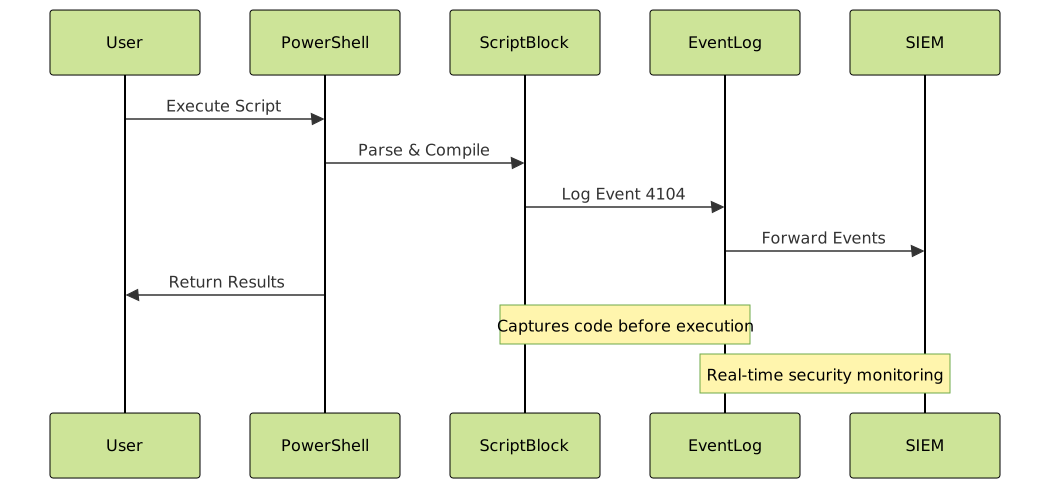
Detecting Suspicious Script Blocks
# Search for potentially malicious patterns
$suspiciousPatterns = @(
    'Invoke-Expression',
    'IEX',
    'DownloadString',
    'Net.WebClient',
    'Invoke-WebRequest.*-UseBasicParsing',
    'EncodedCommand',
    'FromBase64String'
)

$pattern = $suspiciousPatterns -join '|'

Get-WinEvent -FilterHashtable @{
    LogName = 'Microsoft-Windows-PowerShell/Operational'
    ID = 4104
} -MaxEvents 1000 | Where-Object {
    $_.Properties[2].Value -match $pattern
} | Select-Object TimeCreated,
    @{N='ScriptBlock';E={$_.Properties[2].Value}},
    @{N='User';E={$_.Properties[0].Value}} |
    Format-Table -Wrap
PowerShell Transcription Configuration
Transcription provides session-level recording, capturing all commands entered and their output to text files. This creates a complete audit trail of interactive PowerShell sessions.
System-Wide Transcription Setup
# Configure transcription via registry
$transcriptPath = "HKLM:\SOFTWARE\Policies\Microsoft\Windows\PowerShell\Transcription"

if (!(Test-Path $transcriptPath)) {
    New-Item -Path $transcriptPath -Force | Out-Null
}

# Enable transcription
Set-ItemProperty -Path $transcriptPath -Name "EnableTranscripting" -Value 1

# Set output directory
Set-ItemProperty -Path $transcriptPath -Name "OutputDirectory" -Value "C:\PSTranscripts"

# Include invocation headers for better context
Set-ItemProperty -Path $transcriptPath -Name "EnableInvocationHeader" -Value 1

# Create output directory
New-Item -Path "C:\PSTranscripts" -ItemType Directory -Force | Out-Null
Session-Level Transcription
# Start transcription manually
$transcriptFile = "C:\Logs\Transcript_$(Get-Date -Format 'yyyyMMdd_HHmmss').txt"
Start-Transcript -Path $transcriptFile -Append

# Perform administrative tasks
Get-Service | Where-Object {$_.Status -eq 'Running'} | Select-Object -First 5
Get-Process | Sort-Object CPU -Descending | Select-Object -First 5

# Stop transcription
Stop-Transcript
Transcript Output Example (C:\Logs\Transcript_20251022_162345.txt):
**********************
Windows PowerShell transcript start
Start time: 20251022162345
Username: DOMAIN\Administrator
RunAs User: DOMAIN\Administrator
Configuration Name:
Machine: SERVER01 (Microsoft Windows NT 10.0.20348.0)
Host Application: C:\Windows\System32\WindowsPowerShell\v1.0\powershell.exe
Process ID: 4532
**********************

PS C:\> Get-Service | Where-Object {$_.Status -eq 'Running'} | Select-Object -First 5

Status   Name               DisplayName
------   ----               -----------
Running  AppHostSvc         Application Host Helper Service
Running  BFE                Base Filtering Engine
Running  BrokerInfrastru... Background Tasks Infrastructure Ser...
Running  CertPropSvc        Certificate Propagation
Running  CryptSvc           Cryptographic Services

PS C:\> Get-Process | Sort-Object CPU -Descending | Select-Object -First 5

Handles  NPM(K)    PM(K)      WS(K)     CPU(s)     Id  SI ProcessName
-------  ------    -----      -----     ------     --  -- -----------
   1245      89   245632     312456      45.23   4532   1 powershell
    892      45   123456     198765      32.15   2341   0 sqlservr
    654      32    98765     145632      28.94   1892   1 chrome

**********************
Windows PowerShell transcript end
End time: 20251022162415
**********************
Automated Transcript Management
# Function to archive old transcripts
function Move-OldTranscripts {
    param(
        [string]$SourcePath = "C:\PSTranscripts",
        [string]$ArchivePath = "C:\PSTranscripts\Archive",
        [int]$DaysOld = 30
    )

    $cutoffDate = (Get-Date).AddDays(-$DaysOld)

    Get-ChildItem -Path $SourcePath -Filter "*.txt" -File |
        Where-Object {$_.LastWriteTime -lt $cutoffDate} |
        ForEach-Object {
            $yearMonth = $_.LastWriteTime.ToString("yyyy-MM")
            $destPath = Join-Path $ArchivePath $yearMonth

            if (!(Test-Path $destPath)) {
                New-Item -Path $destPath -ItemType Directory -Force | Out-Null
            }

            Move-Item -Path $_.FullName -Destination $destPath -Force
            Write-Output "Archived: $($_.Name) to $destPath"
        }
}

# Execute archival
Move-OldTranscripts -DaysOld 30
Windows Event Log Configuration
PowerShell events are stored in Windows Event Log channels that require proper configuration for optimal security monitoring.
Event Log Channels Overview

Configuring Event Log Size and Retention
# Configure PowerShell Operational log
$logName = "Microsoft-Windows-PowerShell/Operational"

# Set maximum log size to 100 MB
wevtutil sl $logName /ms:104857600

# Set retention policy (overwrite as needed)
wevtutil sl $logName /rt:false

# Enable the log
wevtutil sl $logName /e:true

# Verify configuration
$logConfig = Get-WinEvent -ListLog $logName
[PSCustomObject]@{
    LogName = $logConfig.LogName
    MaxSizeBytes = $logConfig.MaximumSizeInBytes
    IsEnabled = $logConfig.IsEnabled
    RecordCount = $logConfig.RecordCount
} | Format-List
Output:
LogName        : Microsoft-Windows-PowerShell/Operational
MaxSizeBytes   : 104857600
IsEnabled      : True
RecordCount    : 15432
Key Event IDs for Monitoring
# Define critical PowerShell event IDs
$eventMapping = @{
    4103 = "Module Logging - Pipeline Execution"
    4104 = "Script Block Logging - Code Execution"
    4105 = "Script Block Logging - Start"
    4106 = "Script Block Logging - Stop"
    40961 = "PowerShell Console Starting"
    40962 = "PowerShell Console Ready"
    53504 = "PowerShell Remote Session"
}

# Monitor critical events in real-time
$endTime = Get-Date
$startTime = $endTime.AddHours(-1)

Get-WinEvent -FilterHashtable @{
    LogName = 'Microsoft-Windows-PowerShell/Operational'
    ID = 4103, 4104, 4105, 4106
    StartTime = $startTime
    EndTime = $endTime
} | Group-Object Id | Select-Object Count,
    @{N='EventID';E={$_.Name}},
    @{N='Description';E={$eventMapping[[int]$_.Name]}} |
    Format-Table -AutoSize
Output:
Count EventID Description
----- ------- -----------
  142    4104 Script Block Logging - Code Execution
   89    4103 Module Logging - Pipeline Execution
   12    4105 Script Block Logging - Start
   12    4106 Script Block Logging - Stop
Implementing Centralized Log Collection
For enterprise environments, centralized log collection is essential for security operations and compliance.
Windows Event Forwarding Setup
# Configure Windows Event Forwarding on collector server
# Run on the collector server

# Enable Windows Remote Management
Enable-PSRemoting -Force

# Configure WinRM for event forwarding
winrm quickconfig

# Create subscription configuration
$subscriptionXml = @"
<Subscription xmlns="http://schemas.microsoft.com/2006/03/windows/events/subscription">
    <SubscriptionId>PowerShell-Logging</SubscriptionId>
    <SubscriptionType>SourceInitiated</SubscriptionType>
    <Description>PowerShell Activity Logs</Description>
    <Enabled>true</Enabled>
    <Uri>http://schemas.microsoft.com/wbem/wsman/1/windows/EventLog</Uri>
    <ConfigurationMode>Custom</ConfigurationMode>
    <Delivery Mode="Push">
        <Batching>
            <MaxItems>5</MaxItems>
            <MaxLatencyTime>300000</MaxLatencyTime>
        </Batching>
        <PushSettings>
            <Heartbeat Interval="900000"/>
        </PushSettings>
    </Delivery>
    <Query>
        <![CDATA[
        <QueryList>
            <Query Id="0">
                <Select Path="Microsoft-Windows-PowerShell/Operational">
                    *[System[(EventID=4103 or EventID=4104)]]
                </Select>
            </Query>
        </QueryList>
        ]]>
    </Query>
    <ReadExistingEvents>false</ReadExistingEvents>
    <TransportName>http</TransportName>
    <AllowedSourceDomainComputers>O:NSG:BAD:P(A;;GA;;;DC)S:</AllowedSourceDomainComputers>
</Subscription>
"@

# Save and create subscription
$subscriptionXml | Out-File "C:\Temp\PSLogSubscription.xml"
wecutil cs "C:\Temp\PSLogSubscription.xml"

# Verify subscription
wecutil gs PowerShell-Logging
Exporting Logs to SIEM
# Export PowerShell events to JSON for SIEM ingestion
function Export-PowerShellEvents {
    param(
        [string]$OutputPath = "C:\Logs\PSEvents",
        [int]$Hours = 24
    )

    $startTime = (Get-Date).AddHours(-$Hours)
    $outputFile = Join-Path $OutputPath "PSEvents_$(Get-Date -Format 'yyyyMMdd_HHmmss').json"

    $events = Get-WinEvent -FilterHashtable @{
        LogName = 'Microsoft-Windows-PowerShell/Operational'
        ID = 4103, 4104
        StartTime = $startTime
    } -ErrorAction SilentlyContinue

    $exportData = $events | ForEach-Object {
        [PSCustomObject]@{
            TimeCreated = $_.TimeCreated.ToString("o")
            EventID = $_.Id
            Computer = $_.MachineName
            User = $_.UserId.Value
            Message = $_.Message
            ScriptBlock = if ($_.Id -eq 4104) { $_.Properties[2].Value } else { $null }
            Level = $_.LevelDisplayName
        }
    }

    $exportData | ConvertTo-Json -Depth 10 | Out-File $outputFile -Encoding UTF8
    Write-Output "Exported $($events.Count) events to $outputFile"
}

# Execute export
Export-PowerShellEvents -Hours 24
Output:
Exported 1247 events to C:\Logs\PSEvents\PSEvents_20251022_163045.jsonSecurity Monitoring and Threat Detection
Effective security monitoring requires analyzing PowerShell logs for suspicious patterns and potential threats.

Detecting Obfuscated Commands
# Analyze script blocks for obfuscation indicators
function Test-ObfuscatedCommand {
    param([string]$ScriptBlock)

    $indicators = @{
        Base64 = $ScriptBlock -match 'FromBase64String|ToBase64String'
        Compression = $ScriptBlock -match 'IO\.Compression|GZipStream'
        CharSubstitution = ($ScriptBlock -match '`' -and ($ScriptBlock.Split('`').Count -gt 10))
        RandomCase = ($ScriptBlock -match '[a-z][A-Z]') -and
                     ($ScriptBlock.ToCharArray() | Where-Object {$_ -cmatch '[A-Z]'}).Count -gt
                     ($ScriptBlock.Length * 0.3)
        EncodedCommand = $ScriptBlock -match '-enc.*oded.*command|-ec '
        StringConcatenation = ($ScriptBlock.Split('+').Count -gt 15)
    }

    $score = ($indicators.Values | Where-Object {$_}).Count

    [PSCustomObject]@{
        ObfuscationScore = $score
        Indicators = ($indicators.GetEnumerator() | Where-Object {$_.Value} |
                     Select-Object -ExpandProperty Name) -join ', '
        RiskLevel = switch ($score) {
            {$_ -ge 4} { 'Critical' }
            {$_ -ge 2} { 'High' }
            {$_ -eq 1} { 'Medium' }
            default { 'Low' }
        }
    }
}

# Scan recent script blocks
Get-WinEvent -FilterHashtable @{
    LogName = 'Microsoft-Windows-PowerShell/Operational'
    ID = 4104
} -MaxEvents 100 | ForEach-Object {
    $scriptBlock = $_.Properties[2].Value
    $analysis = Test-ObfuscatedCommand -ScriptBlock $scriptBlock

    if ($analysis.RiskLevel -in 'High','Critical') {
        [PSCustomObject]@{
            TimeCreated = $_.TimeCreated
            Computer = $_.MachineName
            RiskLevel = $analysis.RiskLevel
            ObfuscationScore = $analysis.ObfuscationScore
            Indicators = $analysis.Indicators
            Preview = $scriptBlock.Substring(0, [Math]::Min(100, $scriptBlock.Length))
        }
    }
} | Format-Table -Wrap
Monitoring Privileged Operations
# Track privileged PowerShell commands
$privilegedPatterns = @(
    'Add-ADGroupMember',
    'Set-ADAccountPassword',
    'New-ADUser',
    'Enable-PSRemoting',
    'Set-ExecutionPolicy',
    'New-ItemProperty.*HKLM:',
    'Invoke-WmiMethod.*Win32_Process',
    'Start-Process.*-Verb RunAs',
    'Enter-PSSession',
    'Invoke-Command.*-ComputerName'
)

$pattern = $privilegedPatterns -join '|'

# Query last 7 days
$events = Get-WinEvent -FilterHashtable @{
    LogName = 'Microsoft-Windows-PowerShell/Operational'
    ID = 4104
    StartTime = (Get-Date).AddDays(-7)
} -MaxEvents 5000

$privilegedOps = $events | Where-Object {
    $_.Properties[2].Value -match $pattern
} | ForEach-Object {
    [PSCustomObject]@{
        Time = $_.TimeCreated
        User = $_.UserId.Translate([System.Security.Principal.NTAccount]).Value
        Computer = $_.MachineName
        Command = ($_.Properties[2].Value -split "`n")[0].Trim()
    }
}

# Summarize by user
$privilegedOps | Group-Object User | Select-Object Count, Name |
    Sort-Object Count -Descending | Format-Table
Output:
Count Name
----- ----
   42 DOMAIN\admin.user1
   28 DOMAIN\admin.user2
   15 DOMAIN\serviceaccount
    8 DOMAIN\admin.user3
    3 DOMAIN\backup.operator
Compliance and Retention Policies
Meeting regulatory requirements often mandates specific log retention periods and audit capabilities. Implement automated compliance checks to ensure continuous adherence.
Automated Compliance Verification
# Compliance verification script
function Test-PowerShellLoggingCompliance {
    $results = @{
        ModuleLogging = $false
        ScriptBlockLogging = $false
        Transcription = $false
        LogRetention = $false
        EventForwarding = $false
    }

    # Check Module Logging
    $modulePath = "HKLM:\SOFTWARE\Policies\Microsoft\Windows\PowerShell\ModuleLogging"
    if (Test-Path $modulePath) {
        $enabled = Get-ItemProperty -Path $modulePath -Name "EnableModuleLogging" -ErrorAction SilentlyContinue
        $results.ModuleLogging = ($enabled.EnableModuleLogging -eq 1)
    }

    # Check Script Block Logging
    $sblPath = "HKLM:\SOFTWARE\Policies\Microsoft\Windows\PowerShell\ScriptBlockLogging"
    if (Test-Path $sblPath) {
        $enabled = Get-ItemProperty -Path $sblPath -Name "EnableScriptBlockLogging" -ErrorAction SilentlyContinue
        $results.ScriptBlockLogging = ($enabled.EnableScriptBlockLogging -eq 1)
    }

    # Check Transcription
    $transPath = "HKLM:\SOFTWARE\Policies\Microsoft\Windows\PowerShell\Transcription"
    if (Test-Path $transPath) {
        $enabled = Get-ItemProperty -Path $transPath -Name "EnableTranscripting" -ErrorAction SilentlyContinue
        $results.Transcription = ($enabled.EnableTranscripting -eq 1)
    }

    # Check Log Retention (minimum 90 days)
    $log = Get-WinEvent -ListLog "Microsoft-Windows-PowerShell/Operational"
    $minSize = 90 * 1024 * 1024  # 90 MB minimum
    $results.LogRetention = ($log.MaximumSizeInBytes -ge $minSize)

    # Check Event Forwarding
    $subscriptions = wecutil es 2>$null
    $results.EventForwarding = ($subscriptions.Count -gt 0)

    # Generate report
    $complianceStatus = [PSCustomObject]@{
        ModuleLogging = if ($results.ModuleLogging) { "✓ Compliant" } else { "✗ Non-Compliant" }
        ScriptBlockLogging = if ($results.ScriptBlockLogging) { "✓ Compliant" } else { "✗ Non-Compliant" }
        Transcription = if ($results.Transcription) { "✓ Compliant" } else { "✗ Non-Compliant" }
        LogRetention = if ($results.LogRetention) { "✓ Compliant" } else { "✗ Non-Compliant" }
        EventForwarding = if ($results.EventForwarding) { "✓ Compliant" } else { "✗ Non-Compliant" }
        OverallCompliance = if (($results.Values | Where-Object {$_ -eq $false}).Count -eq 0) {
            "✓ COMPLIANT"
        } else {
            "✗ NON-COMPLIANT"
        }
    }

    return $complianceStatus
}

# Run compliance check
Test-PowerShellLoggingCompliance | Format-List
Output:
ModuleLogging      : ✓ Compliant
ScriptBlockLogging : ✓ Compliant
Transcription      : ✓ Compliant
LogRetention       : ✓ Compliant
EventForwarding    : ✗ Non-Compliant
OverallCompliance  : ✗ NON-COMPLIANT
Performance Optimization and Best Practices
While comprehensive logging is crucial for security, it’s important to balance visibility with system performance. Follow these optimization strategies to maintain efficient operations.
Selective Logging Strategy
# Configure selective module logging for high-value modules only
$criticalModules = @(
    'Microsoft.PowerShell.Security',
    'Microsoft.PowerShell.Management',
    'ActiveDirectory',
    'GroupPolicy',
    'NetSecurity',
    'DnsServer',
    'DHCPServer'
)

$moduleNamesPath = "HKLM:\SOFTWARE\Policies\Microsoft\Windows\PowerShell\ModuleLogging\ModuleNames"

# Remove wildcard logging
Remove-ItemProperty -Path $moduleNamesPath -Name "*" -ErrorAction SilentlyContinue

# Add specific modules
foreach ($module in $criticalModules) {
    Set-ItemProperty -Path $moduleNamesPath -Name $module -Value $module -Force
}

# Verify configuration
Get-Item -Path $moduleNamesPath | Select-Object -ExpandProperty Property
Log Rotation and Archival
# Implement automated log rotation
function Invoke-LogRotation {
    param(
        [string]$LogName = "Microsoft-Windows-PowerShell/Operational",
        [int]$RetentionDays = 90,
        [string]$ArchivePath = "\\FileServer\Logs\PowerShell"
    )

    # Calculate archive filename
    $archiveDate = Get-Date -Format "yyyyMMdd"
    $archiveFile = Join-Path $ArchivePath "PSLog_$archiveDate.evtx"

    # Export current log
    wevtutil epl $LogName $archiveFile

    # Clear the log
    wevtutil cl $LogName

    # Clean old archives
    Get-ChildItem -Path $ArchivePath -Filter "PSLog_*.evtx" |
        Where-Object {$_.LastWriteTime -lt (Get-Date).AddDays(-$RetentionDays)} |
        Remove-Item -Force

    Write-Output "Log rotation completed. Archive: $archiveFile"
}

# Schedule via Task Scheduler
$action = New-ScheduledTaskAction -Execute "PowerShell.exe" -Argument `
    "-NoProfile -ExecutionPolicy Bypass -File C:\Scripts\Rotate-Logs.ps1"

$trigger = New-ScheduledTaskTrigger -Weekly -DaysOfWeek Sunday -At 2am

Register-ScheduledTask -TaskName "PowerShell Log Rotation" `
    -Action $action -Trigger $trigger -RunLevel Highest `
    -Description "Weekly PowerShell log rotation and archival"
Advanced Threat Hunting Queries
Use these advanced queries to proactively hunt for security threats in your PowerShell logs.
Detecting Lateral Movement
# Identify potential lateral movement via PowerShell remoting
$suspiciousRemoting = Get-WinEvent -FilterHashtable @{
    LogName = 'Microsoft-Windows-PowerShell/Operational'
    ID = 4104
    StartTime = (Get-Date).AddHours(-24)
} | Where-Object {
    $_.Properties[2].Value -match '(Enter-PSSession|Invoke-Command|New-PSSession).*-ComputerName'
} | ForEach-Object {
    $scriptBlock = $_.Properties[2].Value

    # Extract target computers
    if ($scriptBlock -match '-ComputerName\s+([^\s]+)') {
        $targetComputer = $matches[1].Trim('"').Trim("'")

        [PSCustomObject]@{
            TimeCreated = $_.TimeCreated
            SourceComputer = $_.MachineName
            TargetComputer = $targetComputer
            User = $_.UserId.Translate([System.Security.Principal.NTAccount]).Value
            CommandType = if ($scriptBlock -match 'Enter-PSSession') { 'Interactive' }
                         elseif ($scriptBlock -match 'Invoke-Command') { 'Remote Execution' }
                         else { 'Session Creation' }
        }
    }
}

# Group by user to identify unusual patterns
$suspiciousRemoting | Group-Object User |
    Where-Object {$_.Count -gt 10} |
    Select-Object Count, Name, @{N='UniqueTargets';E={
        ($_.Group | Select-Object -Unique TargetComputer).Count
    }} | Format-Table
Credential Theft Detection
# Detect potential credential dumping attempts
$credentialPatterns = @(
    'Invoke-Mimikatz',
    'Get-GPPPassword',
    'Get-CachedGPPPassword',
    'Get-UnattendedInstallFile',
    'Get-Keystrokes',
    'Get-TimedScreenshot',
    'Get-VaultCredential',
    'HKLM:\\SAM',
    'HKLM:\\SECURITY',
    'lsass\.exe',
    'sekurlsa',
    'Export-.*Credential'
)

$pattern = $credentialPatterns -join '|'

Get-WinEvent -FilterHashtable @{
    LogName = 'Microsoft-Windows-PowerShell/Operational'
    ID = 4104
    StartTime = (Get-Date).AddDays(-7)
} -MaxEvents 10000 | Where-Object {
    $_.Properties[2].Value -match $pattern
} | Select-Object TimeCreated, MachineName,
    @{N='User';E={$_.UserId.Translate([System.Security.Principal.NTAccount]).Value}},
    @{N='DetectedPattern';E={
        $sb = $_.Properties[2].Value
        $credentialPatterns | Where-Object {$sb -match $_} | Select-Object -First 1
    }},
    @{N='ScriptPreview';E={
        $_.Properties[2].Value.Substring(0, [Math]::Min(150, $_.Properties[2].Value.Length))
    }} | Format-Table -Wrap
Integration with Security Tools
Integrate PowerShell logging with existing security infrastructure for comprehensive threat detection and response.
Splunk Integration Example
# Configure Splunk Universal Forwarder for PowerShell logs
# inputs.conf configuration

$splunkInputs = @"
[WinEventLog://Microsoft-Windows-PowerShell/Operational]
disabled = 0
start_from = oldest
current_only = 0
checkpointInterval = 5
renderXml = true
index = powershell_logs

[WinEventLog://Windows PowerShell]
disabled = 0
start_from = oldest
current_only = 0
checkpointInterval = 5
renderXml = true
index = powershell_logs

[monitor://C:\PSTranscripts]
disabled = 0
sourcetype = powershell:transcript
index = powershell_logs
recursive = true
"@

# Export configuration
$splunkInputs | Out-File "C:\Program Files\SplunkUniversalForwarder\etc\system\local\inputs.conf" -Encoding ASCII

# Restart Splunk forwarder
Restart-Service SplunkForwarder
Azure Sentinel Integration
# Configure Azure Monitor Agent for PowerShell log collection
# Data Collection Rule (DCR) configuration

$dcrConfig = @{
    dataSources = @{
        windowsEventLogs = @(
            @{
                name = "PowerShell-Operational"
                streams = @("Microsoft-WindowsEvent")
                xPathQueries = @(
                    "Microsoft-Windows-PowerShell/Operational!*[System[(EventID=4103 or EventID=4104)]]"
                )
            }
        )
    }
    destinations = @{
        logAnalytics = @(
            @{
                workspaceResourceId = "/subscriptions/{subscription}/resourceGroups/{rg}/providers/Microsoft.OperationalInsights/workspaces/{workspace}"
                name = "SecurityWorkspace"
            }
        )
    }
    dataFlows = @(
        @{
            streams = @("Microsoft-WindowsEvent")
            destinations = @("SecurityWorkspace")
            transformKql = "source | where EventID in (4103, 4104)"
        }
    )
}

# Convert to JSON and deploy
$dcrConfig | ConvertTo-Json -Depth 10 | Out-File "C:\Temp\PSLogging-DCR.json"

# Deploy using Azure CLI or PowerShell Az module
# az monitor data-collection rule create --name "PSLogging-DCR" --resource-group "Security-RG" --rule-file "C:\Temp\PSLogging-DCR.json"
Troubleshooting Common Issues
Address common PowerShell logging issues with these diagnostic and remediation techniques.
Verifying Logging Status
# Comprehensive logging status check
function Get-PowerShellLoggingStatus {
    $status = @{}

    # Check Module Logging
    $modulePath = "HKLM:\SOFTWARE\Policies\Microsoft\Windows\PowerShell\ModuleLogging"
    $status.ModuleLogging = if (Test-Path $modulePath) {
        $val = Get-ItemProperty -Path $modulePath -Name "EnableModuleLogging" -ErrorAction SilentlyContinue
        if ($val.EnableModuleLogging -eq 1) {
            $modules = Get-Item "$modulePath\ModuleNames" -ErrorAction SilentlyContinue
            "Enabled ($($modules.Property.Count) modules configured)"
        } else { "Disabled" }
    } else { "Not Configured" }

    # Check Script Block Logging
    $sblPath = "HKLM:\SOFTWARE\Policies\Microsoft\Windows\PowerShell\ScriptBlockLogging"
    $status.ScriptBlockLogging = if (Test-Path $sblPath) {
        $val = Get-ItemProperty -Path $sblPath -Name "EnableScriptBlockLogging" -ErrorAction SilentlyContinue
        if ($val.EnableScriptBlockLogging -eq 1) { "Enabled" } else { "Disabled" }
    } else { "Not Configured" }

    # Check Transcription
    $transPath = "HKLM:\SOFTWARE\Policies\Microsoft\Windows\PowerShell\Transcription"
    $status.Transcription = if (Test-Path $transPath) {
        $val = Get-ItemProperty -Path $transPath -Name "EnableTranscripting" -ErrorAction SilentlyContinue
        if ($val.EnableTranscripting -eq 1) {
            $dir = Get-ItemProperty -Path $transPath -Name "OutputDirectory" -ErrorAction SilentlyContinue
            "Enabled (Output: $($dir.OutputDirectory))"
        } else { "Disabled" }
    } else { "Not Configured" }

    # Check Event Log Configuration
    $log = Get-WinEvent -ListLog "Microsoft-Windows-PowerShell/Operational" -ErrorAction SilentlyContinue
    $status.EventLog = if ($log) {
        "Enabled (Size: $([Math]::Round($log.MaximumSizeInBytes/1MB, 2)) MB, Records: $($log.RecordCount))"
    } else { "Not Available" }

    # Check Recent Activity
    $recentEvents = Get-WinEvent -FilterHashtable @{
        LogName = 'Microsoft-Windows-PowerShell/Operational'
        ID = 4104
        StartTime = (Get-Date).AddHours(-1)
    } -MaxEvents 1 -ErrorAction SilentlyContinue

    $status.RecentActivity = if ($recentEvents) {
        "Active (Last event: $($recentEvents.TimeCreated))"
    } else { "No Recent Events" }

    return [PSCustomObject]$status
}

# Execute diagnostic
Get-PowerShellLoggingStatus | Format-List
Output:
ModuleLogging     : Enabled (7 modules configured)
ScriptBlockLogging: Enabled
Transcription     : Enabled (Output: C:\PSTranscripts)
EventLog          : Enabled (Size: 100 MB, Records: 15432)
RecentActivity    : Active (Last event: 10/22/2025 4:15:23 PM)
Conclusion
Implementing comprehensive PowerShell logging, transcription, and auditing is fundamental to maintaining a secure Windows environment. By enabling module logging, script block logging, and transcription, combined with proper event log configuration and centralized collection, organizations can achieve full visibility into PowerShell activity across their infrastructure.
Regular monitoring of PowerShell events, combined with automated threat detection and compliance verification, creates a robust defense against malicious activity while supporting forensic investigations and regulatory compliance requirements. The strategies and examples in this guide provide a solid foundation for building an enterprise-grade PowerShell auditing solution that balances security visibility with operational performance.