
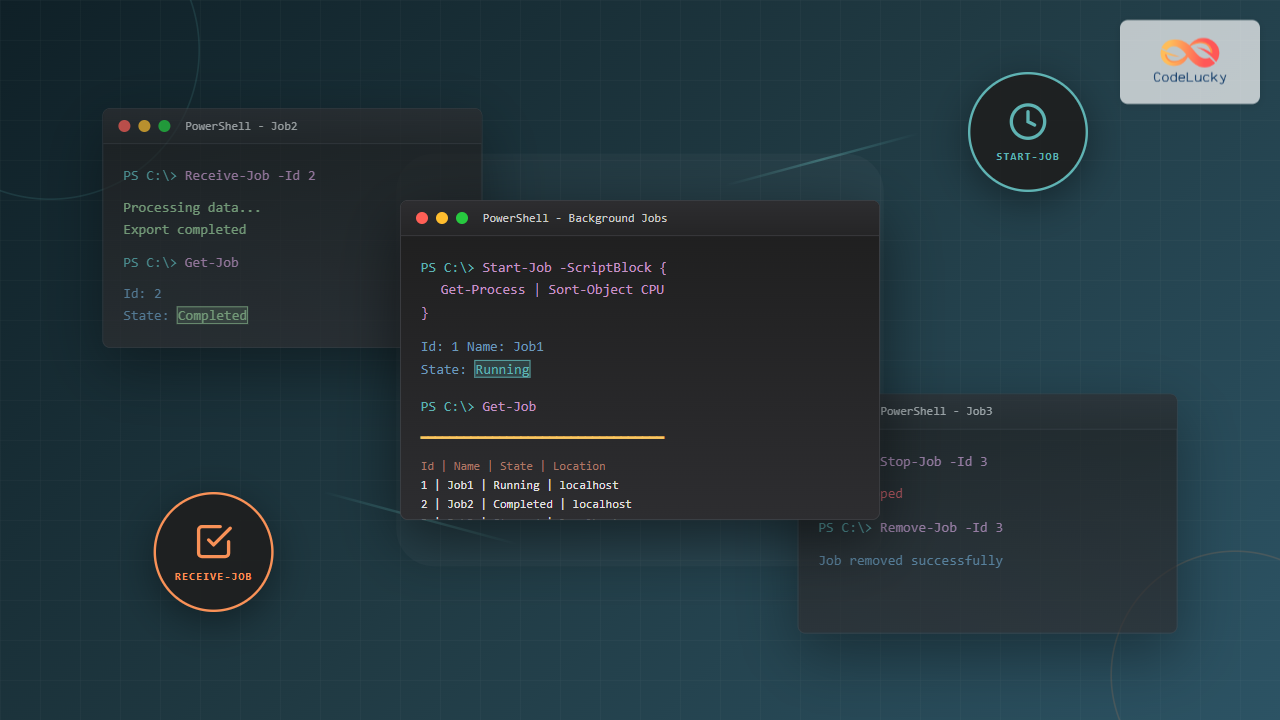
PowerShell jobs enable you to run commands and scripts in the background, allowing your console to remain responsive while performing long-running tasks. This capability is essential for system administrators and developers who need to execute multiple operations simultaneously or prevent blocking the PowerShell session during intensive processes.
Understanding PowerShell Jobs
PowerShell jobs are commands that run asynchronously in the background. When you start a job, PowerShell creates a new session, executes the command within that session, and immediately returns control to your console. This allows you to continue working while the job processes in the background.

Key Benefits of Background Jobs
- Non-blocking execution: Your console remains responsive while tasks run
- Parallel processing: Execute multiple operations simultaneously
- Resource management: Isolate resource-intensive operations
- Scheduled execution: Defer tasks for later retrieval
Starting Background Jobs with Start-Job
The Start-Job cmdlet creates and starts a background job. It accepts script blocks or file paths and returns a job object immediately.
Basic Syntax
Start-Job [-ScriptBlock] <scriptblock> [-Name <string>] [-ArgumentList <Object[]>]Simple Background Job Example
# Start a simple background job
$job = Start-Job -ScriptBlock { Get-Process | Sort-Object CPU -Descending | Select-Object -First 10 }

# View job information
$job
Output:
Id     Name            PSJobTypeName   State         HasMoreData     Location             Command
--     ----            -------------   -----         -----------     --------             -------
1      Job1            BackgroundJob   Running       True            localhost            Get-Process | Sort-Ob...
Named Jobs for Better Management
# Create a named job
Start-Job -Name "ProcessMonitor" -ScriptBlock {
    Get-Process | Where-Object { $_.CPU -gt 100 }
}

# List all jobs
Get-Job
Output:
Id     Name               PSJobTypeName   State         HasMoreData     Location
--     ----               -------------   -----         -----------     --------
2      ProcessMonitor     BackgroundJob   Completed     True            localhost
Passing Arguments to Jobs
# Pass parameters to the job
$threshold = 50
$job = Start-Job -ScriptBlock {
    param($cpuThreshold)
    Get-Process | Where-Object { $_.CPU -gt $cpuThreshold }
} -ArgumentList $threshold

# Check job status
$job.State
Output:
RunningRunning Script Files as Jobs
# Start a job from a script file
Start-Job -FilePath "C:\Scripts\BackupDatabase.ps1" -ArgumentList "ProductionDB"
Retrieving Job Results with Receive-Job
The Receive-Job cmdlet retrieves the output from background jobs. By default, it removes the results after retrieval, but you can use the -Keep parameter to preserve them.

Basic Result Retrieval
# Start a job
$job = Start-Job -ScriptBlock { 1..5 | ForEach-Object { Start-Sleep -Seconds 1; "Task $_" } }

# Wait for completion
Wait-Job -Job $job

# Retrieve results
Receive-Job -Job $job
Output:
Task 1
Task 2
Task 3
Task 4
Task 5
Keeping Results for Multiple Retrievals
# Start a job
$job = Start-Job -ScriptBlock { Get-Date; Get-ComputerInfo | Select-Object CsName, OsArchitecture }

# Wait and retrieve with -Keep
Wait-Job -Job $job
$results = Receive-Job -Job $job -Keep

# Retrieve again (still available because of -Keep)
$results2 = Receive-Job -Job $job -Keep

# Both variables contain the same data
$results -eq $results2
Output:
TrueReceiving Results While Job Runs
# Start a long-running job
$job = Start-Job -ScriptBlock {
    1..10 | ForEach-Object {
        Start-Sleep -Seconds 2
        "Processing item $_"
    }
}

# Retrieve partial results while running
Start-Sleep -Seconds 5
Receive-Job -Job $job -Keep
Output:
Processing item 1
Processing item 2
Automatic Retrieval with AutoRemoveJob
# Automatically remove job after receiving results
$job = Start-Job -ScriptBlock { Get-Service | Where-Object Status -eq 'Running' }
Wait-Job -Job $job
$results = Receive-Job -Job $job -AutoRemoveJob

# Job is now removed
Get-Job -Id $job.Id
Output:
Get-Job: Cannot find job with id 3.Managing Job Lifecycle with Stop-Job and Remove-Job
Stopping Running Jobs
The Stop-Job cmdlet terminates running jobs immediately. This is useful when a job is taking longer than expected or needs to be cancelled.
# Start a long-running job
$job = Start-Job -ScriptBlock {
    1..1000 | ForEach-Object {
        Start-Sleep -Seconds 1
        "Item $_"
    }
}

# Check status
$job.State

# Stop the job
Stop-Job -Job $job

# Verify stopped
$job.State
Output:
Running
Stopped
Stopping Multiple Jobs
# Start multiple jobs
1..5 | ForEach-Object {
    Start-Job -Name "Job$_" -ScriptBlock { Start-Sleep -Seconds 100 }
}

# Stop all running jobs
Get-Job -State Running | Stop-Job

# Verify all stopped
Get-Job | Select-Object Name, State
Output:
Name    State
----    -----
Job1    Stopped
Job2    Stopped
Job3    Stopped
Job4    Stopped
Job5    Stopped
Removing Jobs
# Remove a specific job
Remove-Job -Name "ProcessMonitor"

# Remove all completed jobs
Get-Job -State Completed | Remove-Job

# Remove all jobs
Get-Job | Remove-Job -Force
Advanced Job Management Techniques
Job States and Monitoring
PowerShell jobs can be in various states throughout their lifecycle. Understanding these states helps you manage jobs effectively.

# Check job states
Get-Job | Select-Object Id, Name, State, HasMoreData

# Get detailed job information
Get-Job -Id 1 | Format-List *
Output:
State                 : Completed
HasMoreData           : True
StatusMessage         :
Location              : localhost
Command               : Get-Process | Sort-Object CPU -Descending | Select-Object -First 10
JobStateInfo          : Completed
Finished              : System.Threading.ManualResetEvent
InstanceId            : 12345678-1234-1234-1234-123456789012
Id                    : 1
Name                  : Job1
ChildJobs             : {Job2}
PSBeginTime           : 10/22/2025 2:30:15 PM
PSEndTime             : 10/22/2025 2:30:18 PM
PSJobTypeName         : BackgroundJob
Output                : {System.Diagnostics.Process, System.Diagnostics.Process...}
Error                 : {}
Progress              : {}
Verbose               : {}
Debug                 : {}
Warning               : {}
Waiting for Jobs with Timeout
# Start a job
$job = Start-Job -ScriptBlock { Start-Sleep -Seconds 30; "Done" }

# Wait with timeout (10 seconds)
$completed = Wait-Job -Job $job -Timeout 10

if ($completed) {
    Receive-Job -Job $job
} else {
    Write-Host "Job timed out, still running"
    Stop-Job -Job $job
}
Output:
Job timed out, still runningHandling Job Errors
# Start a job that will fail
$job = Start-Job -ScriptBlock {
    Get-Item "C:\NonExistentFile.txt"
    Get-Process
}

# Wait for completion
Wait-Job -Job $job

# Check for errors
if ($job.State -eq "Failed") {
    Write-Host "Job failed with errors:"
    Receive-Job -Job $job 2>&1
} else {
    $results = Receive-Job -Job $job -Keep
    $errors = $job.ChildJobs[0].Error

    if ($errors.Count -gt 0) {
        Write-Host "Job completed with warnings/errors:"
        $errors
    }
}
Output:
Job completed with warnings/errors:
Get-Item: Cannot find path 'C:\NonExistentFile.txt' because it does not exist.
Practical Real-World Examples
Parallel File Processing
# Process multiple log files in parallel
$logFiles = Get-ChildItem "C:\Logs\*.log"
$jobs = @()

foreach ($file in $logFiles) {
    $jobs += Start-Job -ScriptBlock {
        param($filePath)
        $errors = Select-String -Path $filePath -Pattern "ERROR"
        [PSCustomObject]@{
            File = Split-Path $filePath -Leaf
            ErrorCount = $errors.Count
            Errors = $errors | Select-Object -First 5 LineNumber, Line
        }
    } -ArgumentList $file.FullName
}

# Wait for all jobs
$jobs | Wait-Job

# Collect results
$results = $jobs | Receive-Job
$jobs | Remove-Job

# Display summary
$results | Format-Table File, ErrorCount -AutoSize
Output:
File              ErrorCount
----              ----------
application.log           15
system.log                 3
security.log               0
System Health Monitoring
# Monitor multiple systems simultaneously
$servers = @("Server01", "Server02", "Server03")
$monitorJobs = @()

foreach ($server in $servers) {
    $monitorJobs += Start-Job -Name "Monitor_$server" -ScriptBlock {
        param($computerName)
        $cpu = Get-Counter "\Processor(_Total)\% Processor Time" -ComputerName $computerName
        $memory = Get-Counter "\Memory\Available MBytes" -ComputerName $computerName

        [PSCustomObject]@{
            Server = $computerName
            CPUUsage = [math]::Round($cpu.CounterSamples.CookedValue, 2)
            AvailableMemoryMB = [math]::Round($memory.CounterSamples.CookedValue, 2)
            Timestamp = Get-Date
        }
    } -ArgumentList $server
}

# Wait and retrieve results
$monitorJobs | Wait-Job -Timeout 30
$healthData = $monitorJobs | Receive-Job
$monitorJobs | Remove-Job

# Display results
$healthData | Format-Table -AutoSize
Batch Data Export
# Export different datasets in parallel
$exportJobs = @()

# Export users
$exportJobs += Start-Job -Name "ExportUsers" -ScriptBlock {
    Get-ADUser -Filter * | Export-Csv "C:\Exports\Users.csv" -NoTypeInformation
    "Users export completed"
}

# Export computers
$exportJobs += Start-Job -Name "ExportComputers" -ScriptBlock {
    Get-ADComputer -Filter * | Export-Csv "C:\Exports\Computers.csv" -NoTypeInformation
    "Computers export completed"
}

# Export groups
$exportJobs += Start-Job -Name "ExportGroups" -ScriptBlock {
    Get-ADGroup -Filter * | Export-Csv "C:\Exports\Groups.csv" -NoTypeInformation
    "Groups export completed"
}

# Monitor progress
while ($exportJobs.State -contains "Running") {
    $completed = ($exportJobs | Where-Object State -eq "Completed").Count
    $total = $exportJobs.Count
    Write-Progress -Activity "Exporting Data" -Status "$completed of $total completed" -PercentComplete (($completed / $total) * 100)
    Start-Sleep -Seconds 2
}

# Retrieve results
$exportJobs | Receive-Job
$exportJobs | Remove-Job
Performance Considerations and Best Practices

Limiting Concurrent Jobs
# Process items with limited parallelism
$items = 1..100
$maxConcurrent = 5
$jobs = @()

foreach ($item in $items) {
    # Wait if max concurrent jobs reached
    while ((Get-Job -State Running).Count -ge $maxConcurrent) {
        Start-Sleep -Milliseconds 100
    }

    # Start new job
    $jobs += Start-Job -ScriptBlock {
        param($num)
        Start-Sleep -Seconds 2
        "Processed item $num"
    } -ArgumentList $item

    # Clean up completed jobs periodically
    Get-Job -State Completed | Receive-Job | Out-Null
    Get-Job -State Completed | Remove-Job
}

# Wait for remaining jobs
$jobs | Wait-Job | Receive-Job
$jobs | Remove-Job
Job Cleanup Strategy
# Automatic cleanup function
function Invoke-JobWithCleanup {
    param(
        [scriptblock]$ScriptBlock,
        [int]$TimeoutSeconds = 300
    )

    $job = Start-Job -ScriptBlock $ScriptBlock

    try {
        $completed = Wait-Job -Job $job -Timeout $TimeoutSeconds

        if ($completed) {
            $result = Receive-Job -Job $job
            return $result
        } else {
            Stop-Job -Job $job
            throw "Job timed out after $TimeoutSeconds seconds"
        }
    }
    finally {
        Remove-Job -Job $job -Force -ErrorAction SilentlyContinue
    }
}

# Usage
$result = Invoke-JobWithCleanup -ScriptBlock { Get-Process } -TimeoutSeconds 30
Monitoring Job Resource Usage
# Get job performance metrics
function Get-JobMetrics {
    $jobs = Get-Job

    foreach ($job in $jobs) {
        $childJob = $job.ChildJobs[0]
        $duration = if ($job.PSEndTime) {
            $job.PSEndTime - $job.PSBeginTime
        } else {
            (Get-Date) - $job.PSBeginTime
        }

        [PSCustomObject]@{
            JobId = $job.Id
            Name = $job.Name
            State = $job.State
            Duration = $duration
            HasErrors = $childJob.Error.Count -gt 0
            ErrorCount = $childJob.Error.Count
            OutputCount = $childJob.Output.Count
        }
    }
}

# Display metrics
Get-JobMetrics | Format-Table -AutoSize
Output:
JobId Name              State     Duration         HasErrors ErrorCount OutputCount
----- ----              -----     --------         --------- ---------- -----------
    1 ProcessMonitor    Completed 00:00:03.2156789     False          0          25
    2 SystemCheck       Completed 00:00:05.8934521     False          0          10
    3 BackupJob         Running   00:01:23.4567890     False          0           0
Troubleshooting Common Issues
Jobs Stuck in Running State
# Find and handle stuck jobs
$stuckJobs = Get-Job | Where-Object {
    $_.State -eq "Running" -and
    ((Get-Date) - $_.PSBeginTime).TotalMinutes -gt 30
}

foreach ($job in $stuckJobs) {
    Write-Warning "Job $($job.Name) has been running for over 30 minutes"
    Stop-Job -Job $job
    Receive-Job -Job $job -Keep | Out-File "C:\Logs\StuckJob_$($job.Id).log"
    Remove-Job -Job $job -Force
}
Debugging Job Failures
# Comprehensive job error reporting
function Get-JobErrorDetails {
    param([System.Management.Automation.Job]$Job)

    $childJob = $Job.ChildJobs[0]

    [PSCustomObject]@{
        JobId = $Job.Id
        JobName = $Job.Name
        State = $Job.State
        StartTime = $Job.PSBeginTime
        EndTime = $Job.PSEndTime
        Command = $Job.Command
        Errors = $childJob.Error | ForEach-Object { $_.ToString() }
        Warnings = $childJob.Warning
        Verbose = $childJob.Verbose
        Debug = $childJob.Debug
    }
}

# Usage
$failedJob = Get-Job -State Failed | Select-Object -First 1
Get-JobErrorDetails -Job $failedJob | Format-List
Comparing Jobs with Other Asynchronous Methods
PowerShell offers multiple ways to handle asynchronous operations. Understanding when to use jobs versus other methods helps optimize your scripts.
| Feature | Background Jobs | Thread Jobs | Runspaces |
|---|---|---|---|
| Startup Overhead | High (new process) | Low (same process) | Lowest |
| Memory Usage | High | Medium | Low |
| Isolation | Complete | Partial | Minimal |
| Variable Sharing | No (ArgumentList) | Limited | Yes (careful management) |
| Best For | Long-running, isolated tasks | Quick parallel operations | High-performance scenarios |
When to Use Background Jobs
- Long-running operations that should not block the console
- Tasks requiring complete isolation from the parent session
- Operations that might fail and need recovery without affecting other processes
- When you need to monitor progress asynchronously
- Cross-session or remote execution scenarios
Conclusion
PowerShell background jobs provide powerful capabilities for asynchronous task execution. By mastering Start-Job, Receive-Job, and Stop-Job, you can build efficient scripts that handle multiple operations simultaneously without blocking your console. Remember to implement proper error handling, resource management, and cleanup strategies to ensure robust and reliable automation solutions.
The key to effective job management lies in understanding job states, implementing appropriate timeouts, and maintaining good cleanup practices. Whether you’re processing files in parallel, monitoring multiple systems, or executing batch operations, background jobs enable you to maximize PowerShell’s potential for concurrent task execution.
- Understanding PowerShell Jobs
- Starting Background Jobs with Start-Job
- Retrieving Job Results with Receive-Job
- Managing Job Lifecycle with Stop-Job and Remove-Job
- Advanced Job Management Techniques
- Practical Real-World Examples
- Performance Considerations and Best Practices
- Troubleshooting Common Issues
- Comparing Jobs with Other Asynchronous Methods
- Conclusion





