Introduction to PowerShell Data Types
PowerShell is built on the .NET Framework, which means it inherits a rich type system that goes far beyond simple text manipulation. Understanding data types is fundamental to writing effective PowerShell scripts, as they determine how data is stored, processed, and manipulated throughout your automation tasks.
Unlike traditional command-line shells that treat everything as text, PowerShell works with strongly-typed objects. This object-oriented approach provides powerful capabilities for data manipulation, comparison, and transformation. Every variable, parameter, and return value in PowerShell has a specific type, whether explicitly declared or implicitly assigned.
What Are Data Types?
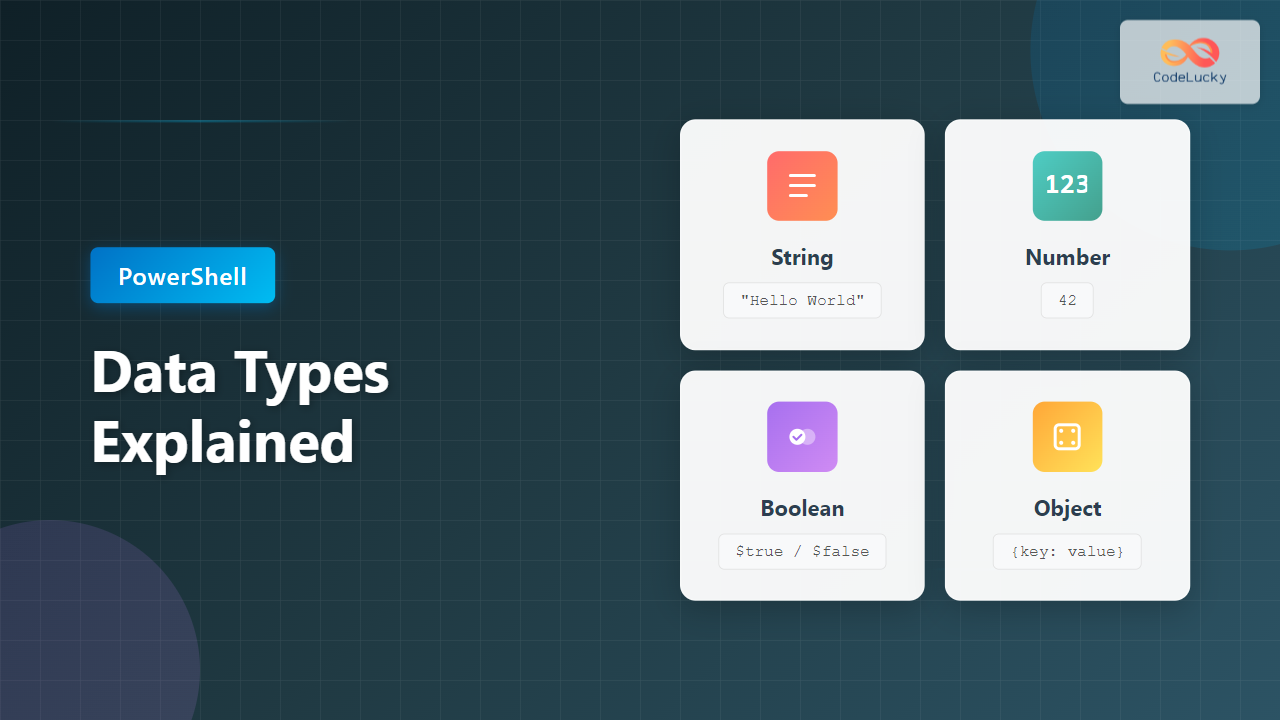
A data type defines the kind of value a variable can hold and the operations that can be performed on it. PowerShell supports numerous data types from the .NET Framework, but the most commonly used ones fall into four main categories: strings, numbers, booleans, and objects.

String Data Type
Strings are sequences of characters used to represent text. In PowerShell, strings are one of the most frequently used data types, essential for displaying messages, building file paths, and processing textual data.
Creating Strings
PowerShell supports multiple ways to create strings, each with specific characteristics:
# Single-quoted strings (literal)
$literalString = 'Hello, World!'

# Double-quoted strings (expandable)
$name = "Alice"
$greeting = "Hello, $name!"

# Here-strings for multi-line text
$multiLine = @"
This is line 1
This is line 2
This is line 3
"@

# Output examples
Write-Host $literalString    # Output: Hello, World!
Write-Host $greeting         # Output: Hello, Alice!
Write-Host $multiLine
Output:
Hello, World!
Hello, Alice!
This is line 1
This is line 2
This is line 3
String Manipulation
PowerShell provides extensive string manipulation capabilities through methods and operators:
# String methods
$text = "PowerShell Scripting"

# Length property
$text.Length                           # Output: 20

# Case conversion
$text.ToUpper()                        # Output: POWERSHELL SCRIPTING
$text.ToLower()                        # Output: powershell scripting

# Substring extraction
$text.Substring(0, 10)                 # Output: PowerShell

# Replace text
$text.Replace("Scripting", "Automation")  # Output: PowerShell Automation

# Split and join
$words = $text.Split(" ")              # Output: @("PowerShell", "Scripting")
$words -join "-"                       # Output: PowerShell-Scripting

# String comparison (case-insensitive by default)
"PowerShell" -eq "powershell"         # Output: True
"PowerShell" -ceq "powershell"        # Output: False (case-sensitive)

# String formatting
$version = 7.4
$formatted = "PowerShell version {0:N1}" -f $version
Write-Host $formatted                  # Output: PowerShell version 7.4
Escape Characters
PowerShell uses the backtick (`) as an escape character for special characters:
# Common escape sequences
$tab = "Column1`tColumn2`tColumn3"
$newline = "Line 1`nLine 2"
$quote = "She said `"Hello`" to me"

Write-Host $tab
Write-Host $newline
Write-Host $quote
Output:
Column1    Column2    Column3
Line 1
Line 2
She said "Hello" to me
Numeric Data Types
PowerShell supports various numeric types for different precision and range requirements. The most common numeric types include integers and floating-point numbers.

Integer Types
# Default integer type is Int32
$count = 100
$count.GetType().Name                  # Output: Int32

# Explicit type declaration
[int]$smallNumber = 32767
[long]$bigNumber = 9223372036854775807
[byte]$tinyNumber = 255

# Integer arithmetic
$sum = 10 + 5                          # Output: 15
$difference = 10 - 5                   # Output: 5
$product = 10 * 5                      # Output: 50
$quotient = 10 / 5                     # Output: 2
$remainder = 10 % 3                    # Output: 1

# Integer division vs regular division
[int]$intResult = 10 / 3               # Output: 3 (truncated)
$doubleResult = 10 / 3                 # Output: 3.33333333333333
Floating-Point Types
# Double (default for decimals)
$price = 19.99
$price.GetType().Name                  # Output: Double

# Explicit floating-point types
[double]$preciseValue = 3.14159265359
[float]$lessPrecsie = 3.14159
[decimal]$money = 1234.56

# Floating-point arithmetic
$result = 10.5 + 3.2                   # Output: 13.7
$division = 22 / 7                     # Output: 3.14285714285714

# Rounding
[Math]::Round(3.14159, 2)              # Output: 3.14
[Math]::Ceiling(3.14)                  # Output: 4
[Math]::Floor(3.14)                    # Output: 3

# Scientific notation
$scientific = 1.5e6                    # Output: 1500000
Numeric Comparison and Operations
# Comparison operators
10 -eq 10                              # Output: True
10 -ne 5                               # Output: True
10 -gt 5                               # Output: True
10 -lt 15                              # Output: True
10 -ge 10                              # Output: True
10 -le 10                              # Output: True

# Range operator
$range = 1..10                         # Creates array: 1, 2, 3, ..., 10
$range -contains 5                     # Output: True

# Math operations
[Math]::Pow(2, 8)                      # Output: 256 (2^8)
[Math]::Sqrt(16)                       # Output: 4
[Math]::Abs(-10)                       # Output: 10
[Math]::Max(10, 20)                    # Output: 20
[Math]::Min(10, 20)                    # Output: 10
Boolean Data Type
Booleans represent logical values and are fundamental to conditional logic and flow control. PowerShell recognizes two boolean values: $true and $false.
Boolean Basics
# Boolean variables
$isActive = $true
$isComplete = $false

# Type information
$isActive.GetType().Name               # Output: Boolean

# Boolean expressions
$age = 25
$isAdult = $age -ge 18                 # Output: True

$temperature = 30
$isHot = $temperature -gt 25           # Output: True
Logical Operators
# AND operator
$result = $true -and $true             # Output: True
$result = $true -and $false            # Output: False

# OR operator
$result = $true -or $false             # Output: True
$result = $false -or $false            # Output: False

# NOT operator
$result = -not $true                   # Output: False
$result = !$false                      # Output: True

# XOR operator (exclusive OR)
$result = $true -xor $false            # Output: True
$result = $true -xor $true             # Output: False

# Complex conditions
$age = 30
$hasLicense = $true
$canDrive = ($age -ge 18) -and $hasLicense
Write-Host "Can drive: $canDrive"      # Output: Can drive: True
Truthy and Falsy Values
PowerShell treats certain values as truthy or falsy in boolean contexts:
# Falsy values
[bool]$null                            # Output: False
[bool]0                                # Output: False
[bool]""                               # Output: False
[bool]@()                              # Output: False (empty array)

# Truthy values
[bool]1                                # Output: True
[bool]-1                               # Output: True
[bool]"text"                           # Output: True
[bool]@(1,2,3)                         # Output: True (non-empty array)

# Conditional usage
if ($value) {
    Write-Host "Value is truthy"
} else {
    Write-Host "Value is falsy"
}
Objects and Complex Types
Objects are the cornerstone of PowerShell’s power. Everything in PowerShell is an object, containing both data (properties) and functionality (methods).

Working with Objects
# Get object information
$process = Get-Process | Select-Object -First 1
$process.GetType().FullName            # Shows the object type

# Access properties
$process.Name                          # Process name
$process.Id                            # Process ID
$process.CPU                           # CPU time

# List all properties
$process | Get-Member -MemberType Property

# List all methods
$process | Get-Member -MemberType Method

# Call methods
$date = Get-Date
$date.AddDays(7)                       # Add 7 days to current date
$date.ToString("yyyy-MM-dd")           # Format date as string
Creating Custom Objects
# Using PSCustomObject (PowerShell 3.0+)
$user = [PSCustomObject]@{
    Name = "John Doe"
    Age = 30
    Email = "[email protected]"
    IsActive = $true
}

# Access properties
Write-Host "Name: $($user.Name)"       # Output: Name: John Doe
Write-Host "Age: $($user.Age)"         # Output: Age: 30

# Add properties dynamically
$user | Add-Member -MemberType NoteProperty -Name "Department" -Value "IT"
Write-Host "Department: $($user.Department)"  # Output: Department: IT

# Creating multiple objects
$users = @(
    [PSCustomObject]@{Name="Alice"; Age=28; Department="HR"}
    [PSCustomObject]@{Name="Bob"; Age=35; Department="IT"}
    [PSCustomObject]@{Name="Charlie"; Age=42; Department="Sales"}
)

# Display as table
$users | Format-Table -AutoSize
Output:
Name    Age Department
----    --- ----------
Alice    28 HR
Bob      35 IT
Charlie  42 Sales
Arrays and Collections
# Creating arrays
$numbers = @(1, 2, 3, 4, 5)
$mixed = @("text", 42, $true, 3.14)

# Array operations
$numbers.Length                        # Output: 5
$numbers[0]                            # Output: 1 (first element)
$numbers[-1]                           # Output: 5 (last element)
$numbers[1..3]                         # Output: 2, 3, 4 (slice)

# Add elements
$numbers += 6                          # Creates new array with 6 added

# Array methods
$numbers -contains 3                   # Output: True
$numbers.IndexOf(3)                    # Output: 2 (zero-based index)

# ArrayList (mutable)
$list = [System.Collections.ArrayList]@()
$list.Add("Item1") | Out-Null
$list.Add("Item2") | Out-Null
$list.Remove("Item1")
Hashtables
# Creating hashtables
$config = @{
    ServerName = "webserver01"
    Port = 8080
    SSL = $true
    Timeout = 30
}

# Access values
$config["ServerName"]                  # Output: webserver01
$config.Port                           # Output: 8080

# Add or modify entries
$config["MaxConnections"] = 100
$config.Port = 9090

# Check for keys
$config.ContainsKey("SSL")             # Output: True

# Iterate through hashtable
foreach ($key in $config.Keys) {
    Write-Host "$key : $($config[$key])"
}

# Ordered hashtables
$ordered = [ordered]@{
    First = 1
    Second = 2
    Third = 3
}
Type Conversion and Casting
PowerShell performs automatic type conversion in many cases, but you can also explicitly convert between types.

Implicit Conversion
# PowerShell automatically converts types when needed
$number = "42"                         # String
$result = $number + 8                  # Converted to number, Output: 50

$text = 100
$message = "The value is: " + $text    # Number converted to string
Write-Host $message                    # Output: The value is: 100
Explicit Casting
# String to number
[int]"42"                              # Output: 42
[double]"3.14"                         # Output: 3.14

# Number to string
[string]42                             # Output: "42"

# String to boolean
[bool]"true"                           # Output: True
[bool]""                               # Output: False

# Parse methods
[int]::Parse("100")                    # Output: 100
[DateTime]::Parse("2025-10-22")        # Converts to DateTime object

# TryParse for safe conversion
$result = $null
$success = [int]::TryParse("abc", [ref]$result)
Write-Host "Success: $success"         # Output: Success: False
Write-Host "Result: $result"           # Output: Result: 0

# Array to string
$array = @(1, 2, 3)
[string]$array                         # Output: "1 2 3"
$array -join ","                       # Output: "1,2,3"
Type Checking
# Get type information
$value = 42
$value.GetType().Name                  # Output: Int32
$value.GetType().FullName              # Output: System.Int32

# Type comparison
$value -is [int]                       # Output: True
$value -is [string]                    # Output: False
$value -isnot [string]                 # Output: True

# Type validation in functions
function Process-Data {
    param(
        [Parameter(Mandatory=$true)]
        [int]$Number,

        [Parameter(Mandatory=$true)]
        [string]$Text
    )

    Write-Host "Processing $Number and $Text"
}

Process-Data -Number 42 -Text "Hello"
Best Practices for Working with Data Types
Declare Types When Appropriate
# Explicit typing for function parameters
function Calculate-Total {
    param(
        [int]$Quantity,
        [decimal]$Price
    )
    return $Quantity * $Price
}

# Type validation prevents errors
Calculate-Total -Quantity 5 -Price 19.99    # Output: 99.95
# Calculate-Total -Quantity "five" -Price 19.99  # Would throw error
Use Appropriate Types for Performance
# Use ArrayList for large collections that need modification
$largeList = [System.Collections.ArrayList]@()
1..10000 | ForEach-Object { $largeList.Add($_) | Out-Null }

# Use strongly-typed collections when possible
$stringList = [System.Collections.Generic.List[string]]::new()
$stringList.Add("Item1")
$stringList.Add("Item2")
Handle Type Conversion Safely
# Use try-catch for conversion that might fail
try {
    $userInput = "abc"
    $number = [int]$userInput
} catch {
    Write-Host "Invalid number format"
}

# Use TryParse methods
$input = "123"
$output = $null
if ([int]::TryParse($input, [ref]$output)) {
    Write-Host "Successfully converted: $output"
} else {
    Write-Host "Conversion failed"
}
Common Data Type Scenarios
Working with Dates and Times
# Create DateTime objects
$now = Get-Date
$specific = [DateTime]"2025-12-31 23:59:59"

# DateTime operations
$tomorrow = $now.AddDays(1)
$lastWeek = $now.AddDays(-7)
$nextMonth = $now.AddMonths(1)

# Format dates
$now.ToString("yyyy-MM-dd")            # Output: 2025-10-22
$now.ToString("dd/MM/yyyy HH:mm:ss")   # Custom format

# Compare dates
$date1 = Get-Date "2025-10-22"
$date2 = Get-Date "2025-10-23"
$date1 -lt $date2                      # Output: True

# Calculate differences
$span = $date2 - $date1
$span.Days                             # Output: 1
$span.TotalHours                       # Output: 24
File and Path Operations
# Working with paths
$path = "C:\Users\Documents\file.txt"
[System.IO.Path]::GetFileName($path)         # Output: file.txt
[System.IO.Path]::GetDirectoryName($path)    # Output: C:\Users\Documents
[System.IO.Path]::GetExtension($path)        # Output: .txt

# Combine paths safely
$combined = Join-Path "C:\Users" "Documents\file.txt"

# File info objects
$file = Get-Item "C:\Windows\notepad.exe"
$file.Name                             # Filename
$file.Length                           # Size in bytes
$file.LastWriteTime                    # Last modified date
XML and JSON Data
# Parse JSON
$jsonString = '{"name":"Alice","age":30,"active":true}'
$jsonObject = $jsonString | ConvertFrom-Json
$jsonObject.name                       # Output: Alice
$jsonObject.age                        # Output: 30

# Convert to JSON
$data = @{
    Name = "Bob"
    Department = "IT"
    Skills = @("PowerShell", "Azure", "DevOps")
}
$json = $data | ConvertTo-Json
Write-Host $json

# Parse XML
[xml]$xmlData = @"


        Charlie
        Admin


"@
$xmlData.users.user.name               # Output: Charlie
Practical Examples
User Input Validation
function Get-ValidatedInput {
    param(
        [string]$Prompt,
        [string]$Type = "string"
    )

    do {
        $input = Read-Host $Prompt
        $isValid = $false

        switch ($Type) {
            "int" {
                $isValid = [int]::TryParse($input, [ref]$null)
            }
            "double" {
                $isValid = [double]::TryParse($input, [ref]$null)
            }
            "bool" {
                $isValid = [bool]::TryParse($input, [ref]$null)
            }
            default {
                $isValid = -not [string]::IsNullOrWhiteSpace($input)
            }
        }

        if (-not $isValid) {
            Write-Host "Invalid input. Please enter a valid $Type value." -ForegroundColor Red
        }
    } while (-not $isValid)

    return $input
}

# Usage
$age = Get-ValidatedInput -Prompt "Enter your age" -Type "int"
$name = Get-ValidatedInput -Prompt "Enter your name"
Data Processing Pipeline
# Process CSV data with type conversion
$csvData = @"
Name,Age,Salary,IsActive
Alice,28,75000.50,true
Bob,35,85000.75,true
Charlie,42,95000.00,false
"@ | ConvertFrom-Csv

# Convert and calculate
$results = $csvData | ForEach-Object {
    [PSCustomObject]@{
        Name = $_.Name
        Age = [int]$_.Age
        Salary = [decimal]$_.Salary
        IsActive = [bool]::Parse($_.IsActive)
        TaxAmount = [decimal]$_.Salary * 0.25
    }
}

# Display results
$results | Format-Table -AutoSize

# Calculate totals
$totalSalary = ($results | Measure-Object -Property Salary -Sum).Sum
$avgAge = ($results | Measure-Object -Property Age -Average).Average
Write-Host "Total Salary: $totalSalary"
Write-Host "Average Age: $([Math]::Round($avgAge, 1))"
Conclusion
Understanding PowerShell data types is essential for effective scripting and automation. Strings provide flexible text manipulation, numeric types enable mathematical operations, booleans drive conditional logic, and objects unlock PowerShell’s full potential by combining data and functionality.
Key takeaways include recognizing that PowerShell automatically handles type conversion in most cases, but explicit type declarations improve code reliability and performance. Objects are fundamental to PowerShell’s design, making it more powerful than traditional scripting languages. Whether working with simple values or complex data structures, understanding how PowerShell handles different types enables you to write more efficient, maintainable, and robust scripts.
Practice these concepts regularly, experiment with different type conversions, and explore the methods and properties available on various object types. As you become more comfortable with PowerShell’s type system, you’ll find yourself writing more sophisticated automation solutions that handle data with precision and confidence.