Arrays and hash tables are fundamental data structures in PowerShell that enable efficient data storage and manipulation. Whether you’re managing lists of servers, processing log files, or building automation scripts, understanding these structures is essential for writing effective PowerShell code.
Understanding Arrays in PowerShell
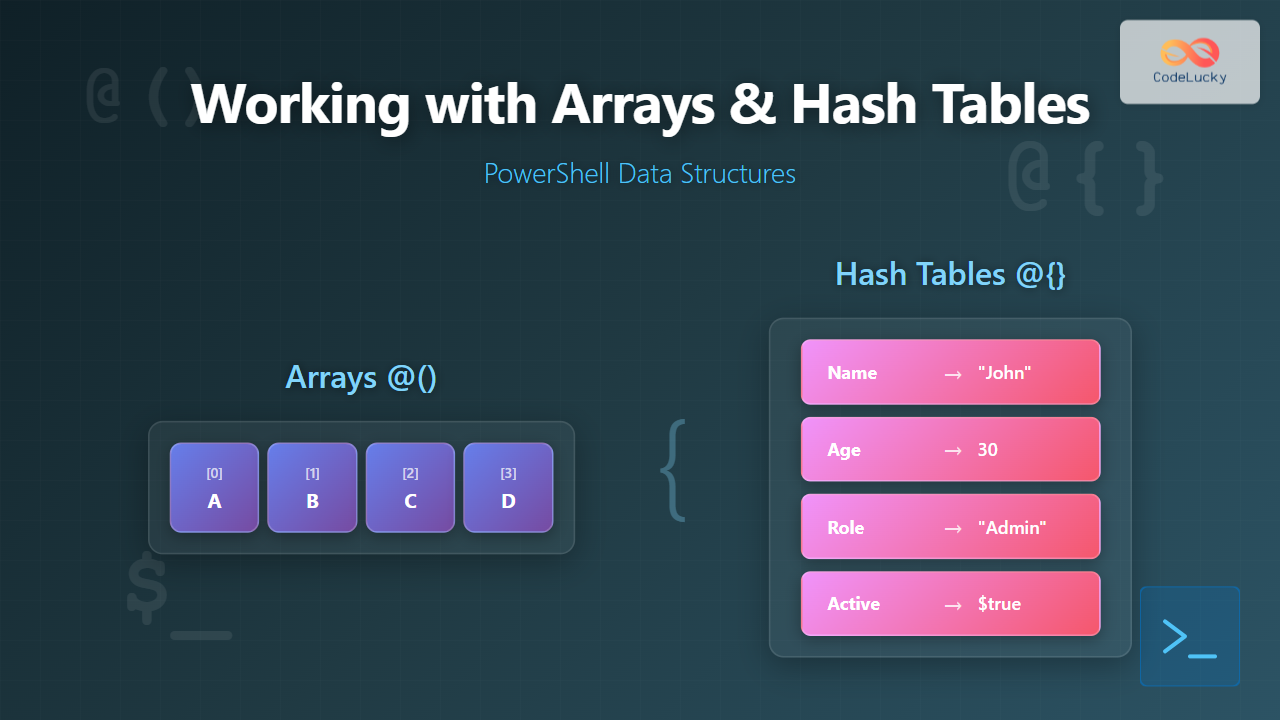
An array is an ordered collection of items stored in a single variable. PowerShell arrays are zero-indexed, meaning the first element is at position 0. Arrays can contain any type of data, including strings, numbers, objects, and even other arrays.
Creating Arrays
PowerShell provides multiple ways to create arrays. The most common method uses the array operator @():
# Create an empty array
$emptyArray = @()

# Create an array with values
$colors = @("Red", "Green", "Blue")

# Create an array using comma separation
$numbers = 1, 2, 3, 4, 5

# Create an array with mixed data types
$mixed = @("PowerShell", 123, $true, (Get-Date))

# Display the arrays
Write-Output "Colors: $($colors -join ', ')"
Write-Output "Numbers: $($numbers -join ', ')"
Write-Output "Array count: $($colors.Count)"
Output:
Colors: Red, Green, Blue
Numbers: 1, 2, 3, 4, 5
Array count: 3

Accessing Array Elements
Access array elements using bracket notation with the index number. PowerShell also supports negative indexing and range selection:
$servers = @("Server01", "Server02", "Server03", "Server04", "Server05")

# Access first element
Write-Output "First server: $($servers[0])"

# Access last element using negative index
Write-Output "Last server: $($servers[-1])"

# Access multiple elements using range
Write-Output "Middle servers: $($servers[1..3] -join ', ')"

# Access elements with custom indices
Write-Output "Selected servers: $($servers[0,2,4] -join ', ')"
Output:
First server: Server01
Last server: Server05
Middle servers: Server02, Server03, Server04
Selected servers: Server01, Server03, Server05
Modifying Arrays
While standard arrays in PowerShell are fixed-size, you can modify individual elements or create new arrays with added elements:
$fruits = @("Apple", "Banana", "Cherry")

# Modify an existing element
$fruits[1] = "Blueberry"
Write-Output "Modified: $($fruits -join ', ')"

# Add elements using += operator (creates new array)
$fruits += "Date"
$fruits += "Elderberry"
Write-Output "Extended: $($fruits -join ', ')"

# Remove elements by filtering
$fruits = $fruits | Where-Object { $_ -ne "Cherry" }
Write-Output "Filtered: $($fruits -join ', ')"
Output:
Modified: Apple, Blueberry, Cherry
Extended: Apple, Blueberry, Cherry, Date, Elderberry
Filtered: Apple, Blueberry, Date, Elderberry
Array Methods and Properties
PowerShell arrays provide useful methods and properties for manipulation:
$numbers = @(5, 2, 8, 1, 9, 3)

# Get array length
Write-Output "Count: $($numbers.Count)"
Write-Output "Length: $($numbers.Length)"

# Check if array contains a value
Write-Output "Contains 8: $($numbers -contains 8)"
Write-Output "Contains 10: $($numbers -contains 10)"

# Sort array
$sorted = $numbers | Sort-Object
Write-Output "Sorted: $($sorted -join ', ')"

# Reverse array
[Array]::Reverse($numbers)
Write-Output "Reversed: $($numbers -join ', ')"

# Get minimum and maximum
$min = ($numbers | Measure-Object -Minimum).Minimum
$max = ($numbers | Measure-Object -Maximum).Maximum
Write-Output "Min: $min, Max: $max"
Output:
Count: 6
Length: 6
Contains 8: True
Contains 10: False
Sorted: 1, 2, 3, 5, 8, 9
Reversed: 3, 9, 1, 8, 2, 5
Min: 1, Max: 9
Working with ArrayLists
For dynamic arrays that need frequent additions or removals, use System.Collections.ArrayList:
$dynamicList = [System.Collections.ArrayList]@()

# Add elements
[void]$dynamicList.Add("Item1")
[void]$dynamicList.Add("Item2")
[void]$dynamicList.Add("Item3")

Write-Output "List: $($dynamicList -join ', ')"

# Insert at specific position
$dynamicList.Insert(1, "InsertedItem")
Write-Output "After Insert: $($dynamicList -join ', ')"

# Remove by value
$dynamicList.Remove("Item2")
Write-Output "After Remove: $($dynamicList -join ', ')"

# Remove by index
$dynamicList.RemoveAt(0)
Write-Output "After RemoveAt: $($dynamicList -join ', ')"
Output:
List: Item1, Item2, Item3
After Insert: Item1, InsertedItem, Item2, Item3
After Remove: Item1, InsertedItem, Item3
After RemoveAt: InsertedItem, Item3
Understanding Hash Tables in PowerShell
Hash tables (also called dictionaries or associative arrays) store data as key-value pairs. They provide fast lookups and are ideal for storing structured data where each item has a unique identifier.

Creating Hash Tables
Use the @{} syntax to create hash tables with key-value pairs:
# Create an empty hash table
$emptyHash = @{}

# Create a hash table with values
$user = @{
    Name = "John Doe"
    Age = 30
    Role = "Administrator"
    Active = $true
}

# Display hash table
Write-Output "User Name: $($user.Name)"
Write-Output "User Age: $($user.Age)"
Write-Output "User Role: $($user['Role'])"
Write-Output "Total keys: $($user.Count)"
Output:
User Name: John Doe
User Age: 30
User Role: Administrator
Total keys: 4
Accessing Hash Table Values
Access hash table values using dot notation or bracket notation:
$server = @{
    Hostname = "SRV-WEB-01"
    IPAddress = "192.168.1.100"
    OS = "Windows Server 2022"
    RAM_GB = 32
}

# Dot notation
Write-Output "Hostname: $($server.Hostname)"

# Bracket notation
Write-Output "IP Address: $($server['IPAddress'])"

# Check if key exists
if ($server.ContainsKey("OS")) {
    Write-Output "Operating System: $($server.OS)"
}

# Get all keys
Write-Output "Keys: $($server.Keys -join ', ')"

# Get all values
Write-Output "Values: $($server.Values -join ', ')"
Output:
Hostname: SRV-WEB-01
IP Address: 192.168.1.100
Operating System: Windows Server 2022
Keys: Hostname, IPAddress, OS, RAM_GB
Values: SRV-WEB-01, 192.168.1.100, Windows Server 2022, 32
Modifying Hash Tables
Hash tables are mutable and support adding, updating, and removing key-value pairs:
$config = @{
    Debug = $true
    LogLevel = "Info"
}

# Add new key-value pair
$config.Timeout = 30
$config['MaxRetries'] = 3

Write-Output "After additions: $($config.Keys -join ', ')"

# Update existing value
$config.LogLevel = "Warning"
Write-Output "Updated LogLevel: $($config.LogLevel)"

# Remove a key-value pair
$config.Remove("Debug")
Write-Output "After removal: $($config.Keys -join ', ')"

# Clear all entries
$config.Clear()
Write-Output "After clear: Count = $($config.Count)"
Output:
After additions: Debug, LogLevel, Timeout, MaxRetries
Updated LogLevel: Warning
After removal: LogLevel, Timeout, MaxRetries
After clear: Count = 0
Iterating Through Hash Tables
Use various methods to loop through hash table entries:
$departments = @{
    IT = 15
    HR = 8
    Sales = 25
    Finance = 12
}

# Iterate using GetEnumerator()
Write-Output "Department Staff Count:"
foreach ($entry in $departments.GetEnumerator()) {
    Write-Output "  $($entry.Key): $($entry.Value) employees"
}

# Iterate through keys
Write-Output "`nUsing Keys:"
foreach ($dept in $departments.Keys) {
    Write-Output "  $dept has $($departments[$dept]) staff members"
}

# Use pipeline
Write-Output "`nTotal Employees:"
$total = ($departments.Values | Measure-Object -Sum).Sum
Write-Output "  $total employees across all departments"
Output:
Department Staff Count:
  IT: 15 employees
  HR: 8 employees
  Sales: 25 employees
  Finance: 12 employees

Using Keys:
  IT has 15 staff members
  HR has 8 staff members
  Sales has 25 staff members
  Finance has 12 staff members

Total Employees:
  60 employees across all departments
Advanced Techniques
Nested Arrays and Hash Tables
Combine arrays and hash tables to create complex data structures:
# Array of hash tables
$employees = @(
    @{ Name = "Alice"; Department = "IT"; Salary = 75000 }
    @{ Name = "Bob"; Department = "Sales"; Salary = 65000 }
    @{ Name = "Charlie"; Department = "IT"; Salary = 80000 }
)

Write-Output "IT Department Employees:"
$employees | Where-Object { $_.Department -eq "IT" } | ForEach-Object {
    Write-Output "  $($_.Name) - Salary: $($_.Salary)"
}

# Hash table with array values
$teams = @{
    Development = @("Alice", "Charlie", "David")
    Testing = @("Eve", "Frank")
    Operations = @("Grace", "Henry", "Ivan")
}

Write-Output "`nDevelopment Team Members:"
$teams.Development | ForEach-Object {
    Write-Output "  $_"
}
Output:
IT Department Employees:
  Alice - Salary: 75000
  Charlie - Salary: 80000

Development Team Members:
  Alice
  Charlie
  David

Ordered Hash Tables
Use [ordered] to maintain insertion order in hash tables:
# Regular hash table (order not guaranteed)
$regular = @{
    First = 1
    Second = 2
    Third = 3
}

# Ordered hash table
$ordered = [ordered]@{
    First = 1
    Second = 2
    Third = 3
}

Write-Output "Regular hash table keys:"
$regular.Keys | ForEach-Object { Write-Output "  $_" }

Write-Output "`nOrdered hash table keys:"
$ordered.Keys | ForEach-Object { Write-Output "  $_" }
Output:
Regular hash table keys:
  Third
  First
  Second

Ordered hash table keys:
  First
  Second
  Third
Converting Between Data Structures
Transform arrays and hash tables to suit different needs:
# Convert array to hash table
$names = @("Alice", "Bob", "Charlie")
$indexedNames = @{}
for ($i = 0; $i -lt $names.Count; $i++) {
    $indexedNames["User$i"] = $names[$i]
}

Write-Output "Array to Hash Table:"
$indexedNames.GetEnumerator() | ForEach-Object {
    Write-Output "  $($_.Key): $($_.Value)"
}

# Convert hash table to custom objects
$serverData = @{
    Name = "WebServer01"
    Status = "Running"
    Uptime = 720
}

$serverObject = [PSCustomObject]$serverData
Write-Output "`nHash Table as Object:"
Write-Output $serverObject
Write-Output "Type: $($serverObject.GetType().Name)"
Output:
Array to Hash Table:
  User0: Alice
  User1: Bob
  User2: Charlie

Hash Table as Object:
Name        Status  Uptime
----        ------  ------
WebServer01 Running    720
Type: PSCustomObject
Filtering and Transforming Collections
Use PowerShell pipeline operators to process arrays and hash tables efficiently:
$inventory = @(
    @{ Product = "Laptop"; Price = 1200; Stock = 15 }
    @{ Product = "Mouse"; Price = 25; Stock = 150 }
    @{ Product = "Keyboard"; Price = 75; Stock = 80 }
    @{ Product = "Monitor"; Price = 300; Stock = 45 }
)

# Filter items
$expensive = $inventory | Where-Object { $_.Price -gt 100 }
Write-Output "Expensive Items:"
$expensive | ForEach-Object {
    Write-Output "  $($_.Product): `$$($_.Price)"
}

# Transform data
$totalValue = $inventory | ForEach-Object {
    [PSCustomObject]@{
        Product = $_.Product
        TotalValue = $_.Price * $_.Stock
    }
}

Write-Output "`nTotal Inventory Value by Product:"
$totalValue | Sort-Object TotalValue -Descending | ForEach-Object {
    Write-Output "  $($_.Product): `$$($_.TotalValue)"
}

# Aggregate calculation
$grandTotal = ($totalValue | Measure-Object -Property TotalValue -Sum).Sum
Write-Output "`nGrand Total Inventory Value: `$$grandTotal"
Output:
Expensive Items:
  Laptop: $1200
  Monitor: $300

Total Inventory Value by Product:
  Laptop: $18000
  Monitor: $13500
  Keyboard: $6000
  Mouse: $3750

Grand Total Inventory Value: $41250

Performance Considerations
Array Performance
Standard arrays in PowerShell are fixed-size. Using the += operator creates a new array each time, which impacts performance for large datasets:
# Less efficient for large datasets
$inefficient = @()
Measure-Command {
    for ($i = 0; $i -lt 1000; $i++) {
        $inefficient += $i
    }
} | Select-Object TotalMilliseconds

# More efficient approach
$efficient = [System.Collections.Generic.List[int]]::new()
Measure-Command {
    for ($i = 0; $i -lt 1000; $i++) {
        $efficient.Add($i)
    }
} | Select-Object TotalMilliseconds
Hash Table Lookup Speed
Hash tables provide constant-time lookups, making them ideal for scenarios requiring frequent searches:
# Create large dataset
$userList = 1..10000 | ForEach-Object {
    [PSCustomObject]@{
        UserID = $_
        Username = "User$_"
    }
}

# Array search (slower)
Measure-Command {
    $result = $userList | Where-Object { $_.UserID -eq 5000 }
} | Select-Object TotalMilliseconds

# Hash table lookup (faster)
$userHash = @{}
$userList | ForEach-Object { $userHash[$_.UserID] = $_.Username }

Measure-Command {
    $result = $userHash[5000]
} | Select-Object TotalMilliseconds
Practical Use Cases
Configuration Management
$appConfig = [ordered]@{
    Database = @{
        Server = "sql.example.com"
        Port = 1433
        Timeout = 30
    }
    Logging = @{
        Level = "Information"
        Path = "C:\Logs\app.log"
        MaxSize_MB = 100
    }
    Features = @{
        EnableCache = $true
        EnableMetrics = $true
        EnableDebug = $false
    }
}

# Access nested configuration
Write-Output "Database Server: $($appConfig.Database.Server)"
Write-Output "Log Level: $($appConfig.Logging.Level)"
Write-Output "Cache Enabled: $($appConfig.Features.EnableCache)"
Data Processing Pipeline
$logEntries = @(
    @{ Time = "10:00"; Level = "INFO"; Message = "Application started" }
    @{ Time = "10:05"; Level = "WARNING"; Message = "High memory usage" }
    @{ Time = "10:10"; Level = "ERROR"; Message = "Database connection failed" }
    @{ Time = "10:15"; Level = "INFO"; Message = "Connection restored" }
)

# Analyze log entries
$analysis = $logEntries | Group-Object Level | ForEach-Object {
    [PSCustomObject]@{
        Level = $_.Name
        Count = $_.Count
        Messages = $_.Group.Message
    }
}

Write-Output "Log Analysis:"
$analysis | ForEach-Object {
    Write-Output "`n$($_.Level) ($($_.Count) entries):"
    $_.Messages | ForEach-Object { Write-Output "  - $_" }
}
Best Practices
Choosing the Right Data Structure
Select arrays when you need ordered collections with numeric indexing. Use hash tables when you need key-based lookups or want to associate values with meaningful identifiers. Consider ArrayLists or Generic Lists for dynamic collections that require frequent modifications.
Memory Management
For large datasets, prefer Generic Collections over standard arrays to avoid unnecessary memory allocations. Use the Clear() method to release memory from collections when data is no longer needed.
Type Safety
When working with typed data, consider using strongly-typed Generic Collections:
# Strongly-typed list
$stringList = [System.Collections.Generic.List[string]]::new()
$stringList.Add("Valid")
# $stringList.Add(123)  # This would throw an error

# Strongly-typed dictionary
$userDict = [System.Collections.Generic.Dictionary[int,string]]::new()
$userDict.Add(1, "Alice")
$userDict.Add(2, "Bob")
Common Pitfalls to Avoid
Avoid modifying collections while iterating through them, as this can cause unexpected behavior. When you need to modify during iteration, create a copy first or collect items to modify and process them separately.
Remember that hash table keys are case-insensitive by default. If you need case-sensitive keys, specify a case-sensitive comparer when creating the hash table.
Be cautious when using the += operator with arrays in loops. For performance-critical code with large datasets, use ArrayList or Generic List instead.
Summary
Arrays and hash tables are powerful tools in PowerShell that enable efficient data management and manipulation. Arrays provide ordered collections ideal for sequential data, while hash tables offer fast key-based lookups perfect for associative data. Understanding when and how to use each structure, along with their methods and properties, will significantly improve your PowerShell scripting capabilities. By following best practices and choosing appropriate data structures for your specific needs, you can write more efficient and maintainable PowerShell code.