
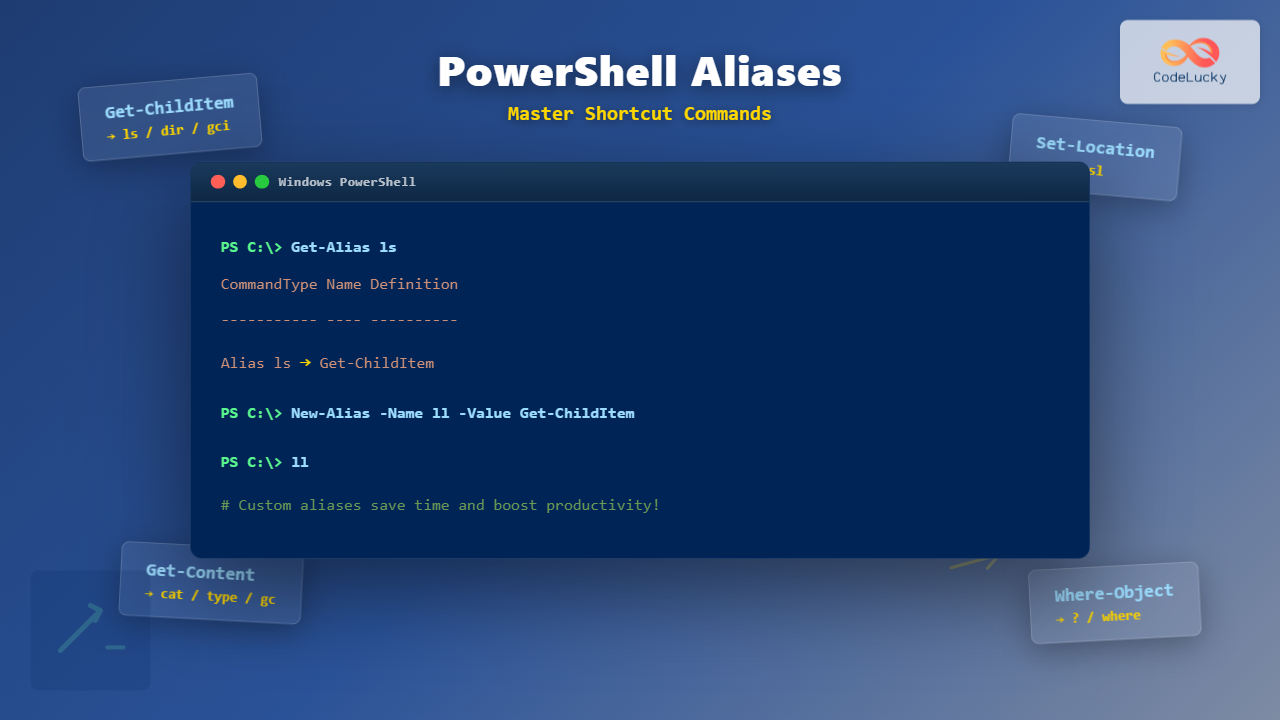
PowerShell aliases are shorthand names for cmdlets, functions, scripts, or executable files that make command-line work faster and more intuitive. Whether you’re a system administrator managing hundreds of servers or a developer automating workflows, understanding aliases can dramatically improve your efficiency and make your PowerShell experience more enjoyable.
This comprehensive guide explores everything from built-in aliases to creating powerful custom shortcuts that match your workflow.
What Are PowerShell Aliases?
An alias in PowerShell is an alternate name for a cmdlet, function, script, or executable program. Think of it as a nickname that PowerShell recognizes and translates to the full command. For example, instead of typing Get-ChildItem every time you want to list directory contents, you can simply type ls or dir.

Aliases serve multiple purposes: they reduce typing, provide familiar commands for users transitioning from other shells (like cmd.exe or bash), and allow you to create personalized shortcuts that match your mental model of tasks.
Discovering Built-in Aliases
PowerShell comes with numerous predefined aliases. You can view all available aliases using the Get-Alias cmdlet:
Get-AliasOutput:
CommandType     Name                           Version    Source
-----------     ----                           -------    ------
Alias           % -> ForEach-Object
Alias           ? -> Where-Object
Alias           ac -> Add-Content
Alias           cat -> Get-Content
Alias           cd -> Set-Location
Alias           cls -> Clear-Host
Alias           copy -> Copy-Item
Alias           dir -> Get-ChildItem
Alias           echo -> Write-Output
Alias           ls -> Get-ChildItem
Alias           man -> help
Alias           pwd -> Get-Location
Alias           rm -> Remove-Item
Alias           type -> Get-Content
...
Finding What a Specific Alias Represents
To discover which cmdlet an alias points to, use Get-Alias with the alias name:
Get-Alias lsOutput:
CommandType     Name                           Version    Source
-----------     ----                           -------    ------
Alias           ls -> Get-ChildItem
Finding All Aliases for a Cmdlet
To see all aliases that point to a specific cmdlet, use the -Definition parameter:
Get-Alias -Definition Get-ChildItemOutput:
CommandType     Name                           Version    Source
-----------     ----                           -------    ------
Alias           dir -> Get-ChildItem
Alias           gci -> Get-ChildItem
Alias           ls -> Get-ChildItem
Common Built-in Aliases by Category
File and Directory Management
| Alias | Cmdlet | Description |
|---|---|---|
ls, dir, gci |
Get-ChildItem | List directory contents |
cd, chdir, sl |
Set-Location | Change directory |
pwd, gl |
Get-Location | Print working directory |
copy, cp, cpi |
Copy-Item | Copy files/folders |
move, mv, mi |
Move-Item | Move files/folders |
del, rm, ri |
Remove-Item | Delete files/folders |
md, mkdir |
New-Item -ItemType Directory | Create directory |
Content Operations
| Alias | Cmdlet | Description |
|---|---|---|
cat, type, gc |
Get-Content | Read file content |
ac |
Add-Content | Append to file |
sc |
Set-Content | Write to file (overwrite) |
echo, write |
Write-Output | Output to console |
Process and Service Management
| Alias | Cmdlet | Description |
|---|---|---|
ps, gps |
Get-Process | List running processes |
kill, spps |
Stop-Process | Terminate processes |
gsv |
Get-Service | List services |
sasv |
Start-Service | Start a service |
spsv |
Stop-Service | Stop a service |
Pipeline and Filtering
| Alias | Cmdlet | Description |
|---|---|---|
?, where |
Where-Object | Filter objects |
%, foreach |
ForEach-Object | Iterate through objects |
select |
Select-Object | Select properties |
sort |
Sort-Object | Sort objects |
group |
Group-Object | Group objects |
Creating Custom Aliases
While built-in aliases are useful, the real power comes from creating your own shortcuts tailored to your workflow. The New-Alias cmdlet lets you define custom aliases.
Basic Alias Creation
The syntax for creating an alias is straightforward:
New-Alias -Name AliasName -Value CommandNameHere’s a practical example that creates a shortcut for listing files with specific formatting:
New-Alias -Name ll -Value Get-ChildItemNow you can use ll instead of typing Get-ChildItem:
ll C:\Users
Creating Aliases with Parameters
Here’s an important limitation: PowerShell aliases cannot directly include parameters. However, you can work around this by creating a function first, then aliasing the function:
# Create a function that includes parameters
function Get-LargeFiles {
    Get-ChildItem -Recurse | Where-Object { $_.Length -gt 10MB } | Sort-Object Length -Descending
}

# Create an alias for the function
New-Alias -Name bigfiles -Value Get-LargeFiles
Now you can use the alias:
bigfilesOutput:
    Directory: C:\Users\YourName\Documents

Mode                 LastWriteTime         Length Name
----                 -------------         ------ ----
-a---          10/15/2025  2:30 PM       52428800 LargeVideo.mp4
-a---          10/10/2025  9:15 AM       31457280 Presentation.pptx
-a---          09/28/2025  4:45 PM       15728640 Database.bak
Advanced Function-Based Aliases with Parameters
You can create more sophisticated functions that accept parameters:
function Search-Content {
    param(
        [Parameter(Mandatory=$true)]
        [string]$Pattern,
        [string]$Path = "."
    )
    Get-ChildItem -Path $Path -Recurse -File | Select-String -Pattern $Pattern
}

New-Alias -Name search -Value Search-Content
Usage:
search -Pattern "TODO" -Path "C:\Projects"Managing Aliases
Viewing Alias Details
To see full details about a specific alias:
Get-Alias ls | Format-List *Output:
DisplayName     : ls -> Get-ChildItem
CommandType     : Alias
Definition      : Get-ChildItem
ReferencedCommand : Get-ChildItem
ResolvedCommand : Get-ChildItem
Name            : ls
Options         : ReadOnly, AllScope
Description     :
ModuleName      :
Removing Aliases
To remove an alias from the current session:
Remove-Item Alias:llYou can also use:
Remove-Alias -Name llNote: You cannot remove built-in aliases that have the ReadOnly option. Attempting to do so will result in an error.
Overwriting Existing Aliases
If you want to override an existing alias, use the -Force parameter:
New-Alias -Name ls -Value Get-Service -ForceWarning: Overwriting standard aliases can cause confusion. Use this feature judiciously.
Making Aliases Persistent
By default, aliases created with New-Alias only exist for the current PowerShell session. When you close PowerShell, they disappear. To make aliases persistent, you need to add them to your PowerShell profile.

Understanding PowerShell Profiles
PowerShell profiles are scripts that run automatically when PowerShell starts. There are different profile scopes, but the most commonly used is the CurrentUser, CurrentHost profile.
Check if your profile exists:
Test-Path $PROFILEIf it returns False, create the profile:
New-Item -Path $PROFILE -ItemType File -ForceAdding Aliases to Your Profile
Open your profile in a text editor:
notepad $PROFILEAdd your alias definitions:
# Custom Aliases
New-Alias -Name np -Value notepad
New-Alias -Name ex -Value explorer

# Custom Functions and Aliases
function Get-SystemInfo {
    Get-ComputerInfo | Select-Object CsName, OsArchitecture, OsVersion, OsTotalVisibleMemorySize
}
New-Alias -Name sysinfo -Value Get-SystemInfo

function Open-ProjectFolder {
    Set-Location "C:\Projects"
    Get-ChildItem
}
New-Alias -Name proj -Value Open-ProjectFolder
Save the file and restart PowerShell, or reload the profile:
. $PROFILEPractical Custom Alias Examples
Quick Navigation Aliases
function GoTo-Documents { Set-Location "$env:USERPROFILE\Documents" }
function GoTo-Downloads { Set-Location "$env:USERPROFILE\Downloads" }
function GoTo-Desktop { Set-Location "$env:USERPROFILE\Desktop" }

New-Alias -Name docs -Value GoTo-Documents
New-Alias -Name dl -Value GoTo-Downloads
New-Alias -Name desk -Value GoTo-Desktop
Git Workflow Aliases
function Git-Status { git status }
function Git-AddAll { git add . }
function Git-CommitMessage {
    param([string]$Message)
    git commit -m $Message
}
function Git-Push { git push }
function Git-Pull { git pull }

New-Alias -Name gs -Value Git-Status
New-Alias -Name ga -Value Git-AddAll
New-Alias -Name gc -Value Git-CommitMessage
New-Alias -Name gp -Value Git-Push
New-Alias -Name gpl -Value Git-Pull
Usage example:
gs
ga
gc "Fixed navigation bug"
gp
System Administration Aliases
function Get-DiskSpace {
    Get-PSDrive -PSProvider FileSystem |
    Select-Object Name,
                  @{Name='Used(GB)';Expression={[math]::Round($_.Used/1GB,2)}},
                  @{Name='Free(GB)';Expression={[math]::Round($_.Free/1GB,2)}},
                  @{Name='Total(GB)';Expression={[math]::Round(($_.Used+$_.Free)/1GB,2)}}
}

function Get-TopProcesses {
    param([int]$Count = 10)
    Get-Process | Sort-Object CPU -Descending | Select-Object -First $Count Name, CPU, WorkingSet
}

function Restart-NetworkAdapter {
    $adapter = Get-NetAdapter | Where-Object Status -eq 'Up' | Select-Object -First 1
    Restart-NetAdapter -Name $adapter.Name
}

New-Alias -Name diskspace -Value Get-DiskSpace
New-Alias -Name top -Value Get-TopProcesses
New-Alias -Name netrestart -Value Restart-NetworkAdapter
Development Environment Aliases
function Start-VSCode {
    param([string]$Path = ".")
    code $Path
}

function Start-LocalServer {
    python -m http.server 8000
}

function Clear-NodeModules {
    Remove-Item -Recurse -Force node_modules, package-lock.json -ErrorAction SilentlyContinue
    npm install
}

New-Alias -Name c -Value Start-VSCode
New-Alias -Name serve -Value Start-LocalServer
New-Alias -Name npmclean -Value Clear-NodeModules
Alias Best Practices
Naming Conventions
- Keep aliases short but meaningful (2-5 characters for frequently used commands)
- Use lowercase for consistency with Unix-style aliases
- Avoid conflicting with existing cmdlets or aliases
- Create mnemonic aliases that are easy to remember
Documentation
Always document your custom aliases in your profile with comments:
# Navigation Shortcuts
# docs - Navigate to Documents folder
# proj - Navigate to Projects folder and list contents

# Git Shortcuts
# gs - git status
# ga - git add all changes
# gc - git commit with message
Avoiding Common Pitfalls
- Don’t override standard aliases unless you have a compelling reason
- Remember that aliases only work in PowerShell, not in batch files or other contexts
- Aliases don’t support parameter positions – use functions for complex commands
- Test aliases thoroughly before adding them to your profile
- Be cautious with destructive operations – avoid aliasing commands that delete or modify data without clear indicators
Exporting and Importing Aliases
You can export your aliases to share with team members or backup for later use:
Export-Alias -Path "C:\Backup\MyAliases.txt"To import aliases:
Import-Alias -Path "C:\Backup\MyAliases.txt"Note: The exported file is a PowerShell script that you can modify. However, it only exports user-created aliases, not built-in ones.
Troubleshooting Aliases
Alias Not Working
If an alias isn’t working, check several things:
# Verify the alias exists
Get-Alias myalias

# Check if it's pointing to the correct command
Get-Alias myalias | Format-List *

# See if there's a name conflict
Get-Command myalias
Profile Not Loading
If your profile isn’t loading automatically:
# Check execution policy
Get-ExecutionPolicy

# If it's Restricted, change it (requires admin rights)
Set-ExecutionPolicy RemoteSigned -Scope CurrentUser
Finding Which Profile is Active
PowerShell has multiple profile locations:
# View all profile paths
$PROFILE | Get-Member -MemberType NoteProperty

# See which ones exist
$PROFILE.AllUsersAllHosts
$PROFILE.AllUsersCurrentHost
$PROFILE.CurrentUserAllHosts
$PROFILE.CurrentUserCurrentHost
Advanced Alias Techniques
Conditional Aliases Based on Context
You can create smart aliases that behave differently based on context:
function Smart-List {
    $path = Get-Location
    if ($path.Path -like "*\Projects\*") {
        # In project folder, show only source files
        Get-ChildItem -Filter *.ps1, *.cs, *.js
    } else {
        # Elsewhere, show all files
        Get-ChildItem
    }
}

New-Alias -Name l -Value Smart-List
Aliases with Error Handling
function Safe-Remove {
    param([string]$Path)

    if (Test-Path $Path) {
        $confirm = Read-Host "Delete $Path? (y/n)"
        if ($confirm -eq 'y') {
            Remove-Item $Path -Recurse -Force
            Write-Host "Deleted: $Path" -ForegroundColor Green
        } else {
            Write-Host "Cancelled" -ForegroundColor Yellow
        }
    } else {
        Write-Host "Path not found: $Path" -ForegroundColor Red
    }
}

New-Alias -Name saferm -Value Safe-Remove
Creating Alias Groups
Organize related aliases into functions that can be enabled or disabled:
function Enable-GitAliases {
    New-Alias -Name gs -Value git status -Force
    New-Alias -Name ga -Value git add -Force
    New-Alias -Name gc -Value git commit -Force
    Write-Host "Git aliases enabled" -ForegroundColor Green
}

function Disable-GitAliases {
    Remove-Alias gs, ga, gc -Force -ErrorAction SilentlyContinue
    Write-Host "Git aliases disabled" -ForegroundColor Yellow
}

New-Alias -Name gitaliason -Value Enable-GitAliases
New-Alias -Name gitaliasoff -Value Disable-GitAliases
Performance Considerations
While aliases improve typing efficiency, they have minimal performance impact. However, keep these points in mind:
- Aliases are resolved once when the command is parsed, so there’s no runtime overhead
- Complex functions behind aliases may have performance implications depending on their implementation
- Loading many aliases in your profile might slightly increase PowerShell startup time
- For scripts shared with others, consider using full cmdlet names for clarity
Aliases in Scripts vs. Interactive Sessions
There’s an important distinction between using aliases interactively and in scripts:
- Interactive use: Aliases are perfect for quick commands and improving productivity
- Scripts: Use full cmdlet names for clarity, maintainability, and portability
Example of script-friendly code:
# Less clear with aliases
ls | ? {$_.Length -gt 1MB} | % {$_.Name}

# More clear with full cmdlets
Get-ChildItem | Where-Object {$_.Length -gt 1MB} | ForEach-Object {$_.Name}
Discovering Useful Aliases from the Community
The PowerShell community shares many useful aliases. Here are some popular ones:
# Clipboard operations
function Copy-ToClipboard { $input | clip }
New-Alias -Name cc -Value Copy-ToClipboard

# Quick file/folder count
function Count-Items { (Get-ChildItem).Count }
New-Alias -Name count -Value Count-Items

# Open current directory in File Explorer
function Open-Explorer { explorer . }
New-Alias -Name open -Value Open-Explorer

# Create and enter directory in one command
function Make-AndEnter {
    param([string]$Name)
    New-Item -ItemType Directory -Name $Name
    Set-Location $Name
}
New-Alias -Name mkcd -Value Make-AndEnter

# Quick timestamp
function Get-Timestamp { Get-Date -Format "yyyy-MM-dd_HH-mm-ss" }
New-Alias -Name timestamp -Value Get-Timestamp
Conclusion
PowerShell aliases are powerful tools that transform your command-line experience from tedious to efficient. By mastering built-in aliases and creating custom shortcuts tailored to your workflow, you can save countless hours and reduce repetitive typing.
Start small by incorporating a few aliases into your daily work, then gradually expand your collection. Remember to document your aliases, avoid overriding standard commands without good reason, and use full cmdlet names in production scripts for clarity.
Your PowerShell profile is your personal productivity toolkit—invest time in crafting aliases that match how you think and work. Whether you’re managing servers, developing applications, or automating tasks, the right set of aliases will make PowerShell feel like an extension of your thoughts rather than a barrier to overcome.





