
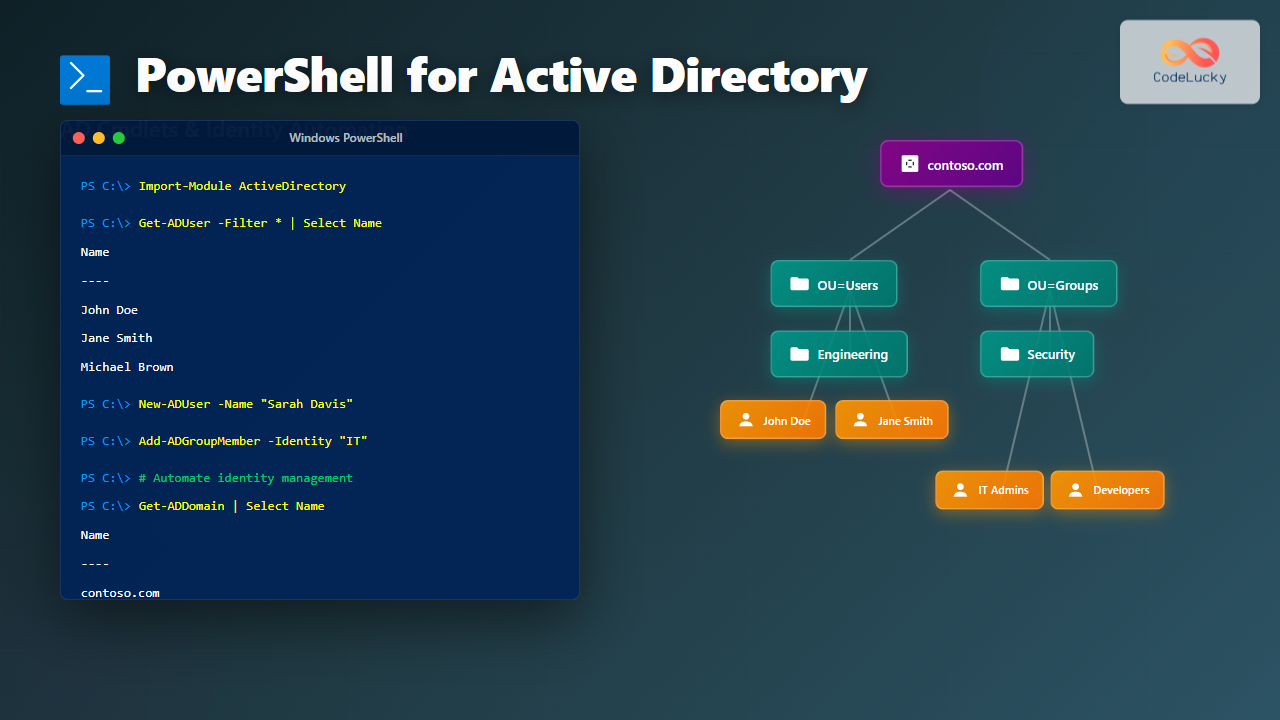
Active Directory (AD) is the backbone of identity and access management in Windows environments. PowerShell provides a comprehensive suite of cmdlets through the Active Directory module that enables administrators to automate complex identity management tasks, manage thousands of users efficiently, and maintain consistent domain configurations.
This guide explores PowerShell’s Active Directory capabilities with practical examples, automation patterns, and real-world scenarios that system administrators encounter daily.
Prerequisites and Module Setup
Before working with Active Directory cmdlets, you need the Active Directory module installed on your system. This module is included with Remote Server Administration Tools (RSAT) on Windows 10/11 or automatically available on domain controllers.
Installing the Active Directory Module
# On Windows 10/11 - Install RSAT AD Tools
Add-WindowsCapability -Online -Name Rsat.ActiveDirectory.DS-LDS.Tools~~~~0.0.1.0

# On Windows Server - Install AD PowerShell Module
Install-WindowsFeature -Name RSAT-AD-PowerShell

# Verify module installation
Get-Module -Name ActiveDirectory -ListAvailable

# Import the module
Import-Module ActiveDirectory

# Check available cmdlets
Get-Command -Module ActiveDirectory | Measure-Object
Output:
Count    : 147
Average  :
Sum      :
Maximum  :
Minimum  :
Property :
The Active Directory module provides 147 cmdlets covering users, groups, computers, organizational units, and domain operations.

Connecting to Active Directory
PowerShell AD cmdlets automatically connect to the default domain controller. You can specify alternative servers or credentials when needed.
# Get current domain information
Get-ADDomain

# Connect to specific domain controller
Get-ADUser -Identity "jdoe" -Server "DC01.contoso.com"

# Use alternate credentials
$credential = Get-Credential
Get-ADUser -Identity "jdoe" -Credential $credential

# Get domain controller list
Get-ADDomainController -Filter * | Select-Object Name, IPv4Address, Site
Sample Output:
Name    IPv4Address    Site
----    -----------    ----
DC01    192.168.1.10   Default-First-Site-Name
DC02    192.168.1.11   Default-First-Site-Name
DC03    192.168.2.10   Branch-Office-Site
User Management with AD Cmdlets
Creating New Users
The New-ADUser cmdlet creates user accounts with extensive property configurations.
# Basic user creation
New-ADUser -Name "John Doe" `
           -GivenName "John" `
           -Surname "Doe" `
           -SamAccountName "jdoe" `
           -UserPrincipalName "[email protected]" `
           -Path "OU=Users,OU=IT,DC=contoso,DC=com" `
           -AccountPassword (ConvertTo-SecureString "P@ssw0rd123!" -AsPlainText -Force) `
           -Enabled $true

# Advanced user creation with additional properties
New-ADUser -Name "Jane Smith" `
           -GivenName "Jane" `
           -Surname "Smith" `
           -SamAccountName "jsmith" `
           -UserPrincipalName "[email protected]" `
           -DisplayName "Smith, Jane" `
           -EmailAddress "[email protected]" `
           -Title "Senior Developer" `
           -Department "Engineering" `
           -Company "Contoso Ltd" `
           -Office "Building A" `
           -OfficePhone "+1-555-0123" `
           -MobilePhone "+1-555-0124" `
           -StreetAddress "123 Main Street" `
           -City "Seattle" `
           -State "WA" `
           -PostalCode "98101" `
           -Country "US" `
           -Path "OU=Engineering,OU=Users,DC=contoso,DC=com" `
           -AccountPassword (ConvertTo-SecureString "SecureP@ss123!" -AsPlainText -Force) `
           -ChangePasswordAtLogon $true `
           -Enabled $true `
           -Description "Senior Developer - Cloud Services Team"

# Verify user creation
Get-ADUser -Identity "jsmith" -Properties * |
    Select-Object Name, EmailAddress, Department, Title, Enabled
Output:
Name        : Jane Smith
EmailAddress: [email protected]
Department  : Engineering
Title       : Senior Developer
Enabled     : True
Querying Users
Retrieve user information with filtering and property selection for efficient queries.
# Get single user with all properties
Get-ADUser -Identity "jdoe" -Properties *

# Get specific properties only
Get-ADUser -Identity "jdoe" -Properties EmailAddress, Title, Department |
    Select-Object Name, EmailAddress, Title, Department

# Find users by department
Get-ADUser -Filter {Department -eq "Engineering"} -Properties Department, Title |
    Select-Object Name, Department, Title

# Find disabled users
Get-ADUser -Filter {Enabled -eq $false} -Properties Department |
    Select-Object Name, Department, Enabled

# Search users with wildcard
Get-ADUser -Filter {Name -like "John*"} -Properties EmailAddress |
    Select-Object Name, EmailAddress

# Find users who haven't logged in recently
$date = (Get-Date).AddDays(-90)
Get-ADUser -Filter {LastLogonDate -lt $date} -Properties LastLogonDate |
    Select-Object Name, LastLogonDate |
    Sort-Object LastLogonDate
Sample Output:
Name            LastLogonDate
----            -------------
Bob Johnson     1/15/2025 2:30:00 PM
Alice Williams  2/03/2025 9:15:00 AM
Tom Anderson    3/10/2025 4:45:00 PM
Modifying User Properties
# Update single property
Set-ADUser -Identity "jdoe" -Title "Lead Developer"

# Update multiple properties
Set-ADUser -Identity "jdoe" `
           -Title "Senior Lead Developer" `
           -Department "Engineering" `
           -Office "Building B" `
           -OfficePhone "+1-555-9999"

# Add to description field
Set-ADUser -Identity "jdoe" -Description "Promoted to Senior Lead - Oct 2025"

# Clear a property
Set-ADUser -Identity "jdoe" -Clear MobilePhone

# Disable user account
Disable-ADAccount -Identity "jdoe"

# Enable user account
Enable-ADAccount -Identity "jdoe"

# Reset password
Set-ADAccountPassword -Identity "jdoe" `
                      -NewPassword (ConvertTo-SecureString "NewP@ssw0rd!" -AsPlainText -Force) `
                      -Reset

# Force password change at next logon
Set-ADUser -Identity "jdoe" -ChangePasswordAtLogon $true

# Set password never expires
Set-ADUser -Identity "jdoe" -PasswordNeverExpires $true

# Unlock locked account
Unlock-ADAccount -Identity "jdoe"
Bulk User Operations
# Create users from CSV file
$users = Import-Csv "C:\Scripts\NewUsers.csv"

foreach ($user in $users) {
    $password = ConvertTo-SecureString $user.Password -AsPlainText -Force

    New-ADUser -Name "$($user.FirstName) $($user.LastName)" `
               -GivenName $user.FirstName `
               -Surname $user.LastName `
               -SamAccountName $user.Username `
               -UserPrincipalName "$($user.Username)@contoso.com" `
               -EmailAddress $user.Email `
               -Title $user.JobTitle `
               -Department $user.Department `
               -Path $user.OUPath `
               -AccountPassword $password `
               -Enabled $true `
               -ChangePasswordAtLogon $true

    Write-Host "Created user: $($user.Username)" -ForegroundColor Green
}

# Update department for multiple users
Get-ADUser -Filter {Department -eq "Sales"} |
    Set-ADUser -Company "Contoso Corporation"

# Export users to CSV
Get-ADUser -Filter * -Properties EmailAddress, Title, Department |
    Select-Object Name, EmailAddress, Title, Department |
    Export-Csv "C:\Reports\AllUsers.csv" -NoTypeInformation
CSV File Format (NewUsers.csv):
FirstName,LastName,Username,Email,JobTitle,Department,Password,OUPath
Michael,Brown,mbrown,[email protected],Developer,Engineering,TempP@ss123!,"OU=Engineering,OU=Users,DC=contoso,DC=com"
Sarah,Davis,sdavis,[email protected],Manager,Sales,TempP@ss456!,"OU=Sales,OU=Users,DC=contoso,DC=com"
Group Management
Creating and Managing Groups
# Create security group
New-ADGroup -Name "Engineering Team" `
            -GroupScope Global `
            -GroupCategory Security `
            -Path "OU=Groups,DC=contoso,DC=com" `
            -Description "All Engineering Department Users"

# Create distribution group
New-ADGroup -Name "Marketing Newsletter" `
            -GroupScope Universal `
            -GroupCategory Distribution `
            -Path "OU=Groups,DC=contoso,DC=com" `
            -Description "Marketing Department Distribution List"

# Get group information
Get-ADGroup -Identity "Engineering Team" -Properties Members, Description

# Add members to group
Add-ADGroupMember -Identity "Engineering Team" -Members "jdoe", "jsmith", "mbrown"

# Add multiple users from array
$users = @("user1", "user2", "user3")
Add-ADGroupMember -Identity "Engineering Team" -Members $users

# Remove member from group
Remove-ADGroupMember -Identity "Engineering Team" -Members "jdoe" -Confirm:$false

# Get group members
Get-ADGroupMember -Identity "Engineering Team" |
    Select-Object Name, SamAccountName

# Get nested group members (recursive)
Get-ADGroupMember -Identity "Engineering Team" -Recursive |
    Select-Object Name, SamAccountName, ObjectClass
Output:
Name         SamAccountName  ObjectClass
----         --------------  -----------
Jane Smith   jsmith          user
Michael Brown mbrown         user
Dev Team     DevTeam         group
Advanced Group Queries
# Find all security groups
Get-ADGroup -Filter {GroupCategory -eq "Security"} |
    Select-Object Name, GroupScope

# Find groups a user belongs to
Get-ADPrincipalGroupMembership -Identity "jdoe" |
    Select-Object Name, GroupScope

# Find empty groups
Get-ADGroup -Filter * -Properties Members |
    Where-Object {$_.Members.Count -eq 0} |
    Select-Object Name, DistinguishedName

# Find groups with specific naming pattern
Get-ADGroup -Filter {Name -like "APP_*"} |
    Select-Object Name, Description

# Get group membership count
Get-ADGroup -Filter * -Properties Members |
    Select-Object Name, @{Name="MemberCount";Expression={$_.Members.Count}} |
    Sort-Object MemberCount -Descending
Computer Account Management
# Create computer account
New-ADComputer -Name "WKS-001" `
               -Path "OU=Workstations,DC=contoso,DC=com" `
               -Description "Developer Workstation" `
               -Enabled $true

# Get computer information
Get-ADComputer -Identity "WKS-001" -Properties OperatingSystem, LastLogonDate

# Find computers by OS
Get-ADComputer -Filter {OperatingSystem -like "Windows 11*"} `
               -Properties OperatingSystem, OperatingSystemVersion |
    Select-Object Name, OperatingSystem, OperatingSystemVersion

# Find inactive computers
$date = (Get-Date).AddDays(-90)
Get-ADComputer -Filter {LastLogonDate -lt $date} `
               -Properties LastLogonDate |
    Select-Object Name, LastLogonDate |
    Sort-Object LastLogonDate

# Move computer to different OU
Move-ADObject -Identity "CN=WKS-001,OU=Workstations,DC=contoso,DC=com" `
              -TargetPath "OU=Retired,OU=Workstations,DC=contoso,DC=com"

# Remove computer account
Remove-ADComputer -Identity "WKS-001" -Confirm:$false
Sample Output:
Name    OperatingSystem          OperatingSystemVersion
----    ---------------          ----------------------
WKS-001 Windows 11 Enterprise   10.0 (22631)
WKS-002 Windows 11 Pro           10.0 (22631)
SRV-001 Windows Server 2022      10.0 (20348)
Organizational Unit (OU) Management
# Create OU
New-ADOrganizationalUnit -Name "Engineering" `
                         -Path "OU=Departments,DC=contoso,DC=com" `
                         -Description "Engineering Department" `
                         -ProtectedFromAccidentalDeletion $true

# Create nested OU structure
$basePath = "OU=Departments,DC=contoso,DC=com"
$departments = @("Engineering", "Sales", "Marketing", "HR")

foreach ($dept in $departments) {
    New-ADOrganizationalUnit -Name $dept -Path $basePath `
                             -ProtectedFromAccidentalDeletion $true

    # Create sub-OUs
    $deptPath = "OU=$dept,$basePath"
    New-ADOrganizationalUnit -Name "Users" -Path $deptPath
    New-ADOrganizationalUnit -Name "Groups" -Path $deptPath
    New-ADOrganizationalUnit -Name "Computers" -Path $deptPath
}

# Get OU information
Get-ADOrganizationalUnit -Filter {Name -eq "Engineering"} -Properties Description

# List all OUs
Get-ADOrganizationalUnit -Filter * |
    Select-Object Name, DistinguishedName |
    Sort-Object Name

# Move OU
Move-ADObject -Identity "OU=Engineering,OU=Departments,DC=contoso,DC=com" `
              -TargetPath "OU=Active,DC=contoso,DC=com"

# Delete OU (must disable protection first)
Set-ADOrganizationalUnit -Identity "OU=Test,DC=contoso,DC=com" `
                         -ProtectedFromAccidentalDeletion $false
Remove-ADOrganizationalUnit -Identity "OU=Test,DC=contoso,DC=com" -Confirm:$false
Automation Scripts and Real-World Scenarios
Automated User Onboarding
function New-ADUserOnboarding {
    param(
        [Parameter(Mandatory=$true)]
        [string]$FirstName,

        [Parameter(Mandatory=$true)]
        [string]$LastName,

        [Parameter(Mandatory=$true)]
        [string]$Department,

        [Parameter(Mandatory=$true)]
        [string]$Title,

        [Parameter(Mandatory=$true)]
        [string]$Manager
    )

    # Generate username (first initial + last name)
    $username = ($FirstName.Substring(0,1) + $LastName).ToLower()
    $upn = "[email protected]"
    $email = "[email protected]".ToLower()

    # Generate random password
    Add-Type -AssemblyName System.Web
    $password = [System.Web.Security.Membership]::GeneratePassword(12, 3)
    $securePassword = ConvertTo-SecureString $password -AsPlainText -Force

    # Determine OU based on department
    $ouPath = "OU=Users,OU=$Department,OU=Departments,DC=contoso,DC=com"

    try {
        # Create user
        New-ADUser -Name "$FirstName $LastName" `
                   -GivenName $FirstName `
                   -Surname $LastName `
                   -SamAccountName $username `
                   -UserPrincipalName $upn `
                   -EmailAddress $email `
                   -Title $Title `
                   -Department $Department `
                   -Manager $Manager `
                   -Path $ouPath `
                   -AccountPassword $securePassword `
                   -Enabled $true `
                   -ChangePasswordAtLogon $true

        # Add to department group
        Add-ADGroupMember -Identity "$Department Team" -Members $username

        # Add to common groups
        Add-ADGroupMember -Identity "All Employees" -Members $username
        Add-ADGroupMember -Identity "VPN Users" -Members $username

        # Create home directory
        $homePath = "\\fileserver\home\$username"
        New-Item -Path $homePath -ItemType Directory -Force | Out-Null

        # Set home directory permissions
        $acl = Get-Acl $homePath
        $permission = "$env:USERDOMAIN\$username", "FullControl", "ContainerInherit,ObjectInherit", "None", "Allow"
        $accessRule = New-Object System.Security.AccessControl.FileSystemAccessRule $permission
        $acl.SetAccessRule($accessRule)
        Set-Acl $homePath $acl

        # Return credentials
        [PSCustomObject]@{
            Username = $username
            Email = $email
            TempPassword = $password
            Status = "Success"
        }

    } catch {
        Write-Error "Failed to create user: $_"
        [PSCustomObject]@{
            Username = $username
            Status = "Failed"
            Error = $_.Exception.Message
        }
    }
}

# Usage
$result = New-ADUserOnboarding -FirstName "David" `
                                -LastName "Wilson" `
                                -Department "Engineering" `
                                -Title "Software Engineer" `
                                -Manager "jsmith"

$result | Format-List
Output:
Username     : dwilson
Email        : [email protected]
TempPassword : xK9#mP2$qL8@
Status       : Success
Automated User Offboarding
function Remove-ADUserOffboarding {
    param(
        [Parameter(Mandatory=$true)]
        [string]$Username,

        [Parameter(Mandatory=$true)]
        [string]$TicketNumber
    )

    try {
        # Get user details before modification
        $user = Get-ADUser -Identity $Username -Properties MemberOf, HomeDirectory, Manager

        # Disable account
        Disable-ADAccount -Identity $Username

        # Add termination note to description
        $terminationNote = "Terminated - Ticket: $TicketNumber - Date: $(Get-Date -Format 'yyyy-MM-dd')"
        Set-ADUser -Identity $Username -Description $terminationNote

        # Remove from all groups except Domain Users
        $user.MemberOf | ForEach-Object {
            Remove-ADGroupMember -Identity $_ -Members $Username -Confirm:$false
        }

        # Hide from GAL
        Set-ADUser -Identity $Username -Replace @{msExchHideFromAddressLists=$true}

        # Move to disabled users OU
        $disabledOU = "OU=Disabled,OU=Users,DC=contoso,DC=com"
        Move-ADObject -Identity $user.DistinguishedName -TargetPath $disabledOU

        # Archive home directory
        if ($user.HomeDirectory) {
            $archivePath = "\\fileserver\archives\$Username-$(Get-Date -Format 'yyyyMMdd')"
            Move-Item -Path $user.HomeDirectory -Destination $archivePath -Force
        }

        # Log action
        $logEntry = [PSCustomObject]@{
            Username = $Username
            TerminationDate = Get-Date
            TicketNumber = $TicketNumber
            Manager = $user.Manager
            Status = "Offboarded Successfully"
        }

        $logEntry | Export-Csv "C:\Logs\Offboarding.csv" -Append -NoTypeInformation

        return $logEntry

    } catch {
        Write-Error "Offboarding failed: $_"
    }
}

# Usage
Remove-ADUserOffboarding -Username "dwilson" -TicketNumber "INC-12345"
Password Expiration Reporting
function Get-PasswordExpirationReport {
    param(
        [int]$DaysAhead = 14
    )

    # Get password policy
    $maxPasswordAge = (Get-ADDefaultDomainPasswordPolicy).MaxPasswordAge.Days
    $expireDate = (Get-Date).AddDays($DaysAhead)

    # Get users with expiring passwords
    $users = Get-ADUser -Filter {Enabled -eq $true -and PasswordNeverExpires -eq $false} `
                        -Properties PasswordLastSet, EmailAddress, Manager |
             Where-Object {
                 $_.PasswordLastSet -ne $null -and
                 $_.PasswordLastSet.AddDays($maxPasswordAge) -le $expireDate -and
                 $_.PasswordLastSet.AddDays($maxPasswordAge) -ge (Get-Date)
             }

    # Create report
    $report = $users | ForEach-Object {
        $expiryDate = $_.PasswordLastSet.AddDays($maxPasswordAge)
        $daysUntilExpiry = ($expiryDate - (Get-Date)).Days

        [PSCustomObject]@{
            Username = $_.SamAccountName
            Name = $_.Name
            Email = $_.EmailAddress
            PasswordLastSet = $_.PasswordLastSet
            ExpiryDate = $expiryDate
            DaysUntilExpiry = $daysUntilExpiry
        }
    } | Sort-Object DaysUntilExpiry

    # Display report
    $report | Format-Table -AutoSize

    # Send email notifications
    foreach ($user in $report) {
        if ($user.Email) {
            $subject = "Password Expiration Notice - $($user.DaysUntilExpiry) days remaining"
            $body = @"
Hello $($user.Name),

Your password will expire in $($user.DaysUntilExpiry) days on $($user.ExpiryDate.ToString('MMMM dd, yyyy')).

Please change your password before it expires to avoid account lockout.

Thank you,
IT Support
"@
            # Send-MailMessage implementation here
            Write-Host "Notification sent to $($user.Email)" -ForegroundColor Green
        }
    }

    return $report
}

# Usage
Get-PasswordExpirationReport -DaysAhead 14
Sample Output:
Username Email                  PasswordLastSet    ExpiryDate         DaysUntilExpiry
-------- -----                  ---------------    ----------         ---------------
jdoe     [email protected]       9/15/2025 8:00 AM  10/25/2025 8:00 AM              3
jsmith   [email protected]     9/20/2025 2:30 PM  10/30/2025 2:30 PM              8
mbrown   [email protected]     9/25/2025 10:15 AM 11/4/2025 10:15 AM              13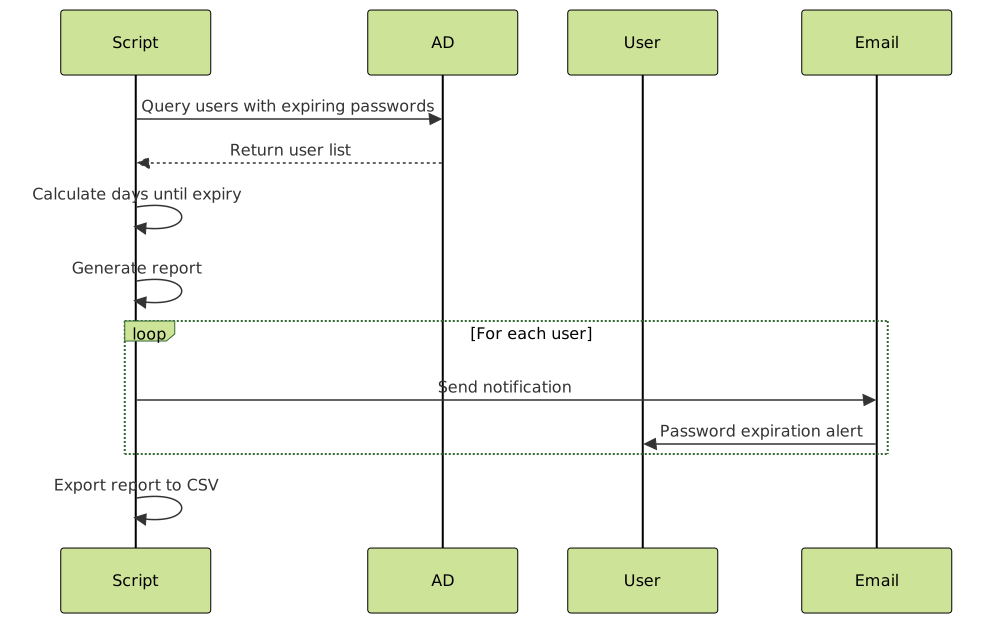
Advanced Active Directory Queries
Complex LDAP Filtering
# Find users created in last 30 days
$date = (Get-Date).AddDays(-30).ToString('yyyyMMddHHmmss.0Z')
Get-ADUser -LDAPFilter "(whenCreated>=$date)" -Properties whenCreated |
    Select-Object Name, whenCreated

# Find users with specific attributes
Get-ADUser -LDAPFilter "(&(Department=Engineering)(Title=*Developer*))" `
           -Properties Department, Title |
    Select-Object Name, Department, Title

# Complex multi-condition filter
$filter = @"
(&
    (objectCategory=person)
    (objectClass=user)
    (!(userAccountControl:1.2.840.113556.1.4.803:=2))
    (Department=Engineering)
    (|(Title=*Senior*)(Title=*Lead*))
)
"@

Get-ADUser -LDAPFilter $filter -Properties Title, Department |
    Select-Object Name, Title, Department

# Find users by manager
Get-ADUser -Filter * -Properties Manager |
    Where-Object {$_.Manager -eq (Get-ADUser "jsmith").DistinguishedName} |
    Select-Object Name, Title
Reporting and Auditing
# Generate comprehensive user report
Get-ADUser -Filter * -Properties * |
    Select-Object Name, EmailAddress, Department, Title, Manager,
                  LastLogonDate, PasswordLastSet, PasswordNeverExpires,
                  Enabled, LockedOut, whenCreated |
    Export-Csv "C:\Reports\UserAudit_$(Get-Date -Format 'yyyyMMdd').csv" -NoTypeInformation

# Group membership audit
$groups = Get-ADGroup -Filter {GroupCategory -eq "Security"}

$report = foreach ($group in $groups) {
    $members = Get-ADGroupMember -Identity $group

    foreach ($member in $members) {
        [PSCustomObject]@{
            GroupName = $group.Name
            MemberName = $member.Name
            MemberType = $member.ObjectClass
            GroupScope = $group.GroupScope
        }
    }
}

$report | Export-Csv "C:\Reports\GroupMembership.csv" -NoTypeInformation

# Find privileged accounts
$adminGroups = @(
    "Domain Admins",
    "Enterprise Admins",
    "Schema Admins",
    "Account Operators",
    "Server Operators"
)

$privilegedUsers = foreach ($group in $adminGroups) {
    Get-ADGroupMember -Identity $group -Recursive |
        Select-Object @{Name="Group";Expression={$group}}, Name, SamAccountName
}

$privilegedUsers | Format-Table -AutoSize
Working with Custom Attributes
# Set custom attribute
Set-ADUser -Identity "jdoe" -Replace @{extensionAttribute1="EmployeeType:Contractor"}

# Read custom attribute
Get-ADUser -Identity "jdoe" -Properties extensionAttribute1 |
    Select-Object Name, extensionAttribute1

# Bulk update custom attributes from CSV
$updates = Import-Csv "C:\Scripts\CustomAttributes.csv"

foreach ($update in $updates) {
    Set-ADUser -Identity $update.Username `
               -Replace @{
                   extensionAttribute1 = $update.CostCenter
                   extensionAttribute2 = $update.BuildingCode
                   extensionAttribute3 = $update.EmployeeID
               }
}

# Query by custom attribute
Get-ADUser -Filter * -Properties extensionAttribute1 |
    Where-Object {$_.extensionAttribute1 -like "*Contractor*"} |
    Select-Object Name, Department, extensionAttribute1
Performance Optimization
Efficient Queries
# BAD: Retrieve all properties then filter
$users = Get-ADUser -Filter * -Properties *
$filtered = $users | Where-Object {$_.Department -eq "Engineering"}

# GOOD: Filter at the source and request only needed properties
$users = Get-ADUser -Filter {Department -eq "Engineering"} `
                    -Properties Department, Title, EmailAddress

# Use -ResultSetSize for large queries
Get-ADUser -Filter * -ResultSetSize 1000

# Use paging for very large result sets
$pageSize = 1000
$cookie = $null

do {
    $results = Get-ADUser -Filter * -ResultPageSize $pageSize `
                          -ResultSetSize $null -Cookie $cookie

    # Process results
    $results | ForEach-Object {
        # Your processing logic here
    }

    $cookie = $results.Cookie
} while ($cookie)

# Use SearchBase to limit scope
Get-ADUser -Filter * -SearchBase "OU=Engineering,OU=Users,DC=contoso,DC=com" `
           -SearchScope OneLevel
Batch Operations
# Efficient bulk updates using pipeline
Get-ADUser -Filter {Department -eq "Sales"} |
    Set-ADUser -Company "Contoso Corporation" -PassThru |
    Select-Object Name, Company

# Parallel processing for large operations (PowerShell 7+)
$users = Get-ADUser -Filter * -ResultSetSize 5000

$users | ForEach-Object -Parallel {
    $user = $_
    # Process each user in parallel
    Set-ADUser -Identity $user.SamAccountName -Company "Updated Corp"
} -ThrottleLimit 10
Error Handling and Logging
function Invoke-ADOperationWithLogging {
    param(
        [Parameter(Mandatory=$true)]
        [scriptblock]$ScriptBlock,

        [Parameter(Mandatory=$true)]
        [string]$Operation,

        [string]$LogPath = "C:\Logs\ADOperations.log"
    )

    $timestamp = Get-Date -Format "yyyy-MM-dd HH:mm:ss"

    try {
        $result = & $ScriptBlock

        $logEntry = "$timestamp | SUCCESS | $Operation | Completed successfully"
        Add-Content -Path $LogPath -Value $logEntry

        return $result

    } catch {
        $errorMessage = $_.Exception.Message
        $logEntry = "$timestamp | ERROR | $Operation | $errorMessage"
        Add-Content -Path $LogPath -Value $logEntry

        Write-Error "Operation failed: $errorMessage"
        throw
    }
}

# Usage
Invoke-ADOperationWithLogging -Operation "Create User dwilson" -ScriptBlock {
    New-ADUser -Name "David Wilson" `
               -SamAccountName "dwilson" `
               -UserPrincipalName "[email protected]" `
               -AccountPassword (ConvertTo-SecureString "P@ss123!" -AsPlainText -Force) `
               -Enabled $true
}

# Comprehensive error handling
function Set-ADUserSafely {
    param(
        [string]$Identity,
        [hashtable]$Properties
    )

    try {
        # Verify user exists
        $user = Get-ADUser -Identity $Identity -ErrorAction Stop

        # Apply changes
        Set-ADUser -Identity $Identity @Properties -ErrorAction Stop

        Write-Host "Successfully updated $Identity" -ForegroundColor Green
        return $true

    } catch [Microsoft.ActiveDirectory.Management.ADIdentityNotFoundException] {
        Write-Warning "User $Identity not found in Active Directory"
        return $false

    } catch [System.UnauthorizedAccessException] {
        Write-Error "Insufficient permissions to modify $Identity"
        return $false

    } catch {
        Write-Error "Unexpected error updating $Identity : $_"
        return $false
    }
}

# Usage with error handling
$result = Set-ADUserSafely -Identity "jdoe" -Properties @{Title="Senior Developer"}

if ($result) {
    Write-Host "Update completed successfully"
}
Security Best Practices
Secure Credential Management
# Store credentials securely
$credential = Get-Credential
$credential.Password | ConvertFrom-SecureString | Out-File "C:\Secure\cred.txt"

# Load stored credentials
$password = Get-Content "C:\Secure\cred.txt" | ConvertTo-SecureString
$credential = New-Object System.Management.Automation.PSCredential("domain\admin", $password)

# Use credential in AD operations
Get-ADUser -Identity "jdoe" -Credential $credential

# Never store passwords in plain text
# BAD
$password = "MyPassword123!"

# GOOD
$securePassword = Read-Host "Enter password" -AsSecureString

# Generate secure random passwords
function New-SecurePassword {
    param([int]$Length = 16)

    Add-Type -AssemblyName System.Web
    return [System.Web.Security.Membership]::GeneratePassword($Length, 4)
}

# Audit privileged operations
function Set-ADUserWithAudit {
    param(
        [string]$Identity,
        [hashtable]$Properties
    )

    $caller = [System.Security.Principal.WindowsIdentity]::GetCurrent().Name
    $timestamp = Get-Date

    # Log the change
    $auditEntry = [PSCustomObject]@{
        Timestamp = $timestamp
        Caller = $caller
        Action = "Modify User"
        Target = $Identity
        Changes = ($Properties.Keys -join ", ")
    }

    $auditEntry | Export-Csv "C:\Audit\ADChanges.csv" -Append -NoTypeInformation

    # Execute change
    Set-ADUser -Identity $Identity @Properties
}
Least Privilege Access
# Delegate specific permissions instead of Domain Admin
# Create custom AD role for user management

# Grant permissions to create users in specific OU
$ou = "OU=Users,OU=Engineering,DC=contoso,DC=com"
$group = "Help Desk Operators"

# Example delegation using dsacls (run from domain controller)
# dsacls $ou /G "CONTOSO\$group:CC;user"
# dsacls $ou /G "CONTOSO\$group:WP;user;displayName"

# Verify permissions before operations
function Test-ADPermission {
    param(
        [string]$Identity,
        [string]$Operation
    )

    try {
        switch ($Operation) {
            "Read" {
                Get-ADUser -Identity $Identity -ErrorAction Stop
                return $true
            }
            "Modify" {
                # Attempt dry-run modification
                $user = Get-ADUser -Identity $Identity -ErrorAction Stop
                return $true
            }
            default {
                return $false
            }
        }
    } catch {
        return $false
    }
}

# Check before executing privileged operations
if (Test-ADPermission -Identity "jdoe" -Operation "Modify") {
    Set-ADUser -Identity "jdoe" -Title "New Title"
} else {
    Write-Error "Insufficient permissions to modify user"
}
Integration with Other Systems
Azure AD Sync Preparation
# Prepare users for Azure AD Connect sync
function Set-AzureADSyncAttributes {
    param([string]$Username)

    $user = Get-ADUser -Identity $Username -Properties *

    # Ensure required attributes are set
    $updates = @{}

    if ([string]::IsNullOrEmpty($user.UserPrincipalName)) {
        $updates.UserPrincipalName = "$($user.SamAccountName)@contoso.com"
    }

    if ([string]::IsNullOrEmpty($user.EmailAddress)) {
        $updates.EmailAddress = $user.UserPrincipalName
    }

    if ([string]::IsNullOrEmpty($user.DisplayName)) {
        $updates.DisplayName = "$($user.GivenName) $($user.Surname)"
    }

    if ($updates.Count -gt 0) {
        Set-ADUser -Identity $Username -Replace $updates
        Write-Host "Updated Azure AD sync attributes for $Username"
    }
}

# Verify all users ready for sync
Get-ADUser -Filter * -Properties UserPrincipalName, EmailAddress, DisplayName |
    Where-Object {
        [string]::IsNullOrEmpty($_.UserPrincipalName) -or
        [string]::IsNullOrEmpty($_.EmailAddress) -or
        [string]::IsNullOrEmpty($_.DisplayName)
    } |
    ForEach-Object {
        Set-AzureADSyncAttributes -Username $_.SamAccountName
    }
Service Account Management
# Create managed service account
New-ADServiceAccount -Name "SQLService" `
                     -DNSHostName "sqlserver.contoso.com" `
                     -ServicePrincipalNames "MSSQLSvc/sqlserver.contoso.com:1433" `
                     -Description "SQL Server Service Account"

# Group managed service account (gMSA)
New-ADServiceAccount -Name "WebAppService" `
                     -DNSHostName "webapp.contoso.com" `
                     -PrincipalsAllowedToRetrieveManagedPassword "WebServers" `
                     -ServicePrincipalNames "HTTP/webapp.contoso.com"

# Test service account
Test-ADServiceAccount -Identity "WebAppService"

# Regular service account with strict password policy
$password = New-SecurePassword -Length 32
$securePass = ConvertTo-SecureString $password -AsPlainText -Force

New-ADUser -Name "svc_backup" `
           -SamAccountName "svc_backup" `
           -AccountPassword $securePass `
           -PasswordNeverExpires $true `
           -CannotChangePassword $true `
           -Description "Backup Service Account" `
           -Path "OU=ServiceAccounts,DC=contoso,DC=com"

# Document service account
Set-ADUser -Identity "svc_backup" `
           -Replace @{
               info = "Owner: IT Operations`nPurpose: Nightly backup operations`nServers: BAK-01, BAK-02"
           }
Troubleshooting Common Issues
Account Lockout Investigation
# Check if account is locked
Get-ADUser -Identity "jdoe" -Properties LockedOut, AccountLockoutTime |
    Select-Object Name, LockedOut, AccountLockoutTime

# Unlock account
Unlock-ADAccount -Identity "jdoe"

# Find lockout source from security logs
$username = "jdoe"
$lastLockout = (Get-ADUser -Identity $username -Properties AccountLockoutTime).AccountLockoutTime

Get-EventLog -LogName Security -After $lastLockout |
    Where-Object {$_.EventID -eq 4740 -and $_.Message -like "*$username*"} |
    Select-Object TimeGenerated,
                  @{Name="User";Expression={$_.ReplacementStrings[0]}},
                  @{Name="CallerComputer";Expression={$_.ReplacementStrings[1]}} |
    Format-Table -AutoSize
Replication Issues
# Check replication status
Get-ADReplicationPartnerMetadata -Target "DC01.contoso.com" -Scope Server |
    Select-Object Server, Partner, LastReplicationSuccess, LastReplicationResult

# Force replication
Sync-ADObject -Object "CN=John Doe,OU=Users,DC=contoso,DC=com" `
              -Source "DC01.contoso.com" `
              -Destination "DC02.contoso.com"

# Verify object exists on all DCs
$user = "jdoe"
$dcs = Get-ADDomainController -Filter *

foreach ($dc in $dcs) {
    try {
        $result = Get-ADUser -Identity $user -Server $dc.Name -ErrorAction Stop
        Write-Host "$($dc.Name): User found" -ForegroundColor Green
    } catch {
        Write-Host "$($dc.Name): User NOT found" -ForegroundColor Red
    }
}
Conclusion
PowerShell’s Active Directory module provides comprehensive tools for managing identity infrastructure at scale. By automating routine tasks like user provisioning, group management, and compliance reporting, administrators can reduce errors, improve security, and free up time for strategic initiatives.
The key to successful AD automation lies in combining thorough error handling, secure credential management, and comprehensive logging with well-designed scripts that follow organizational policies. Start with simple automation tasks and gradually build more complex workflows as your confidence grows.
Remember to test all scripts in a non-production environment first, implement proper change management procedures, and maintain detailed documentation of your automation processes. With these practices in place, PowerShell becomes an invaluable tool for managing Active Directory efficiently and securely.





