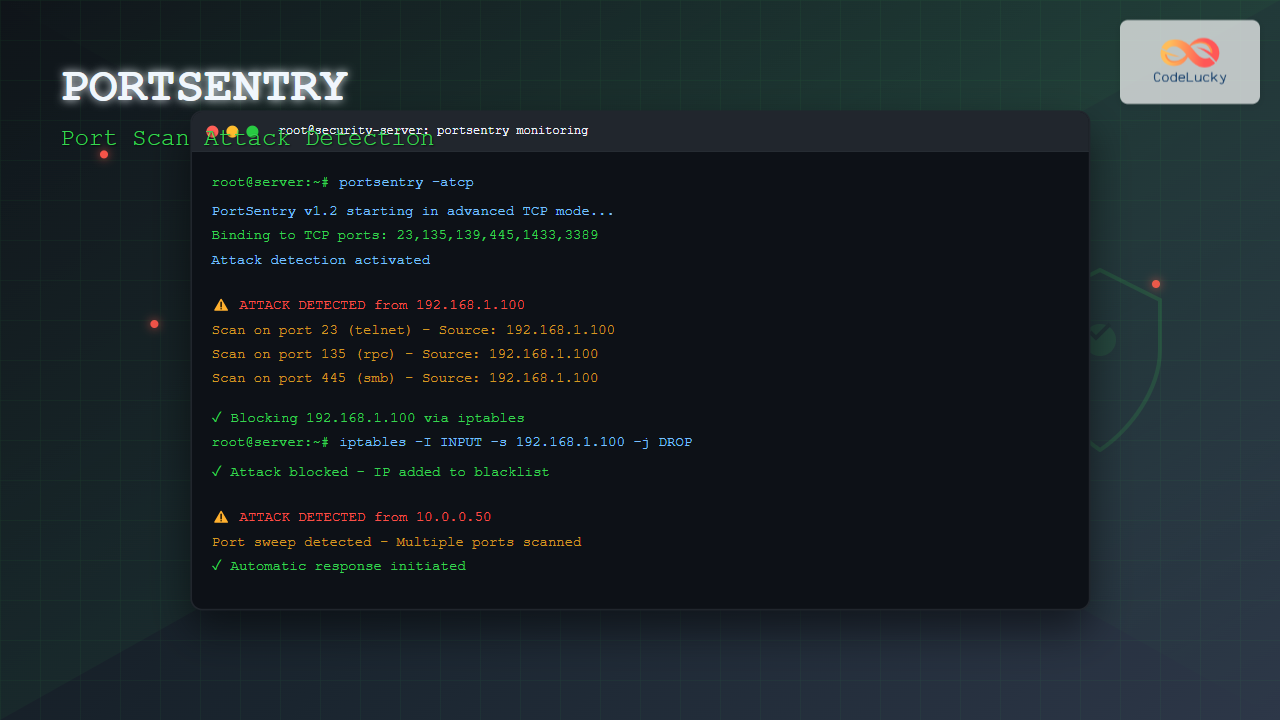
Port scanning is one of the most common reconnaissance techniques used by attackers to identify vulnerable services on target systems. Portsentry is a powerful Linux security tool designed to detect and respond to port scan attacks in real-time, providing an essential layer of defense for your network infrastructure.
This comprehensive guide will walk you through everything you need to know about portsentry, from basic installation to advanced configuration techniques that will significantly enhance your system’s security posture.
What is Portsentry?
Portsentry is an intrusion detection system (IDS) specifically designed to detect port scans and automatically respond to potential threats. Developed as part of the Abacus Project, it monitors network connections and can take immediate defensive actions when suspicious activity is detected.
Key features of portsentry include:
- Real-time port scan detection
- Automatic blocking of suspicious IP addresses
- Multiple detection modes and sensitivity levels
- Integration with system firewalls
- Comprehensive logging and alerting
- Low resource consumption
How Portsentry Works
Portsentry operates by binding to unused ports on your system and monitoring for connection attempts. When an unauthorized connection attempt is detected, it can automatically:
- Log the attack details
- Block the attacking IP address using iptables or hosts.deny
- Send alerts to system administrators
- Execute custom response scripts
Installing Portsentry on Linux
Ubuntu/Debian Installation
# Update package repository
sudo apt update

# Install portsentry
sudo apt install portsentry

# Verify installation
portsentry -v
CentOS/RHEL/Fedora Installation
# For CentOS/RHEL (with EPEL repository)
sudo yum install epel-release
sudo yum install portsentry

# For Fedora
sudo dnf install portsentry

# Verify installation
portsentry -v
Compiling from Source
If portsentry isn’t available in your distribution’s repository, you can compile it from source:
# Download and extract source
wget http://sourceforge.net/projects/sentrytools/files/portsentry/portsentry-1.2.tar.gz
tar -xzf portsentry-1.2.tar.gz
cd portsentry_beta

# Compile and install
make linux
sudo make install
Portsentry Configuration Files
Portsentry uses several configuration files located in /etc/portsentry/:
Main Configuration Files
- portsentry.conf – Primary configuration file
- portsentry.ignore – IP addresses to ignore
- portsentry.blocked – Currently blocked IP addresses
- portsentry.history – Attack history log
Understanding portsentry.conf
Let’s examine the key sections of the configuration file:
# Basic TCP port configuration
TCP_PORTS="1,7,9,11,15,70,79,80,109,110,111,119,138,139,143,513,514,515,540,635,1080,1524,2000,2001,4000,4001,5742,6000,6001,6667,12345,12346,20034,31337,32771,32772,32773,32774,40421,49724,54320"

# Basic UDP port configuration
UDP_PORTS="1,7,9,69,161,162,513,635,640,641,700,32770,32771,32772,32773,32774,31337,54321"

# Advanced stealth scan detection ports
ADVANCED_PORTS_TCP="1024"
ADVANCED_PORTS_UDP="1024"
Portsentry Operation Modes
Portsentry offers several operational modes to suit different security requirements:
1. Basic Port Binding Mode
In this mode, portsentry binds to specific ports and waits for connections:
# Start portsentry in TCP mode
sudo portsentry -tcp

# Start portsentry in UDP mode
sudo portsentry -udp
2. Stealth Scan Detection Mode
This advanced mode detects stealth scans using raw sockets:
# Advanced TCP stealth detection
sudo portsentry -atcp

# Advanced UDP stealth detection
sudo portsentry -audp
3. Advanced Stealth Detection
The most sensitive mode that can detect various scan techniques:
# Start advanced stealth detection
sudo portsentry -stcp
Configuring Automatic Blocking
One of portsentry’s most powerful features is automatic IP blocking. Configure the blocking mechanism in portsentry.conf:
# Enable blocking
BLOCK_UDP="1"
BLOCK_TCP="1"

# Kill route for blocked IPs (Linux)
KILL_ROUTE="/sbin/iptables -I INPUT -s $TARGET$ -j DROP"

# Kill route removal command
KILL_ROUTE_REMOVE="/sbin/iptables -D INPUT -s $TARGET$ -j DROP"

# Alternative: Use hosts.deny
KILL_HOSTS_DENY="ALL: $TARGET$ : DENY"
Example iptables Integration
Here’s how portsentry integrates with iptables for automatic blocking:
# When a scan is detected, portsentry executes:
iptables -I INPUT -s 192.168.1.100 -j DROP

# View blocked IPs
iptables -L INPUT -n

# Sample output:
Chain INPUT (policy ACCEPT)
target     prot opt source               destination
DROP       all  --  192.168.1.100        0.0.0.0/0
DROP       all  --  10.0.0.50            0.0.0.0/0
Practical Configuration Examples
Basic Security Configuration
Create a basic security setup for a web server:
# Edit portsentry configuration
sudo nano /etc/portsentry/portsentry.conf

# Configure ports to monitor (excluding web ports)
TCP_PORTS="1,7,9,11,15,79,109,110,111,119,135,138,139,143,445,513,514,515,540,635,1080,1524,2000,2001,4000,4001,5742,6000,6001,6667,12345,12346,20034,31337,32771,32772,32773,32774,40421,49724,54320"

# Enable automatic blocking
BLOCK_UDP="1"
BLOCK_TCP="1"

# Set aggressive response
KILL_ROUTE="/sbin/iptables -I INPUT -s $TARGET$ -j DROP"
Whitelist Configuration
Configure trusted IP addresses in portsentry.ignore:
# Edit ignore file
sudo nano /etc/portsentry/portsentry.ignore

# Add trusted IPs (one per line)
127.0.0.1
192.168.1.1
10.0.0.1
203.0.113.10
Starting and Managing Portsentry
Starting Portsentry Service
# Enable portsentry service
sudo systemctl enable portsentry

# Start the service
sudo systemctl start portsentry

# Check service status
sudo systemctl status portsentry

# Sample output:
● portsentry.service - PortSentry
   Loaded: loaded (/etc/systemd/system/portsentry.service; enabled)
   Active: active (running) since Tue 2025-08-26 03:21:15 IST; 2min ago
   Main PID: 1234 (portsentry)
   CGroup: /system.slice/portsentry.service
           └─1234 /usr/sbin/portsentry -atcp
Manual Startup Options
Start portsentry manually with specific modes:
# Basic TCP monitoring
sudo portsentry -tcp

# Advanced TCP stealth detection
sudo portsentry -atcp

# UDP monitoring
sudo portsentry -udp

# Run in daemon mode
sudo portsentry -tcp -d
Monitoring and Logging
Portsentry provides comprehensive logging for security analysis:
Log File Locations
# Main system log (varies by distribution)
tail -f /var/log/syslog          # Ubuntu/Debian
tail -f /var/log/messages        # CentOS/RHEL

# Portsentry-specific logs
tail -f /var/log/portsentry.log

# Sample log output:
Aug 26 03:21:30 server portsentry[1234]: attackalert: Connect from host: 192.168.1.100/192.168.1.100 to TCP port: 23
Aug 26 03:21:31 server portsentry[1234]: attackalert: Host 192.168.1.100 has been blocked via wrappers with string: "ALL: 192.168.1.100"
Checking Blocked IPs
# View currently blocked IPs
cat /etc/portsentry/portsentry.blocked

# Sample output:
192.168.1.100 - Blocked: Aug 26 03:21:31 2025
10.0.0.50 - Blocked: Aug 26 02:15:42 2025

# View blocked IPs in iptables
iptables -L INPUT -n | grep DROP
Advanced Configuration Techniques
Custom Response Scripts
Create custom response actions when attacks are detected:
# Create custom script
sudo nano /usr/local/bin/portsentry-response.sh

#!/bin/bash
# Custom portsentry response script

ATTACKER_IP=$1
TIMESTAMP=$(date)

# Log to custom file
echo "$TIMESTAMP - Attack detected from $ATTACKER_IP" >> /var/log/custom-attacks.log

# Send email alert
echo "Port scan detected from $ATTACKER_IP at $TIMESTAMP" | mail -s "Security Alert" [email protected]

# Block with iptables
iptables -I INPUT -s $ATTACKER_IP -j DROP

# Make executable
sudo chmod +x /usr/local/bin/portsentry-response.sh
Integration with Fail2ban
Enhance portsentry with fail2ban for more sophisticated blocking:
# Install fail2ban
sudo apt install fail2ban

# Create portsentry jail configuration
sudo nano /etc/fail2ban/jail.local

[portsentry]
enabled = true
port = all
filter = portsentry
logpath = /var/log/syslog
maxretry = 1
bantime = 3600
findtime = 600
Performance Optimization
Resource Management
Monitor portsentry resource usage:
# Check process information
ps aux | grep portsentry

# Sample output:
root     1234  0.1  0.2  12345  2048 ?  Ss  03:21  0:00 /usr/sbin/portsentry -atcp

# Monitor CPU and memory usage
top -p $(pidof portsentry)
Optimizing Port Lists
Customize port lists for your specific environment:
# Minimal port list for basic protection
TCP_PORTS="23,79,135,139,445,1433,1521,3389"

# Comprehensive port list for high security
TCP_PORTS="1,7,9,11,15,70,79,80,109,110,111,119,135,138,139,143,445,513,514,515,540,635,1080,1433,1521,1524,2000,2001,3389,4000,4001,5432,5742,6000,6001,6667,8080,12345,12346,20034,31337,32771,32772,32773,32774,40421,49724,54320"
Troubleshooting Common Issues
Portsentry Won’t Start
# Check for port conflicts
netstat -tulpn | grep :23

# Check configuration syntax
portsentry -tcp -c /etc/portsentry/portsentry.conf

# Verify permissions
ls -la /etc/portsentry/
sudo chown root:root /etc/portsentry/*
False Positives
Handle legitimate traffic being blocked:
# Remove IP from blocked list
sudo iptables -D INPUT -s 192.168.1.50 -j DROP

# Add to ignore list
echo "192.168.1.50" >> /etc/portsentry/portsentry.ignore

# Restart portsentry
sudo systemctl restart portsentry
Log Analysis
Analyze portsentry logs for patterns:
# Count attacks by IP
grep "attackalert" /var/log/syslog | awk '{print $8}' | sort | uniq -c | sort -nr

# Sample output:
     15 192.168.1.100/192.168.1.100
      8 10.0.0.50/10.0.0.50
      3 203.0.113.25/203.0.113.25

# Recent attack summary
grep "attackalert" /var/log/syslog | tail -10
Security Best Practices
Layered Security Approach
- Combine with firewall rules – Use portsentry alongside iptables/ufw
- Regular log review – Monitor attack patterns and adjust configuration
- Update ignore lists – Keep legitimate IPs whitelisted
- Test configurations – Regularly verify portsentry is working correctly
Configuration Hardening
# Secure configuration file permissions
sudo chmod 600 /etc/portsentry/portsentry.conf
sudo chmod 600 /etc/portsentry/portsentry.ignore

# Enable strict mode
RESOLVE_HOST="0"
BLOCK_UDP="1"
BLOCK_TCP="1"

# Set conservative scan trigger
SCAN_TRIGGER="1"
Monitoring and Alerting Setup
Email Notifications
Configure email alerts for immediate threat notification:
# Install mail utilities
sudo apt install mailutils

# Configure in portsentry.conf
EXTERNAL_COMMAND="/usr/bin/mail -s 'PortSentry Alert' [email protected] < /dev/null"
SIEM Integration
Forward portsentry logs to your SIEM system:
# Configure rsyslog for log forwarding
echo "local0.* @@siem-server:514" >> /etc/rsyslog.conf

# Restart rsyslog
sudo systemctl restart rsyslog
Conclusion
Portsentry is an invaluable tool for Linux system administrators seeking to enhance their network security posture. By implementing real-time port scan detection and automatic response capabilities, it provides an essential first line of defense against reconnaissance attacks.
Key takeaways for effective portsentry deployment:
- Choose the appropriate operational mode for your security requirements
- Carefully configure port lists to avoid false positives
- Maintain proper whitelist management for legitimate traffic
- Integrate with existing security infrastructure for comprehensive protection
- Regular monitoring and log analysis for continuous improvement
Remember that portsentry should be part of a comprehensive security strategy that includes regular system updates, proper firewall configuration, and ongoing security monitoring. With proper configuration and maintenance, portsentry can significantly enhance your system’s ability to detect and respond to potential threats automatically.
Start with basic configurations and gradually implement advanced features as you become more familiar with the tool. Regular testing and monitoring will ensure that your portsentry deployment remains effective against evolving security threats.
Related Posts
nmap Command Linux: Complete Guide to Network Mapping and Port Scanning
The nmap (Network Mapper) command is one of the most powerful and versatile network discovery and security auditing tools available...
Intrusion Detection System: Complete Guide to OS-Level Security Monitoring
Understanding Intrusion Detection Systems An Intrusion Detection System (IDS) is a critical security tool that monitors network traffic and system...

samhain Linux: Complete Guide to Host-based Intrusion Detection System
Samhain is a powerful host-based intrusion detection system (HIDS) designed specifically for Linux and Unix-like systems. This comprehensive security tool...
OSSEC Linux: Complete Guide to Host-based Intrusion Detection System for Enterprise Security
What is OSSEC Linux? OSSEC (Open Source Security Event Correlator) is a powerful, open-source Host-based Intrusion Detection System (HIDS) that...

fail2ban Linux: Complete Intrusion Prevention and Security Framework Guide
fail2ban is a powerful intrusion prevention framework designed to protect Linux servers from brute force attacks, dictionary attacks, and other...

netstat Command Linux: Complete Guide to Network Connection Monitoring
The netstat command is one of the most essential network monitoring tools in Linux systems. It provides comprehensive information about...
denyhosts Linux: Complete SSH Brute Force Attack Prevention Guide
SSH brute force attacks are among the most common security threats facing Linux servers today. Attackers continuously attempt to gain...
Wireshark Command Linux: Complete Network Protocol Analyzer Guide
Wireshark is the world's most popular network protocol analyzer, providing deep visibility into network traffic and communication protocols. While most...
tcpdump Command Linux: Complete Guide to Network Packet Capture and Analysis
The tcpdump command is one of the most powerful network analysis tools available in Linux systems. It allows system administrators...

whatsup Linux: Complete Network Monitoring and System Administration Guide
whatsup is a powerful network monitoring and system administration tool for Linux that provides real-time insights into network connectivity, system...
ss Command Linux: Complete Guide to Modern Socket Statistics and Network Analysis
The ss command is a powerful and modern utility for investigating sockets and network connections in Linux systems. As the...
chkrootkit Command Linux: Complete Guide to Rootkit Detection and System Security
System security is paramount in Linux administration, and rootkits pose one of the most serious threats to system integrity. The...