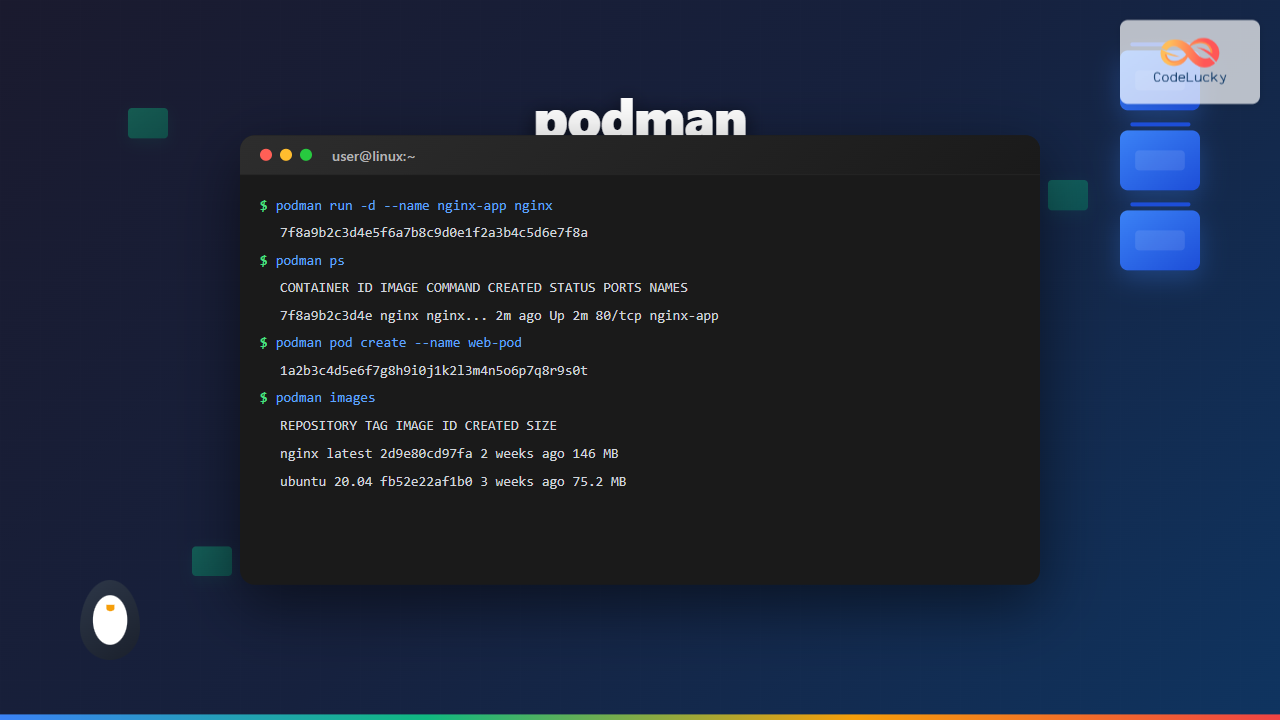
Podman (Pod Manager) is a powerful, daemonless container engine that provides a Docker-compatible command-line interface for managing containers and pods on Linux systems. Developed by Red Hat, Podman offers enhanced security through rootless containers and direct integration with systemd, making it an excellent choice for modern container management.
What is Podman?
Podman is an open-source container management tool that allows you to develop, manage, and run OCI (Open Container Initiative) containers and pods without requiring a daemon. Unlike Docker, Podman runs containers as child processes, providing better security and resource management.
Key Features of Podman
- Daemonless Architecture: No background daemon required
- Rootless Containers: Run containers without root privileges
- Docker Compatibility: Drop-in replacement for Docker commands
- Pod Support: Native Kubernetes pod management
- Systemd Integration: Generate systemd service files
- Security: Enhanced security through user namespaces
Installing Podman on Linux
Installation varies by distribution. Here are the most common methods:
Ubuntu/Debian
# Update package list
sudo apt update

# Install Podman
sudo apt install podman

# Verify installation
podman --version
CentOS/RHEL/Fedora
# For CentOS/RHEL
sudo yum install podman

# For Fedora
sudo dnf install podman

# Verify installation
podman --version
Basic Podman Commands
Container Lifecycle Management
Let’s explore the fundamental commands for container management:
Running Your First Container
# Run a simple hello-world container
podman run hello-world

# Output:
# Hello from Docker!
# This message shows that your installation appears to be working correctly.
Running Interactive Containers
# Run Ubuntu container interactively
podman run -it ubuntu:20.04 /bin/bash

# Inside container:
root@container-id:/# ls
bin  boot  dev  etc  home  lib  lib32  lib64  libx32  media  mnt  opt  proc  root  run  sbin  srv  sys  tmp  usr  var
Running Detached Containers
# Run Nginx in detached mode
podman run -d --name my-nginx -p 8080:80 nginx

# Output:
# 7f8a9b2c3d4e5f6a7b8c9d0e1f2a3b4c5d6e7f8a9b0c1d2e3f4a5b6c7d8e9f0a
Container Information and Management
Listing Containers
# List running containers
podman ps

# Output:
# CONTAINER ID  IMAGE       COMMAND               CREATED        STATUS            PORTS                 NAMES
# 7f8a9b2c3d4e  nginx       nginx -g daemon o...  2 minutes ago  Up 2 minutes ago  0.0.0.0:8080->80/tcp  my-nginx

# List all containers (including stopped)
podman ps -a
Container Inspection
# Get detailed container information
podman inspect my-nginx

# Get specific information using format
podman inspect --format='{{.State.Status}}' my-nginx

# Output:
# running
Container Logs
# View container logs
podman logs my-nginx

# Follow logs in real-time
podman logs -f my-nginx

# View last 50 lines
podman logs --tail 50 my-nginx
Container Control Commands
Starting and Stopping Containers
# Stop a running container
podman stop my-nginx

# Start a stopped container
podman start my-nginx

# Restart a container
podman restart my-nginx

# Pause/unpause a container
podman pause my-nginx
podman unpause my-nginx
Executing Commands in Running Containers
# Execute command in running container
podman exec my-nginx ls /etc

# Interactive shell in running container
podman exec -it my-nginx /bin/bash

# Run command as specific user
podman exec -u nginx my-nginx whoami
Image Management
Working with Container Images
Pulling Images
# Pull specific image
podman pull ubuntu:20.04

# Pull latest version
podman pull redis:latest

# Pull from specific registry
podman pull quay.io/podman/hello
Listing and Managing Images
# List all images
podman images

# Output:
# REPOSITORY               TAG      IMAGE ID      CREATED      SIZE
# docker.io/library/nginx  latest   2d9e80cd97fa  2 weeks ago  146 MB
# docker.io/library/ubuntu 20.04    fb52e22af1b0  3 weeks ago  75.2 MB

# Remove specific image
podman rmi ubuntu:20.04

# Remove unused images
podman image prune
Building Custom Images
# Create Dockerfile
cat << EOF > Dockerfile
FROM ubuntu:20.04
RUN apt-get update && apt-get install -y curl
COPY app.py /app/
WORKDIR /app
CMD ["python3", "app.py"]
EOF

# Build image
podman build -t my-app:1.0 .

# Build with custom context
podman build -f Dockerfile.prod -t my-app:prod .
Advanced Podman Features
Pod Management
Pods are groups of containers that share network and storage resources:
Creating and Managing Pods
# Create a new pod
podman pod create --name my-pod -p 8080:80

# List pods
podman pod ls

# Output:
# POD ID         NAME    STATUS   CREATED         INFRA ID      # OF CONTAINERS
# 1a2b3c4d5e6f   my-pod  Created  10 seconds ago  7f8a9b2c3d4e  1

# Add containers to pod
podman run -dt --pod my-pod --name web-server nginx
podman run -dt --pod my-pod --name app-server python:3.9

# Inspect pod
podman pod inspect my-pod
Pod Operations
# Start/stop entire pod
podman pod start my-pod
podman pod stop my-pod

# Remove pod (stops all containers first)
podman pod rm my-pod

# Generate Kubernetes YAML
podman generate kube my-pod > my-pod.yaml
Volume Management
Creating and Using Volumes
# Create named volume
podman volume create my-data

# List volumes
podman volume ls

# Run container with volume
podman run -d --name database \
  -v my-data:/var/lib/mysql \
  mysql:8.0

# Bind mount host directory
podman run -d --name web-app \
  -v /host/path:/container/path \
  nginx
Volume Inspection and Cleanup
# Inspect volume
podman volume inspect my-data

# Remove volume
podman volume rm my-data

# Remove unused volumes
podman volume prune
Network Management
Working with Networks
# List networks
podman network ls

# Output:
# NETWORK ID    NAME        DRIVER
# 2f259bab93aa  podman      bridge

# Create custom network
podman network create my-network

# Run container with custom network
podman run -d --network my-network \
  --name web-server nginx

# Connect existing container to network
podman network connect my-network existing-container
Rootless Containers
One of Podman’s standout features is the ability to run containers without root privileges:
Setting Up Rootless Mode
# Check if rootless is configured
podman info --format '{{.Host.Security.Rootless}}'

# Configure subuid and subgid (as root)
echo "username:100000:65536" >> /etc/subuid
echo "username:100000:65536" >> /etc/subgid

# Initialize rootless environment
podman system migrate
Benefits of Rootless Containers
- Enhanced security through user namespaces
- No need for privileged daemon
- Better resource isolation
- Reduced attack surface
Systemd Integration
Podman integrates seamlessly with systemd for service management:
Generating Systemd Service Files
# Generate systemd service for container
podman generate systemd --name my-nginx

# Generate and save to file
podman generate systemd --name my-nginx \
  --files --new

# Enable and start service
systemctl --user enable container-my-nginx.service
systemctl --user start container-my-nginx.service
Managing Services
# Check service status
systemctl --user status container-my-nginx.service

# View service logs
journalctl --user -u container-my-nginx.service

# Restart service
systemctl --user restart container-my-nginx.service
Container Security Best Practices
Security Features
# Run container with read-only root filesystem
podman run -d --read-only --name secure-app nginx

# Set security options
podman run -d --security-opt label=disable \
  --name app nginx

# Limit resources
podman run -d --memory 512m --cpus 1.5 \
  --name limited-app nginx

# Run with specific user
podman run -d --user 1000:1000 \
  --name user-app nginx
Troubleshooting Common Issues
Container Won’t Start
# Check container status and logs
podman ps -a
podman logs container-name

# Inspect container configuration
podman inspect container-name

# Test with interactive mode
podman run -it image-name /bin/bash
Permission Issues
# Check SELinux context
ls -Z /path/to/mounted/directory

# Fix SELinux labels
podman run -v /host/path:/container/path:Z image-name

# Check user namespaces
podman unshare cat /proc/self/uid_map
Network Connectivity
# Test container network
podman exec container-name ping google.com

# Check port mapping
podman port container-name

# Inspect network configuration
podman inspect container-name --format '{{.NetworkSettings}}'
Podman vs Docker Comparison
| Feature | Podman | Docker |
|---|---|---|
| Architecture | Daemonless | Client-Server with daemon |
| Root Privileges | Rootless by default | Requires daemon as root |
| Pod Support | Native | Via Docker Compose |
| Systemd Integration | Built-in | Third-party solutions |
| Command Compatibility | Docker-compatible | Native commands |
Performance Optimization Tips
Resource Management
# Monitor resource usage
podman stats

# Set resource limits
podman run -d --memory 1g --cpus 2 \
  --name optimized-app nginx

# Use multi-stage builds
FROM node:16 AS builder
WORKDIR /app
COPY package*.json ./
RUN npm ci --only=production

FROM node:16-alpine
WORKDIR /app
COPY --from=builder /app/node_modules ./node_modules
COPY . .
CMD ["node", "server.js"]
Image Optimization
# Use specific tags instead of latest
podman pull nginx:1.21-alpine

# Clean up after builds
podman image prune -f

# Use .containerignore file
echo "node_modules" > .containerignore
echo "*.log" >> .containerignore
Conclusion
Podman represents a significant advancement in container technology, offering enhanced security, better resource management, and seamless integration with Linux systems. Its daemonless architecture and rootless capabilities make it an excellent choice for production environments where security is paramount.
Whether you’re migrating from Docker or starting fresh with containers, Podman’s Docker-compatible interface ensures a smooth transition while providing additional benefits like pod support and systemd integration. The extensive command set and advanced features covered in this guide should help you effectively manage containers in any Linux environment.
As containerization continues to evolve, Podman’s approach to security-first, daemon-free container management positions it as a leading solution for modern application deployment and management.
Related Posts
containerd Linux: Complete Guide to Industry-Standard Container Runtime
Containerd has emerged as the industry-standard container runtime, serving as the foundation for modern containerization platforms like Docker and Kubernetes....
docker Linux: Complete Container Platform Guide for Developers
Docker has revolutionized software development and deployment by introducing lightweight containerization technology. As a platform that enables developers to package...
Container Operating Systems: Complete Guide to Docker and Kubernetes Platforms
Container operating systems have revolutionized how we deploy, manage, and scale applications in modern computing environments. Unlike traditional operating systems...

machinectl Command Linux: Complete Guide to Managing systemd Containers and VMs
The machinectl command is a powerful utility in Linux systems that provides comprehensive management capabilities for systemd containers and virtual...

OpenShift Linux: Complete Guide to Enterprise Kubernetes Platform Management
OpenShift represents Red Hat's enterprise-grade Kubernetes platform that revolutionizes how organizations deploy, manage, and scale containerized applications on Linux systems....
Rancher Linux: Complete Container Management Platform for DevOps Teams
Rancher Linux revolutionizes container management by providing a comprehensive platform that simplifies Kubernetes orchestration, multi-cloud deployments, and enterprise-grade container operations....

kubectl Command Linux: Kubernetes Management Made Simple
The kubectl command is the primary command-line interface for interacting with Kubernetes clusters. This powerful tool allows administrators and developers...

Kubernetes Linux: Complete Guide to Container Orchestration Platform
Kubernetes has revolutionized how we deploy, manage, and scale containerized applications on Linux systems. As the leading container orchestration platform,...
Container Virtualization: Complete Guide to OS-level Virtualization Technology
Container virtualization represents a revolutionary approach to application deployment and resource management through OS-level virtualization. Unlike traditional hardware virtualization, containers...

CRI-O Linux: Complete Guide to Lightweight Container Runtime for Kubernetes
CRI-O (Container Runtime Interface - Open Container Initiative) is a lightweight, OCI-compliant container runtime specifically designed for Kubernetes. Unlike Docker,...
skopeo Command Linux: Complete Guide to Container Image Management
The skopeo command is a powerful Linux utility designed for working with container images and registries. Unlike Docker or Podman,...

kind Linux: Complete Guide to Running Kubernetes in Docker Containers
What is kind (Kubernetes in Docker)? kind (Kubernetes in Docker) is a powerful tool designed for running local Kubernetes clusters...