Plugins are the powerhouse of WordPress, transforming a simple blogging platform into a fully customizable website builder. However, when multiple plugins interact poorly, plugin conflicts arise, causing website errors, broken features, or even downtime. Understanding how to detect and fix these conflicts is essential for maintaining a smooth WordPress experience. This article provides an in-depth guide to resolving WordPress plugin problems effectively with practical examples and clear visualizations.
Understanding WordPress Plugin Conflicts
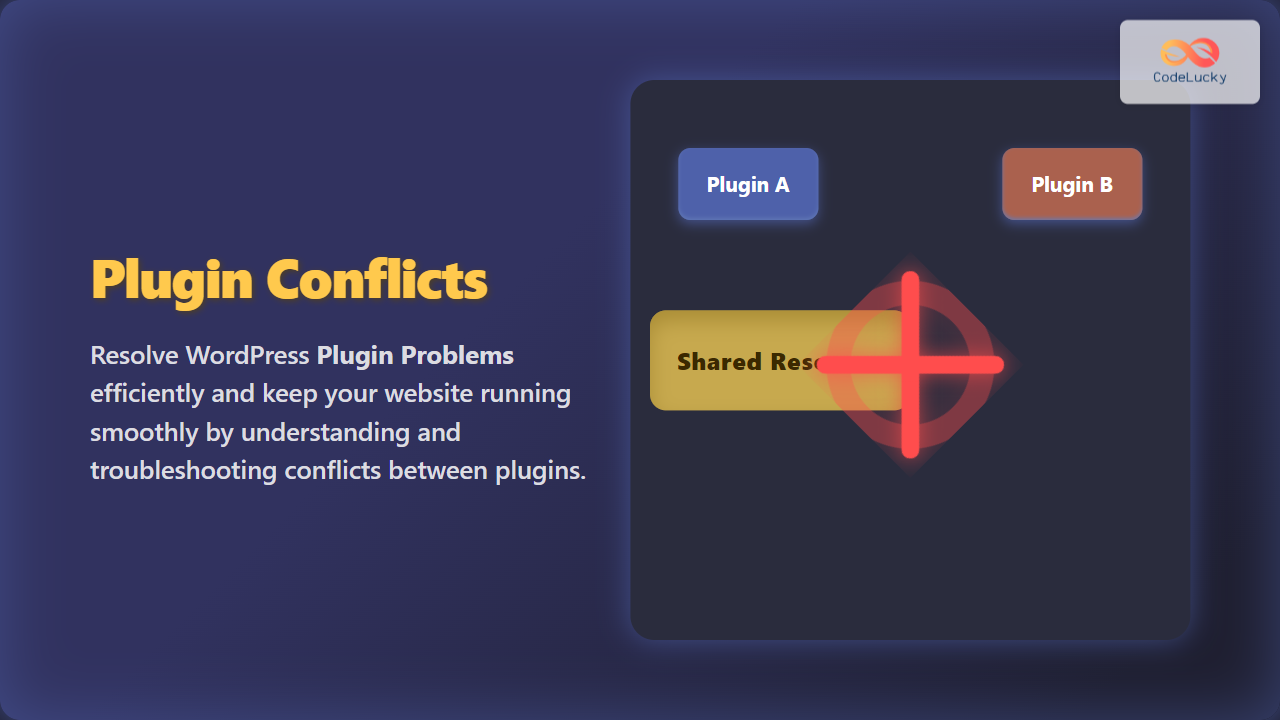
A plugin conflict occurs when two or more plugins try to modify the same functionality or resources within WordPress, resulting in unexpected behavior. Conflicts can stem from JavaScript clashes, PHP errors, database queries, or CSS overlaps.

This diagram illustrates how two plugins competing for shared resources cause website issues manifesting as errors or broken features.
Common Symptoms of Plugin Conflicts
- Sudden site crashes or white screen of death.
- JavaScript errors visible in browser console.
- Broken layouts or missing content.
- Dashboard errors or inability to access certain admin pages.
- Performance degradation or slow site load times.
Step-by-Step Troubleshooting Plugin Conflicts
1. Backup Your Site
Before troubleshooting, ensure you have a complete backup of your website files and database to avoid data loss.
2. Diagnose the Conflict
The most reliable method is to deactivate all plugins and then reactivate them one-by-one, checking the site functionality after each activation. This isolates the conflicting plugin(s).
3. Use Debugging Mode
Enable WordPress debugging in the wp-config.php file by setting:
define('WP_DEBUG', true);
define('WP_DEBUG_LOG', true);
define('WP_DEBUG_DISPLAY', false);
Review the wp-content/debug.log file for PHP errors and conflicts triggered by plugins.
4. Check JavaScript Console
Open your browser’s developer console (F12) to identify JavaScript errors which often reveal the conflicting script or plugin.
5. Update or Replace Plugins
Ensure all plugins are updated to the latest versions, as developers fix bugs often. If the conflict persists, consider alternative plugins that offer similar features but better compatibility.
Example: Diagnosing a JavaScript Conflict
Imagine activating a plugin that adds a slider but breaks the site’s menu functionality. Inspecting the browser console shows two conflicting functions trying to control the same menu element:
Uncaught TypeError: Cannot read property 'addEventListener' of null
    at slider.js:45
Uncaught ReferenceError: menuToggle is not defined
    at custom.js:22
Resolving this may involve:
- Renaming conflicting JavaScript functions.
- Enqueuing scripts properly with
wp_enqueue_script()avoiding duplicates. - Modifying or removing the problematic plugin or custom script.
Automating Conflict Detection Flow

Practical Tips to Avoid Future Plugin Conflicts
- Limit active plugins: Use only essential plugins to reduce conflict chances.
- Choose reputable plugins: Prefer plugins with good reviews and active support.
- Test updates: Use staging sites to test plugin updates before production deployment.
- Follow WordPress coding standards: If developing custom plugins, adhere to best practices to enhance compatibility.
Example: Proper Script Enqueue to Prevent Conflicts
Incorrect script loading can easily trigger conflicts. Here’s how to enqueue a custom script properly in a plugin or theme:
function my_custom_scripts() {
    wp_enqueue_script('custom-js', plugin_dir_url(__FILE__) . 'js/custom.js', array('jquery'), '1.0', true);
}
add_action('wp_enqueue_scripts', 'my_custom_scripts');
This ensures custom.js loads only once and after jQuery, preventing duplicated or out-of-order script issues.
Conclusion
Resolving plugin conflicts in WordPress requires patience and structured troubleshooting—back up, isolate the conflict, debug, and update or replace as needed. By understanding the causes and applying the outlined strategies, website managers can maintain a stable, fast, and functional WordPress environment free from plugin problems.