Introduction
Updating pip—the Python package installer—is essential to keep your Python environment secure, bug-free, and compatible with the latest packages. When working inside a virtual environment, you might wonder how to upgrade pip itself, without affecting the system-wide Python or other environments. This comprehensive guide explains how to update or upgrade pip from inside your virtual environment with clear examples, command outputs, and visual explanations to enhance understanding.
What Is pip and Why Upgrade Inside a Virtual Environment?
pip is the package management tool used to install and manage software packages written in Python. Each virtual environment has its own isolated pip separate from your global Python installation, allowing independent package versions per project.
Upgrading pip inside a virtual environment helps ensure compatibility and access to newer features or security fixes without affecting system-wide tools or other projects.
How to Check Your Current pip Version Inside a Virtual Environment
After activating your virtual environment, run the following command:
pip --versionExample Output:
pip 23.0.1 from /path/to/venv/lib/python3.10/site-packages/pip (python 3.10)This output confirms the version of pip that your virtual environment is currently using.
Activating Your Virtual Environment
Before upgrading pip, ensure your virtual environment is activated:
- Linux/macOS:
source venv/bin/activate - Windows (cmd.exe):
venv\Scripts\activate.bat - Windows (PowerShell):
venv\Scripts\Activate.ps1
Upgrading pip from Inside the Virtual Environment
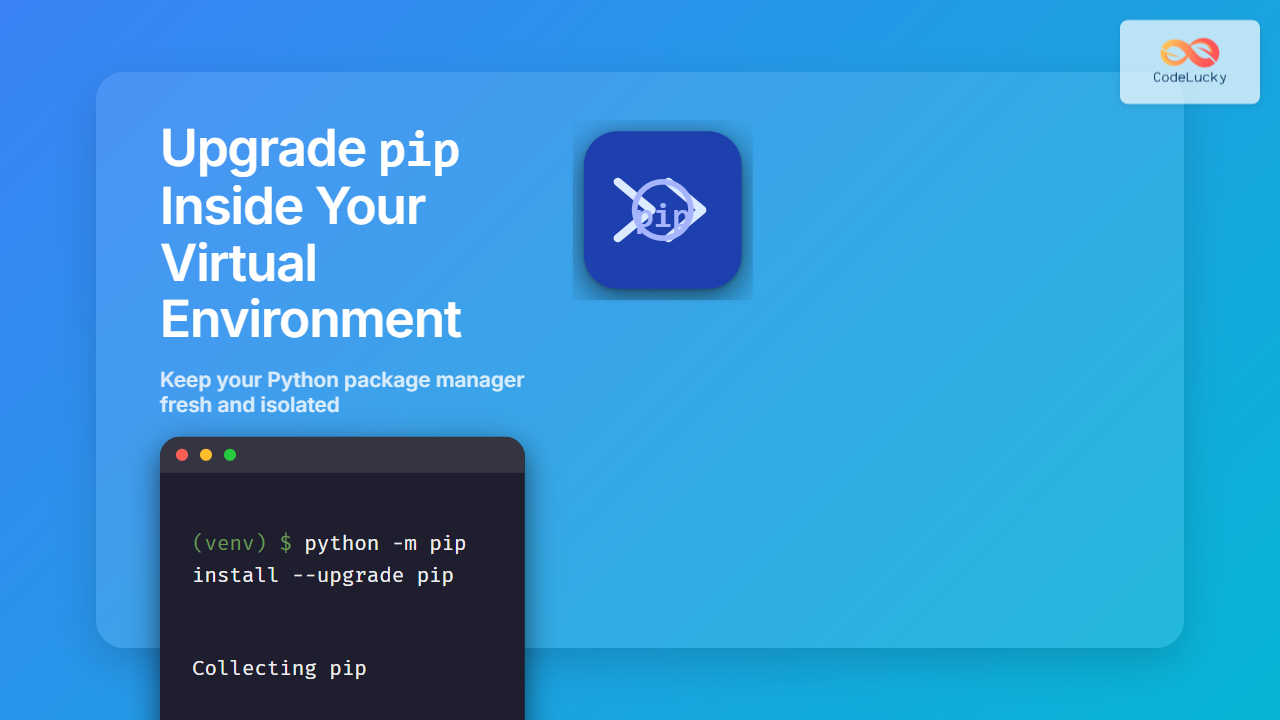
Once activated, upgrade pip using this command which upgrades pip inside the current environment only:
python -m pip install --upgrade pipExplanation:
python -m pipensures you run the pip corresponding to the Python interpreter inside your virtual environment.install --upgrade pipinstructs pip to upgrade itself to the latest available version.
Example Step-by-Step Output
(venv) $ python -m pip install --upgrade pip
Collecting pip
  Downloading pip-23.1.2-py3-none-any.whl (2.1 MB)
Installing collected packages: pip
  Attempting uninstall: pip
    Found existing installation: pip 23.0.1
    Uninstalling pip-23.0.1:
      Successfully uninstalled pip-23.0.1
Successfully installed pip-23.1.2
How to Confirm the Upgrade Was Successful
Check the pip version again:
pip --versionThe version should reflect the newly installed one, e.g.:
pip 23.1.2 from /path/to/venv/lib/python3.10/site-packages/pip (python 3.10)Why Use python -m pip Instead of Just pip?
Using python -m pip avoids ambiguity by explicitly calling pip via the interpreter in your environment. It guarantees that the pip being upgraded belongs to the same Python version and virtual environment as the python command refers to.

Additional Tips and Troubleshooting
- Permission Issues: Inside a virtual environment, you usually do not need
sudo. Global installs may require it, but avoid usingsudowithin virtual envs. - Using Different Python Versions: Confirm you are activating and upgrading pip for the correct Python version in multiple installations.
- If pip is not installed: Run
python -m ensurepip --upgradeor reinstall your virtual environment. - Virtual Environment Recreation: If issues persist, it might be easier to delete and recreate your virtual environment, which comes with an initial pip version.
Summary
To update or upgrade pip inside a Python virtual environment accurately:
- Activate the virtual environment.
- Run
python -m pip install --upgrade pip. - Verify with
pip --version.
This approach ensures pip stays isolated per environment and updates safely without system-wide side effects.
Visual Guide of Pip Upgrade Workflow

- Introduction
- What Is pip and Why Upgrade Inside a Virtual Environment?
- How to Check Your Current pip Version Inside a Virtual Environment
- Activating Your Virtual Environment
- Upgrading pip from Inside the Virtual Environment
- How to Confirm the Upgrade Was Successful
- Why Use python -m pip Instead of Just pip?
- Additional Tips and Troubleshooting
- Summary
- Visual Guide of Pip Upgrade Workflow