
In the rapidly evolving landscape of web development, PHP hosting demands smart version management and precise configuration to keep applications performant, secure, and compatible across environments. This article dives deep into how to manage PHP versions on hosting platforms and configure your PHP environment for best results. Whether you’re a beginner or an experienced developer, this guide helps you navigate PHP hosting setup with hands-on examples, visual diagrams, and practical tips.
Why Version Management Matters in PHP Hosting
PHP frequently updates with new features, performance improvements, and security patches. Running an outdated PHP version may expose your site to vulnerabilities, degrade performance, or cause incompatibilities with modern codebases or CMS plugins.
- Security: Latest PHP versions patch critical security flaws.
- Performance: Newer versions include optimizations for faster execution.
- Compatibility: Some libraries or CMS components require specific PHP versions.
Therefore, managing your PHP version on your hosting platform proactively is essential for running robust websites.
Common PHP Hosting Environments
PHP hosting environments vary widely, including:
- Shared Hosting: Limited control but user-friendly cPanel or Plesk version switching.
- VPS/Dedicated Servers: Full root access enabling manual version installation and configuration.
- Cloud Platforms: Managed services with version control through UI or CLI tools.
How to Check Your PHP Version
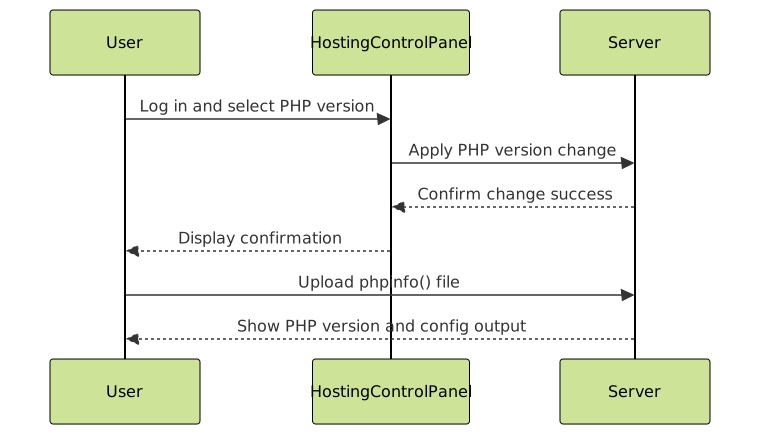
Before managing your PHP version, verify the current version your hosting uses. This can be done by creating a simple PHP file:
<?php
phpinfo();
?>
Uploading and accessing this file via your browser will display your PHP configuration and current version prominently at the top.
Switching PHP Versions on Shared Hosting
Most shared hosting providers allow version switching via control panel tools such as cPanel or Plesk. The exact procedure varies, but commonly involves:
- Logging into the control panel.
- Finding “Select PHP Version” or “PHP Manager”.
- Choosing from available PHP versions (e.g., 7.4, 8.0, 8.1).
- Saving changes to apply the new version.
Managing PHP Versions on VPS or Dedicated Servers
With full server control (Linux-based systems commonly), changing PHP versions requires command-line operations and careful configuration:
Installing Multiple PHP Versions
Most Linux distros support installing multiple PHP versions side-by-side using repositories:
sudo apt update
sudo apt install php7.4 php8.0 php8.1
Switching PHP Versions on Apache
Use the a2dismod and a2enmod commands to disable one PHP module and enable another, then restart Apache:
sudo a2dismod php7.4
sudo a2enmod php8.1
sudo systemctl restart apache2
Switching PHP Versions on Nginx (with PHP-FPM)
Configure Nginx to use a specific PHP-FPM socket in the server block by editing the fastcgi_pass directive:
location ~ \.php$ {
    include snippets/fastcgi-php.conf;
    fastcgi_pass unix:/run/php/php8.1-fpm.sock;
}
After configuration, reload Nginx:
sudo systemctl reload nginx
Configuring PHP Settings for Hosting
PHP configurations control resource limits, error handling, session management, and more. The main configuration file is php.ini. Location depends on your hosting environment but common paths can be:
- /etc/php/8.x/apache2/php.ini (Apache)
- /etc/php/8.x/fpm/php.ini (PHP-FPM)
- A custom php.ini or .user.ini on shared hosting directories
Common Useful php.ini Settings
| Directive | Description | Example Value |
|---|---|---|
| memory_limit | Maximum memory a script can consume | 256M |
| upload_max_filesize | Maximum allowed size for uploaded files | 50M |
| post_max_size | Max size of POST data | 60M |
| max_execution_time | Max time a script can run in seconds | 60 |
| display_errors | Show errors in output (disable on production) | Off |
Overriding PHP Settings Per Directory
On many hosts, you can override settings without editing main php.ini by placing a .user.ini or php.ini in your web root or public folder. Example .user.ini to increase upload limits:
upload_max_filesize = 20M
post_max_size = 25M
memory_limit = 128M
Example: Switching PHP Version and Verifying via CLI
On servers with multiple versions, you can switch PHP binaries for CLI use using update-alternatives:
sudo update-alternatives --config php
This lists installed PHP versions to choose from by number. After selection, verify with:
php -v
This outputs the PHP version active on the command line, useful for CLI scripts or composer usage.
Tips for Effective PHP Hosting Configuration
- Test after changes: Always test your website or app after switching versions or changing config to catch incompatibilities or errors.
- Keep backup: Backup php.ini and important files before modifications.
- Use version-specific tools: Use PHP version management tools like
phpenvor packages managers where possible. - Monitor performance: Analyze server logs and use monitoring tools to check for performance regressions.
Conclusion
Efficient PHP hosting version management and configuration is crucial to running secure, performant PHP applications. Whether on shared hosting or dedicated servers, understanding how to check, switch, and configure PHP versions empowers developers to optimize uptime and compatibility. With this guide’s actionable instructions and visual diagrams, you can confidently manage your PHP hosting environment.





