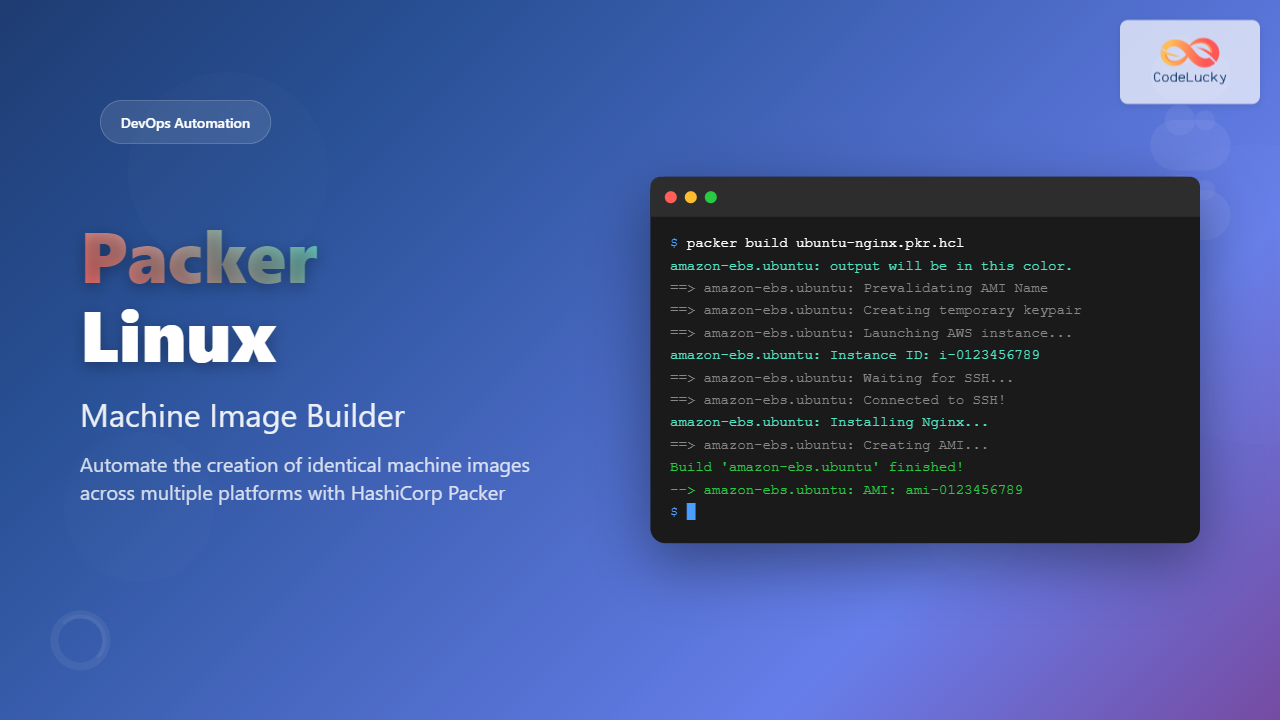
Packer is a powerful open-source tool developed by HashiCorp that automates the creation of machine images for multiple platforms from a single source configuration. Whether you’re building AMIs for AWS, VHDs for Azure, or VMware images, Packer streamlines the entire process with consistent, reproducible results.
What is Packer?
Packer is an infrastructure automation tool that creates identical machine images for multiple platforms from a single source template. It eliminates the need to manually configure each image, ensuring consistency across different cloud providers and virtualization platforms.
Key Benefits of Packer
- Multi-platform support: Build images for AWS, Azure, Google Cloud, VMware, VirtualBox, and more
- Consistency: Identical images across all platforms from one configuration
- Speed: Pre-configured images reduce deployment time
- Version control: Templates can be stored in Git for tracking changes
- Integration: Works seamlessly with CI/CD pipelines
Installing Packer on Linux
Method 1: Direct Binary Download
The simplest way to install Packer is downloading the binary directly from HashiCorp:
# Download the latest version
wget https://releases.hashicorp.com/packer/1.9.4/packer_1.9.4_linux_amd64.zip

# Extract the binary
unzip packer_1.9.4_linux_amd64.zip

# Move to system PATH
sudo mv packer /usr/local/bin/

# Verify installation
packer version
Expected Output:
Packer v1.9.4Method 2: Using Package Managers
Ubuntu/Debian:
# Add HashiCorp GPG key
curl -fsSL https://apt.releases.hashicorp.com/gpg | sudo apt-key add -

# Add official repository
sudo apt-add-repository "deb [arch=amd64] https://apt.releases.hashicorp.com $(lsb_release -cs) main"

# Update and install
sudo apt update && sudo apt install packer
CentOS/RHEL/Fedora:
# Add repository
sudo dnf config-manager --add-repo https://rpm.releases.hashicorp.com/fedora/hashicorp.repo

# Install Packer
sudo dnf install packer
Understanding Packer Templates
Packer uses JSON or HCL (HashiCorp Configuration Language) templates to define how images should be built. Modern Packer versions prefer HCL2 format for better readability and functionality.
Basic Template Structure
A Packer template consists of several key sections:
- Packer Block: Defines Packer version requirements
- Variables: Configurable parameters
- Sources: Define where and how to build images
- Build: Specifies provisioning steps
Creating Your First Packer Template
Let’s create a simple template to build an Ubuntu AMI with Nginx installed:
# Create a new file: ubuntu-nginx.pkr.hcl

packer {
  required_plugins {
    amazon = {
      version = ">= 1.2.8"
      source  = "github.com/hashicorp/amazon"
    }
  }
}

variable "aws_region" {
  type    = string
  default = "us-east-1"
}

variable "instance_type" {
  type    = string
  default = "t2.micro"
}

source "amazon-ebs" "ubuntu" {
  ami_name      = "ubuntu-nginx-{{timestamp}}"
  instance_type = var.instance_type
  region        = var.aws_region

  source_ami_filter {
    filters = {
      name                = "ubuntu/images/*ubuntu-jammy-22.04-amd64-server-*"
      root-device-type    = "ebs"
      virtualization-type = "hvm"
    }
    most_recent = true
    owners      = ["099720109477"] # Canonical
  }

  ssh_username = "ubuntu"

  tags = {
    Name        = "Ubuntu 22.04 with Nginx"
    Environment = "Development"
    BuildTool   = "Packer"
  }
}

build {
  name = "ubuntu-nginx"
  sources = [
    "source.amazon-ebs.ubuntu"
  ]

  provisioner "shell" {
    inline = [
      "echo 'Starting system update...'",
      "sudo apt-get update",
      "sudo apt-get upgrade -y",
      "echo 'Installing Nginx...'",
      "sudo apt-get install -y nginx",
      "sudo systemctl enable nginx",
      "echo 'Installation completed successfully!'"
    ]
  }

  provisioner "file" {
    source      = "index.html"
    destination = "/tmp/index.html"
  }

  provisioner "shell" {
    inline = [
      "sudo mv /tmp/index.html /var/www/html/index.html",
      "sudo chown www-data:www-data /var/www/html/index.html"
    ]
  }
}
Creating the HTML File
# Create index.html file
cat > index.html << 'EOF'


    Packer Built Server


    Welcome to Nginx on Ubuntu!
    This server was built using Packer automation.
    Build timestamp: $(date)


EOF
Building Images with Packer
Validating Templates
Before building, always validate your template:
packer validate ubuntu-nginx.pkr.hclExpected Output:
The configuration is valid.Building the Image
# Build with default variables
packer build ubuntu-nginx.pkr.hcl

# Build with custom variables
packer build -var 'aws_region=us-west-2' -var 'instance_type=t2.small' ubuntu-nginx.pkr.hcl
Build Process Output:
amazon-ebs.ubuntu: output will be in this color.

==> amazon-ebs.ubuntu: Prevalidating any provided VPC information
==> amazon-ebs.ubuntu: Prevalidating AMI Name: ubuntu-nginx-1692344567
==> amazon-ebs.ubuntu: Creating temporary keypair: packer_64e9f2d7-8e4a-4a5b-9f7c-1234567890ab
==> amazon-ebs.ubuntu: Creating temporary security group for this instance: packer_64e9f2d7
==> amazon-ebs.ubuntu: Authorizing access to port 22 from [0.0.0.0/0] in the temporary security groups...
==> amazon-ebs.ubuntu: Launching a source AWS instance...
    amazon-ebs.ubuntu: Instance ID: i-0123456789abcdef0
==> amazon-ebs.ubuntu: Waiting for instance (i-0123456789abcdef0) to become ready...
==> amazon-ebs.ubuntu: Using SSH communicator to connect: 52.91.123.456
==> amazon-ebs.ubuntu: Waiting for SSH to become available...
==> amazon-ebs.ubuntu: Connected to SSH!
==> amazon-ebs.ubuntu: Provisioning with shell script...
    amazon-ebs.ubuntu: Starting system update...
    amazon-ebs.ubuntu: Get:1 http://security.ubuntu.com/ubuntu jammy-security InRelease [110 kB]
    amazon-ebs.ubuntu: Installing Nginx...
    amazon-ebs.ubuntu: Installation completed successfully!
==> amazon-ebs.ubuntu: Uploading index.html => /tmp/index.html
==> amazon-ebs.ubuntu: Provisioning with shell script...
==> amazon-ebs.ubuntu: Stopping the source instance...
    amazon-ebs.ubuntu: Stopping instance
==> amazon-ebs.ubuntu: Waiting for the instance to stop...
==> amazon-ebs.ubuntu: Creating AMI ubuntu-nginx-1692344567 from instance i-0123456789abcdef0
==> amazon-ebs.ubuntu: Waiting for AMI to become ready...
==> amazon-ebs.ubuntu: Terminating the source AWS instance...
==> amazon-ebs.ubuntu: Cleaning up any extra volumes...
==> amazon-ebs.ubuntu: No volumes to clean up, skipping
==> amazon-ebs.ubuntu: Deleting temporary security group...
==> amazon-ebs.ubuntu: Deleting temporary keypair...
Build 'amazon-ebs.ubuntu' finished after 8 minutes 42 seconds.

==> Wait completed after 8 minutes 42 seconds

==> Builds finished. The artifacts of successful builds are:
--> amazon-ebs.ubuntu: AMIs were created:
us-east-1: ami-0123456789abcdef0
Advanced Packer Features
Multiple Provisioners
Combine different provisioners for complex setups:
build {
  name = "multi-provisioner"
  sources = ["source.amazon-ebs.ubuntu"]

  provisioner "shell" {
    inline = [
      "sudo apt-get update",
      "sudo apt-get install -y python3 python3-pip"
    ]
  }

  provisioner "file" {
    source      = "app/"
    destination = "/tmp/app/"
  }

  provisioner "shell" {
    scripts = [
      "scripts/install-dependencies.sh",
      "scripts/configure-app.sh"
    ]
  }

  provisioner "ansible" {
    playbook_file = "playbooks/main.yml"
  }
}
Using Variables Files
Create a variables file for better organization:
# variables.pkrvars.hcl
aws_region = "us-west-2"
instance_type = "t3.medium"
app_name = "my-application"
environment = "production"
# Use variables file
packer build -var-file="variables.pkrvars.hcl" ubuntu-nginx.pkr.hclMulti-Platform Builds
Build for multiple platforms simultaneously:
source "amazon-ebs" "aws" {
  ami_name      = "app-aws-{{timestamp}}"
  instance_type = "t2.micro"
  region        = "us-east-1"
  # AWS-specific configuration
}

source "azure-arm" "azure" {
  image_publisher = "Canonical"
  image_offer     = "0001-com-ubuntu-server-jammy"
  image_sku       = "22_04-lts"
  # Azure-specific configuration
}

source "googlecompute" "gcp" {
  project_id   = "my-project"
  source_image = "ubuntu-2204-jammy-v20230615"
  zone         = "us-central1-a"
  # GCP-specific configuration
}

build {
  sources = [
    "source.amazon-ebs.aws",
    "source.azure-arm.azure",
    "source.googlecompute.gcp"
  ]

  provisioner "shell" {
    inline = [
      "sudo apt-get update",
      "sudo apt-get install -y nginx"
    ]
  }
}
Packer Commands Reference
Essential Commands
| Command | Description | Example |
|---|---|---|
packer build |
Build image from template | packer build template.pkr.hcl |
packer validate |
Validate template syntax | packer validate template.pkr.hcl |
packer fmt |
Format template files | packer fmt template.pkr.hcl |
packer inspect |
Show template details | packer inspect template.pkr.hcl |
packer version |
Show Packer version | packer version |
Build Options
# Build specific sources only
packer build -only='amazon-ebs.ubuntu' template.pkr.hcl

# Build except specific sources
packer build -except='vmware-iso.windows' template.pkr.hcl

# Enable debug mode
packer build -debug template.pkr.hcl

# Set variables
packer build -var 'region=us-west-2' -var 'instance_type=t3.large' template.pkr.hcl

# Use variable file
packer build -var-file='prod.pkrvars.hcl' template.pkr.hcl

# Parallel builds (default is 0 = unlimited)
packer build -parallel-builds=2 template.pkr.hcl
Best Practices for Packer
Template Organization
Structure your Packer projects for maintainability:
project/
├── templates/
│   ├── ubuntu-base.pkr.hcl
│   └── centos-base.pkr.hcl
├── scripts/
│   ├── install-docker.sh
│   └── configure-ssh.sh
├── files/
│   ├── nginx.conf
│   └── app.service
├── variables/
│   ├── dev.pkrvars.hcl
│   ├── staging.pkrvars.hcl
│   └── prod.pkrvars.hcl
└── README.md
Security Considerations
- Use IAM roles: Avoid hardcoding credentials
- Temporary security groups: Let Packer create temporary access
- Encrypt AMIs: Enable encryption for sensitive workloads
- Scan images: Use vulnerability scanners before deployment
source "amazon-ebs" "secure" {
  encrypt_boot = true
  kms_key_id   = "alias/my-key"

  security_group_filter {
    filters = {
      "group-name": "packer-security-group"
    }
  }
}
Performance Optimization
# Use faster instance types during build
variable "build_instance_type" {
  type    = string
  default = "c5.large"  # Faster CPU for builds
}

# Enable enhanced networking
source "amazon-ebs" "optimized" {
  instance_type           = var.build_instance_type
  ena_support            = true
  sriov_net_support      = "simple"

  # Use faster EBS volume types
  launch_block_device_mappings {
    device_name = "/dev/sda1"
    volume_type = "gp3"
    volume_size = 20
    iops        = 3000
    throughput  = 125
  }
}
Integration with CI/CD Pipelines
GitHub Actions Example
# .github/workflows/build-image.yml
name: Build Machine Image

on:
  push:
    branches: [main]
  pull_request:
    branches: [main]

jobs:
  build:
    runs-on: ubuntu-latest

    steps:
    - uses: actions/checkout@v3

    - name: Setup Packer
      uses: hashicorp/setup-packer@main
      with:
        version: latest

    - name: Configure AWS credentials
      uses: aws-actions/configure-aws-credentials@v2
      with:
        aws-access-key-id: ${{ secrets.AWS_ACCESS_KEY_ID }}
        aws-secret-access-key: ${{ secrets.AWS_SECRET_ACCESS_KEY }}
        aws-region: us-east-1

    - name: Validate Packer template
      run: packer validate templates/ubuntu-nginx.pkr.hcl

    - name: Build AMI
      run: packer build templates/ubuntu-nginx.pkr.hcl
Troubleshooting Common Issues
Build Failures
SSH Connection Timeouts:
# Increase SSH timeout
source "amazon-ebs" "ubuntu" {
  ssh_timeout = "10m"
  ssh_handshake_attempts = 20
}
Provisioner Failures:
# Add error handling to scripts
provisioner "shell" {
  inline = [
    "set -e",  # Exit on error
    "sudo apt-get update || (sleep 30 && sudo apt-get update)",
    "sudo apt-get install -y nginx"
  ]
  pause_before = "10s"  # Wait before starting
}
Debug Mode
# Enable debug mode for detailed logging
packer build -debug template.pkr.hcl

# Check Packer logs
export PACKER_LOG=1
packer build template.pkr.hcl
Monitoring and Logging
Implement comprehensive logging for production builds:
build {
  sources = ["source.amazon-ebs.ubuntu"]

  provisioner "shell" {
    inline = [
      "echo '[INFO] Starting provisioning at $(date)' | tee -a /tmp/build.log",
      "sudo apt-get update 2>&1 | tee -a /tmp/build.log",
      "echo '[INFO] Provisioning completed at $(date)' | tee -a /tmp/build.log"
    ]
  }

  post-processor "manifest" {
    output = "manifest.json"
  }
}
Conclusion
Packer revolutionizes infrastructure management by providing a unified approach to machine image creation across multiple platforms. Its declarative templates, extensive plugin ecosystem, and seamless CI/CD integration make it an essential tool for modern DevOps practices.
Key takeaways for mastering Packer on Linux:
- Start with simple templates and gradually add complexity
- Use HCL2 format for better readability and features
- Implement proper security practices from the beginning
- Integrate with your CI/CD pipeline for automated image builds
- Monitor and log build processes for troubleshooting
- Keep templates in version control for team collaboration
As infrastructure continues to evolve toward immutable deployments and cloud-native architectures, Packer’s role in creating consistent, reproducible machine images becomes increasingly vital. Master these concepts and practices to build robust, automated infrastructure that scales with your organization’s needs.
Related Posts
buildah Command Linux: Complete Guide to Container Image Building
The buildah command is a powerful tool for building Open Container Initiative (OCI) compliant container images in Linux environments. Unlike...
Vagrant Linux: Complete Guide to Development Environment Management
Vagrant revolutionizes development environment management by providing a consistent, reproducible way to create and manage virtual development environments. This comprehensive...
Clone Virtual Machine: Complete Guide to VM Duplication Techniques and Best Practices
Virtual machine cloning is a fundamental virtualization technique that creates identical copies of existing VMs, enabling rapid deployment, testing environments,...
nomad Linux: Complete Guide to HashiCorp’s Workload Orchestrator
What is HashiCorp Nomad? HashiCorp Nomad is a simple yet powerful workload orchestrator that enables organizations to deploy and manage...
skopeo Command Linux: Complete Guide to Container Image Management
The skopeo command is a powerful Linux utility designed for working with container images and registries. Unlike Docker or Podman,...

machinectl Command Linux: Complete Guide to Managing systemd Containers and VMs
The machinectl command is a powerful utility in Linux systems that provides comprehensive management capabilities for systemd containers and virtual...
MicroK8s Linux: Complete Guide to Canonical’s Lightweight Kubernetes Distribution
MicroK8s is Canonical's lightweight, single-package Kubernetes distribution designed for developers, IoT, and edge computing environments. Unlike traditional Kubernetes installations that...
Terraform Linux: Complete Infrastructure as Code Management Guide
Terraform is a powerful open-source Infrastructure as Code (IaC) tool that allows you to define, provision, and manage infrastructure resources...

OpenShift Linux: Complete Guide to Enterprise Kubernetes Platform Management
OpenShift represents Red Hat's enterprise-grade Kubernetes platform that revolutionizes how organizations deploy, manage, and scale containerized applications on Linux systems....
Deployment Strategies: Blue-Green, Canary, Rolling – Complete Guide for DevOps Teams
Understanding Modern Deployment Strategies In today's fast-paced software development landscape, choosing the right deployment strategy can make the difference between...

Cloud-Native Agile: Revolutionizing Born-in-the-Cloud Development Practices
Cloud-native agile development represents a paradigm shift that fundamentally transforms how software teams approach application development, deployment, and maintenance. This...
docker Linux: Complete Container Platform Guide for Developers
Docker has revolutionized software development and deployment by introducing lightweight containerization technology. As a platform that enables developers to package...